SVG in WPF: Choose a Renderer or a XAML Drawing
Use SVG artwork in WPF with a renderer, a native DrawingImage, or a PNG export. Follow an original icon example and check bounds, colors, and dependencies.
On this page
An SVG opens in your browser, but putting its filename into a WPF Image does not give you the same rendering pipeline. Start by choosing what the application will actually receive: SVG processed by a library, native WPF drawing objects, or a raster export.
WPF's built-in imaging codecs include PNG and JPEG, but do not list SVG. Its Image control can also display a DrawingImage, so a vector display does not have to mean loading an SVG file directly. Microsoft documents these as separate imaging and drawing-source routes.
This guide uses an original bookmark icon to make that choice concrete. The SVG and XAML below were written by hand; they are not a converter benchmark or a Windows application capture.
Choose the representation before changing the file
| What you need | A route to evaluate | What to inspect |
|---|---|---|
| Keep SVG files as the source supplied to a rendering library | A WPF SVG renderer or converter, such as SharpVectors | Supported SVG features, file resolution, and deployment dependencies |
| Maintain a small icon directly as WPF geometry | DrawingImage containing drawing objects | Geometry, brushes, drawing bounds, and intended display size |
| Display artwork that can be delivered at known pixel sizes | Export PNG and use the bitmap image route | Export dimensions, transparency, and appearance at the largest required size |
These choices concern the object your application displays. They do not decide whether the designer should keep an editable SVG master. Preserve that master even if the app receives a PNG.
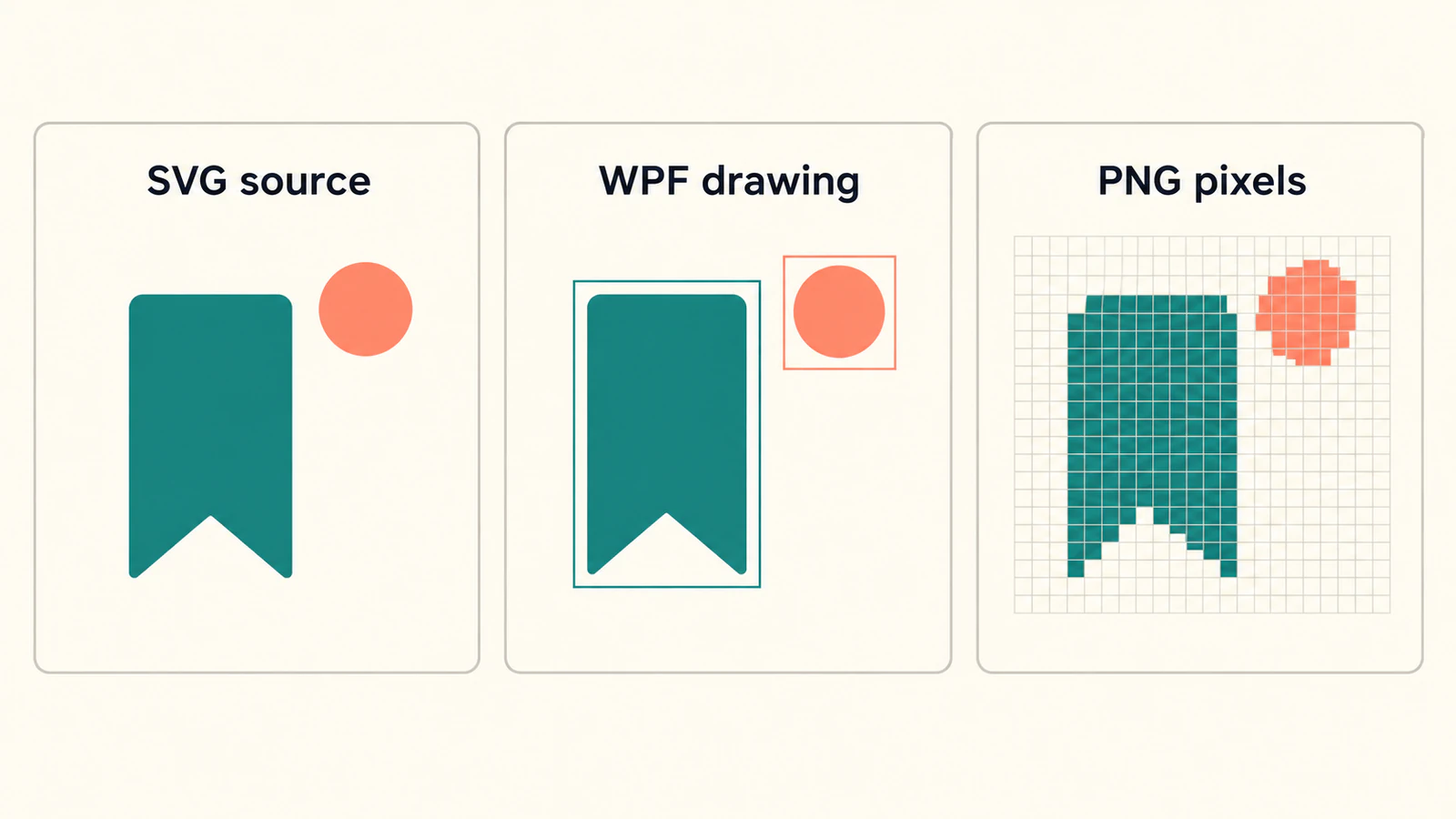
Try a small native DrawingImage first
For a simple icon, a hand-authored drawing gives you a useful baseline without introducing an SVG parser. Microsoft shows the structure: set Image.Source to a DrawingImage, then assign the drawing to its Drawing property. The following original example follows that documented pattern.
Here is the SVG design: a teal bookmark and a separate coral circle. Save it as bookmark.svg if you want a source to compare in your editor.
<svg xmlns="http://www.w3.org/2000/svg" width="120" height="80"
     viewBox="0 0 120 80">
  <path fill="#176B64" d="M20 12 H64 V68 L42 54 L20 68 Z"/>
  <circle fill="#EC785E" cx="92" cy="24" r="10"/>
</svg>
Place this Image inside an existing WPF window's layout container, such as a Grid:
<Image xmlns="http://schemas.microsoft.com/winfx/2006/xaml/presentation"
       Width="120" Height="80" Stretch="Uniform">
  <Image.Source>
    <DrawingImage>
      <DrawingImage.Drawing>
        <DrawingGroup>
          <GeometryDrawing Brush="Transparent"
                           Geometry="M0,0 H120 V80 H0 Z"/>
          <GeometryDrawing Brush="#176B64"
                           Geometry="M20,12 H64 V68 L42,54 L20,68 Z"/>
          <GeometryDrawing Brush="#EC785E">
            <GeometryDrawing.Geometry>
              <EllipseGeometry Center="92,24" RadiusX="10" RadiusY="10"/>
            </GeometryDrawing.Geometry>
          </GeometryDrawing>
        </DrawingGroup>
      </DrawingImage.Drawing>
    </DrawingImage>
  </Image.Source>
</Image>
The two visible drawing objects describe the bookmark and circle separately. The transparent rectangle establishes the example's full 120-by-80 drawing bounds, including the empty margin around the artwork. It does not clip later geometry or turn the XAML into an SVG document.
The coordinates are deliberate authoring choices. Compare the two snippets: the bookmark uses the same points, and the circle uses the same center and radius. This is a small manual translation you can review, not a recipe for translating every SVG feature into XAML.
The source files have been checked as XML, but this example has not been built or rendered in a Windows WPF application. Test it in your project before adopting it.
Check bounds and brushes before making it reusable
Start at the supplied size. Confirm that the bookmark's bottom notch remains visible and the circle stays detached. Then try a wider or taller layout slot. Stretch="Uniform" preserves proportions while fitting the available area, as described in Microsoft's image stretching guidance.
Change the coral Brush value to a different color. That is an intentional edit to a native drawing object; it is not evidence that arbitrary imported SVG parts will expose the same convenient controls.
If the drawing looks off-center, compare its bounds with the SVG's viewBox and blank margins. A correct silhouette can still occupy a different fraction of its layout slot. Keep this simple baseline while you introduce the final artwork.
Use a renderer when SVG remains the input
When maintaining native geometry by hand is impractical, evaluate a library that explicitly reads SVG for WPF. The SharpVectors.Wpf package provides SVG parsing, conversion, and viewing components. Its package page is the appropriate place to check the current version, target frameworks, and dependencies before adding it to a project.
SharpVectors' getting-started documentation describes conversion into WPF drawing objects and examples for image-based display. That makes it a different route from asking the ordinary bitmap pipeline to decode an SVG filename.
Use the original bookmark as your first library input, then substitute your actual artwork. Keep these checks separate:
- Loading: does the chosen example resolve the file or application resource in your project?
- Representation: does the API return drawing objects, produce XAML, or render a bitmap for your use case?
- Appearance: are the notch, detached circle, colors, and blank margins correct in the running application?
- Deployment: does the result require the library's runtime assembly or other assets on the target machine?
Follow the examples that match your installed release. SharpVectors documents an IncludeRuntime setting, marks TextAsGeometry as deprecated, and flags namespace changes for version 2.0. Those are reasons to review old snippets before copying their settings, not to assume one conversion configuration will remain appropriate indefinitely. SharpVectors documentation
For a logo with lettering, inspect the actual target output as well as the source. Our SVG font-change guide explains the difference between text that relies on fonts and lettering retained as outlines. Converting text can change what remains editable, so keep the original design file.
Do not borrow SvgImageSource from the wrong XAML framework
A search for this problem can lead to Microsoft's SvgImageSource reference. The UWP class documentation places that type in Windows.UI.Xaml.Media.Imaging. That is a different API from WPF's System.Windows controls and media classes.
Check the framework named by an example before adding a namespace or package. Similar XAML markup does not make a UWP or WinUI image source a built-in WPF feature. A solution for another framework can be valid there and still be the wrong answer for your desktop project.
Decide whether a PNG is enough
A PNG export is a reasonable delivery choice when its required sizes are known and the application does not need to edit the geometry. Export for those sizes, compare transparent edges against the actual background, and inspect the largest display use. Increasing the layout size of a bitmap does not recreate the source paths.
Also check what is inside the SVG before spending time on a rendering library. If it only embeds a raster image, importing the wrapper will not make that picture editable geometry. The embedded-raster SVG guide shows what to inspect. For a collection of icons, use the same margins and silhouette checks across the set; our UI icon preparation workflow covers that artwork stage.
If the bookmark or logo survives only as a PNG or JPG, PerfectVector's image-to-vector workflow can help prepare an editable SVG candidate. Inspect the recovered silhouette, notch, and separate details before choosing a WPF delivery route. Vectorization prepares artwork; it does not install a WPF renderer or guarantee a native XAML conversion.
The broader image vectorization guide explains that source-recovery step. Once the source is ready, the application checks still belong in WPF.
FAQ
Can WPF Image load an SVG file directly? WPF's documented built-in imaging codecs do not include SVG. Use an SVG-capable library, provide native drawing objects through DrawingImage, or supply a supported raster format such as PNG.
Is DrawingImage the same thing as an SVG file? No. DrawingImage displays WPF drawing objects. An SVG library may create those objects, or you can author them directly, as in the small example here.
Can I use the UWP SvgImageSource example in WPF? Do not treat it as a built-in WPF API. The UWP reference belongs to a different namespace and framework; choose code and dependencies for your actual application.
Will converting an SVG to XAML preserve every effect? Do not assume so. Check the converter's documented capabilities and inspect your artwork in the target application, including text, bounds, separate shapes, and effects.
Sources
- Microsoft — WPF Imaging Overview — Built-in bitmap formats and image stretching behavior.
- Microsoft — Use a Drawing as an Image Source — Native DrawingImage and drawing-object structure.
- SharpVectors — Getting Started — WPF drawing conversion, runtime settings, and documented migration cautions.
- NuGet — SharpVectors.Wpf — Current package identity and compatibility information.
- Microsoft — UWP SvgImageSource Class — Framework and namespace boundary for a commonly confused API.
Choose one WPF route and compare a small design before replacing your full asset set. If raster artwork needs recovery, prepare an editable SVG candidate, inspect the shapes, then test the chosen representation in your application.
More from the blog

Matplotlib SVG: Keep Plot and Logo Artwork as Paths
Export your Matplotlib plot as SVG, compose separate logo paths with svgutils, and check the delivered file for embedded pixels, placement, and font changes.

Fabric.js SVG Import: Keep Artwork Editable on Canvas
Import SVG into Fabric.js as editable objects, recolor one part, and export a checked SVG copy. Follow a tested example and separate source issues from API bugs.