Canvas Path2D SVG: Reuse Paths at the Right Size
Reuse SVG path data on canvas with the right viewBox transform, colors, holes, and pixel density. Follow an original example and keep the editable SVG master.
On this page
Pass a path's d attribute to new Path2D(d), then draw it with a canvas context. To match the SVG, also carry over its coordinate mapping, paint, and fill rule. The constructor accepts path data; it does not import an SVG document or apply the document's viewBox, CSS, or group transforms (MDN Path2D constructor).
This matters when a custom icon looks correct as SVG but becomes small, displaced, black, or solid inside its opening on canvas. The example below fixes those differences with two paths and an explicit fit transform. Start with existing vector geometry when you have it. Vectorization is useful only when the artwork you need to reuse still exists as pixels.
What a Path2D object carries
Think of the path data as the contour description. Other SVG instructions live outside that string, and your canvas drawing code must supply the ones it needs.
| SVG input | Canvas responsibility |
|---|---|
A path's d value | Construct the Path2D geometry |
viewBox and displayed size | Compute the drawing transform |
fill and fill-rule | Set fillStyle and pass the rule to fill() |
Parent or path transform | Apply the equivalent transform separately |
| CSS, gradients, masks, text, and images | Implement the required rendering or choose another route |
The sample uses literal fills, two direct child paths, and no other SVG features. It is deliberately small enough to inspect. Copying its extraction loop into an arbitrary SVG importer would lose inherited styles and unsupported elements.
If you need the browser to paint the complete document instead, load the whole SVG as an image, wait for decoding and test PNG export separately. That route produces canvas pixels while keeping the original SVG as the editable master.
Compare the source with an unconfigured canvas
This original emblem has a rounded teal body, an orange point, and a square opening. Its viewBox starts at (20, 10), not (0, 0). The inner subpath runs in the same direction as the outer boundary, so the declared evenodd rule matters.
Put this SVG and a canvas into an HTML page:
<svg id="source" xmlns="http://www.w3.org/2000/svg"
     viewBox="20 10 120 80" width="240" height="160">
  <path fill="#126d70" fill-rule="evenodd"
        d="M40 20 H90 Q110 20 110 40 V60 Q110 80 90 80 H40 Q30 80 30 70 V30 Q30 20 40 20 Z M50 35 H80 V60 H50 Z"/>
  <path fill="#f19b38" d="M115 25 L135 50 L115 75 Z"/>
</svg>
<canvas id="result"></canvas>
If you loop over the two d values and call ctx.fill(new Path2D(d)) without setting anything else, the geometry uses canvas coordinates and the default paint and fill rule. It does not automatically acquire the SVG's appearance. Canvas fill() accepts both a path and an explicit evenodd or nonzero rule; nonzero is the default (MDN fill()).
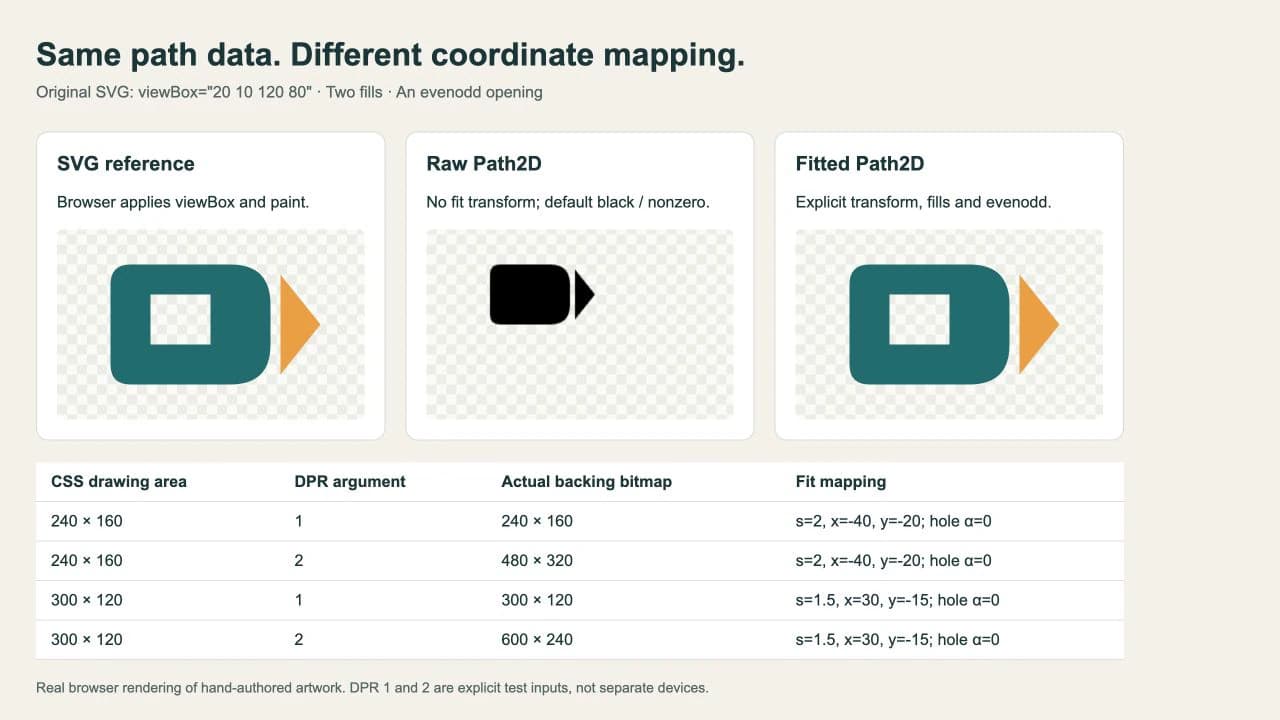
Method: we rendered this hand-authored SVG in the browser, drew its two paths through both canvas routes, and reran the published code in a separate HTML page. The screenshot is actual browser output. It demonstrates coordinate and paint handling, not a PerfectVector conversion.
Map the viewBox into the canvas
SVG's default aspect-preserving behavior fits the viewBox inside its viewport and centers it. The SVG coordinate-system specification defines that mapping. For this flat example, reproduce xMidYMid meet with one uniform scale and a translation:
scale = min(cssWidth / viewBoxWidth, cssHeight / viewBoxHeight)
tx = (cssWidth - viewBoxWidth * scale) / 2 - viewBoxX * scale
ty = (cssHeight - viewBoxHeight * scale) / 2 - viewBoxY * scale
The last terms remove the nonzero origin. At 240 × 160, scale is 2, tx is -40, and ty is -20. At 300 × 120, scale becomes 1.5; the 180-pixel-wide fitted viewBox gets 60 pixels of horizontal space on either side. Translation is therefore (30, -15) after accounting for the source origin.
Use the following script after the HTML above. It handles this sample's direct path attributes, redraws the whole canvas, and separates CSS size from backing bitmap size:
const source = document.querySelector("#source");
const vb = source.viewBox.baseVal;
const layers = [...source.querySelectorAll("path")].map(el => ({
  path: new Path2D(el.getAttribute("d")),
  fill: el.getAttribute("fill"),
  rule: el.getAttribute("fill-rule") || "nonzero"
}));

function draw(canvas, cssWidth, cssHeight, dpr = window.devicePixelRatio || 1) {
  canvas.style.width = `${cssWidth}px`;
  canvas.style.height = `${cssHeight}px`;
  canvas.width = Math.round(cssWidth * dpr);
  canvas.height = Math.round(cssHeight * dpr);
  const ctx = canvas.getContext("2d");
  const scale = Math.min(cssWidth / vb.width, cssHeight / vb.height);
  const tx = (cssWidth - vb.width * scale) / 2 - vb.x * scale;
  const ty = (cssHeight - vb.height * scale) / 2 - vb.y * scale;
  const px = canvas.width / cssWidth;
  const py = canvas.height / cssHeight;
  ctx.setTransform(px * scale, 0, 0, py * scale, px * tx, py * ty);
  for (const layer of layers) {
    ctx.fillStyle = layer.fill;
    ctx.fill(layer.path, layer.rule);
  }
}

draw(document.querySelector("#result"), 240, 160);
Setting canvas.width and canvas.height clears and resets the context. The function then sets the complete transform and paints every layer again, so repeated calls do not accumulate scale. It assumes a valid viewBox with positive width and height and positive requested dimensions.
px and py use the actual rounded bitmap dimensions. That keeps CSS coordinates mapped to the allocated pixels even when the requested density produces fractional dimensions. MDN's devicePixelRatio example explains why canvas display size and pixel dimensions need separate treatment.
Check size and pixel density separately
We passed DPR values 1 and 2 explicitly into the same function at two CSS sizes. These are controlled density inputs, not a claim that we tested two physical devices. The browser's reported device pixel ratio for the default call was 2.
| CSS size | DPR argument | Observed canvas bitmap |
|---|---|---|
| 240 × 160 | 1 | 240 × 160 |
| 240 × 160 | 2 | 480 × 320 |
| 300 × 120 | 1 | 300 × 120 |
| 300 × 120 | 2 | 600 × 240 |
The opening's center remained transparent in all four cases. Higher density changes the backing resolution; it does not fix a wrong transform or recover a missing fill rule. Redraw when the intended CSS dimensions or device pixel ratio change. A CSS-only enlargement stretches the bitmap already on the canvas.
If the source is already wrong before it reaches canvas, use the SVG size and viewBox checks. If only canvas is wrong, compare its transform and paint handling against the working SVG reference first.
Preserve the source and choose the right import route
Keep the SVG master and its attributes alongside any derived path data. A Path2D drawing routine is useful when you control a small set of contours and their styling. For a complex SVG whose browser-rendered appearance is all you need, loading it as an image and drawing that image can avoid rebuilding every feature. That route still paints into the canvas bitmap.
Saving canvas output as PNG creates a raster image, even if the drawing began with vector paths. The canvas export API produces an image blob; PNG support is required (MDN toBlob()). Keep SVG for later path editing. Likewise, an SVG file can contain a raster image rather than useful path data; the embedded-image diagnosis helps distinguish those cases.
PerfectVector fits when only a PNG or JPG of your custom icon remains and you need reusable contours. Convert that image to SVG, then inspect its silhouette, separate colors, and small openings before extracting paths for canvas. A clean SVG master should go directly into the preparation step. Tracing does not implement viewBox mapping, copy CSS, or make a canvas PNG editable as vectors.
For a whole icon family, establish the shared UI-kit grid and paint rules before wiring up each drawing routine. More SVG preparation examples are in the blog.
Before you use the drawing in your interface
- Check the SVG reference at the same display dimensions as the canvas.
- Confirm the viewBox origin as well as its width and height.
- Transfer paints and the intended fill rule; inspect every opening.
- Account for group transforms instead of copying
dalone. - Read actual
canvas.widthandcanvas.height, then test the largest intended display size. - Preserve the SVG master and provide an accessible name or surrounding text appropriate to the interface.
FAQ
Can Path2D import a whole SVG file? No. Its string input is SVG path data, such as the value of a path's d attribute. Document structure, viewBox mapping, styles, and group transforms need separate handling.
Why did the hole in my SVG fill in on canvas? Check the fill rule and subpath directions. This example requires evenodd, while canvas fill defaults to nonzero. Pass the intended rule when filling the Path2D object.
Does drawing SVG paths on canvas preserve a vector export? The paths remain reusable drawing instructions in your program, but exporting the canvas as PNG produces pixels. Keep the original SVG for editing and vector delivery.
Sources
- MDN — Path2D constructor — Defines the path-data string accepted by the constructor.
- W3C — SVG coordinate systems — Defines viewBox origin, viewport mapping, and aspect-preserving alignment.
- MDN — Canvas fill() — Documents path filling and the evenodd and nonzero rules.
- MDN — devicePixelRatio — Explains CSS display size and canvas backing resolution.
- MDN — Canvas toBlob() — Documents raster image export from a canvas.
Only have a raster icon? Prepare its SVG with PerfectVector, check the contour and openings, then compare the canvas drawing with that SVG at your actual interface sizes.
More from the blog
p5.js SVG Images: Load, Scale, and Keep Your Source
Load an SVG in p5.js 2.3.4 with async setup, check its transparent opening at three Canvas sizes, and keep editable paths separate from the displayed image.
Graphviz SVG Images: Keep Node Artwork Portable
Add SVG artwork to a Graphviz node, inspect its image reference, and test a complete asset bundle against a moved diagram and a self-contained delivery copy.