p5.js SVG Images: Load, Scale, and Keep Your Source
Load an SVG in p5.js 2.3.4 with async setup, check its transparent opening at three Canvas sizes, and keep editable paths separate from the displayed image.
On this page
- Choose image display or source geometry
- Save an original SVG with a real opening
- Load it with async setup
- What the browser test showed
- Fix the symptom you see
- The image never appears
- The image looks stretched
- The enlarged edges look soft
- The center is white instead of transparent
- Keep Canvas export separate from the SVG master
- FAQ
- Sources
To load an SVG image in p5.js 2.3.4, use await loadImage('emblem.svg') inside async function setup(), then draw the returned image with image(). Serve the page and SVG over HTTP. Keep the SVG file as your editable master: this image-loading route paints a p5.Image onto Canvas and does not give the sketch editable SVG paths. The current loadImage reference documents the Promise-based loading pattern.
A successful load answers only the first question. Check whether the opening stays transparent, whether the image is stretched, and whether its loaded pixel dimensions suit the largest display size. The example below uses one original rounded diamond with a hole and draws it at 48, 120, and 240 pixels.
Choose image display or source geometry
| What you need | What to keep or check |
|---|---|
| Paint an existing SVG illustration into a p5 sketch | Load it as an image and inspect the Canvas result |
| Change the illustration's source contours | Keep and edit the original SVG file separately |
| Draw the image at a new size | Preserve its aspect ratio and check loaded image dimensions |
| Export a path-based SVG | Choose and verify a separate geometry or SVG-rendering workflow |
This guide pins p5.js 2.3.4 and the P2D renderer. It uses the current asynchronous API rather than copying a preload() starter from a 1.x tutorial. createCanvas creates the sketch's Canvas and supports an explicit renderer choice.
In this version, the image-loading implementation draws the loaded browser image into the backing Canvas of a p5.Image. That explains why keeping the .svg extension and enlarging the Canvas display are not enough to preserve path-based editing inside the sketch.
Save an original SVG with a real opening
Save this file as emblem.svg. It has one path, no embedded bitmap, a 120 × 120 declared size, and a matching viewBox. The outer rounded diamond and inner diamond are two contours within that path. fill-rule="evenodd" leaves the center unpainted; MDN's fill-rule reference explains how that rule determines the filled area.
<svg xmlns="http://www.w3.org/2000/svg" width="120" height="120" viewBox="0 0 120 120">
  <path fill="#eb705a" fill-rule="evenodd" d="M60 8 Q66 8 72 14 L106 48 Q118 60 106 72 L72 106 Q60 118 48 106 L14 72 Q2 60 14 48 L48 14 Q54 8 60 8 Z M60 40 L80 60 L60 80 L40 60 Z"/>
</svg>
The opening is not a white diamond placed over the coral shape. This distinction matters when the sketch background changes. If an existing file includes an <image> element, inspect it with the embedded-raster checklist before assuming that all its artwork consists of editable paths.
Load it with async setup
Save this complete page as example.html beside emblem.svg, then serve that folder with a local HTTP server. For example, run python3 -m http.server 8000 in the folder and open http://localhost:8000/example.html in your browser.
<!doctype html>
<html lang="en"><meta charset="utf-8"><title>p5.js SVG image size check</title>
<p>Original 120 × 120 SVG; Canvas destinations 48, 120 and 240 pixels.</p>
<pre id="status">Loading original SVG…</pre>
<script src="https://cdn.jsdelivr.net/npm/p5@2.3.4/lib/p5.js"></script>
<script>async function setup() {
  createCanvas(650, 300, P2D);
  pixelDensity(1);
  noLoop();
  background('#e7eeea');
  try {
    const art = await loadImage('emblem.svg');
    for (const [x, size] of [[20, 48], [110, 120], [280, 240]]) {
      image(art, x, 20, size, size * art.height / art.width);
    }
    const center = art.get(60, 60);
    const solid = art.get(60, 25);
    document.querySelector('#status').textContent = JSON.stringify({
      version: p5.VERSION, imageWidth: art.width, imageHeight: art.height,
      sourceCenterRGBA: center, sourceSolidRGBA: solid,
      canvasWidth: width, canvasHeight: height, pixelDensity: pixelDensity(),
      destinationSizes: [48, 120, 240]
    }, null, 2);
  } catch (error) {
    document.querySelector('#status').textContent = 'Image load failed: ' + error.message;
  }
}</script></html>
The status block appears after the load and reports the p5 version, loaded image dimensions, and two source pixel samples. The center sample checks transparency; the coral sample checks an opaque part of the ring. The drawing calls share one loaded image. They do not reload or modify the SVG between display sizes.
The image reference distinguishes source content from the destination width and height. Here, each destination height is calculated from art.height / art.width, so a nonsquare replacement image keeps its proportions too. Keep both dimensions in that calculation when you change the display width.
The example sets pixelDensity(1) to make its Canvas comparison explicit. Record the density your actual sketch uses; the default can follow the display. Increasing Canvas density does not reconstruct paths that have already become a loaded image.
What the browser test showed
We ran the original file and this starter in Chrome with p5.js 2.3.4, P2D, and pixel density 1. The loaded image was 120 × 120. Its center sample was [0, 0, 0, 0], while an interior coral sample was [235, 112, 90, 255]. The pale sketch background remained visible through the opening at all three destination sizes.
| Canvas destination | Ratio to the loaded image | Observed result |
|---|---|---|
| 48 × 48 | 0.4× | Small ring with a visible opening |
| 120 × 120 | 1× | Complete ring at the loaded dimensions |
| 240 × 240 | 2× | Complete ring and opening, with visibly softer enlarged edges |
Those observations describe this authored file, browser, version, and renderer. They are not a compatibility result for every exported SVG, filter, font, or third-party runtime.
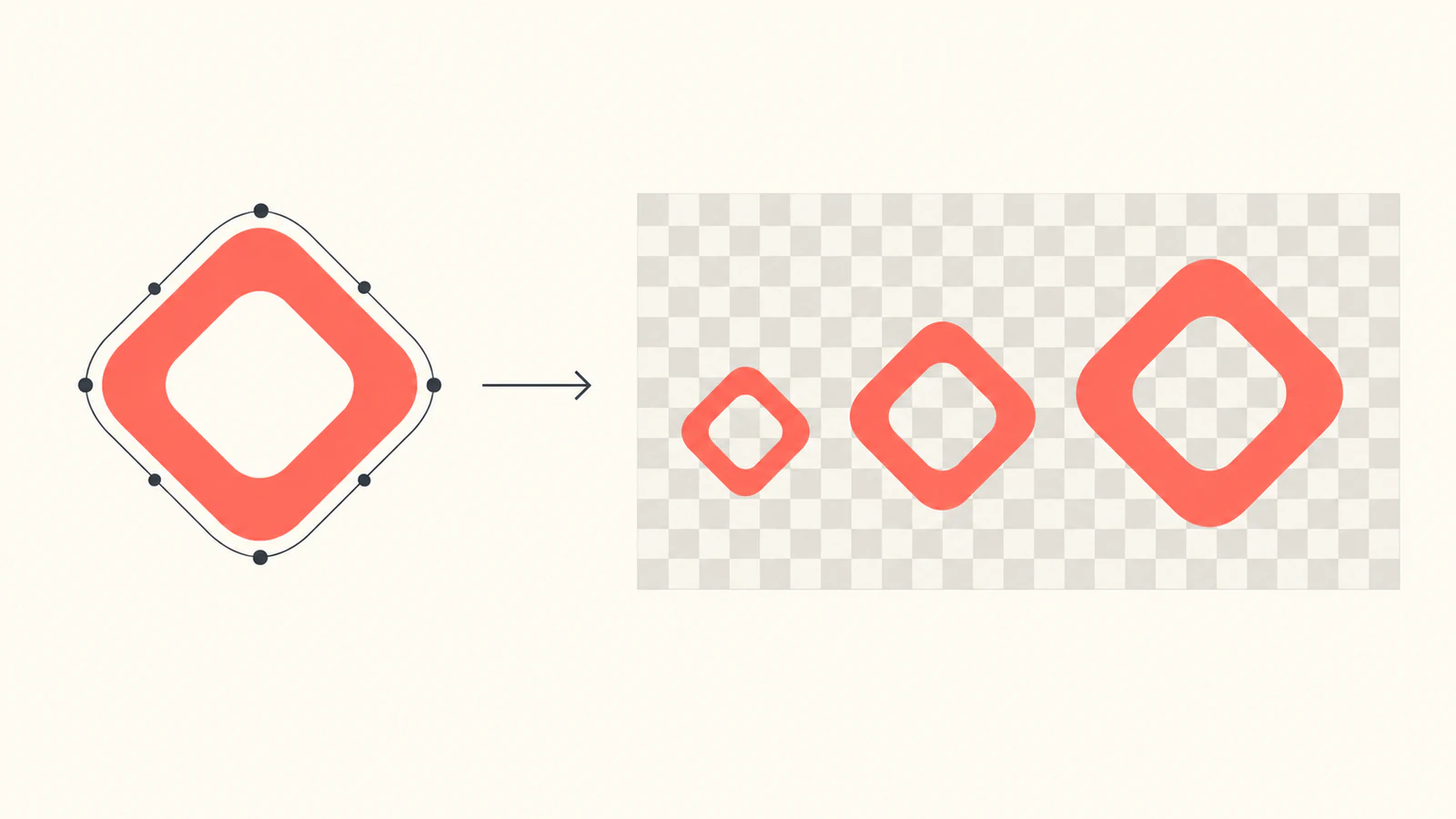
The source's path data stayed unchanged throughout the test. Drawing the image at 2× affected its display, not the d attribute in emblem.svg. Save that master with your project so you can prepare a different delivery image later.
Fix the symptom you see
The image never appears
Check that the SVG URL resolves from the served page and that loadImage() has completed before image() runs. The starter's try/catch puts a loading failure in the status block. A remote image can also fail because of browser security restrictions, as the loadImage documentation notes. Start with a same-origin file you control to separate a loading problem from an artwork problem.
Open the SVG by itself in the browser. If its appearance is wrong there too, fix the source first. A renamed PNG does not become an SVG document, and an SVG wrapper around a bitmap does not create the missing contours.
The image looks stretched
Compare the destination ratio with art.width / art.height. For example, drawing a square image into a 240 × 120 destination deliberately makes it twice as wide relative to its height. Use the ratio calculation in the starter when stretching is not intended. If the source itself has excessive empty space, inspect its artboard and viewBox before enlarging the display to compensate.
The enlarged edges look soft
Check the loaded image dimensions, not just the size of the Canvas. In our test, a 120 × 120 image was drawn into a 240 × 240 destination. Changing those destination arguments does not rerun the SVG's curves through a new image load.
Prepare a delivery SVG with explicit dimensions suited to the intended use, load it again, and inspect the resulting art.width and art.height before accepting it. Keep its coordinate system and source contours intact. Then compare the smallest and largest on-screen sizes: more loaded pixels cannot make a tiny opening readable when the final display is too small.
If your sketch needs geometry operations instead of image paint, plan that separately. The Canvas Path2D guide covers working with path data, while the PixiJS SVG guide compares that engine's geometry and texture routes. Their APIs are not interchangeable with p5's loadImage().
The center is white instead of transparent
Check the original SVG for a painted background or a white inner shape. In this source the evenodd contour leaves a hole, and the loaded center alpha was zero. Repeat the check over a contrasting sketch background with your own file; a white preview page can hide the difference.
Keep Canvas export separate from the SVG master
The standard saveCanvas reference lists PNG, WebP, and JPG image output. Saving the painted Canvas through that API does not recover the original SVG paths. Keep emblem.svg separately when you need future contour edits or a path-based delivery file. A screenshot of a smooth-looking Canvas cannot establish an editable SVG export workflow.
PerfectVector fits upstream when your illustration exists only as a flat PNG or JPG and you need source contours to edit. Convert the image to SVG, inspect its outline and negative space in an SVG editor, then repeat the actual p5 loading and size checks. Use an existing clean SVG directly. Tracing does not change p5's image API or turn its Canvas output into an SVG path document. The broader vectorization guide explains that source-preparation step.
Keep the master, record the p5 version and loaded dimensions, and accept the asset only after its opening and edges work at the sizes your sketch uses.
FAQ
Can p5.js load an SVG with loadImage? Yes. This p5.js 2.3.4 P2D example loads an original SVG with await loadImage inside async setup. Test your own file's appearance and loaded dimensions rather than treating one successful load as complete SVG compatibility.
Does a loaded p5 SVG image stay editable as paths? The image-loading route returns a p5.Image and paints it onto Canvas. Keep the original SVG separately for source-path editing. Canvas image display does not provide an editable SVG DOM for the loaded artwork.
Why does my p5 SVG look blurry when enlarged? Check the loaded image dimensions against the destination dimensions. Our 120 × 120 loaded image looked softer at 240 × 240. Prepare an appropriately sized delivery source, reload it, and inspect the actual result.
Does saveCanvas export the original SVG? The standard saveCanvas API documents PNG, WebP, and JPG output. Preserve the original SVG master or verify a separate SVG-rendering and export workflow for path-based output.
Sources
- p5.js loadImage — Documents Promise-based image loading and browser restrictions.
- p5.js 2.3.4 release — Identifies the pinned version and official CDN script.
- p5.js createCanvas — Documents Canvas creation and renderer selection.
- p5.js 2.3.4 image-loading source — Shows the loaded image being drawn into the p5.Image backing Canvas.
- MDN fill-rule — Explains how evenodd determines the filled area of a compound path.
- p5.js image — Defines image placement and destination sizing.
- p5.js pixelDensity — Documents sketch pixel density and its display-dependent default.
- p5.js saveCanvas — Lists the standard Canvas image export formats.
More from the blog
SVG to Canvas: Load the Artwork Before Exporting PNG
Load a whole SVG through Image.decode, draw it at a chosen bitmap size, test CORS and PNG readback, and keep the editable source separate from exported pixels.
MapLibre SVG Icons: Check Pixels and Symbol Size
Decode custom SVG artwork for a MapLibre symbol layer, control image density and icon size, and keep an editable master. Verify the displayed shape and opening.