LibreOffice Draw: Edit SVG Shapes and Export Safely
Edit SVG artwork in LibreOffice Draw: choose Break or Ungroup, change shapes and colors, keep an ODG master, and check a separate SVG export before sharing.
On this page
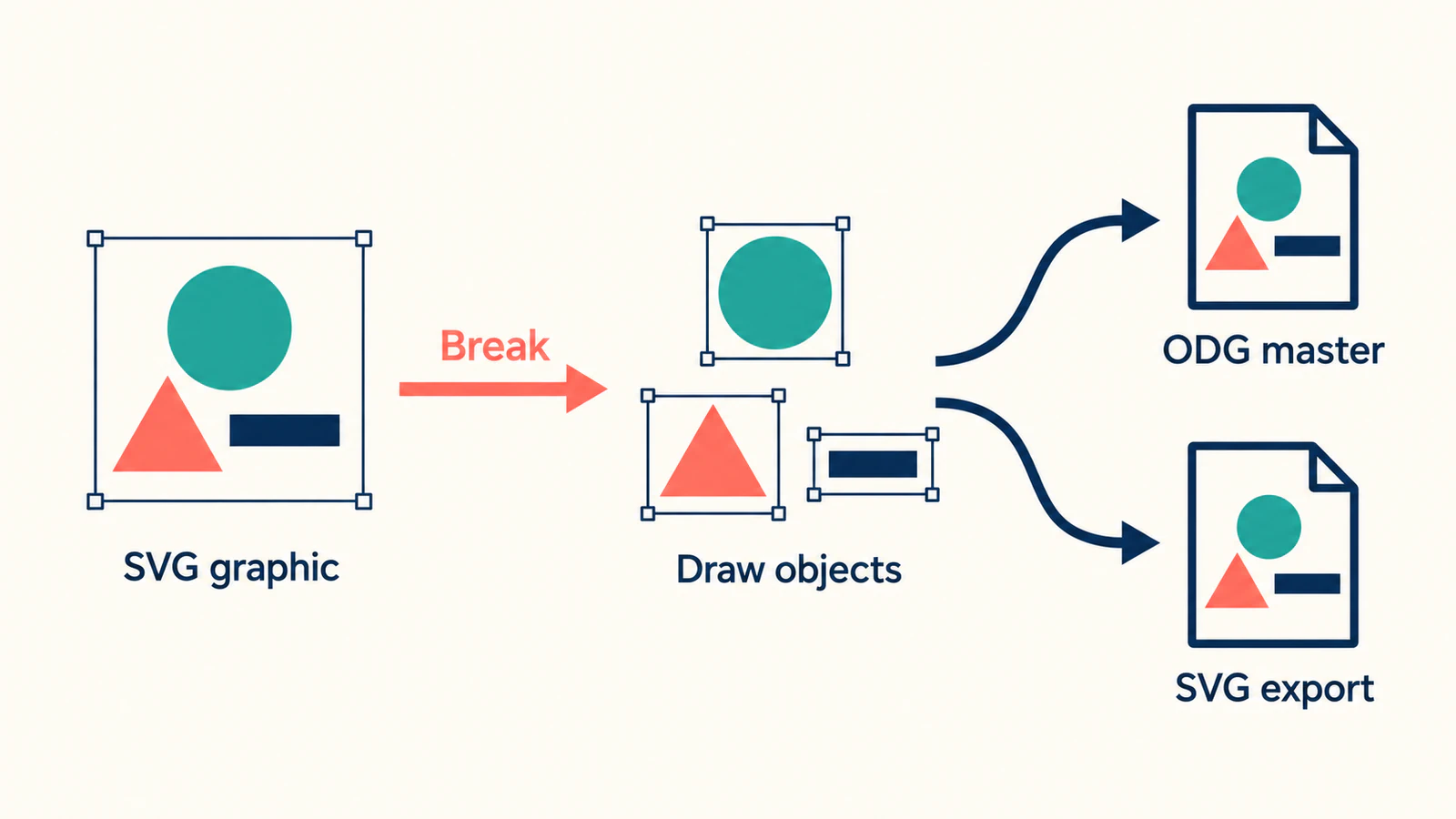
To edit the shapes inside an SVG inserted into LibreOffice Draw, select the graphic and use Shape → Break. Then click outside it and select the part you want to change. Draw's Break implementation handles embedded vector graphics through a conversion into drawing objects. That is why an inserted SVG can need Break even when Ungroup is unavailable.
Keep the original SVG, test a small edit, and save your working drawing as ODG. Export a separate SVG for the next application. For page layout in Scribus, follow its editable SVG import workflow and test one imported region before building the page. This workflow suits a badge, chart, or diagram whose shapes you need to adapt. Check text and appearance before committing to a large drawing.
Break, Ungroup, or To Polygon?
A single selection rectangle tells you what Draw has selected. It does not tell you whether the content is a group, an imported vector graphic, or pixels.
| What you have selected | Appropriate next action | What to check afterward |
|---|---|---|
| An inserted SVG graphic containing vector artwork | Shape → Break | Can you select and recolor the intended part? |
| A group of Draw objects | Enter Group to edit a member, or Ungroup to separate the members | Does the group contain the object you need? |
| A PNG, JPG, or other bitmap | Trace it only if you need vector shapes | Did tracing preserve the silhouette and useful details? |
| Lettering made from outlines | Edit the outlines, or replace the label with a text box | Do you need editable words or just the same appearance? |
LibreOffice's group documentation describes Enter Group and Ungroup as operations on existing grouped objects. Enter Group preserves the grouping while you edit a member. In Draw, these commands are available from the group's context menu.
Bitmap tracing is a separate operation: the documented route is Shape → Convert → To Polygon. Breaking an SVG graphic does not recover original paths from a picture embedded inside it. If the selected object is still unclear, use the broader SVG selection diagnosis.
Start with a small, reversible edit
Use a copy of the artwork you need to change. For a simple practice file, save the following original example as badge-source.svg in a plain-text editor. It contains a circle, a triangle, and a short bar, so you have recognizable parts to select.
<svg xmlns="http://www.w3.org/2000/svg"
     width="240" height="160" viewBox="0 0 240 160">
  <circle cx="78" cy="72" r="40" fill="#167d8d" />
  <path d="M150 32 L194 112 L106 112 Z" fill="#e76f51" />
  <rect x="48" y="128" width="144" height="12" fill="#20354b" />
</svg>
Use this practice design to check the workflow in your Draw installation, then repeat the checks on your actual artwork.
Insert the SVG into a new drawing
Open a blank Draw document and choose Insert → Image, then select the SVG. Leave Insert as Link unchecked to embed a working copy. The Draw Guide's insertion instructions distinguish embedding from linking: an embedded graphic is part of the drawing, while a linked graphic depends on its source file.
Keep a reference view of the original in a browser or another window. Before making edits, look for missing shapes, altered spacing, or an unexpected background. If it already looks different, record that as an import problem; later editing cannot explain a difference that was present at insertion.
The menu paths here follow the standard menu bar. LibreOffice's tabbed interface and older versions can use different labels or locations.
Break the graphic and test one fill
- Select the inserted graphic and choose Shape → Break.
- Click empty page space to clear the selection.
- Select the triangle in the practice badge, or one recognizable region in your own artwork.
- Change its fill in the Sidebar's Properties → Area controls.
- Confirm that only the intended region changed. Undo the trial color if you do not want to keep it.
The Getting Started with Draw guide covers object selection and area formatting. Moving the whole badge confirms that you can position it; recoloring only the triangle confirms that you can edit that part.
If several parts still select together and Enter Group is available, enter the group and select its member. Use Ungroup when you want to remove that grouping. Once you have access to the part, stop separating objects.
Test one contour, then check any lettering
Select the triangle and enable Edit → Toggle Point Edit Mode. Current LibreOffice Help also lists F8; older instructions may call the command Points. Move one corner a little, inspect the result, then undo the test. If a keyboard shortcut is handled by your computer instead, use the menu command.
For your own artwork, choose a contour you will actually need to change. Being able to resize a selection rectangle does not prove that its contour is editable.
The practice badge has no lettering. If your SVG does, test a label separately: can you place a text cursor in it and replace a word? A letter drawn as a path has no editable word behind it. SVG supports both text and geometric artwork, so the same visible label can have different editing behavior. The SVG text specification defines text as its own content type.
When a label needs regular updates, consider replacing it with a native Draw text box in the ODG master. Compare its font, alignment, and line breaks with the reference before deleting the imported label.
Save the ODG master and export the SVG separately
Use File → Save As to keep a working file such as badge-master.odg. Draw saves drawings in ODG by default. To create the delivery file, select the finished artwork, choose File → Export, and choose SVG in the format list. Enable Selection if you want just the selected artwork. The Draw Guide explains both full-document and selected-object export; the dialog's appearance depends on your operating system and setup.
Name the result something distinct, such as badge-edited.svg. Make subsequent edits in the ODG master and export again, so you can identify which file contains the working drawing.
Before sharing, reopen the SVG in a browser and in its destination application. Check:
- The intended parts are present, including the short bar in the practice badge.
- The changed fill and contour survived export.
- Lettering, thin strokes, and overlapping shapes look correct at the intended size.
- The file has the canvas area you intended, without an accidentally exported reference copy.
- The destination allows whatever further editing the recipient needs.
A browser view checks appearance. Opening the same file in its destination checks the actual handoff. If a discrepancy appears only after export, return to the ODG master and compare the export settings and selected objects before rebuilding the artwork.
When parts still will not edit
Break is unavailable. Click outside any text edit, select the graphic itself, and inspect the available commands. You may already have drawing objects, be inside a group, or have a bitmap. Do not conclude that the file is raster from a disabled command alone.
One color is scattered across many pieces. The imported artwork may contain several separate regions that happen to share a color. Recolor the needed regions deliberately. If a small edit requires managing a large number of fragments, try the original SVG in an SVG editor before taking the drawing further. Our SVG editing guide helps choose between a visual editor and editing the markup.
A picture remains a picture. SVG can contain raster images through its image element. Those pixels do not become the original illustrator's shapes when you run Break. Inspect whether the SVG contains an embedded raster, then decide whether that part needs tracing at all.
When the original SVG structure must survive
If the job depends on particular IDs, groups, editable text, or animation, keep the original file and work in an SVG editor or the code. Conversion into Draw objects is a different working representation; a matching picture is insufficient proof that those source details survived.
If the only source is PNG or JPG
Vectorization fits when you need to reshape or recolor artwork that exists only as pixels. It creates new paths from the image; it does not reconstruct the author's original document. The image vectorization guide explains that distinction.
You can try Draw's To Polygon conversion for a bitmap, then inspect the resulting shapes. PerfectVector provides another route when Draw is the destination: convert the PNG or JPG into SVG artwork, inspect the silhouette and color regions, and insert the SVG into Draw. Run the same fill-and-contour test before building the rest of the document around it.
For a photograph that only needs placement or cropping, keep the raster image. For an existing vector whose only problem is selection, start with the object checks above.
FAQ
Why is Ungroup grayed out for my SVG in LibreOffice Draw? The selection may be an imported SVG graphic rather than a group of Draw objects. Try Shape → Break on a copy, then deselect and select an individual part. A disabled Ungroup command alone does not prove the content is raster.
Does Break turn a PNG into editable vector shapes? No. Bitmap tracing is a separate operation. Draw documents Shape → Convert → To Polygon for converting a bitmap into vector graphics; inspect the result before using it.
Why can't I edit the words in an imported SVG? The lettering may be outlines or raster content rather than editable text. Test a label separately. If you need to change its wording, use the original editable source or replace it with a Draw text box and check the appearance.
Should I save my edited drawing as ODG or SVG? Keep an ODG master for further Draw edits and export a separate SVG for sharing or another application. Reopen the SVG to check its appearance, bounds, and any editing the recipient needs.
Sources
- LibreOffice — Break command implementation — Released source for handling embedded vector graphics through Break.
- LibreOffice — Draw Guide 26.2: Editing Images — Embedding, linking, ODG files, and selected-object export.
- LibreOffice — Working with Groups — Enter Group, Exit Group, and Ungroup behavior.
- LibreOffice — Converting Bitmap Images into Vector Graphics — Draw's separate To Polygon tracing workflow.
- LibreOffice — Getting Started with Draw — Drawing-object selection, fills, and editing controls.
- LibreOffice — Toggle Edit Points Mode — Current point-editing command and F8 shortcut.
- W3C — SVG text — Text content as distinct from geometric outlines.
- W3C — SVG embedded content — Raster images inside an SVG document.
If you only have a PNG or JPG and need editable contours, prepare an SVG with PerfectVector. Check its shapes, insert it into Draw, and confirm one fill edit and one contour edit before exporting the finished artwork.
More from the blog

PowerPoint SVG: Convert to Shape and Edit Parts
Convert an SVG to editable PowerPoint shapes, change individual parts, and diagnose missing commands. Check platform support and preserve the original artwork.
Paper.js SVG Booleans: Cut and Join Imported Artwork
Import SVG paths into Paper.js, join overlapping shapes, subtract a real opening, and check the exported file with a small, reproducible browser example.