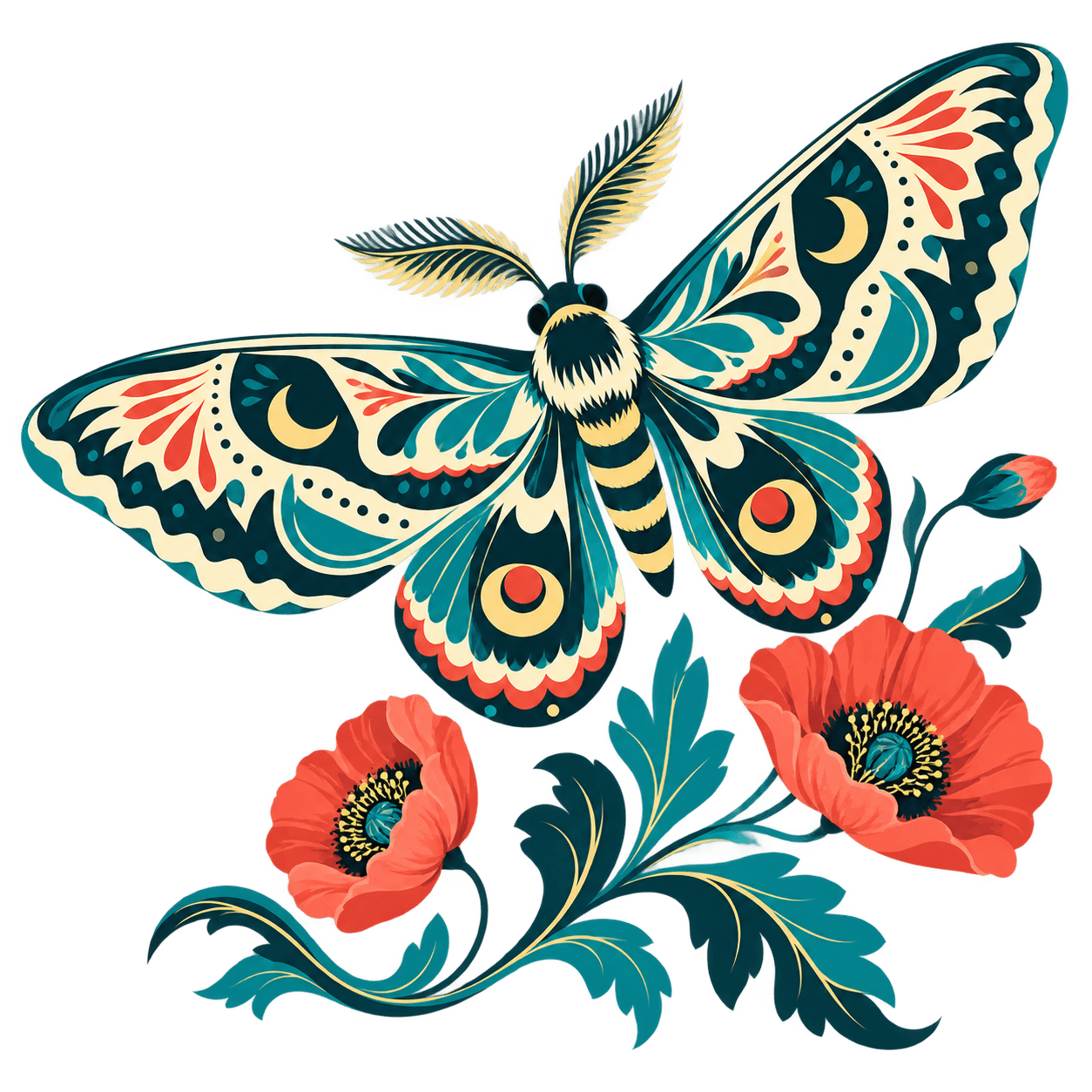
AI Art for Cricut: How to Turn It Into a Clean Cut File
Cricut's own AI is personal-use only. For art you make in Midjourney or Nano Banana, here's how to turn it into a clean, layered cut file you can sell.
On this page
- Two ways to get AI art onto a Cricut
- What Cricut's own AI actually does
- Which AI art actually cuts cleanly
- How to turn your AI art into a Cricut cut file
- 1. Generate art that will cut
- 2. Get a clean, transparent PNG
- 3. Color-separate it into an SVG
- 4. Check the paths are clean
- 5. Upload to Design Space and check the layers
- 6. Test cut on scrap first
- What this looks like with PerfectVector
- Can you sell what you make?
- A quick pre-cut checklist
- FAQ
- Sources
There are two ways to get AI art onto a Cricut, and they solve different problems. Cricut has its own AI built into Design Space, and it keeps gaining features, from generated designs to full-color Print Then Cut. Under Cricut's current Angel Policy, however, projects made with its AI-powered features aren't eligible for sale. The other way is the one a lot of people actually mean: you generated something in Midjourney or Google's Nano Banana, and now you want to cut it. That art is a raster image, and while you can upload it and let Design Space trace it, a clean color-separated SVG gives you a better starting point for crisp cuts and full control over the layers. This guide covers both routes: what Cricut's own AI does, which AI art actually cuts, and how to turn your own generated art into a clean, layered cut file.
The quick version
- Cricut's built-in AI (Create AI, AI Project Designer, Photo Art) is quick and improving, but it's credit-limited and personal use only, so you can't sell what it makes.
- Your own AI art from tools such as Midjourney or Gemini is normally raster. Upload it and Design Space will trace it, but converting it to a clean, layered SVG gives you more control. Selling still depends on the generator's terms and the rights in the artwork.
- Flat, bold, few-color art cuts. Gradients, soft shading, and photoreal detail don't, from any tool.
- Color-separate it into a layered SVG first, so each color lands in Design Space on its own layer, ready to weed and stack.
- Selling it? Check two licenses: Cricut's AI images can't be sold, and each generator sets its own commercial terms.
Two ways to get AI art onto a Cricut
Can you use AI on a Cricut? Yes, and there are two routes. You can generate a design with Cricut's own AI inside Design Space, or you can bring art you made in an outside generator like Midjourney or Nano Banana and convert it into a cut file. The built-in route is quick and convenient. The bring-your-own route gives you the most control over the separation, while commercial use depends on the outside generator's terms and the rights in the artwork.
Here's how they compare:
| Cricut's built-in AI | Your own AI art (Midjourney, Nano Banana…) | |
|---|---|---|
| Where it's made | Generated inside Design Space | Any generator, then converted to SVG |
| Control over the cut | Whatever the built-in tool produces | You color-separate and edit every layer |
| Commercial use | Personal use only, can't be sold | Depends on the generator's license |
| Best for | Quick personal projects | Designs needing outside editing or separate commercial-use terms |
What Cricut's own AI actually does
As of August 25, 2026, Cricut has several AI and conversion features inside Design Space. Cricut documents feature changes in its Design Space release notes:
- Create AI turns a text prompt into a cut-ready image you can add to the canvas and cut.
- AI Project Designer is a chat-based tool that generates and refines fuller, multi-layer 2D projects. Cricut says image generation and editing use Create AI credits.
- Photo Art turns a photo into stylized artwork, and Print Then Cut prints full-color designs and cuts around them.
These are genuinely convenient for quick projects. The catch isn't really color or layers anymore, it's two other things. Everything they make is licensed for personal use only, since Cricut keeps AI-generated images out of its commercial Angel Policy. And you work with whatever the built-in tool hands you rather than separating and editing the layers yourself. When you need outside editing, separate commercial-use terms, or full control over the cut, bring in artwork whose terms and underlying rights fit the project.
Which AI art actually cuts cleanly
Not all AI art cuts. Cricut treats uploaded raster images as a single layer, while SVG uploads can preserve separate vector layers. Art that's already made of flat, distinct color areas converts into cut paths cleanly. Gradients, soft shading, texture, and photographic detail are harder to separate into useful solid shapes; Cricut's upload guidance also notes that these details can prevent a raster upload from being split into layers.
| AI art style | Cuts cleanly? | Why |
|---|---|---|
| Flat illustration, 2 to 5 solid colors | Yes | Distinct color areas become clean cut layers |
| Line art, silhouettes, simple icons | Yes | High contrast, one obvious shape |
| Sticker-style art with a clear outline | Usually | Bold shapes, though busy detail needs simplifying |
| Painterly or textured (Midjourney's default look) | No | Soft edges and blends have no clean boundary |
| Photoreal images (Nano Banana can look real) | No | Continuous tone won't reduce to flat cut shapes |
| Gradient-heavy or neon-glow art | No | Blended color can't split into solid layers |
The practical move is to prompt for flat. Phrases like "flat vector illustration," "bold solid colors," "simple shapes," "sticker style," and "white background" push either generator toward art that will actually cut. If you already have a gorgeous, gradient-filled piece you love, it can still work as a print, just not as a cut file. In that case, preparing AI art for print is the better path.
How to turn your AI art into a Cricut cut file
1. Generate art that will cut
Whichever generator you use, steer it toward flat, few-color shapes. Fewer colors now means fewer layers to weed and stack later. When you're testing, generate a few options and pick the boldest, cleanest one rather than the most detailed.
2. Get a clean, transparent PNG
Export the image and remove the background, so it doesn't become an extra rectangle layer in your cut file. You want just the artwork sitting on a transparent canvas. Most generators export a PNG, which is the right starting point.
3. Color-separate it into an SVG
This is the step that decides how much cleanup you do later. Cricut's built-in tools keep the design inside Design Space rather than handing you an editable, color-separated SVG you can control and reuse. Illustrator or Inkscape can trace the PNG, but you may still need to separate colors and clean the paths by hand.
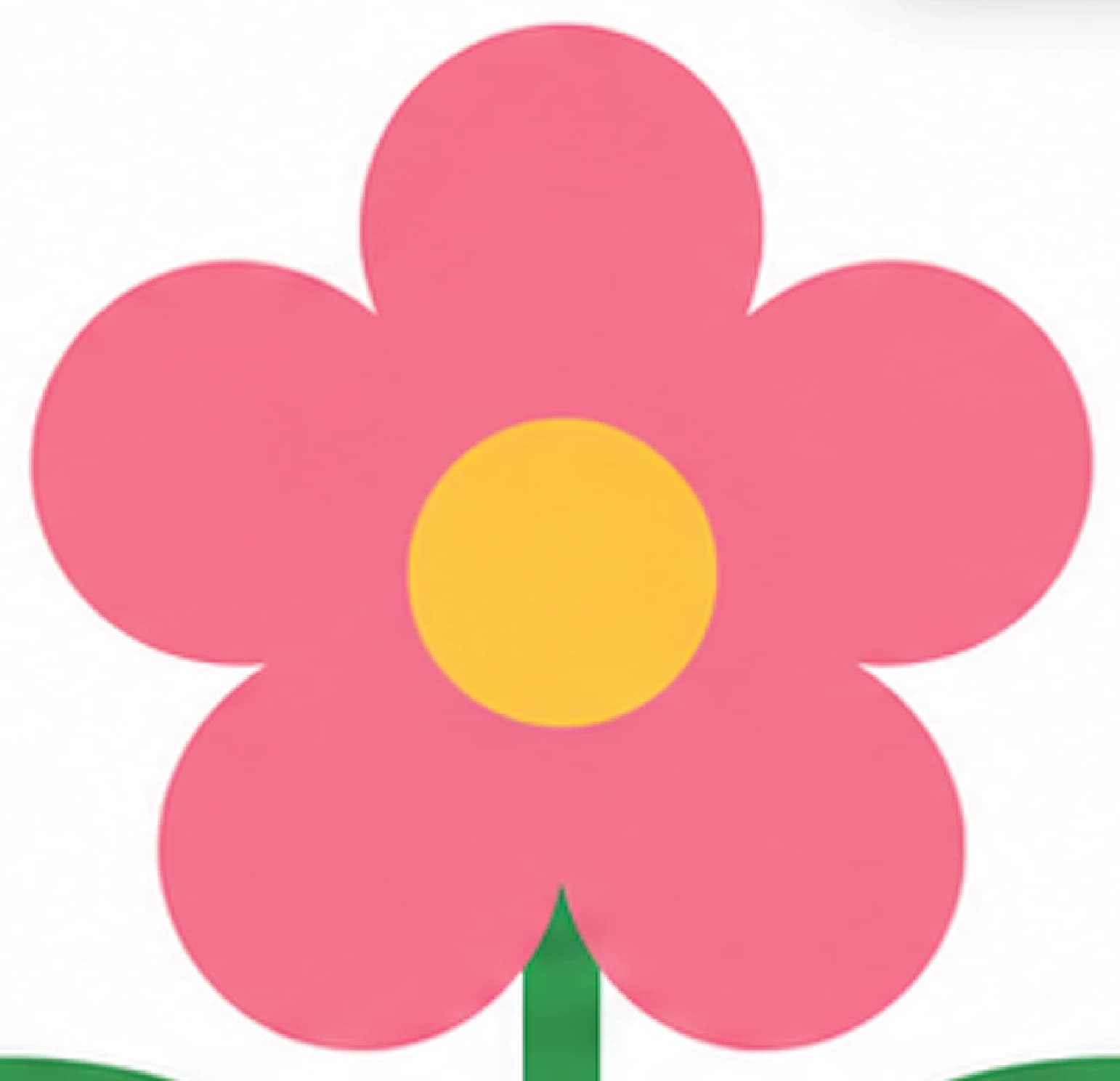
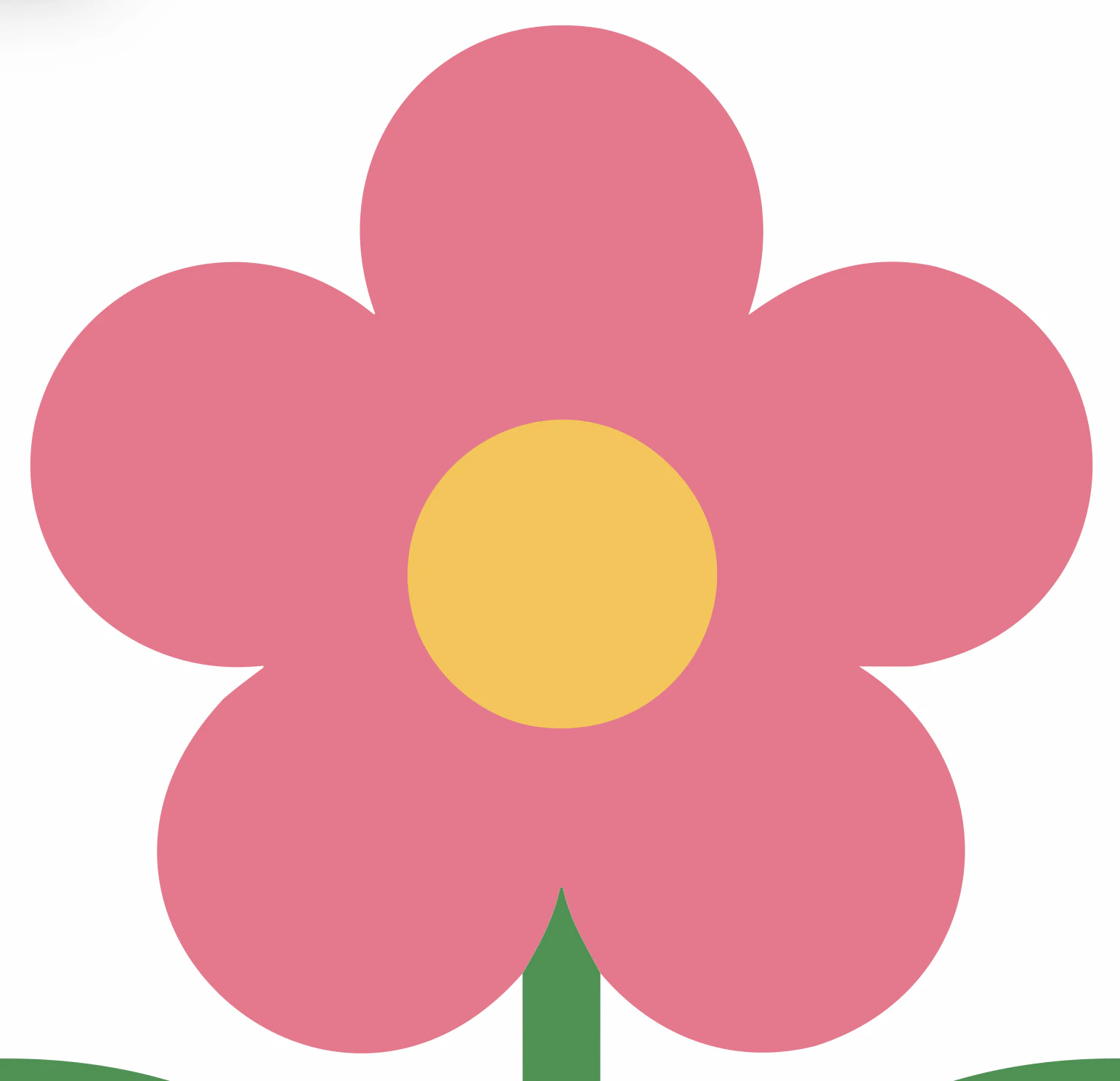
Instead, run the PNG through an image-to-vector converter that separates each color into its own clean path. Done right, your full-color AI design becomes an SVG where every color is a tidy, closed shape, which is exactly what Design Space needs to cut layer by layer. If your converter lets you merge similar colors, do it here, so you finish with a handful of layers instead of twenty.
4. Check the paths are clean
A rough trace clogs each layer with hundreds of extra nodes and stray specks, and you pay for it in Design Space, clicking through Contour to delete little bits on every layer. A clean separation skips nearly all of that. If you're not sure what to look for, too many nodes is the usual reason behind jagged cuts and a sluggish canvas.
5. Upload to Design Space and check the layers
In Design Space: Upload, then Upload Image, select your SVG, and Add to Canvas. Cricut's image-upload instructions explain that SVG layers are separated after upload. Open the Layers panel to confirm that your file arrived as intended. For the full color-by-color walkthrough, how to make a layered SVG for Cricut covers the assembly in detail.
6. Test cut on scrap first
Before you commit good vinyl, run a small test cut. Check that the edges are crisp and the fine bits actually weed off. If a layer fights you, inspect both the source detail and the machine or material settings before changing the file.
What this looks like with PerfectVector
PerfectVector can reconstruct flat, clearly separated AI artwork as SVG paths and color shapes. Use the color editor to merge similar shades down to the few you'll actually cut, then check the layers, small fragments, and nodes in the preview before you touch any vinyl. Vectorizing and previewing are free; one credit unlocks the finished SVG.
Being straight about it: this works on flat, graphic AI art. A painterly Midjourney piece or a photoreal Nano Banana render won't become a clean set of cut layers from any tool, PerfectVector included. For those, re-prompt for a flatter design, or keep them as prints.
Can you sell what you make?
This is the part makers get caught by. Two separate licenses are in play, and you need both to be clear before you sell anything.
- Cricut's own AI images: no under the current policy. Cricut's Angel Policy FAQ says content created with AI-powered features such as Create AI isn't eligible for sale.
- Your generated art: it depends on the generator and the artwork. Services set different terms, and those terms change. For example, Midjourney publishes separate commercial-use guidance. Check the terms for the exact service and plan you used, plus any third-party rights, before selling.
One thing holds either way: converting a raster into an SVG is a format change, not a copyright reset. Vectorizing an image doesn't grant you rights you didn't already have. If your art is cleared for commercial use, a clean SVG you can sell on Etsy is a great product. If it isn't, converting it doesn't make it sellable. For the file-quality side of selling, what makes a cut file good enough to sell is a useful next read.
A quick pre-cut checklist
- Art is flat and few-color, not gradient or photoreal.
- Background removed, so there's no stray rectangle layer.
- Converted to a color-separated SVG, each color its own layer.
- Colors merged down to the number you actually want to cut.
- Paths are clean, with no stray specks or runaway node counts.
- Commercial rights checked, if you're selling.
- A small test cut done before the real material.
FAQ
Can you use AI art on a Cricut? Yes. You can generate a design with Cricut's own AI inside Design Space, or bring art you made in an outside generator like Midjourney or Nano Banana and convert it into a cut file. The built-in tools keep the workflow inside Design Space, while converting outside art can give you an independently editable, layered file. Commercial use still depends on the applicable terms and rights.
Does Cricut's AI make SVG files? No. Cricut's AI tools keep your design inside Design Space; they don't hand you an editable, color-separated SVG you can export and reuse elsewhere. To get one, you convert your image with an image-to-vector tool. Most AI generators can't hand you a clean SVG either. They make raster images that you then vectorize.
Why won't my AI image cut cleanly on my Cricut? Usually because the art has gradients, soft shading, or photographic detail, so there's no clean edge for the blade to follow. A cutter needs solid, closed shapes. Re-prompt for flat, bold, few-color art, or simplify the design, then convert it to a clean SVG before cutting.
Is there a free AI art generator I can use for Cricut? Availability changes, but some generators offer limited free access. Their image output is normally raster, so you'll still need to trace it when your project requires SVG paths. Check the current service and plan terms before commercial use.
Can I sell what I make with AI art on my Cricut? It depends on the source. Images from Cricut's own AI are personal use only and can't be sold. Art from an outside generator follows that tool's commercial license, which varies and changes, so check it first. Converting the image to an SVG doesn't change its rights either way.
What's the difference between Cricut Create AI and AI Project Designer? Create AI turns a prompt into a cut-ready image. AI Project Designer is a newer chat-based tool that generates and refines fuller, multi-layer 2D projects through a conversation. Both run inside Design Space on AI credits, and whatever they make is licensed for personal use only under the current Angel Policy. For commercial work, use artwork whose service terms and underlying rights allow the intended use.
Sources
- Cricut — Terms of Use and Angel Policy — commercial-use rules for projects created with Cricut's AI-powered features.
- Cricut Help Center — How to upload images into Design Space — supported raster and vector uploads and SVG layer handling.
- Cricut Help Center — Image uploads: unsupported items — limitations of gradients, textures, photographs, and layered uploads.
- Cricut Help Center — Older Design Space release notes — Create AI and AI Project Designer behavior and credit usage.
- Midjourney — Using images and videos commercially — current commercial-use conditions and plan-related exceptions.
- Google AI for Developers — Image generation with Gemini — Gemini image output formats and current image-generation workflow.
Made something you love in Midjourney or Nano Banana? Trace the flat artwork into SVG paths, confirm each color is a usable layer, and run a test cut before committing the vinyl.
More from the blog
Can Midjourney Make SVGs? How to Convert Its Art
Midjourney only outputs raster PNGs, so it can't export an SVG. But its art is a great starting point. Here's how to turn a Midjourney image into a real, clean vector.
AI Art for Laser Engraving: The Prompt Was the Easy Part
Generating the artwork is solved. Turning it into a file your laser will cut, score, or engrave correctly is where AI art gets difficult. Here is that half.