How to Convert an Image to SVG on an iPhone (No App Needed)
No app or computer needed: convert an image to SVG in Safari on your iPhone, HEIC photos included, and land the finished file in Files or Cricut Design Space.
On this page
- First: yes, an iPhone can handle SVG files
- The workflow: from Photos to a usable SVG
- Step 1: Don't fight HEIC, but know when it bites
- Step 2: Convert in Safari
- Step 3: Find the download
- Step 4: Send it where it's going
- What actually converts well from an iPhone
- Web converter or App Store app?
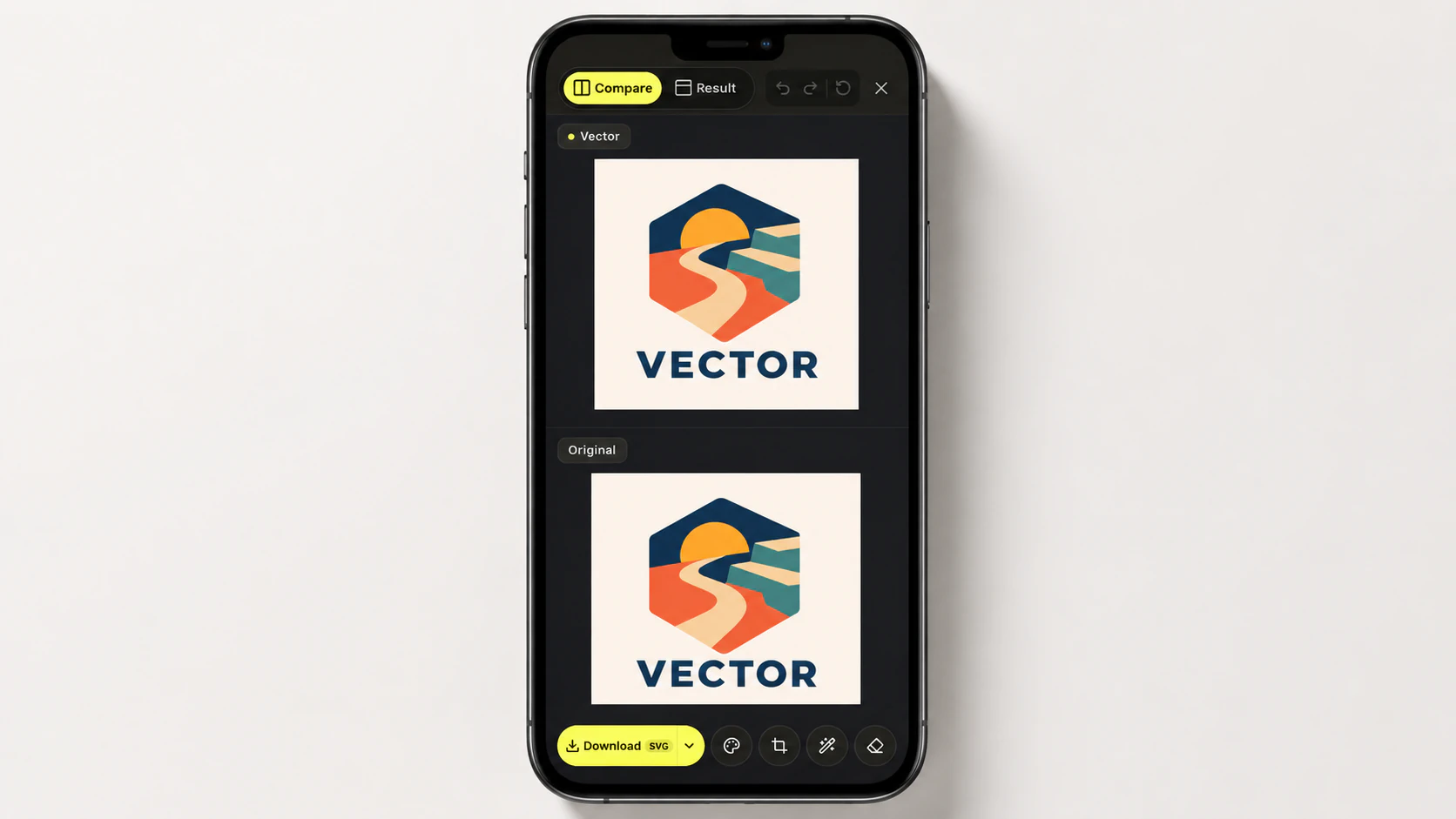
- What this looks like with PerfectVector
- Before you count on the file
- FAQ
- Sources
You can convert an image to an SVG entirely on your iPhone, in Safari, without installing anything. Open a web-based converter, upload the image from your photo library, and download the traced SVG into the Files app. The whole thing takes about two minutes.
The conversion is the easy half. The two steps around it are what trip people up, and no converter page explains them: iPhone photos are HEIC files by default, a format plenty of converters still refuse, and the finished SVG lands in a place most people never look. This guide walks the full path, from the Photos app to a file you can actually use in Cricut Design Space or a design tool, and is honest about the one case where an App Store app really is the better choice.
The quick version
- No app needed. A web converter in Safari does the same job as a desktop browser.
- HEIC photos work if the converter accepts them. iPhone commonly captures HEIF/HEIC, while Most Compatible captures new photos as JPEG. PerfectVector's HEIC to SVG converter accepts supported still images; for a converter that does not, export a compatible copy first.
- Your SVG lands in Files → Downloads. Tap the download arrow in Safari if you can't find it.
- For Cricut: upload the SVG from Files inside the Design Space app.
- Camera photos rarely make good SVGs. Flat art, logos, and drawings convert well; snapshots of your dog don't.
First: yes, an iPhone can handle SVG files
An iPhone will happily hold and show an SVG file: the Files app previews them, Safari renders them, and you can AirDrop or share them like anything else. What an iPhone won't do is treat SVG as a photo. The Photos app can't open one, the camera never produces one, and there's no built-in way to turn a picture into one. That's the gap a converter fills, and it's why "convert image to SVG on iPhone" ends at either a website or an app.
The workflow: from Photos to a usable SVG
Step 1: Don't fight HEIC, but know when it bites
iPhones commonly capture photos in HEIF/HEIC under the High Efficiency camera setting. Apple documents Most Compatible as the setting that captures new photos as JPEG instead. Browser upload behavior can vary by picker and destination, so the reliable question is simply: does the converter accept the file it receives?
PerfectVector accepts its supported HEIC still-image subset, so compatible photos can go straight from the camera roll into the trace. For a converter that only takes PNG or JPEG, export or share a compatible copy; changing Settings → Camera → Formats → Most Compatible affects future captures. A screenshot is a quick fallback, but it may reduce resolution, so keep the original. If you go the JPEG route for artwork, JPEG's compression has its own quirks worth knowing.
Before tracing a camera image at all, use the HEIC photo-to-SVG decision guide to check whether the subject needs editable shapes or whether its texture, light, and depth mean it should stay a photo.
Step 2: Convert in Safari
Open the converter in Safari, tap upload, and choose Photo Library. Pick the image, wait for the trace, and check the preview before you download. Pinch-zoom the result: edges should be smooth shapes, not fuzzy pixels. If the preview looks like a blurry copy of your photo rather than clean flat shapes, the problem is usually the source image, not the tool (more on that below).
Step 3: Find the download
Safari doesn't drop files on a home screen, so this is where most people lose the thread. Tap the download arrow in Safari's address bar (or open the Files app) and look in Downloads, either under iCloud Drive or On My iPhone. Apple's download guide documents the Safari Downloads button and Files location. Tap the SVG there for a preview.
Step 4: Send it where it's going
From Files, the SVG behaves like any document. For cutting, open the Cricut Design Space app, start a project, tap Upload, and browse to the file in Downloads; Cricut documents Browse Files as the iOS upload route. Preparing the file for a clean cut is its own topic. For design work, AirDrop it to a Mac or open it in your iPad or desktop tool of choice.
What actually converts well from an iPhone
The Facebook version of this question is usually "I have an iPhone photo, can I make it an SVG for free?" and the honest answer is: it depends on what the photo shows. A converter traces shapes, so images that are made of shapes win. Hand-drawn lettering, a sketch on white paper, a logo, a sticker design, and flat clipart are stronger candidates. A camera photo of a pet, a face, or a landscape comes out as a posterized approximation, because photos fight vectorization by nature.
One iPhone-specific trick: art photographed on paper converts far better if you crop tightly and brighten the shot first, so the paper reads as clean white. And if you draw on an iPad, export your art as PNG at full size before converting; Procreate artists have a dedicated path for exactly this.
Web converter or App Store app?
Two of the top results for this search are iOS apps, so it's a fair question. If you already use Amadine, compare its native Image Trace with importing a separately traced SVG. The broader comparison:
| Web converter in Safari | App Store app | |
|---|---|---|
| Install | Nothing to install | Download, updates, storage |
| HEIC photos | Depends on the converter; PerfectVector accepts them | Often accepted directly |
| Works offline | No | Usually yes |
| Cost | Free tiers common | "Free" often means in-app purchases |
| Quality | Same engine as on desktop, improves server-side | Varies per app, frozen until updated |
| Your result elsewhere | Same account/URL on any device | Lives on that phone |
If you convert images every day with no signal, an app earns its place. For everyone else, the browser does the same job with nothing to maintain. (Among the browser options, Adobe Express's free converter is the big-name one; it takes JPEG, PNG, and WebP but not HEIC, so the screenshot trick from Step 1 applies there.)
What this looks like with PerfectVector
PerfectVector is a web converter, so the workflow above is its mobile workflow: convert an image to SVG in Safari from your photo library, then inspect the preview before unlocking the SVG with one credit. Supported HEIC, PNG, JPEG, or WebP files up to 5MB can come straight from the camera roll; a larger photo may still need the compatible-copy route from Step 1.
The result is built the same way it is on desktop: clean paths with a low node count, and each color kept as its own editable shape. You can recolor or merge colors in the built-in editor before downloading, which matters on a phone, where fixing a messy file afterward is genuinely painful. The SVG that lands in your Downloads is ready for Design Space or any design app.
Before you count on the file
- Pinch-zoom the SVG preview in Files: edges should stay crisp at any zoom.
- Converter refusing your photo? Check its format list; not every tool takes HEIC.
- A photo over the size limit: screenshot it, or share a smaller version to Files first.
- For cutting, open it in Design Space before cut day and check the layers.
- Keep the original image; a better trace later beats editing a bad one now.
FAQ
Does the iPhone support SVG files? For viewing and storing, yes: the Files app previews SVGs, Safari renders them, and you can share or AirDrop them freely. The Photos app and camera don't handle SVG at all, which is why creating one requires a converter website or app.
Can I convert an iPhone photo (HEIC) to SVG? Yes, with a converter that accepts the HEIC still image it receives. PerfectVector supports a bounded HEIC/HEIF still-image subset. For a tool that only takes PNG or JPEG, export a compatible copy, or switch the camera to Most Compatible for future JPEG captures.
Is there a free way to convert an image to SVG on an iPhone? Yes. Web-based converters run in Safari, but “free” can mean preview rather than download. PerfectVector lets you vectorize and inspect the preview for free; one credit unlocks the SVG. Check any App Store tool's export terms before relying on its free label.
How do I open an SVG file on my iPhone? In the Files app: tap the SVG and Quick Look previews it. Safari also renders SVGs directly. To edit rather than view, you'll want a design app or a desktop tool; the iPhone itself only displays them.
How do I get an SVG into Cricut Design Space on my phone? Download the SVG in Safari so it lands in Files, then in the Design Space app start a project, tap Upload, and browse to Downloads. From there it behaves exactly like an upload made on a computer.
Do I still need a computer for any of this? Not for converting. Upload, trace, preview, and download all work in Safari on the phone. Where a computer still helps is heavy editing afterward: reshaping paths or reworking a complex design is easier with a mouse and a big screen.
Sources
- Apple: Using HEIF or HEVC media — Explains High Efficiency capture and the Most Compatible JPEG setting.
- Apple: Find downloaded files on iPhone or iPad — Documents Safari downloads and the Files app Downloads folder.
- Cricut: Upload images into Design Space — Documents iOS file browsing, supported upload types, and SVG handling.
- Adobe Express: Free SVG converter — Current source for the quick converter's accepted formats and file-size limit.
- PerfectVector: HEIC to SVG — Current source for PerfectVector's supported HEIC still-image workflow and limitations.
Once you know the hand-offs, the phone is a practical place to do this. Choose a compatible image from Photos, trace and inspect it in Safari, then unlock the SVG if its paths and colors fit the job. The downloaded file will be in Files → Downloads.
More from the blog
How to Convert PDF to SVG: Export or Trace It
How you convert a PDF to SVG depends on what's inside it. If it's vector, you export it; if it's a scan, you trace it. Here's how to tell, and how to do both.
SVGZ vs SVG: Choose a File for Editing or Delivery
Compare SVGZ and SVG with a real gzip round trip. See what compression preserves, how web headers differ, and which file to send to an editor or recipient.