HEIC Photo to SVG: Decide When Tracing Makes Sense
You can trace a supported HEIC into SVG, but most photos should stay raster. Use this guide to choose, prepare the image, and inspect the paths.
On this page
- HEIC and SVG solve different problems
- Prepare a phone photo for tracing
- Convert the supported still HEIC to SVG
- What about Live Photos and HEIC sequences?
- Audit the SVG as a design, not as a photo
- Silhouette and proportions
- Negative space
- Color regions
- Texture and identity
- Nodes and editing
- If the HEIC is unsupported
- FAQ
- Sources
You can convert a supported still HEIC photo to SVG by decoding the image and tracing its visible regions into vector paths. But that does not make SVG the right destination for every iPhone picture. If the photo’s value is its light, skin, hair, reflections, texture, or sense of depth, keep it as a raster image. A trace will simplify those details into shapes.
Vectorize when the camera captured something that is already graphic: a logo on paper, a handwritten signature, a sketch, a label, a sign, flat artwork, or a subject you deliberately want to turn into a poster-like illustration. The best workflow begins with that decision, not with the converter.
The short decision
- Keep HEIC for portraits, travel photos, product photography, food, interiors, and other continuous-tone images.
- Convert to SVG when the visible subject needs scalable, editable shapes.
- Expect stylization if you trace a full photograph on purpose.
- Preserve the original even when the vector result is useful.
- Inspect the preview before treating the SVG as a production asset.
HEIC and SVG solve different problems
HEIC is an image-file type in the HEIF family used for encoded raster images; Apple documents the type as UTType.heic. SVG describes geometry: paths, fills, strokes, and other objects that can be recolored, reshaped, and rendered at different sizes.
Converting between them is not like unpacking a file. The tracer has to decide which pixel regions should become shapes. A clean two-color sign gives it a small, legible set of regions. A sunset has thousands of subtle transitions. Converting that sunset into paths either creates a complex file or discards much of what makes the photo look photographic.
Use the output, not the file extension, to decide:
| Your HEIC shows | Usually choose | Why |
|---|---|---|
| Logo, icon, lettering, or label photographed straight-on | SVG | The subject is already shape-based |
| Ink drawing or signature on plain paper | SVG after cleanup | Paths make the marks scalable and editable |
| Simple object isolated against a plain background | SVG or raster, depending on the job | A silhouette or stylized version may be useful |
| Pet or person you want as simplified wall art | SVG, intentionally stylized | The trace is an interpretation, not photo preservation |
| Portrait, event, travel, food, or interior photo | Keep HEIC or export another raster format | Texture, light, and depth are the content |
| Product photo for a store listing | Keep raster | Buyers need photographic detail, not reconstructed shapes |
The practical dividing line is visible in the source. Fur, fabric, reflections, and depth depend on continuous photographic variation; a straight-on sign or label is already organized as a small set of deliberate shapes.
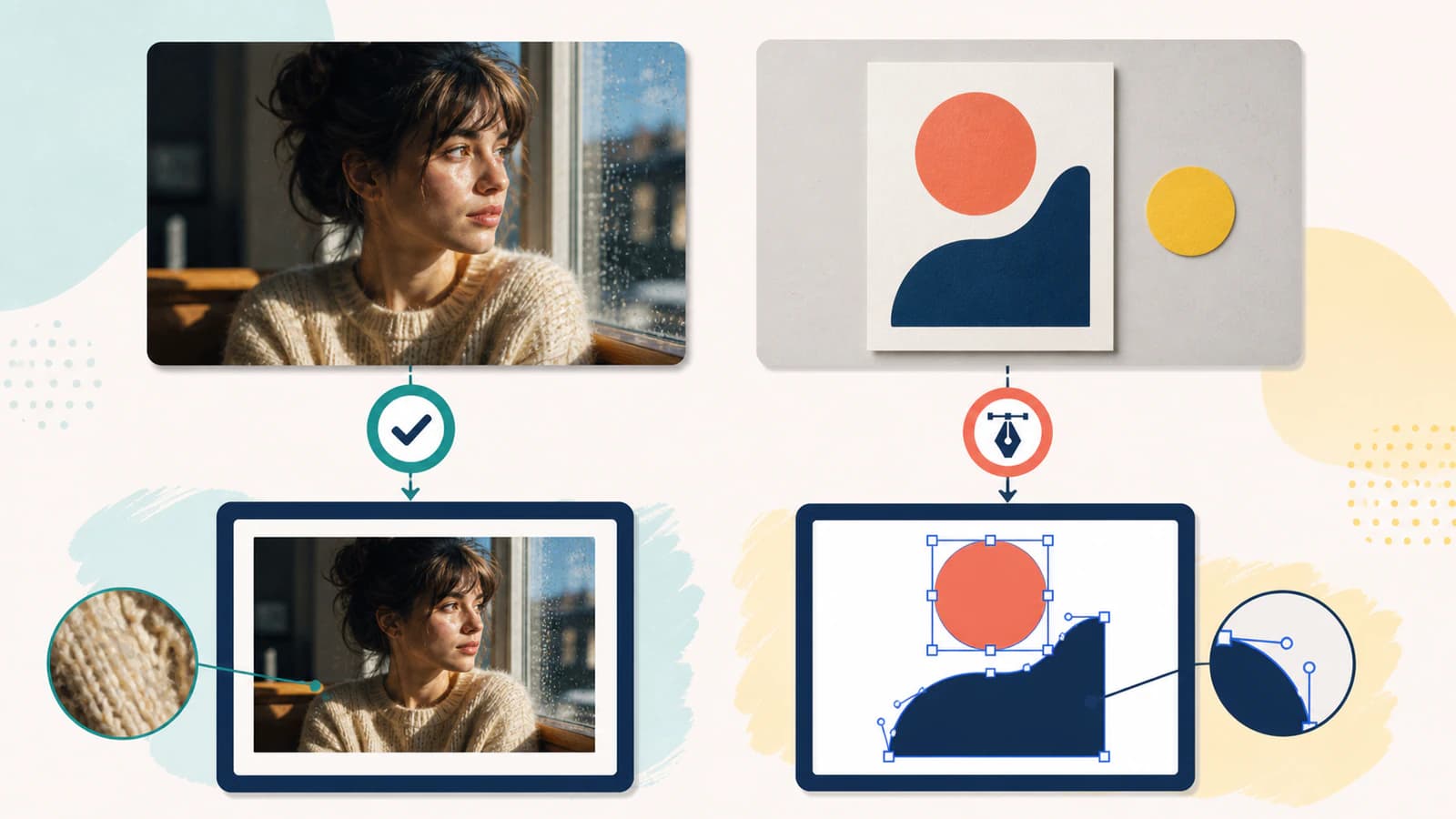
If your goal is a stylized portrait, the photo-to-SVG guide explains the general tradeoff. For a deliberately simplified animal portrait, the pet portrait workflow goes further into color layers and source choice.
Prepare a phone photo for tracing
When the subject belongs in SVG, improve the evidence the tracer receives. Keep the original HEIC untouched and edit a copy.
- Crop to the actual subject. Remove table edges, room clutter, hands, and unrelated background. Every visible region is another candidate shape.
- Correct perspective. A rectangular logo photographed at an angle becomes a trapezoid. Use the phone’s crop/perspective controls so parallel edges look parallel again.
- Use even light. Hard shadows and reflections become extra colors and contours. Re-photograph flat artwork near a window or under diffuse light when possible.
- Increase separation, not drama. Make dark ink distinct from paper and the subject distinct from the background. Avoid filters that add sharpening halos, heavy contrast, or artificial texture.
- Remove the background only if the output needs transparency. A clean paper field may be easy to exclude, but shadows around an object can produce a ragged halo. Check the result over a contrasting color with the transparent SVG workflow.
- Do not enlarge a weak source just to increase its dimensions. Upscaling can smooth or invent pixels, but it cannot recover the original edge geometry. Re-photograph the subject or redraw it when accuracy matters.
For the entire mobile upload-and-download path, including where Safari saves the result, use the iPhone image-to-SVG workflow. This article stays focused on the HEIC format and the output decision.
Convert the supported still HEIC to SVG
PerfectVector accepts .heic, .heif, and .hif filenames within a bounded still-image subset. The browser checks the container’s file type and primary dimensions, rejects recognized sequence brands, decodes a supported still locally, and normalizes the pixels to PNG before the standard vectorization flow begins.
That support does not cover every feature in the wider HEIF family. Multiple images, sequences, alternate codecs, HDR and wide-gamut behavior, high bit depth, mirrors, and other variants are outside the current promise. Renaming an unsupported file to .heic does not change its internal structure.
For a supported still source:
- Open the HEIC to SVG converter.
- Choose the original or prepared HEIC, HEIF, or HIF file.
- Let the browser inspect and decode the supported still.
- Review the vector preview at normal size and deep zoom.
- Download only if the shapes suit the job you chose SVG for.
PerfectVector fits the second branch: a supported still HEIC can be inspected and decoded locally, then traced without making a separate JPG copy first. That skips a compatibility detour, but it does not make a detailed photo behave like flat artwork. The preview is where you decide whether the interpretation is useful.
What about Live Photos and HEIC sequences?
Apple's Live Photo capture documentation describes a Live Photo as a still image paired with a short movie. That motion and timing are not automatically rebuilt as SVG animation. PerfectVector’s HEIC path is for a bounded still image and rejects recognized HEIC sequence brands. If motion matters, keep the original Live Photo asset or export the video through an appropriate photo workflow.
If you need one still moment as vector art, first choose the frame or still image you actually want, then treat it like any other photo: vectorize only when its visible subject benefits from becoming shapes.
Audit the SVG as a design, not as a photo
The question is not “Does every pixel match?” A useful trace will not preserve every pixel. Check whether it preserves the intended visual structure.
Silhouette and proportions
At fit-to-screen size, the subject should read correctly. A face, letterform, or object should not acquire bumps, collapsed gaps, or changed proportions.
Negative space
Inspect holes inside letters, gaps between strokes, and openings between parts of the subject. Camera shadows can close spaces that were visually open in the original.
Color regions
Count the large, meaningful colors. A simple sign should not become dozens of near-duplicate shapes because of uneven lighting. A portrait will necessarily simplify, so judge whether the chosen regions support the intended style.
Texture and identity
Hair, fur, fabric, skin, reflections, and foliage often become clusters or smooth blocks. If removing that texture changes the subject’s identity or the purpose of the image, the HEIC should stay the master output.
Nodes and editing
Select a few paths in a vector editor. Curves should move as coherent shapes rather than noisy chains of anchors. Use the too-many-nodes diagnosis when the output looks right from a distance but is painful to edit.
If the HEIC is unsupported
Export a copy as PNG when the subject is flat artwork, lettering, or line art. PNG avoids adding lossy JPEG artifacts around hard edges and gives most design tools a widely supported raster source. Export as JPG when the image is genuinely photographic and file size or compatibility matters more than perfectly preserving flat edges.
This export is a compatibility step. PNG and JPG are still raster, and neither becomes scalable merely because it opens in more tools. Keep the original HEIC so you can make a better export later.
FAQ
Can I convert HEIC directly to SVG without making a JPG first? Yes, when the converter supports the file’s still-image variant. PerfectVector inspects and decodes its supported HEIC subset locally, so a separate JPG copy is not required before tracing.
Will the SVG look exactly like my HEIC photo? Usually not. Vectorization interprets visible regions as shapes, so texture, lighting, hair, reflections, gradients, and fine detail may be simplified or stylized. Keep HEIC when photographic fidelity matters.
Which HEIC images make good SVG sources? Straight, evenly lit captures of logos, signs, labels, signatures, drawings, and other flat subjects with clear contrast. Busy scenes and depth-heavy photos are weaker candidates unless a posterized look is intentional.
Can a Live Photo become an animated SVG? Not through this workflow. PerfectVector handles a bounded still-image subset and rejects recognized HEIC sequence brands; it does not reconstruct Live Photo motion or timing as SVG animation.
Can I upload HEIF or HIF as well as HEIC? Yes, those filename aliases enter the same compatibility check. The internal file must still use a supported still-image brand and structure; renaming an unsupported HEIF variant does not make it compatible.
Sources
- Apple Developer — Images, camera, and photos — Provides Apple’s overview of image capture and processing technologies.
- Apple Developer —
UTType.heic— Identifies Apple’s HEIC image-file type. - Apple Developer — HEIC image properties — Documents HEIC-specific Image I/O properties, including sequences.
- Apple Developer — Capturing and saving Live Photos — Explains the paired still-image and movie resources in a Live Photo.
- PerfectVector — HEIC to SVG Converter — States the current product workflow and supported-source boundary.
If the subject is flat artwork and you need editable geometry, convert the supported HEIC with PerfectVector, then inspect the silhouette, negative space, colors, and nodes before downloading. If texture, light, depth, or photographic fidelity is the point, keep the HEIC.
More from the blog

Vectorize a BMP Without Tracing Every Pixel Defect
A BMP can preserve hard edges and every source defect. Learn how to clean it selectively, trace it into editable SVG paths, and inspect the result.
Animated GIF to SVG: Choose a Frame or Rebuild It
An animated GIF can become one still vector frame or a rebuilt SVG animation, but those are different jobs. Learn what each converter actually keeps.