Animated GIF to SVG: Choose a Frame or Rebuild It
An animated GIF can become one still vector frame or a rebuilt SVG animation, but those are different jobs. Learn what each converter actually keeps.
On this page
- The three meanings of “animated GIF to SVG”
- What PerfectVector does with an animated GIF
- How to turn one GIF frame into an editable SVG
- When you should preserve or rebuild the animation
- Keep the raster animation when the frames are the point
- Rebuild the motion when the objects are the point
- Use frame-by-frame SVG only with open eyes
- Common conversion mistakes
- Check the result before you use it
- FAQ
- Sources
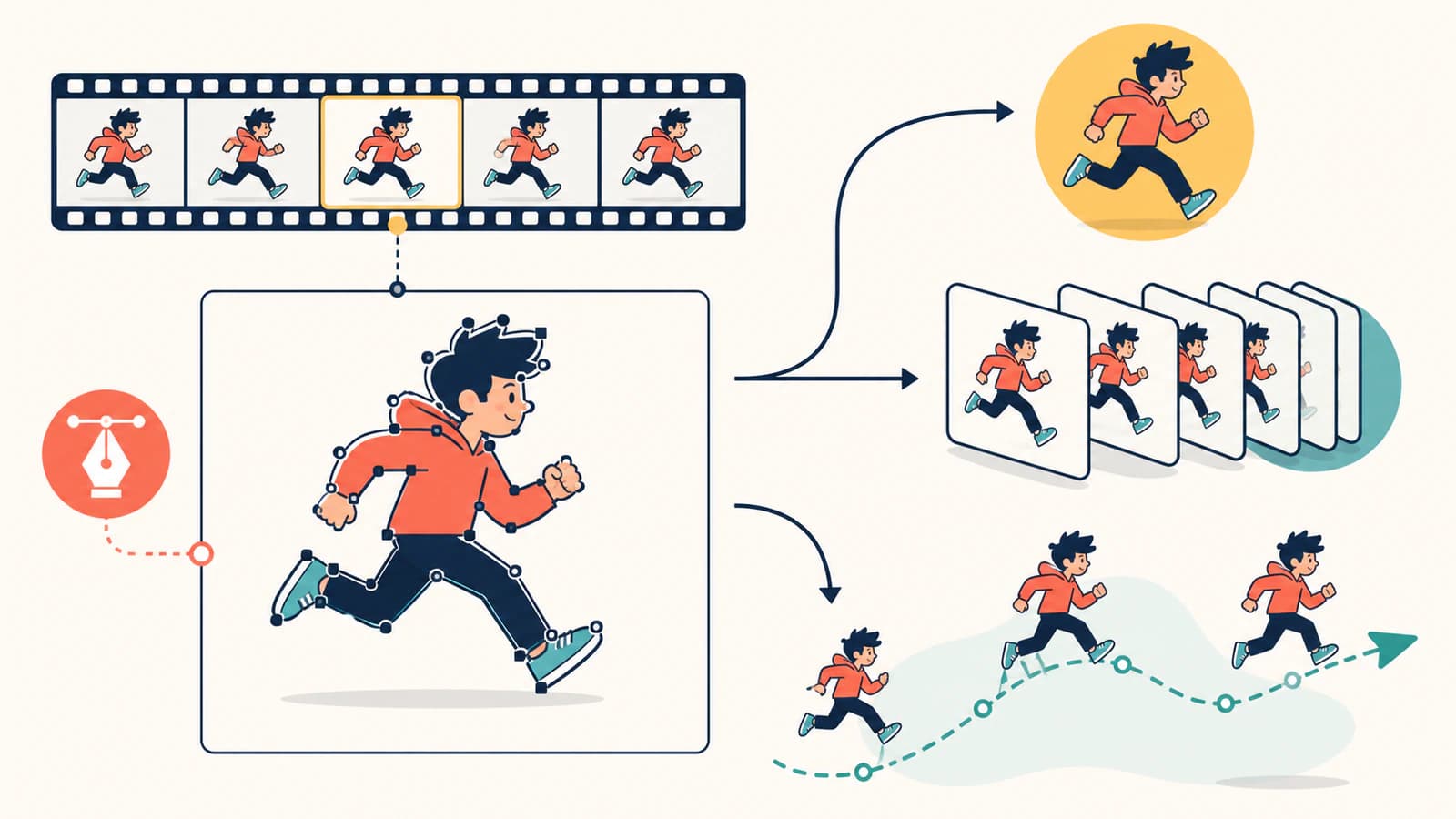
Yes, you can convert an animated GIF to SVG, but the word “convert” hides three different jobs. A vectorizer can trace one selected frame into editable paths. A frame-based tool can trace many frames and play them in sequence. Or a designer can rebuild the artwork as vector objects and author real SVG motion. Those results may all end in .svg, but they are not interchangeable.
If you need a logo, icon, or illustration from one moment in the GIF, select that frame and vectorize it. If the motion itself is the asset, keep the animation or rebuild it deliberately. A normal trace does not preserve every frame by magic.
The quick answer
- One editable still: choose a representative GIF frame, then trace that frame into SVG paths.
- The same frame sequence: use a tool that explicitly supports frame-by-frame SVG animation, and expect repeated artwork rather than one tidy set of reusable objects.
- True vector motion: redraw or trace the core objects once, then animate their position, rotation, scale, color, or path.
- PerfectVector’s workflow is explicit: an animated GIF pauses for frame selection, and only the frame you confirm is vectorized.
The three meanings of “animated GIF to SVG”
A GIF stores raster image data and can use control extensions to sequence frames with timing and looping behavior, as summarized in the Library of Congress GIF89a format description. An SVG stores shapes, paths, and optional animation instructions. Moving between them requires a decision about what should survive.
| What you want | What the converter must do | What you get | Best fit |
|---|---|---|---|
| One sharp, editable moment | Select and trace one frame | A still SVG made of paths | Logos, icons, a pose from a short animation |
| The original frame-by-frame look | Extract and sequence many frames | An animated SVG with repeated frame artwork | Simple pixel art or short loops when a specialized tool supports it |
| Clean, editable vector motion | Rebuild reusable objects and author motion | An SVG whose parts move through CSS, SMIL, or script | Web illustrations, loaders, diagrams, interface motion |
| Exact photographic playback | Preserve the original raster animation | A GIF or another raster/video format | Photos, texture, gradients, and complex effects |
The first route is vectorization. The second is closer to putting a traced flipbook inside an SVG. The third is animation design. Search results often collapse all three into the same “upload and convert” promise, so check what the tool actually exports before trusting the file extension.
The routes also differ in where the editing work lives: one isolates a moment, one repeats frame artwork, and one rebuilds reusable objects before motion is authored.
Animated PNG needs the same decision. If your source is an APNG and you only need one editable still, use the APNG to SVG converter to choose the frame before tracing it. Keep or rebuild the animation when the motion itself matters.
What PerfectVector does with an animated GIF
PerfectVector treats frame choice as a visible decision. When an uploaded GIF contains more than one frame, the app pauses before vectorization. It plays the source animation beside a still preview and gives you a timeline for choosing the frame you want. Nothing is uploaded for conversion until you confirm that selection.
The selected frame is then prepared as a still image and traced into editable SVG paths. The resulting SVG does not retain the other GIF frames or play as an animation. That constraint is useful when your goal is a clean asset from a particular moment: you know exactly which pose, expression, or composition becomes the vector.
A static GIF skips the frame picker because there is no motion decision to make. In either case, the quality of the SVG still depends on the chosen image. Flat shapes and clear edges trace more cleanly than motion blur, photographic texture, or tiny details.
How to turn one GIF frame into an editable SVG
- Play the GIF and choose the useful moment. Look for a frame with a clear silhouette, separated objects, and as little motion blur as possible. The opening frame is not automatically the best one.
- Crop away unrelated animation space. A small subject in a large canvas gives the tracer fewer useful pixels. Keep enough margin for the final composition, but remove empty or noisy edges.
- Limit colors when the artwork allows it. Small palette changes between frames can create extra shapes. For a logo, icon, or flat illustration, simplify the selected still before tracing if the palette is needlessly busy.
- Use the GIF to SVG converter. Upload the animation, scrub the timeline, confirm the frame, and let PerfectVector trace that still.
- Inspect the paths rather than the thumbnail. Zoom in, select a shape, and check whether curves are smooth and objects are actually editable. If the file contains a crowded field of tiny fragments, try a cleaner frame or simplify the source.
- Test the SVG in its destination. Recolor it in a vector editor, resize it for print, or import it into the maker app that will use it. A correct extension is only the start; the shapes must behave properly too.
This is the same core distinction explained in what image vectorization means: tracing reconstructs pixels as shapes. With an animated source, frame selection simply decides which grid of pixels gets reconstructed.
When you should preserve or rebuild the animation
Keep the raster animation when the frames are the point
A reaction GIF, photographic loop, screen recording, or texture-heavy animation usually gains little from tracing. Each frame contains details that would need to be simplified into shapes, and the result may no longer look like the original. If exact playback matters more than path editing, keep the animation in a format designed for that delivery.
Rebuild the motion when the objects are the point
A loader, icon, logo reveal, or simple character made from a few flat parts is a better candidate for true vector animation. Create clean vector objects first, then animate those objects. MDN’s SVG animation guide shows how attributes, transforms, colors, and motion paths can be animated inside SVG.
That workflow gives you semantic parts you can edit instead of a stack of almost-identical traced frames. It also means animation code becomes part of the asset. If IDs, classes, or timing hooks matter, follow the code-preserving route in the guide to editing an SVG without losing animation hooks.
Use frame-by-frame SVG only with open eyes
Specialized tools can extract GIF frames, trace them, and sequence the results. That can suit short pixel-art loops or deliberately stepped motion. It does not automatically create one elegant vector rig. Inspect the output for duplicated shapes, a large document tree, and frame-to-frame flicker caused by slightly different traces.
Common conversion mistakes
- Assuming
.svgmeans editable vector paths. A tool can put raster frames inside an SVG wrapper. Zooming and selecting objects will reveal whether you received shapes or pixels in a container. - Accepting the default frame without looking. The first frame may be blank, transitional, or visually weak. Scrub the full loop before choosing.
- Tracing motion blur. A blurred limb or glow becomes a soft boundary that the vectorizer must guess at. Choose a settled frame when you can.
- Expecting independent traces to match perfectly. If every frame is traced separately, tiny pixel differences can change paths and colors. That inconsistency shows up as flicker.
- Vectorizing a photo because SVG sounds more modern. A photograph remains better as raster unless you intentionally want a simplified, poster-like interpretation. The photo-to-SVG decision guide covers that boundary.
Check the result before you use it
For a selected-frame SVG:
- The intended frame, not just frame one, is present.
- Edges stay crisp when you zoom in.
- Major colors and objects can be selected and edited.
- Curves use a manageable set of nodes rather than tracing every pixel defect. If they do not, use the too-many-nodes checklist.
- Transparency and the crop match the chosen frame.
- The file is still, as expected.
For an animated SVG, add a second review: test playback in the exact browser, editor, or publishing system that will host it. An editor that opens static SVG artwork may not preserve every animation feature when it saves the file again.
FAQ
Does converting a GIF to SVG keep the animation? Not automatically. A normal vectorizer traces one still frame. Keeping motion requires a tool that explicitly builds a frame-based animated SVG, or a separate workflow that rebuilds the artwork as vector objects and authors animation instructions.
Which GIF frame should I vectorize? Choose the frame with the clearest silhouette, least motion blur, most useful composition, and fewest overlapping objects. Scrub the whole loop instead of accepting frame one by default.
Can an SVG file be animated? Yes. SVG elements can be animated with mechanisms such as CSS, SMIL, or JavaScript. That motion must be authored in the vector document; tracing a raster frame creates shapes but does not invent the animation.
Why is my converted SVG still made of pixels? The converter may have embedded the GIF or its frames inside an SVG wrapper instead of tracing them into paths. Zoom in and select an object. If it pixelates or selects as one flat image, it is not an editable vector trace.
Is a frame-by-frame animated SVG a true vector? It can contain real vector paths, but that does not make it a clean reusable animation. Each frame may repeat most of the artwork as separate shapes. Inspect the document structure and path consistency before choosing that route.
Sources
- Library of Congress — GIF89a — Describes GIF raster images, control extensions, timing, and looping.
- W3C — Scalable Vector Graphics (SVG) 2 — Defines SVG’s vector document model.
- MDN — SVG animation with SMIL — Explains authored animation of SVG attributes, transforms, and motion.
- PerfectVector — GIF to SVG Converter — States the current selected-frame vectorization workflow.
Need one clean, editable moment from a moving file? Upload your GIF, choose the frame, and inspect the traced SVG. Check the silhouette, small details, and node count before deciding whether that still is the asset you need—or whether the motion deserves a purpose-built animation instead.
More from the blog

How to Convert PDF to SVG: Export or Trace It
How you convert a PDF to SVG depends on what's inside it. If it's vector, you export it; if it's a scan, you trace it. Here's how to tell, and how to do both.

Can Gemini Vectorize an Image? What It Can Do
Gemini can write SVG code from a text prompt, unlike most AI. But it can't trace your uploaded image into a clean, editable SVG. Here's what it can and can't do.