Convert OpenCV Contours to SVG and Keep the Holes
Convert a dark-on-light PNG into SVG paths with OpenCV. Keep inner holes and nested islands, then render the export and compare it with the original mask.
On this page
Turn the foreground of your image into a binary mask, retrieve its boundaries with cv2.RETR_TREE, and write the closed contours into an SVG <path> with fill-rule="evenodd". This preserves a hole and a filled island inside it when all three boundaries come from the same mask. RETR_EXTERNAL retrieves the outer boundaries, so it fills interior gaps in this export. OpenCV contour hierarchy
This example is for one dark shape color on a light or transparent background. It produces polygon outlines. Use a curve-fitting vectorizer when you need smooth Bézier handles or color layers for editing.
Start with a foreground mask
A binary mask gives each pixel one of two values. Here, foreground becomes white in the mask and the background becomes black. Compose transparent pixels over white before thresholding a dark logo. An image can store color values under fully transparent pixels, so loading a transparent PNG straight to grayscale can make the background appear as foreground.
The example uses an inverted threshold with Otsu’s method to pick a cutoff from the grayscale data. If the source has uneven lighting or faint pencil lines, inspect the mask before you trace. A missing line in the mask stays missing in the SVG. OpenCV thresholding tutorial
Export the contours to one compound SVG path
Install opencv-python-headless, Pillow, and numpy in a Python environment. Save a dark-on-light or transparent PNG as badge.png, then run this script from the same folder. It writes badge.svg, keeping the pixel-coordinate frame as the SVG viewBox.
from pathlib import Path

import cv2
import numpy as np
from PIL import Image

image = Image.open("badge.png").convert("RGBA")
white = Image.new("RGBA", image.size, "white")
gray = np.array(Image.alpha_composite(white, image).convert("L"))
_, mask = cv2.threshold(gray, 0, 255, cv2.THRESH_BINARY_INV | cv2.THRESH_OTSU)
contours, _ = cv2.findContours(mask, cv2.RETR_TREE, cv2.CHAIN_APPROX_SIMPLE)

subpaths = []
for contour in contours:
    points = cv2.approxPolyDP(contour, 0.75, closed=True).reshape(-1, 2)
    if len(points) < 3:
        points = contour.reshape(-1, 2)
    if len(points) < 3:
        continue
    coordinates = [f"{x} {y}" for x, y in points]
    subpaths.append("M " + " L ".join(coordinates) + " Z")

width, height = image.size
path_data = " ".join(subpaths)
svg = (
    f'<svg xmlns="http://www.w3.org/2000/svg" viewBox="0 0 {width} {height}">'
    f'<path d="{path_data}" fill="black" fill-rule="evenodd"/>'
    "</svg>\n"
)
Path("badge.svg").write_text(svg, encoding="utf-8")
Each M starts a subpath, each L draws a straight segment, and Z closes the boundary. The even-odd fill rule alternates the fill as it crosses nested boundaries. A ring gets a hole, and a smaller outline inside that hole becomes a filled island. Keep the subpaths together. If you export them as independently filled <path> elements, they paint over one another. W3C SVG 2 fill rule
The 0.75 approximation tolerance is in input pixels and belongs to this sample. Increase it cautiously to simplify long edges. Check the output at interior gaps and tight corners. The example skips contours with fewer than three points after falling back to the unsimplified contour. If one-pixel marks must survive, preserve them as pixel cells or test a different boundary method. OpenCV shape descriptors
Test the holes in the rendered file
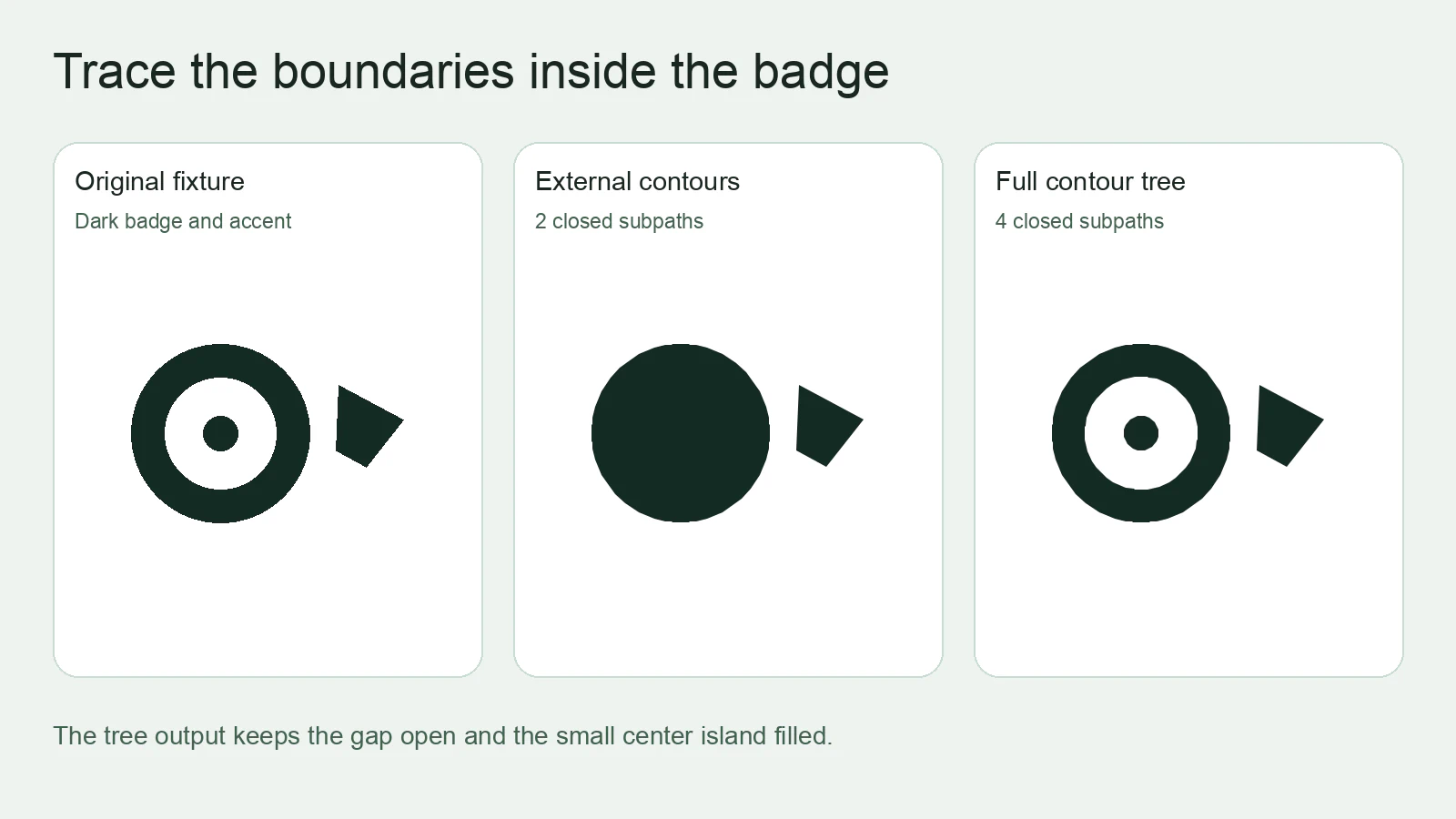
We traced the same 360 × 260 PNG twice in OpenCV 4.14.0 and rendered both SVGs in Inkscape 1.4.4. The source had a dark ring, a small dark island inside it, and a separate shape. Both exports used the same mask, tolerance and fill rule.
| Retrieval mode | Closed subpaths | Gap sample | Center island sample |
|---|---|---|---|
RETR_EXTERNAL | 2 | Opaque | Opaque because the whole interior is filled |
RETR_TREE | 4 | Transparent | Opaque |
Open the exported file over a contrasting background and check the smallest gap. If you already have every boundary and a hole still appears filled, check that your editor kept the contours in one compound path and retained the intended SVG fill rule. The local test verifies render behavior in Inkscape. A laser, CAD, or print importer can interpret the same SVG differently, so check the receiving app separately.
If your starting point is a logo with several fills or a curved illustration, use the image vectorizer and inspect the resulting shapes. For a scriptable service workflow, see the Python vectorization API example.
FAQ
Why does an SVG from OpenCV fill in its holes?
Check that findContours captured the inner boundaries. Put those closed subpaths together in a compound path with fill-rule="evenodd". An exterior-only trace has no inner boundaries to subtract.
Does OpenCV produce Bézier paths?
This workflow exports polygons using M, L and Z. approxPolyDP can reduce the vertex count. Use a curve-fitting vectorizer when the SVG needs editable Bézier curves.
Is the exported SVG as large as the original PNG?
Its viewBox has the original image width and height in SVG user units. The SVG can render at other sizes while keeping that coordinate frame. Set physical dimensions explicitly if the receiving workflow requires them.
Sources
- OpenCV — Contours Hierarchy — external-only and nested retrieval modes.
- OpenCV — Image Thresholding — binary thresholds and Otsu’s method.
- OpenCV — Structural Analysis and Shape Descriptors — contour retrieval and polygon approximation.
- W3C — SVG 2 Painting — the even-odd fill rule for compound shapes.
For a color logo or an image that needs smooth editing handles, preview a vector trace with PerfectVector. Inspect an inner hole and the tightest curve at the size you plan to use.
More from the blog

PicSVG Filters: Compare Edge, Internal and Clean
Compare three PicSVG filters on one image, save each SVG separately, and check which regions, openings and background treatment fit your intended design.

Potrace PNG to SVG: Handle Alpha and Keep Holes
Convert a PNG with Potrace after preparing its alpha channel. Follow a tested PGM workflow, compare thresholds, and check the SVG's background and inner holes.