
Potrace PNG to SVG: Handle Alpha and Keep Holes
Convert a PNG with Potrace after preparing its alpha channel. Follow a tested PGM workflow, compare thresholds, and check the SVG's background and inner holes.
On this page
To convert a PNG to SVG with Potrace, prepare a grayscale bitmap first, then trace it with potrace --svg. For dark artwork on transparent pixels, composite the image onto a white matte before saving the bitmap. Inspect the thresholded shapes and their inner openings before accepting the SVG.
Standard Potrace 1.16 reads PBM, PGM, PPM and BMP rather than PNG directly. Its official manual describes a monochrome tracing operation: intermediate shades become black or white. The workflow below creates solid geometry with empty regions, rather than preserving the PNG's continuous alpha values.
If you prefer a browser workflow for an image you already have, PerfectVector offers image-to-path conversion and a free preview. Start free with your own image, then compare its silhouette, small openings and colors with the source. Unlock the result before editing or export. The local Potrace recipe remains useful when you want explicit preprocessing and repeatable command settings.
What you need before tracing
Use an installed Potrace executable, Python 3 with Pillow, and the original PNG. This recipe was exercised with Potrace 1.16 and Pillow 11.3.0. Keep a copy of the input and work in a separate folder so each threshold variant has a distinct filename.
The starting case is a dark logo, icon or drawing on a light or transparent background. If your subject is light on dark, decide how to invert or otherwise prepare the image before applying this recipe. For an interactive editor workflow, see Inkscape Trace Bitmap.
A matte is the solid background used to resolve transparent pixels before tracing. A threshold is the brightness cutoff that divides the prepared image into foreground and background. Those choices happen before the contour becomes SVG geometry.
1. Resolve transparency before saving the bitmap
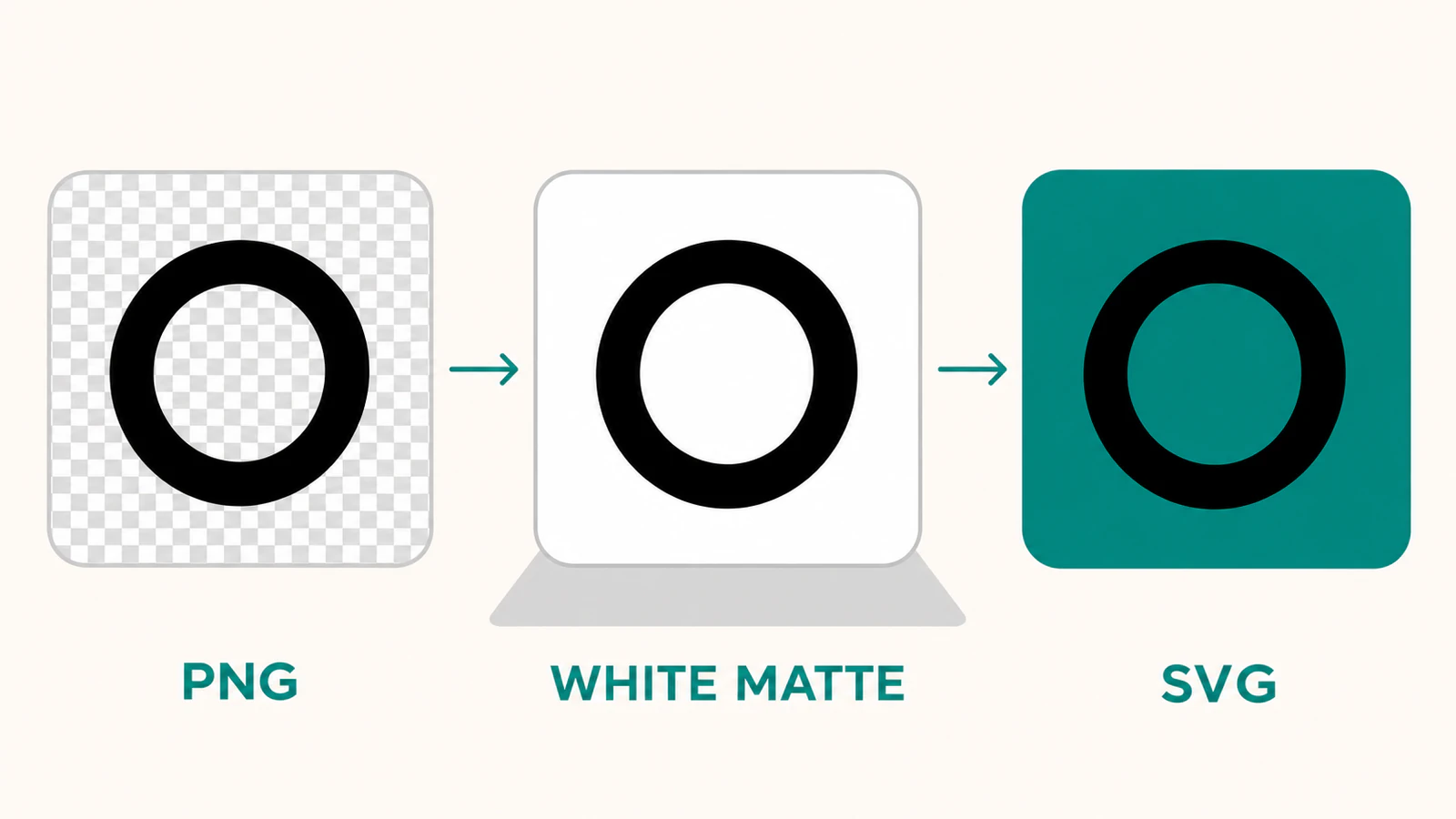
PNG stores color and opacity separately. The alpha channel describes each pixel's opacity. The PNG specification explains this representation; a fully transparent pixel can still carry RGB values. Dropping the alpha channel does not composite those pixels onto the white background you may have seen in an image viewer.
For a dark mark, place the image over white deliberately. This Python snippet opens artwork.png, composites it onto an equally sized white image, converts that result to grayscale and saves artwork.pgm:
from PIL import Image

src = Image.open("artwork.png").convert("RGBA")
matte = Image.new("RGBA", src.size, "white")
gray = Image.alpha_composite(matte, src).convert("L")
gray.save("artwork.pgm")
Pillow's alpha_composite documentation defines the second image as composited over the first. Both images here have matching dimensions and RGBA mode.
Open the prepared PGM before tracing. Its outside background should be white, its intended foreground dark, and its important gaps visible. A black rectangle at this stage is a preprocessing problem; changing SVG fill rules later cannot recover an opening that never reached the tracer.
2. Trace the prepared PGM
Run this in the folder containing artwork.pgm:
potrace artwork.pgm --svg --blacklevel 0.5 --turdsize 2 --output artwork.svg--blacklevel 0.5 chooses the grayscale cutoff. --turdsize 2 keeps Potrace's default small-speckle suppression explicit. Use a new output name when you change a setting, then compare the files rather than repeatedly overwriting your reference.
Change one control at a time:
| Control | What to review |
|---|---|
--blacklevel | Whether faint marks become foreground and narrow openings remain empty |
--turdsize | Whether small isolated shapes are noise or intentional details |
--alphamax | Corner treatment; despite its name, this is not an opacity control |
A higher blacklevel threshold can include more light-gray pixels in the foreground. That can strengthen a faint line or close a light opening. Judge the prepared bitmap and the resulting contour together. Smoothing cannot reconstruct a counter after the threshold has filled it.
What the two original test images showed
We created two controlled 256 × 256 PNGs and ran the preprocessing and Potrace commands above. One was a black ring with transparent pixels outside and inside it. The other was an opaque dark mark with a narrow gray counter, the enclosed opening within the mark. We inspected the generated SVGs with a renderer and checked their center and outside transparency.
| Input and preparation | Observed SVG result |
|---|---|
| Transparent ring, alpha discarded before grayscale conversion | A filled black canvas; the outside and intended opening became foreground |
| Same ring, composited onto white before grayscale conversion | The outside and center were empty; the ring remained filled |
| Narrow gray counter, white composite, blacklevel 0.5 | The counter remained open |
| Same prepared counter image, blacklevel 0.8 | The counter filled in |
The ring control's invisible pixels carried black RGB values. Ignoring alpha exposed those values to the threshold. The white-composite version resolved them to white first. This explains that sample's black box; it is not a claim that every PNG will fail in the same way.
The counter test held the input and other settings constant. Only the threshold changed. Its result shows why a darker-looking trace is not automatically a better trace. Inspect the feature you need rather than choosing the setting with the heaviest silhouette.
These were digital checks of two original fixtures, with no embedded raster image in their SVG outputs. We did not compare Potrace's quality with PerfectVector, import the files into a cutter or test a physical result.
3. Check holes and background in the saved SVG
Place the SVG over a contrasting background. That background should show through both the outside area and every intended opening. White paint can resemble a hole on a white page, so a thumbnail alone is insufficient.
An SVG compound path can describe an outer contour and an inner opening within one object. If the opening is already absent from the traced geometry, return to the PGM and threshold. If it exists in one renderer but fills in after import, investigate the receiving app's path interpretation instead. The SVG hole troubleshooting guide separates those cases.
Check the saved file for:
- the intended silhouette and small gaps;
- real empty space outside the mark and inside its counters;
- stray speckles that should not become objects;
- an appropriate document size in the destination workflow;
- paths rather than an embedded copy of the PNG.
If only the background looks wrong, use the transparent SVG background diagnosis before deleting every white object. If a tiny feature is genuinely absent from the source, use a larger original or redraw that detail. The source-quality guide explains that boundary.
When this monochrome workflow fits
Potrace fits a mark that can be expressed as a filled silhouette and intentional openings. Keep the raster when soft shading or partial opacity is part of the artwork you need to preserve. For several meaningful colors, use a color-capable vectorization workflow or prepare deliberate separate passes; this single monochrome command does not create a color palette.
You can also use a vector editor to redraw a critical contour. Automatic tracing provides a candidate shape, and your intended use determines whether to keep or edit it.
FAQ
Can Potrace open a PNG directly? Standard Potrace 1.16 accepts PBM, PGM, PPM and BMP input. Decode the PNG with another image tool first, make its transparency treatment explicit, and save a supported bitmap before tracing.
Does Potrace preserve PNG transparency? The monochrome workflow creates filled geometry and empty regions. It does not preserve the PNG's continuous alpha values. Composite transparent pixels onto a deliberate matte before thresholding, then verify the SVG's empty regions over a contrasting background.
Is alphamax the PNG alpha setting? No. Potrace's alphamax controls corner treatment in the traced curves. It does not determine how a PNG's opacity channel is composited before tracing.
Why did a hole disappear? Check whether the opening is still visible in the prepared bitmap and selected threshold. If the threshold filled it, change the preparation or cutoff and retrace. If the SVG contains the opening but only a receiving app fills it, check compound-path and fill-rule handling there.
Sources
- Potrace — Manual — Supported input formats, monochrome thresholding, SVG output and the named command options.
- Pillow — Image module — RGBA image compositing and the order used in the preparation snippet.
- W3C — PNG specification — Color samples and alpha representation in PNG images.
- W3C — SVG paths — Compound paths and inner contours that can describe openings.
Start free with your own image in PerfectVector, then check its silhouette and inner openings against the source before choosing the next editing step.
More from the blog

SVGcode Image Tracing: Check the Shapes You Export
Trace a flat-color image in SVGcode, copy the actual SVG, and check its palette, inner openings, background and canvas before using the file in your design.

ImageMagick PNG to SVG: Check the Tracing Delegate
Find out whether your ImageMagick PNG-to-SVG command creates paths, which tracing delegate it uses, and why a color image can become a monochrome SVG trace.