SVGcode Image Tracing: Check the Shapes You Export
Trace a flat-color image in SVGcode, copy the actual SVG, and check its palette, inner openings, background and canvas before using the file in your design.
On this page
- What SVGcode traces, and what to prepare
- 1. Load the image and choose a trace mode
- 2. Change settings with one visible detail in mind
- What our original flat-color test showed
- 3. Copy the SVG and preserve the actual markup
- 4. Inspect colors, openings and canvas in the saved file
- Recover from the first failed check
- FAQ
- Sources
For SVGcode image tracing, load your raster artwork, choose Color SVG or Monochrome SVG, adjust the trace, then inspect the exported SVG itself. Check its colors, enclosed openings and canvas before accepting it. In our flat-color test, SVGcode produced real paths and kept the frame's opening, but both exported variants changed the original palette and used a different canvas.
If you want another browser workflow for an image you already have, preview it free in PerfectVector. Editing and export follow unlock. Use the same shape and color checks below; this walkthrough does not compare the two tools' output quality.
What SVGcode traces, and what to prepare
SVGcode converts raster images to SVG vector graphics. Its author describes a Potrace-based WebAssembly implementation that traces color by color; the official source repository documents that implementation. That explains the approach, but the exported file is the evidence for your own artwork.
Start with a copy of a PNG or other supported raster image, a browser that can access SVGcode, and permission to process the artwork. For the clipboard route below, your browser must allow image clipboard access. Keep a plain-text editor available to save copied SVG markup, plus an SVG viewer or editor for the completion check.
A flat mark with distinct colored regions is a useful first input. Record the colors and openings you need to retain before changing settings. For a photo or a soft gradient, decide which details you can simplify; tracing cannot infer every intended boundary from pixels. The image vectorization guide explains that raster-to-path decision in more detail.
1. Load the image and choose a trace mode
Open SVGcode and load your image. For the route we tested, put the actual image on the clipboard and choose Paste Image. Confirm the preview shows the intended image, including transparent areas and small interior details, before adjusting anything.
Choose Color SVG when separate colored regions matter. Use Monochrome SVG when a single-color silhouette is the intended result. This walkthrough used Color SVG throughout; it does not report a separate monochrome test.
Keep the original raster open beside the preview. Do not judge the trace only by whether its edges look smooth when enlarged. An empty center, a small gap or a deliberately separate color can matter more than a smooth outer edge.
2. Change settings with one visible detail in mind
Start with one defect you can point to, such as unwanted dots outside the artwork or a small opening that disappears. Change one control, wait for the preview to update, then compare that detail again.
Suppress Speckles removes small regions. Raising it may help with stray dots, but check small details you meant to keep. Posterize Input Image reduces color variation before tracing; posterization groups colors into fewer levels. The author's SVGcode walkthrough explains both controls and per-channel posterization.
The current app also exposes Stroke Width and expert settings. Leave controls you do not need alone until you have a baseline export. A large set of simultaneous changes makes it hard to tell which one altered the result.
What our original flat-color test showed
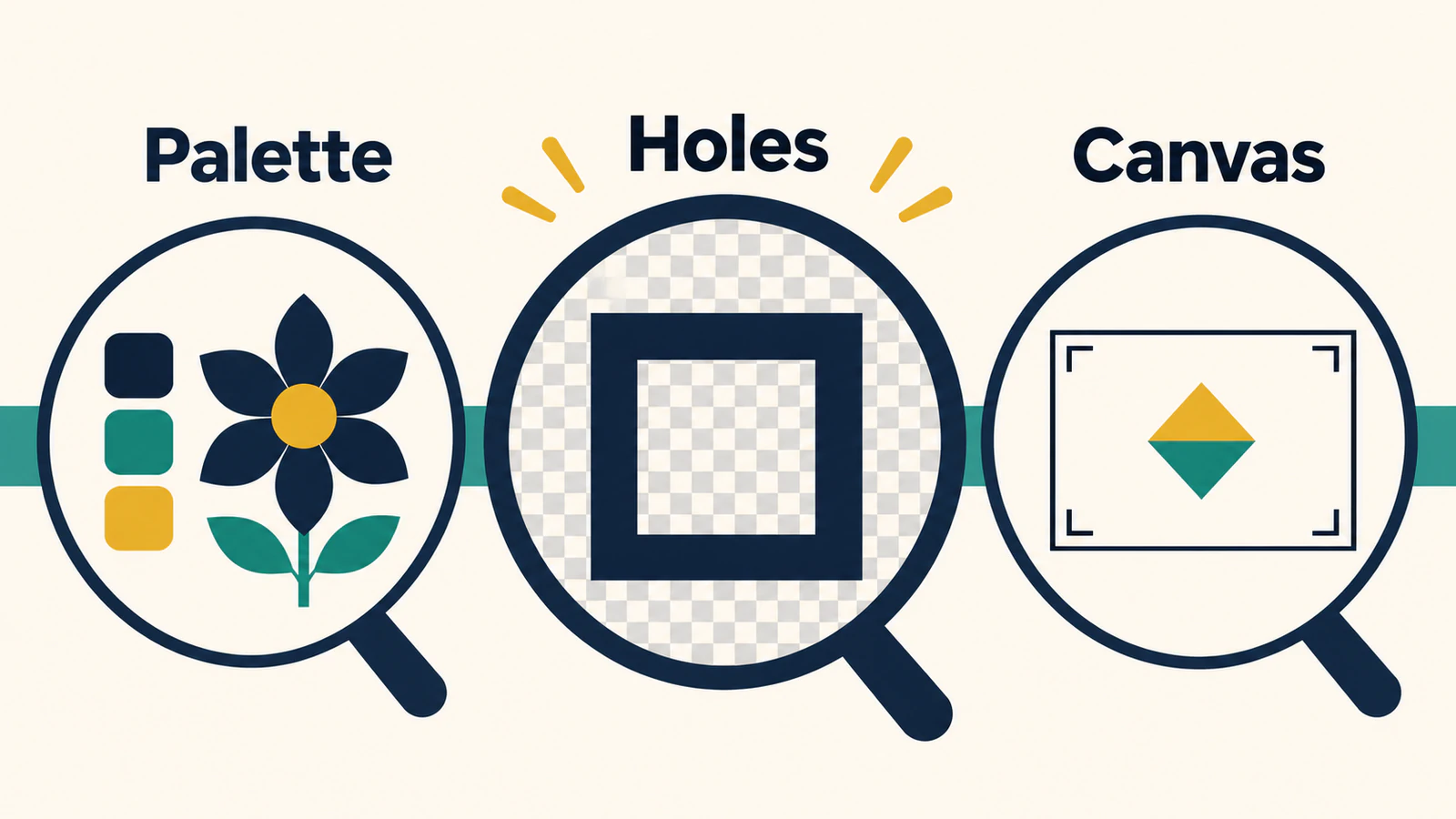
We made a 512 × 512 PNG with a transparent background, a navy rectangular frame with an opening, a gold rectangle and an overlapping teal rectangle. We pasted that original image into the public SVGcode app, used Color SVG, Suppress Speckles 2 and Stroke Width 0, then copied two actual SVG outputs.
The first used Posterize Input Image with red, green and blue at 7 Steps each and alpha at 1 Step. The second used the same image with Posterize Input Image unchecked. The RGB and alpha controls became disabled in that second state.
| Check | Original PNG | Posterization on | Posterization off |
|---|---|---|---|
| Solid region colors | #152b46, #e6aa3c, #3e948d | Black, #d4aa00, teal | #002a2a, #d4aa2a, #2a8080 |
| Frame opening | Transparent | Open in the rendered SVG | Open in the rendered SVG |
| Canvas | 512 × 512 pixels | viewBox="0 0 1024 1024" | viewBox="0 0 1024 1024" |
| SVG structure | Raster input | Three paths, no embedded image | Three paths, no embedded image |
Turning posterization off did not restore this image's exact original colors. Both SVGs also placed the artwork within a different canvas. These are observations from one controlled image, not a benchmark or a prediction for every file. They are good reasons to check the actual export before using it as a color or layout master.
3. Copy the SVG and preserve the actual markup
When the preview is ready, choose Copy SVG. Wait for Optimizing SVG to finish before reading or pasting the clipboard. In our run, an immediate clipboard read was empty; reading it after optimization returned the SVG markup.
Paste the markup into a plain-text editor and save it with an .svg extension, such as artwork-trace.svg. Confirm it contains an <svg> element and closing </svg> rather than a screenshot or a rich-text document. Keep a separate filename for each settings variant so the later export does not replace your reference.
This is the copied-markup route we completed. SVGcode also displays Save SVG, but this walkthrough does not establish native file-save dialog behavior or successful import into another app.
4. Inspect colors, openings and canvas in the saved file
Open the saved SVG in a viewer or editor, beside the untouched source. Check these separately:
- Palette: compare important fills with the intended color values. A trace can keep three regions while changing all three colors. If exact colors are required, restore and verify the intended fills in your editor.
- Openings: place a contrasting background behind the artwork. The new background should show through intended holes and outside space. A white painted shape can look like an opening on white. The transparent SVG background guide shows how to distinguish the two.
- Canvas: inspect the document bounds as well as the artwork bounds. The viewBox defines the SVG's internal coordinate rectangle; it is not a promise of physical dimensions. Check margins and size in the app where you will use the file.
- Geometry: select important regions individually and try a small recolor or move, then undo. A file containing paths still needs an editability check for your intended job.
SVG can represent an opening with several contours inside one compound path; the SVG path standard describes subpaths and holes. You do not need a separate path element for every visible boundary. Conversely, a low path count alone does not prove that all intended details survived.
Our completion check was digital: inspect the copied markup and render the actual SVGs. The opening and outside space were transparent in both variants. No destination-editor import, print or cut result was tested. For a broader handoff review, use the vector trace quality scorecard.
Recover from the first failed check
| What you see | What to check next |
|---|---|
| Stray dots remain | Increase Suppress Speckles cautiously, then recheck intentional small parts. |
| A small feature disappears | Compare the source and a lower speckle setting before trying unrelated controls. |
| Colors differ | Compare exported fills with your palette; do not assume disabling posterization restores exact values. |
| A hole looks filled | Test over a contrasting background, then inspect whether the inner contour exists. |
| The artwork has unexpected margins | Compare canvas and artwork bounds; set the required document size in your destination app. |
| Copy SVG gives nothing usable | Wait for optimization, copy again and inspect the pasted text before saving. |
| Paste Image is unavailable | Check clipboard permission and the app's other visible image-loading options in your browser. |
If a hole remains wrong, the SVG hole troubleshooting guide separates missing trace geometry from fill-rule interpretation. For a desktop tracing workflow with direct cleanup tools, see Inkscape Trace Bitmap.
Keep the original image and the accepted SVG together. Write down any palette correction or canvas adjustment the next person will need. If you want to try your existing artwork in another browser tool, start free with PerfectVector and check the preview's silhouette and openings.
FAQ
Can SVGcode trace a PNG into real SVG paths?
Yes. Our original flat-color PNG produced copied SVG markup containing three paths and no embedded image. Inspect your own exported file; that result does not guarantee the same structure or fidelity for every image.
Does turning off posterization preserve the original colors?
It did not in our controlled test. Both settings changed the original solid-color values. Compare the exported fills with your intended palette and correct them when exact color matters.
Why is the SVG canvas different from my PNG size?
The copied SVG in our test used a 1024 × 1024 viewBox from a 512 × 512 input. Inspect the exported canvas, artwork bounds and intended display size separately rather than assuming source pixel dimensions will be retained.
How do I know an opening is transparent?
Place a contrasting background behind the saved SVG. It should show through the opening. If it does not, inspect whether the trace lost the inner contour or created a painted shape there.
Sources
- SVGcode app — image-tracing interface and current controls.
- SVGcode author walkthrough on web.dev — color-by-color tracing, speckle suppression and posterization.
- Official SVGcode repository — project implementation and source documentation.
- W3C SVG paths — compound paths, subpaths and openings.
More from the blog
Potrace PNG to SVG: Handle Alpha and Keep Holes
Convert a PNG with Potrace after preparing its alpha channel. Follow a tested PGM workflow, compare thresholds, and check the SVG's background and inner holes.
Best AI Image Vectorizers 2026: Top Picks by Use Case
Our 2026 verdict: PerfectVector is our top pick for logos, icons, illustrations and cut files. See which alternative fits full-color, API, free or Adobe work.