
Vectorize an Image in Python With an API
Send a PNG, JPEG, or WebP to a vectorization API in Python. Save the SVG, verify a test response, and recover the same conversion if the connection drops.
On this page
A Python script can send a raster image to the PerfectVector vectorization API and save the returned SVG next to the source. The example below prints the conversion ID before it downloads the file. If the connection drops, that ID and a request key you choose give you two ways to recover the result.
Get a test key and one image
Create a test key from the Developer API page. Set it in your terminal as PERFECTVECTOR_API_KEY and keep it out of the script and version control. Install Requests in your project's Python environment with python -m pip install requests.
For a first run, use a single-frame PNG, JPEG, or WebP such as a 512 × 512 logo named logo.png. The API accepts files up to 5 MiB and images from 100 to 4096 pixels on each side. Test mode checks the upload and returns a fixed SVG marked “TEST MODE” at zero charge. That file verifies your request and download. Judge the quality of the trace with a live conversion of your own image. PerfectVector API test mode
We ran the Python script with a test key, downloaded an SVG that parsed successfully, and replayed the same upload with the same request key. Both runs returned the same conversion ID.
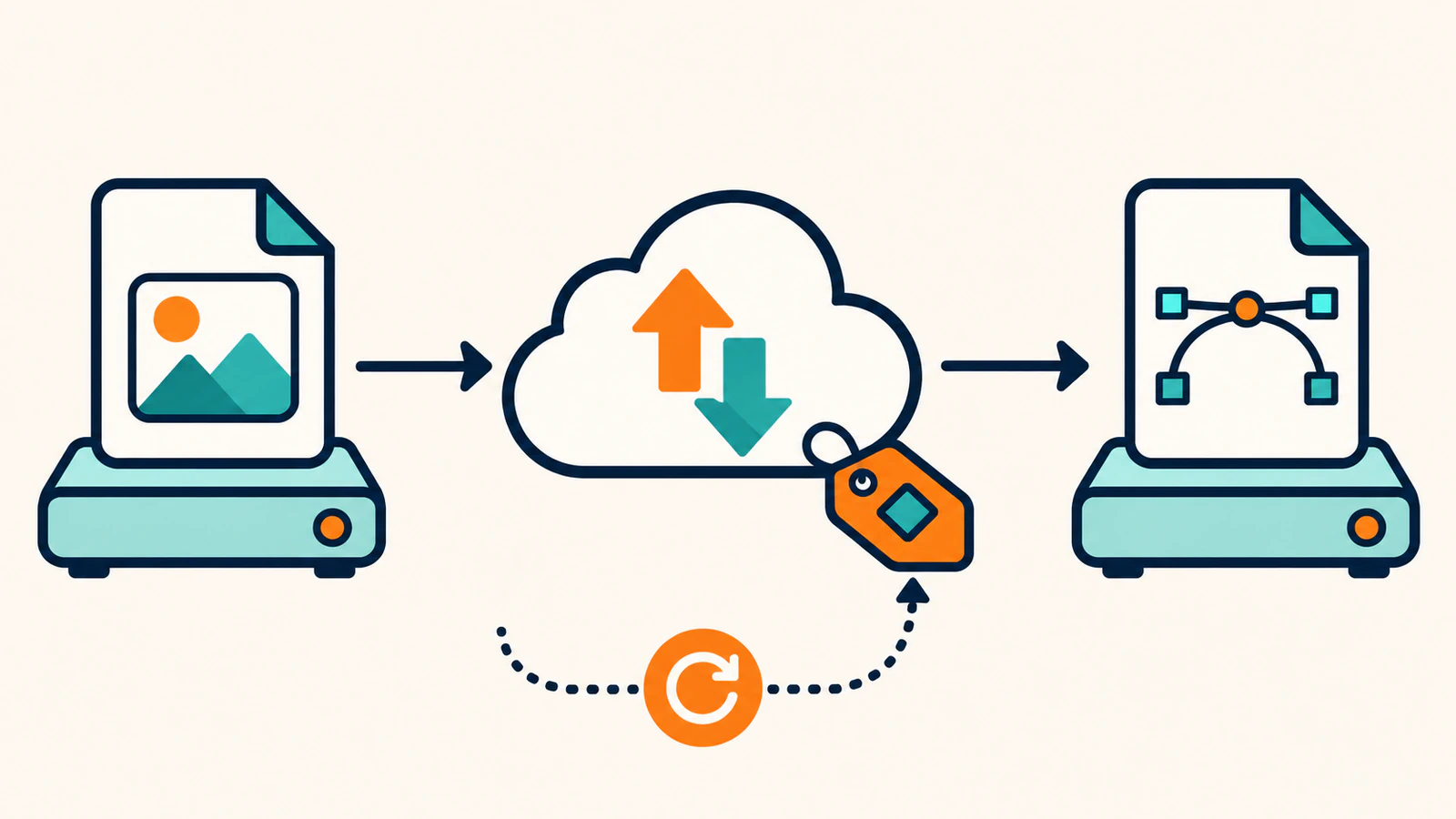
Send the image and save the SVG in Python
Save the following as vectorize.py. The files argument tells Requests to build a multipart upload, which packages the original bytes in an image form field. Requests multipart uploads
import os
import sys
import time
from pathlib import Path

import requests

API = "https://api.perfectvector.com/v1"
AUTH = {"Authorization": f"Bearer {os.environ['PERFECTVECTOR_API_KEY']}"}


def checked(response):
    content_type = response.headers.get("Content-Type", "").split(";")[0]
    if response.status_code >= 400 and content_type == "application/problem+json":
        problem = response.json()
        raise RuntimeError(f"{problem['code']} (request {problem['request_id']})")
    response.raise_for_status()
    return response


def vectorize(source, destination, operation_id):
    with source.open("rb") as image:
        response = checked(requests.post(
            f"{API}/vectorizations",
            headers={**AUTH, "Idempotency-Key": operation_id, "Prefer": "wait=10"},
            files={"image": (source.name, image)},
            timeout=30,
        ))

    conversion = response.json()
    conversion_id = conversion["id"]
    print(f"Conversion ID: {conversion_id}", flush=True)
    deadline = time.monotonic() + 720
    while conversion["status"] in {"queued", "processing"}:
        if time.monotonic() >= deadline:
            raise TimeoutError(f"Stopped polling {conversion_id}")
        time.sleep(2)
        conversion = checked(requests.get(
            f"{API}/vectorizations/{conversion_id}", headers=AUTH, timeout=30,
        )).json()

    if conversion["status"] != "succeeded":
        error = conversion["results"][0].get("error") or {}
        raise RuntimeError(f"{conversion_id}: {error.get('code', conversion['status'])}")

    svg = checked(requests.get(
        f"{API}/vectorizations/{conversion_id}/result", headers=AUTH, timeout=30,
    ))
    if svg.headers.get("Content-Type", "").split(";")[0] != "image/svg+xml":
        raise ValueError("Expected an SVG response")
    partial = destination.with_suffix(".svg.part")
    partial.write_bytes(svg.content)
    partial.replace(destination)
    print(f"{destination} saved ({len(svg.content)} bytes)")


if __name__ == "__main__":
    source = Path(sys.argv[1])
    if source.suffix.lower() not in {".png", ".jpg", ".jpeg", ".webp"}:
        raise SystemExit("Choose a PNG, JPEG or WebP file")
    if source.stat().st_size > 5 * 1024 * 1024:
        raise SystemExit("Choose a file no larger than 5 MiB")
    vectorize(source, source.with_suffix(".svg"), sys.argv[2])
Run this from the directory containing logo.png. Choose an ID for this conversion and record it before you run the command. The API calls it an idempotency key, a value that ties resubmissions of the same upload to one conversion. The example uses logo-asset-0001. Use a different value for a different image or operation. PerfectVector safe retries
python vectorize.py logo.png logo-asset-0001A successful test run prints a conversion ID and a byte count, and leaves logo.svg beside logo.png. Open logo.svg to confirm that the sample renders. The script replaces an existing SVG of the same name after it has downloaded the new file. Use a scratch folder for the first run.
The script asks the server to wait up to 10 seconds before returning an unfinished conversion. It polls queued and processing conversions about every two seconds and only downloads once the status is succeeded. A test conversion finishes immediately, so use an unfinished response from a local fixture to exercise the polling branch before relying on it in a live worker. PerfectVector waiting and async
Recover a conversion after a timeout
If Python has printed a conversion ID, check that ID with GET /v1/vectorizations/{id}. Once it succeeds, use GET /v1/vectorizations/{id}/result with the same account and mode to download the SVG. Result links expire 24 hours after completion, so copy the file to your own storage if you need it later. PerfectVector result downloads
If Python stopped before printing the ID, run the command again with the same file bytes and the same idempotency key within 24 hours of the first request. The API returns the existing conversion if it accepted the first submission. After that window, a submission with the same key can start a new conversion. PerfectVector safe retries
| What you see | What to check |
|---|---|
401 invalid_api_key | Set a current test key in the environment used by Python. If you revoked the key, create a replacement in the same mode. |
415 unsupported_media_type or 422 invalid_image | Open the original file and check its actual format and pixel dimensions. Save a corrected image and give that upload its own key. |
A conversion ID followed by processing_failed | The API created a conversion record, but the image could not be traced. Inspect the original and retry a corrected file as a new operation. |
409 idempotency_conflict | The same key was used with different image bytes or options. Recover with the original file or give the new input a new key. |
If you need to contact support, keep the request ID from the exception or the conversion ID from the script. The API error reference explains which errors are safe to retry.
FAQ
Can Python vectorize a JPEG or WebP with the same script?
Yes. Pass the JPEG or WebP file as the first argument. The same file size, dimension and single-frame rules apply, and the output has an SVG extension.
Can I use this Python example for a whole folder?
Use it to verify one upload and download first. For a folder, record each file's key, conversion ID and output path in a durable queue. PerfectVector permits one live conversion at a time per account by default, so wait for each conversion to finish before submitting the next. PerfectVector API limits
Sources
- Requests — Quickstart — Multipart files, timeouts and byte responses.
- PerfectVector — Test mode — Upload limits, the fixed test SVG and test credit behavior.
- PerfectVector — Waiting and async — Server wait preference, status polling and when a test request finishes.
- PerfectVector — Idempotency — Key lifetime, scope, conflict and replay rules.
- PerfectVector — Results — Result endpoint, authentication and expiry.
- PerfectVector — Errors — HTTP problem codes and recovery instructions.
- PerfectVector — Limits — The default live concurrency and file limits.
Get a test key through the PerfectVector API page, run the script on one of your own images, and check that the saved SVG opens and the terminal prints its conversion ID.
More from the blog
Best AI Image Vectorizers 2026: Top Picks by Use Case
Our 2026 picks: PerfectVector for logos, icons and cut files, and its API for image-to-SVG in your own app. See which tool fits full-color, free or Adobe work.

Plan a Folder-to-SVG Batch in Claude Code
Plan a folder-to-SVG batch in Claude Code with PerfectVector MCP. Give each raster a unique output path and use a tested local audit to identify missing SVGs.