Export a PDF Diagram as SVG With PyMuPDF and Keep Paths
Export one PDF diagram with PyMuPDF, crop the view, and check which parts of the SVG are paths, text, or embedded pixels before editing it.
On this page
Use PyMuPDF’s Page.get_svg_image() to export a PDF diagram as SVG. If the diagram occupies part of a page, copy that page into a new document and set its CropBox before exporting. Existing drawing commands can become SVG paths, and embedded bitmaps can remain image elements. Open the result and inspect the specific shapes you need to edit. PyMuPDF’s PDF-to-SVG recipe
Copy the page and set the visible bounds
The CropBox defines the visible region of a PDF page. PyMuPDF’s SVG exporter works on the page, so the crop gives the exporter the diagram’s visible bounds. The example uses an unrotated page with its original default CropBox. Measure the box you want in that page’s coordinates, in points. For a file that already has a crop or rotation, check page.cropbox, page.mediabox, and page.rotation before choosing the coordinates. PyMuPDF Page API
The sample opens input.pdf with PyMuPDF installed. Change the zero-based page index and the rectangle for your file. In the test, page 0 was 645 × 425 points and the rectangle spanned the two nodes and their arrow.
from pathlib import Path
from xml.etree import ElementTree as ET

import pymupdf

page_index = 0
crop = pymupdf.Rect(85, 90, 560, 330)
output = Path("diagram.svg")

with pymupdf.open("input.pdf") as original, pymupdf.open() as work:
    work.insert_pdf(original, from_page=page_index, to_page=page_index)
    page = work[0]
    page.set_cropbox(crop)
    svg = page.get_svg_image(text_as_path=False)
    output.write_text(svg, encoding="utf-8")

root = ET.fromstring(output.read_text(encoding="utf-8"))
ns = {"svg": "http://www.w3.org/2000/svg"}
print("viewBox:", root.attrib.get("viewBox"))
for name in ("path", "image", "text"):
    print(name, len(root.findall(f".//svg:{name}", ns)))
insert_pdf() copies the selected page into the working document. The source stays open for reading and the code writes a new SVG. The text_as_path=False option keeps labels as text where the exporter can emit them as such. Check the result on a system with the intended fonts. If preserving the appearance of those labels matters more than editing them as text, compare the export with text_as_path=True. PyMuPDF Document API, SVG text options
Check paths, clipping and embedded images
On our test file, PyMuPDF 1.26.5 exported the selected region with a viewBox of 0 0 475 240. The saved XML contained nine <path> elements. Eight painted the original geometry and one defined the clip. The same SVG also contained one <image> element whose reference began with data:image/png;base64,. The shaded swatch retained its pixels, and the arrow and boxes remained drawn geometry.
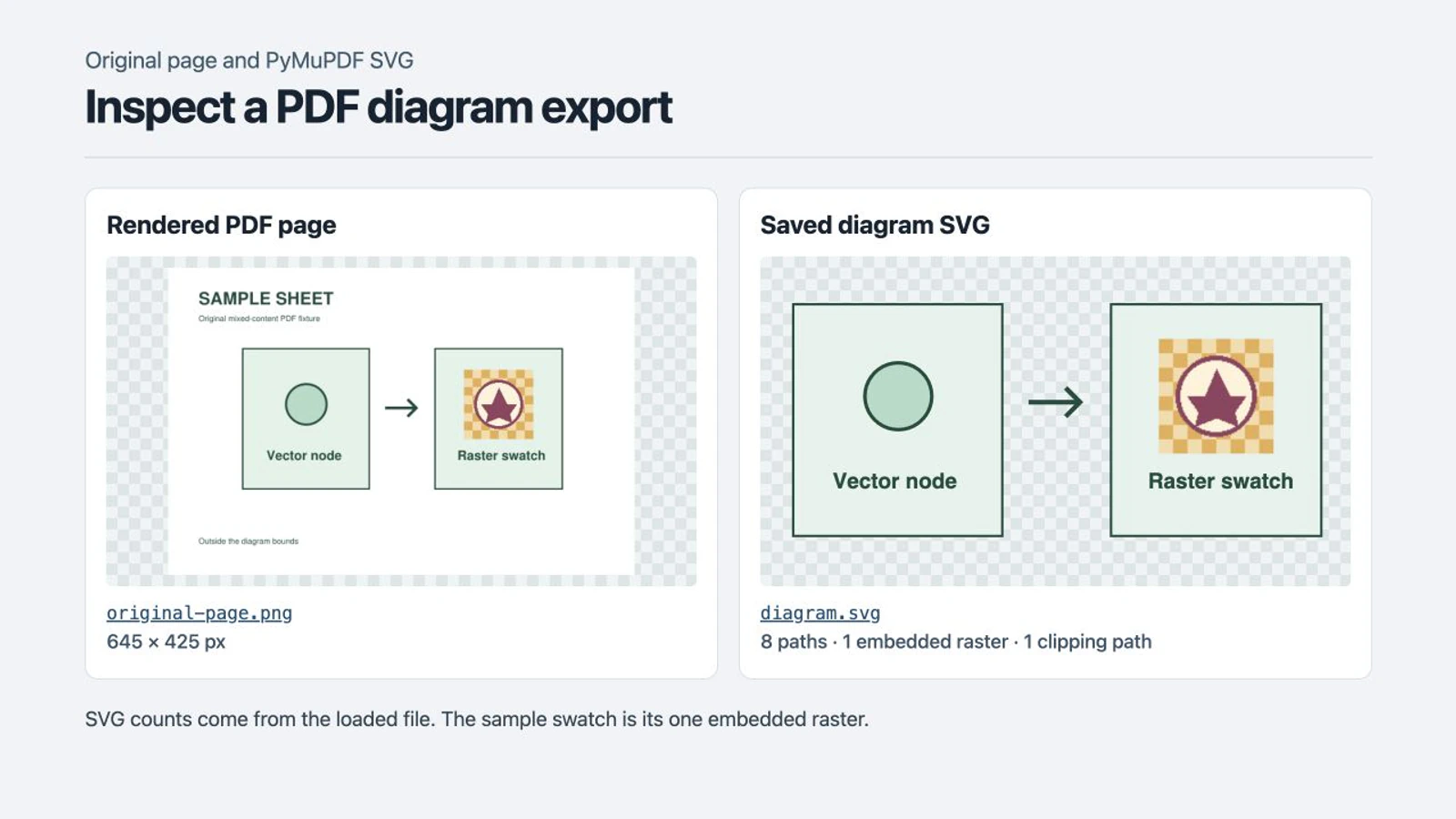
Use the element counts as a starting point. A <path> can define a clip or represent an outlined letter, so a count alone cannot tell you whether the diagram is editable. An <image> element can point to raster data or to another SVG. Check the reference before identifying the content. Our export also kept the page heading and footer as XML text outside the visible crop. Inspect both the rendering and the element you want to reuse. W3C SVG embedded content
Choose the next step for each part of the diagram
- The lines and boxes are paths. Open the SVG in your editor, select one wanted object, and compare its stroke, fill and joins with the PDF at the intended size.
- A geometric shape appears as pixels. Identify its
<image>element and follow the embedded-image checks. If that component is simple line art and editable outlines are important, vectorize just the cleaned raster part. Keep the exported paths from the rest of the diagram. - The labels look different. Try the alternative text setting and compare the output in the receiving editor. If you need to change words or numbers later, keep an editable original.
- The diagram is cut off. Compare the SVG’s
viewBoxagainst the point dimensions you expected. Check the page’s rotation, existing CropBox and rectangle coordinates. Use the PDF page boxes guide if the intended margin is unclear.
FAQ
Does PyMuPDF turn a scanned PDF into vector paths?
An SVG page export can embed the scan as an image. Creating editable geometry from a scanned outline needs a separate trace. Check the SVG for the artwork elements before choosing that step.
Can I export one part of a PDF page to SVG?
Yes. Copy the selected page, set the copy’s CropBox to the intended rectangle, and export that page. Confirm the visible area in a rendering and inspect the elements you need for editing.
Should I set text_as_path to True?
Use True when outlined labels are acceptable and that version matches the appearance you want. Use False when you need SVG text, then check font availability in the receiving app.
Sources
- PyMuPDF — Converting Files — shows how to export one page to SVG and save the string.
- PyMuPDF — Page API — documents the CropBox, unrotated page-coordinate bounds, and SVG text options.
- PyMuPDF — Document API — explains copying a page range to another PDF.
- W3C — SVG Embedded Content — defines the image element and its referenced content.
If an embedded crop is simple raster line art and needs editable paths, preview a trace in PerfectVector. Check its line openings at the size of the diagram and keep the original vector parts of the PDF export.
More from the blog

How to Convert PDF to SVG: Export or Trace It
How you convert a PDF to SVG depends on what's inside it. If it's vector, you export it; if it's a scan, you trace it. Here's how to tell, and how to do both.

Convert a QR Code Image to SVG and Verify the Scan
Turn an existing QR code image into SVG, preserve the exact encoded text, and check the four-module margin before you send a label or sign to print.