Convert PNG to DXF in Inkscape and Check the Scale
Trace a PNG into paths in Inkscape, save a DXF copy, and verify physical size and closed contours. Follow a measured example with a notch and a hole.
On this page
To convert a PNG to DXF in Inkscape, use Path → Trace Bitmap to create editable outlines. Move the trace away from the PNG to check it, size the traced artwork in millimeters or inches, then use File → Save a Copy to write the DXF. Reopen that copy with matching units and measure the outline. For a shape with a hole, check that the outer edge and the hole each form a closed contour. Inkscape tracing guide · Inkscape export guide
Trace the artwork and keep an SVG master
Start with a clear silhouette, flat logo, or line drawing. Have the finished width or a reliable reference dimension before you scale the trace. A photograph of a part can give you a rough outline. For a part that needs to fit another object, work from measured dimensions or the original drawing.
- Open the PNG or import it into a new Inkscape document. When the dark artwork sits on transparent pixels, a copy on a plain white background gives you a consistent input for a brightness trace.
- Select the image and open Path → Trace Bitmap. For dark artwork on a light background, start with Single scan → Brightness cutoff. Adjust the threshold until the preview keeps the smallest opening you need and leaves out the background. Apply the trace. Inkscape tracing guide
- Move the new path briefly. The trace starts on top of the bitmap. Use the Node tool to inspect the path, then keep the traced copy and remove the bitmap from the DXF document. Zoom in on the outline and any enclosed openings.
- Size the selected trace. In the Selector toolbar, choose mm or in, lock the aspect ratio, and enter the approved width. Measure the artwork you selected. The PNG canvas can include blank margins, so sizing the whole canvas can leave the shape undersized.
- Save the editable SVG. Keep it alongside the original PNG. Use it to adjust edges or scale before making another DXF. Inkscape export guide
A closed contour is an outline that returns to its starting point. A filled shape with a hole needs an outer boundary and an inner boundary. For a drawn line that should become one engraving pass through its center, use a centerline tracing workflow. Brightness tracing follows the edges of the dark region.
Save the DXF in the receiver's units
Choose File → Save a Copy and select Desktop Cutting Plotter (AutoCAD DXF R14) if the receiving program accepts it. Use the specific DXF version the shop or program asks for. In the R14 options, set the coordinate unit to match your handoff. If you need to set it explicitly, turn off Use Document unit as base unit and select the base unit. Inkscape export guide · Inkscape R14 export options
A lightweight polyline is a DXF entity that joins a series of points into one outline. Enable Use LWPOLYLINE type of line output when the receiver supports it. The exporter can also flatten Bézier curves to straight segments. Use that option when the receiver needs line segments, then zoom in and check the curve at its finished size. A rounded screen preview can conceal facets that matter on a small detail. Inkscape R14 export options · Autodesk lightweight polyline reference
What we measured in a PNG-to-DXF round trip
We drew a black tag with a hole near the upper left, a notch on the upper right, and a clipped lower-left corner. The visible artwork was 343 × 191 pixels inside a 400 × 280 pixel PNG. We placed that full canvas on a 100 × 70 mm page, giving the test four pixels per millimeter.
In Inkscape 1.4.4, we ran the native bitmap tracer from the command line in two-color mode with background removal. The SVG contained a single path with two closed subpaths. We exported it with Inkscape's R14 extension, explicitly selected millimeters, and enabled lightweight polylines. The saved DXF contained two closed lightweight polylines, one for the outer edge and one for the hole. Autodesk lightweight polyline reference
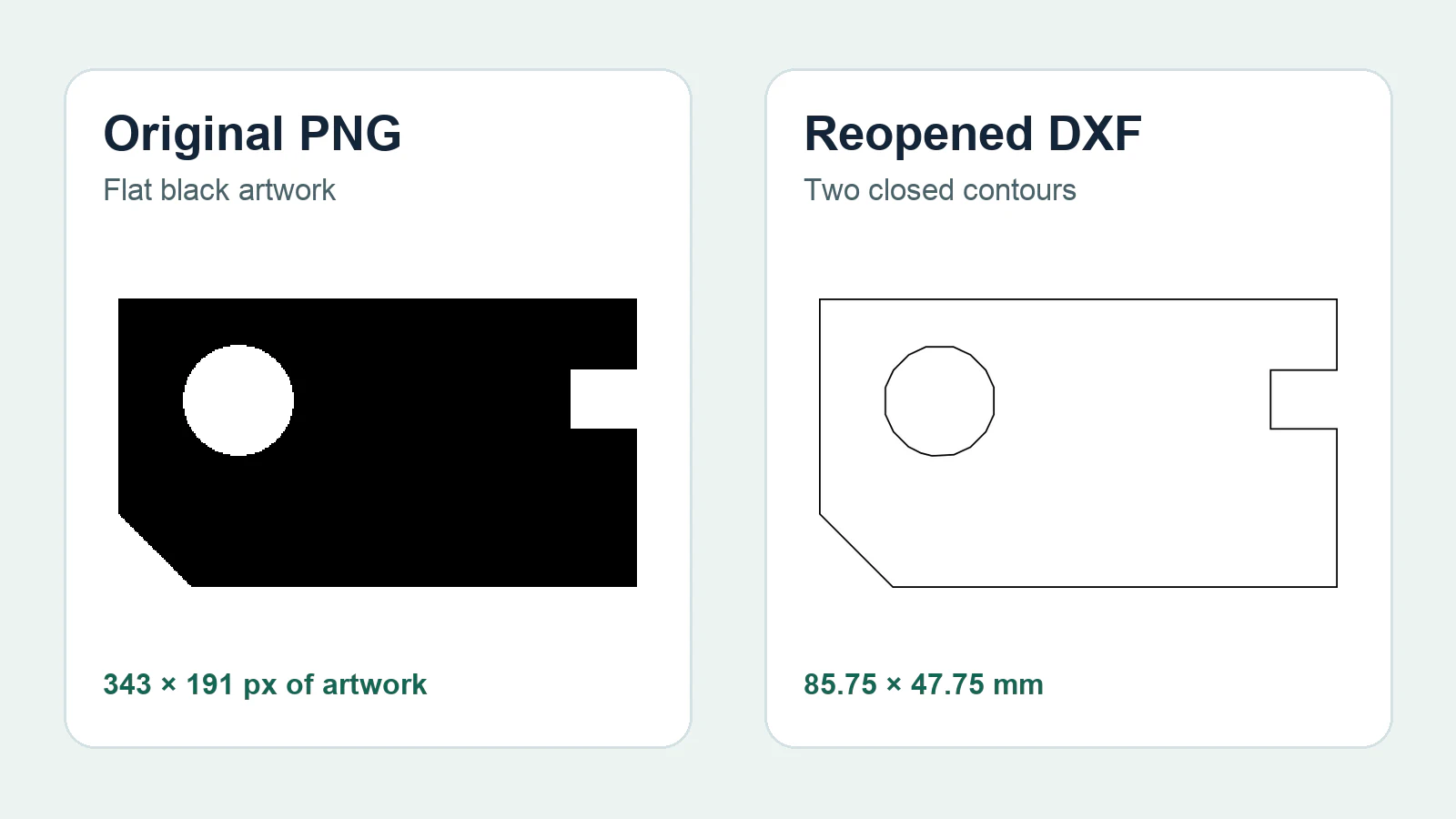
On reimport with Inkscape's DXF importer at a manual scale factor of 1.0 in millimeters, the outline still measured 85.75 × 47.75 mm. The hole and notch stayed on their expected sides. The hole was visibly faceted in this deliberately straight-segment trace. If the hole's diameter or roundness matters, replace its trace with a dimensioned circle and verify how the receiver imports that circle. Our measurements cover this file and the Inkscape round trip. Check your own receiving application before production.
Check the exported file before handing it off
| Check | What to verify |
|---|---|
| Size | The width or reference feature measures correctly in the receiving application. If it differs by about 25.4×, check millimeters versus inches before rescaling. |
| Openings | Holes and outer cut boundaries are individually closed where the job requires closed contours. |
| Direction | An off-center notch or readable letters face the expected way. If they flip, check the DXF axes and view. |
| Stray geometry | Blank margins, specks, and fills have not introduced extra outlines. |
| Format | The receiver accepts the DXF version and entity types you used. |
Import settings vary. LightBurn, for example, offers unit detection and a default unit for DXF imports. Measure in the application that will receive the job and set up toolpaths there. LightBurn DXF import settings
PerfectVector can trace a PNG and export DXF R12 at a width you choose. If an editable vector master is already available, export from that source. PerfectVector image-to-DXF workflow
FAQ
Why is my DXF blank after saving a PNG in Inkscape?
The R14 exporter expects supported vector elements such as paths. Select the PNG, run Trace Bitmap, and check that the new path has editable nodes before saving a DXF copy.
How do I keep the right physical size in an Inkscape DXF?
Set the width of the traced artwork in millimeters or inches. Export in the expected unit, then reopen the DXF in the receiver and measure the same feature.
Can an Inkscape DXF keep a hole from my PNG?
Yes, when the trace produces a separate closed boundary around the opening and the exporter and receiver preserve that boundary. Check the hole in the imported DXF before assigning an operation.
Sources
- Inkscape Beginners' Guide — Tracing an Image — Trace Bitmap, brightness cutoff, and the placement of the resulting path.
- Inkscape Beginners' Guide — Exporting to other File Formats — Saving an SVG master and exporting a DXF copy.
- Inkscape — R14 DXF extension options — Supported elements, base units, lightweight polylines, and curve flattening.
- Autodesk — LWPOLYLINE (DXF) — The lightweight polyline entity and its closed flag.
- LightBurn — Settings / Preferences — DXF unit detection and default-unit settings in a receiving application.
- PerfectVector — Image to DXF Converter — Preview, physical-width selection, and direct R12 export.
Working from a PNG and need DXF R12? Preview the PNG in PerfectVector. Check the outline and openings, then verify the saved DXF at the intended size in your CAD or CAM application.
More from the blog
SVG vs DXF for Laser Cutting + Closed DXF from an Image
Choose SVG or DXF for your laser workflow. Compare curves, units, color layers, and PerfectVector's direct R12 DXF export, then check the imported geometry.

Prepare a Handwritten Recipe Photo for Laser Engraving
Clean up a recipe photo, trace the handwriting as filled SVG shapes, and check thin strokes, letter openings, and final size before you engrave.