
SVG vs DXF for Laser Cutting: Choose the Right File
For most desktop laser cutters, SVG is the answer, but not always. Here's when to use each, what conversion does to your design, and why clean paths matter more.
On this page
For many desktop laser workflows, SVG is the simpler starting point because Glowforge, xTool Creative Space, and LightBurn import it and it can carry styling that helps organize operations. DXF is often the better handoff for a CAD-driven workflow or a shop that specifically requests it. The correct choice is the format your exact software tier, controller, or vendor documents, followed by a scale and geometry check after import.
The longer version is worth a few minutes, because the format you pick matters less than most arguments about it suggest, and the thing that actually decides whether your cut comes out clean is something both formats are quietly carrying: the quality of your paths.
Short on time? The quick verdict
- Desktop laser (Glowforge, xTool, LightBurn): SVG is broadly supported, but DXF support varies by product and plan. (Making the file for a Glowforge specifically?)
- CNC router, plasma, or sending to a fab shop: use the format and units the receiving workflow specifies; DXF is common. (The CNC-side conversion has its own guide.)
- Free Silhouette Studio: DXF, because the free edition won't import SVG.
- Either way: clean, low-node paths matter more than the file extension. A messy design cuts badly in both.
What SVG and DXF actually are
Both store the same kind of thing: vector geometry, the lines and curves your laser follows. They just come from different worlds.
SVG (Scalable Vector Graphics) was built for the web, by the same group that standardizes HTML. It's readable XML text under the hood, it carries full color and styling, and it represents curves as Bezier curves, the smooth kind every design tool draws with. Inkscape, Illustrator, Affinity, and Figma all speak it natively.
DXF (Drawing Exchange Format) is Autodesk's drawing-exchange format for moving CAD data between programs. It stores geometric entities and can organize them into layers. Units are not always self-evident in every DXF workflow, so import settings still matter. If your source is a PNG or you need the format basics before choosing a laser workflow, use the DXF vector and raster-to-geometry guide.
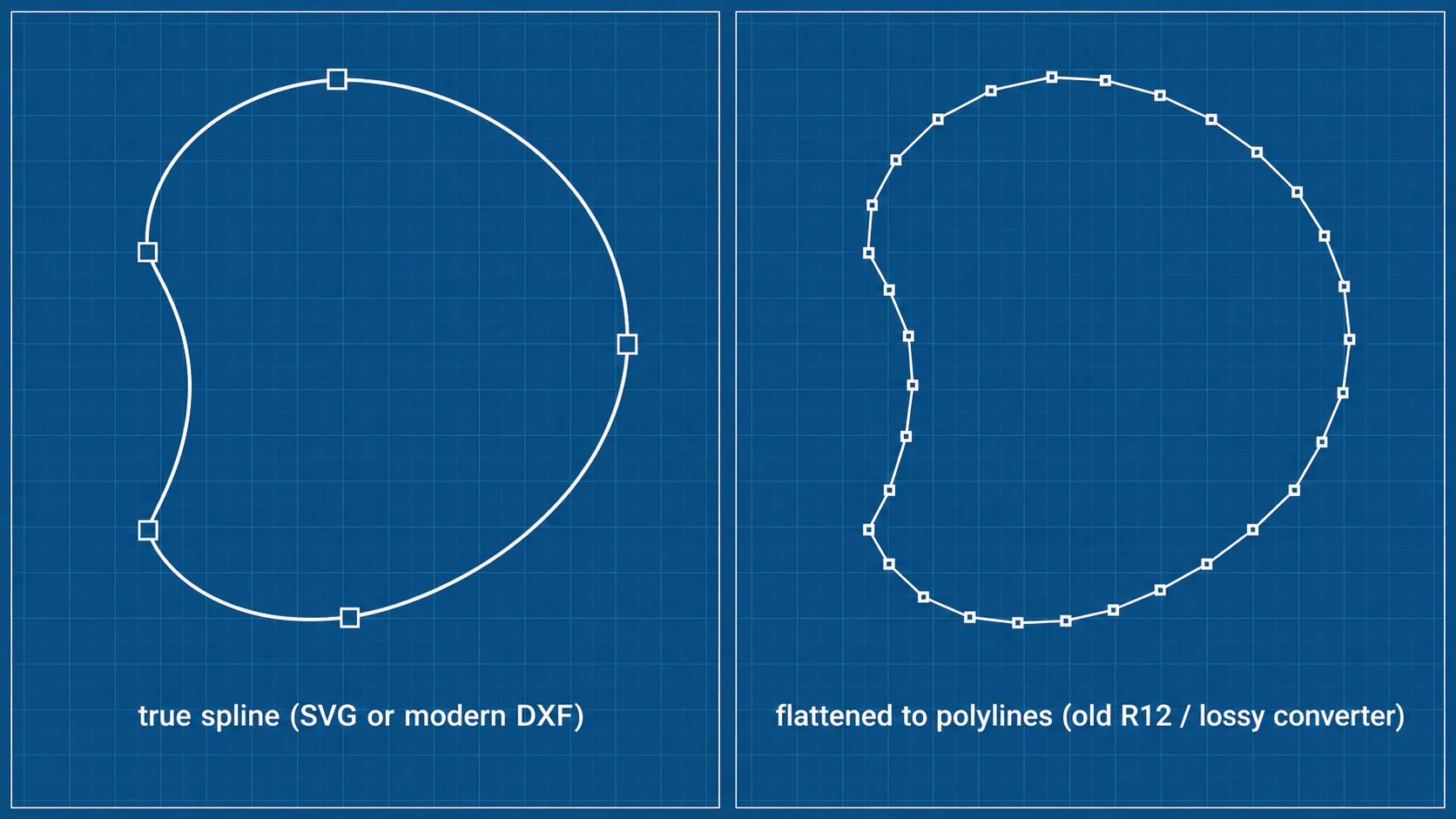
So one format grew up in design and the other in manufacturing. That single fact explains almost every practical difference below. It even shows up in what can happen to a curve when a file is saved the wrong way.
| SVG | DXF | |
|---|---|---|
| Origin | Web (1999) | CAD (1982) |
| Color | Full color, maps to laser operations | Layer colors only |
| Curves | Bezier curves | Splines, arcs, lines (flattened to polylines in old R12 exports) |
| Units | May depend on dimensions and importer settings | May be declared or require an import-unit choice |
| Desktop laser support | Glowforge, xTool Creative Space, and LightBurn import it | LightBurn and xTool import it; Glowforge requires Premium for DXF |
| CNC / CAM support | Limited | Native |
| Preview in a browser | Yes | No |
When SVG is the right call
For a desktop laser, SVG is usually the smoother path, for three concrete reasons.
Color can organize your operations. In LightBurn, imported object colors map to cut layers whose modes and settings you configure; the colors do not have a universal meaning such as "red always cuts." SVG carries styling directly, while DXF commonly carries layer and entity colors. Verify the imported layer assignments before running the machine.
Curve handling depends on the exporter and importer. Both formats can represent curves, but export settings can convert arcs or splines into short line segments. LightBurn, for example, exposes DXF export choices for arcs versus line segments. Inspect a curve at high zoom after conversion instead of assuming either extension guarantees a particular representation.
The tools you design in already export it. If your art lives in Inkscape, Illustrator, or Figma, saving to SVG is a clean one-to-one export. Saving to DXF from those same tools is the lossier direction, where curves can get approximated and color and layer organization can fall away.
When DXF is the right call
DXF earns its place in a handful of real situations. Be honest with yourself about whether you're in one:
- You're in a CAD or CAM workflow. If your design already lives in Fusion 360, SolidWorks, or FreeCAD, or your machine generates toolpaths through CAM software like VCarve or Carbide Create, stay in DXF. Those tools think in it natively, and converting out and back only adds error.
- The receiving CAD/CAM workflow requests it. Mechanical work depends on documented units and dimensions, not the extension alone. Confirm the import unit and measure a known feature.
- You're sending files to a machine shop or fab service. They expect DXF. It's the professional handoff format, and sending an SVG can signal you're not speaking their language even when the geometry is fine.
- Older or industrial equipment. Some legacy controllers and plasma or waterjet systems only accept DXF. If your machine's software predates the SVG era, DXF is the safe bet.
- Free Silhouette Studio. The free Basic edition can't import SVG at all, so DXF is the standard workaround. There's more on that in getting files into Silhouette Studio.
Glowforge and xTool need separate caveats: Glowforge's upload guide supports SVG and PDF for all users and DXF for Premium users, while xTool Creative Space imports both SVG and DXF. Choose based on your plan and source file rather than a blanket brand rule.
What conversion actually does to your design
You'll often have one format and need the other. Converting is routine, but it isn't free, and the direction matters.
SVG to DXF can change curves, text, styling, or scale depending on the converter and requested DXF version. Some exporters approximate curves as polylines; the result can be visibly faceted or bloated if the tolerance is coarse. Convert text to outlines when the receiving workflow does not have the font, and inspect both dimensions and curves afterward.
DXF to SVG also needs a scale check. LightBurn's settings reference notes that DXF files may not specify units, which is why its importer has a default DXF unit setting; SVG import also has a DPI setting for files without physical units. Check a known dimension after converting, before you cut.
Here's the part the comparison articles gloss over: conversion quality depends on source quality. A clean, low-node SVG survives the round trip to DXF and back looking like itself. A messy auto-trace, the kind carrying hundreds of unnecessary anchor points, gets worse with every conversion, because the approximation step has more junk to chew on. The format isn't your problem in that case. The paths are.
Why your paths matter more than the format
Step back and the whole SVG-versus-DXF question gets smaller. Both formats are containers. What's inside them, the actual paths your laser traces, is what decides whether the cut comes out clean.
A design with too many nodes makes the laser head stutter along the line instead of gliding, slows the job, and can roughen the edge, and it does that whether it's wrapped in SVG or DXF. A path that isn't truly closed leaves the piece attached to the sheet in either format. Doubled lines, where a trace followed both sides of a stroke, cut twice and scorch the edge regardless of extension. Switching formats fixes none of this.
This is the part worth getting right before you ever worry about SVG versus DXF: start from clean geometry. Smooth paths with a sensible number of anchor points, closed shapes, one line where you mean one line. Get that right and either format will carry it faithfully. Get it wrong and no format will save you.
What this looks like with PerfectVector
If your starting point is an image rather than a tidy vector file, the cleanup is where most laser headaches begin and end. PerfectVector rebuilds an image into smooth, closed, low-node paths, the kind that stay clean when you export to SVG and survive the trip to DXF if your machine needs it.
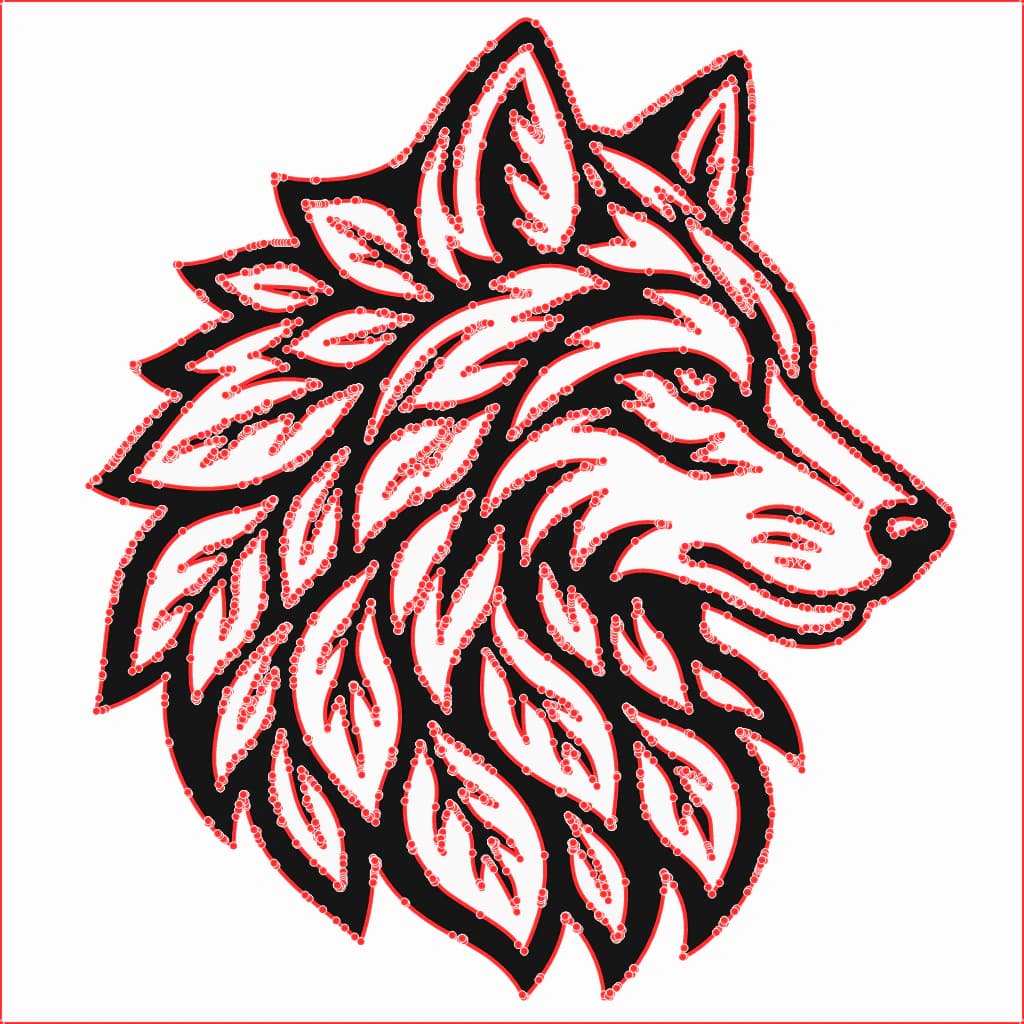
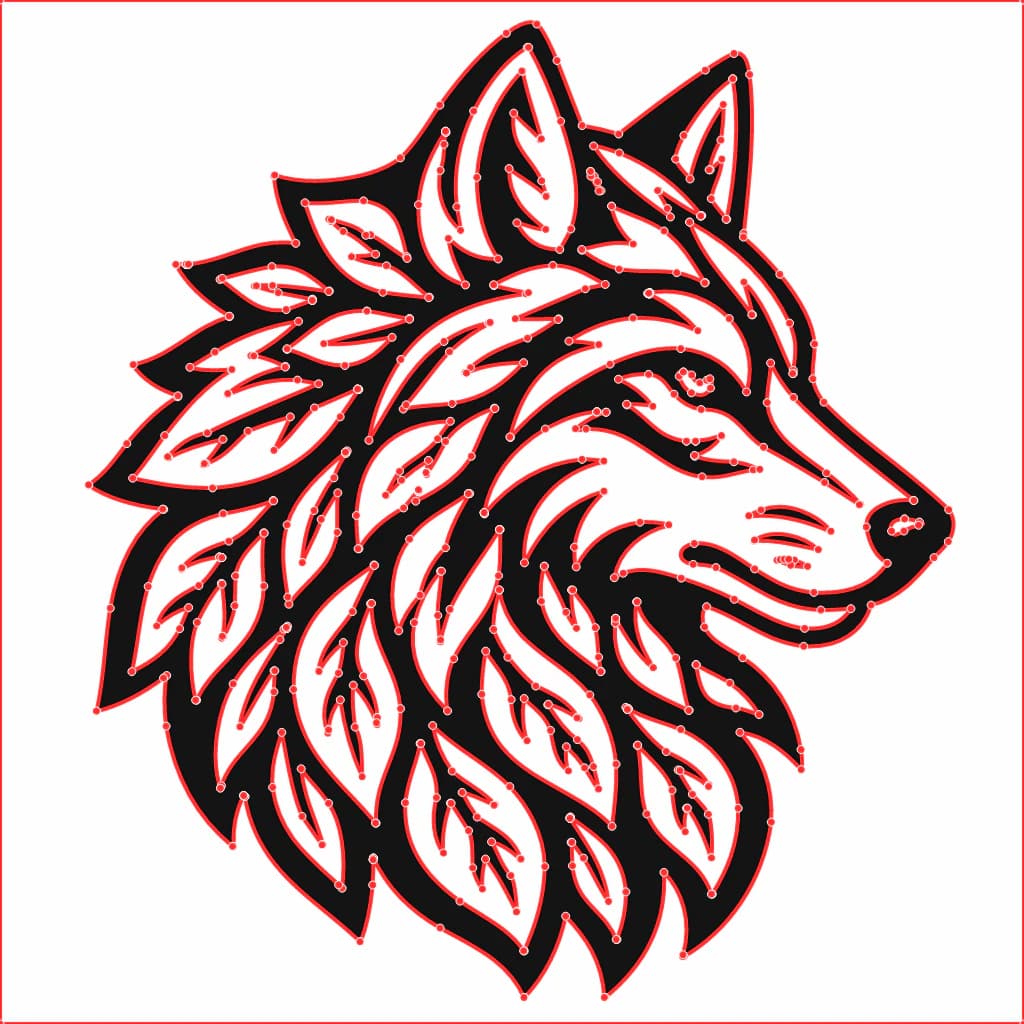
The full path from a raw image to a cut-ready file, prep, convert, check, import, is covered in converting an image to SVG for laser cutting. For the conversion itself, you can turn your image into a laser-ready SVG and merge the colors down to your operations before you export, or start from the general image to vector converter if the project isn't laser-specific. Either way the goal is the same: hand your machine clean paths, in whichever format it asked for.
A few honest caveats
- If your machine or software tier only takes one format, the debate is over. Cricut Design Space desktop imports DXF, and Glowforge Premium imports DXF; mobile and plan support differ. Use the current documentation for the actual workflow.
- Selling cut files? Include only formats you test. An extra export is useful only if it preserves scale and geometry and serves a buyer workflow you describe.
- DXF precision is real but often irrelevant. The "true arc versus Bezier approximation" gap can matter for a machined metal part measured to a thousandth of a millimeter. On plywood or acrylic on a desktop laser, you will never see it. Don't pick DXF for precision you can't use.
- Neither format simplifies your paths for you. Converting a 2,000-node mess from SVG to DXF gives you a 2,000-node mess in DXF. Clean up first.
FAQ
Is SVG or DXF better for laser cutting? SVG is often convenient for desktop design-to-laser workflows because Glowforge, xTool Creative Space, and LightBurn import it and it retains SVG styling. DXF is common in CAD/CAM workflows and is also imported by LightBurn and xTool; Glowforge supports it for Premium users. Use the receiver's requirement and verify scale, layers, and curves after import.
Can I use SVG files for laser cutting? Yes, when your software imports SVG. Glowforge, xTool Creative Space, and LightBurn all document SVG import. Confirm that paths, dimensions, and operation assignments survived the import before cutting.
What are the downsides of SVG for laser cutting? SVG units can be ambiguous, so a file occasionally imports at the wrong size if it lacks explicit dimensions; check the size after importing. Older or industrial machines may not accept SVG at all, and CAD and CAM software generally prefer DXF. For typical desktop laser work, none of these are dealbreakers.
Do I need to convert SVG to DXF for my laser? Not if your laser software accepts the SVG and imports it correctly. Convert when the receiving machine, plan, or CAM workflow specifically requires DXF, then check scale, curves, text, and layers afterward because conversion settings can change them.
Why does my DXF import at the wrong size? Some DXF files do not declare units, so the importer applies a default and may choose differently from the source application. Select the intended DXF units on import and measure a known feature before cutting; an inch-versus-millimeter mismatch produces a 25.4× scale error.
Sources
- Glowforge — Upload your own design file — SVG/PDF support, raster engraving, and Premium DXF import.
- xTool — XCS supported file formats — SVG and DXF import support and format caveats.
- LightBurn — File management — supported imports/exports and DXF export choices.
- LightBurn — Cuts/Layers window — color layers and operation modes.
- LightBurn — Settings and preferences — SVG DPI and default DXF unit behavior.
- Silhouette — File types and features — Basic Edition DXF support and paid SVG import.
- W3C — SVG paths — SVG path and curve definitions.
- Autodesk — DXF reference — primary format reference for DXF entities and structure.
The format argument is mostly noise. Pick whichever one your machine asks for, SVG for nearly every desktop laser, DXF for CAD and industrial work, and put your effort where it counts: clean, cut-ready paths that any format can carry without falling apart.
More from the blog

Why DXF Files Have Too Many Segments for CNC Work
A DXF gets dense when source traces, exported curves, duplicate paths, or fragments become too many entities. Diagnose the cause, then clean it before CAM.

Carbide Create Image Trace: Built-In or Clean SVG?
Compare Carbide Create Image Trace with importing a clean SVG. Learn when each route works and how to check closed paths, nodes, scale, and toolpaths.