
Convert an Image to SVG for Clean Laser Cutting
Laser cutters follow paths, not pixels. Here's how to turn a PNG or JPG into a clean, closed-path SVG your machine can cut, and when to engrave instead.
On this page
- Why a laser can't cut a PNG
- Cut file or engrave file? Decide before you convert
- The workflow: from image to cut-ready SVG
- 1. Start from the right source image
- 2. Convert it to vector paths
- 3. Merge colors down to your operations
- 4. Check the paths before you burn anything
- 5. Import, size, and assign operations
- 6. Test cut on scrap
- What this looks like with PerfectVector
- When converting is the wrong move
- Quick troubleshooting
- FAQ
- Sources
To convert an image to an SVG for laser cutting, you trace the raster image into vector paths, simplify the result down to clean, closed shapes, and import that SVG into your laser software, where the paths become cut lines. The conversion itself takes seconds. Whether the file cuts well depends on decisions you make before and after: picking an image that should be cut at all, and checking the paths before you burn material on them.
This guide walks the whole route for Glowforge, xTool, LightBurn, and similar setups: deciding cut versus engrave, converting, cleaning up, importing, and the test cut. If you use XCS, the xTool-specific trace-or-import checklist compares its built-in trace with a cleaned SVG import. The LaserGRBL vectorization guide explains threshold, Potrace cleanup controls, and the common double-line result. LaserPecker users can follow the LaserPecker SVG import guide to choose between editable vector objects and an intentional image-engraving fallback. If you're brand new to vector files, what image vectorization actually does is a good two-minute primer first.
Short on time? The whole workflow
- Decide cut or engrave. Flat, high-contrast art gets cut; photos get engraved as raster, no conversion needed.
- Start from your sharpest image, ideally with a transparent background.
- Convert it to SVG with an AI vectorizer, or use LightBurn's Trace Image workflow for a simple in-app trace, then merge the result down to your planned operations.
- Check the paths: closed shapes, no doubled lines, a sane node count, no loose islands.
- Import, size, assign operations, and test cut on scrap before the real material.
Why a laser can't cut a PNG
A PNG or JPG is a grid of pixels. For a vector cut or score operation, laser software needs a path to follow; for engraving, many systems can process raster pixels directly. Glowforge's upload guide, for example, documents JPG and PNG as engraving inputs while SVG and PDF can carry cut geometry.
The same distinction explains the two things your machine can do:
- Cutting and scoring follow vector paths. The head traces the line, the beam burns through (cut) or marks (score).
- Engraving fills areas, and it can work straight from pixels. The head sweeps back and forth like a printer, darkening the surface dot by dot.
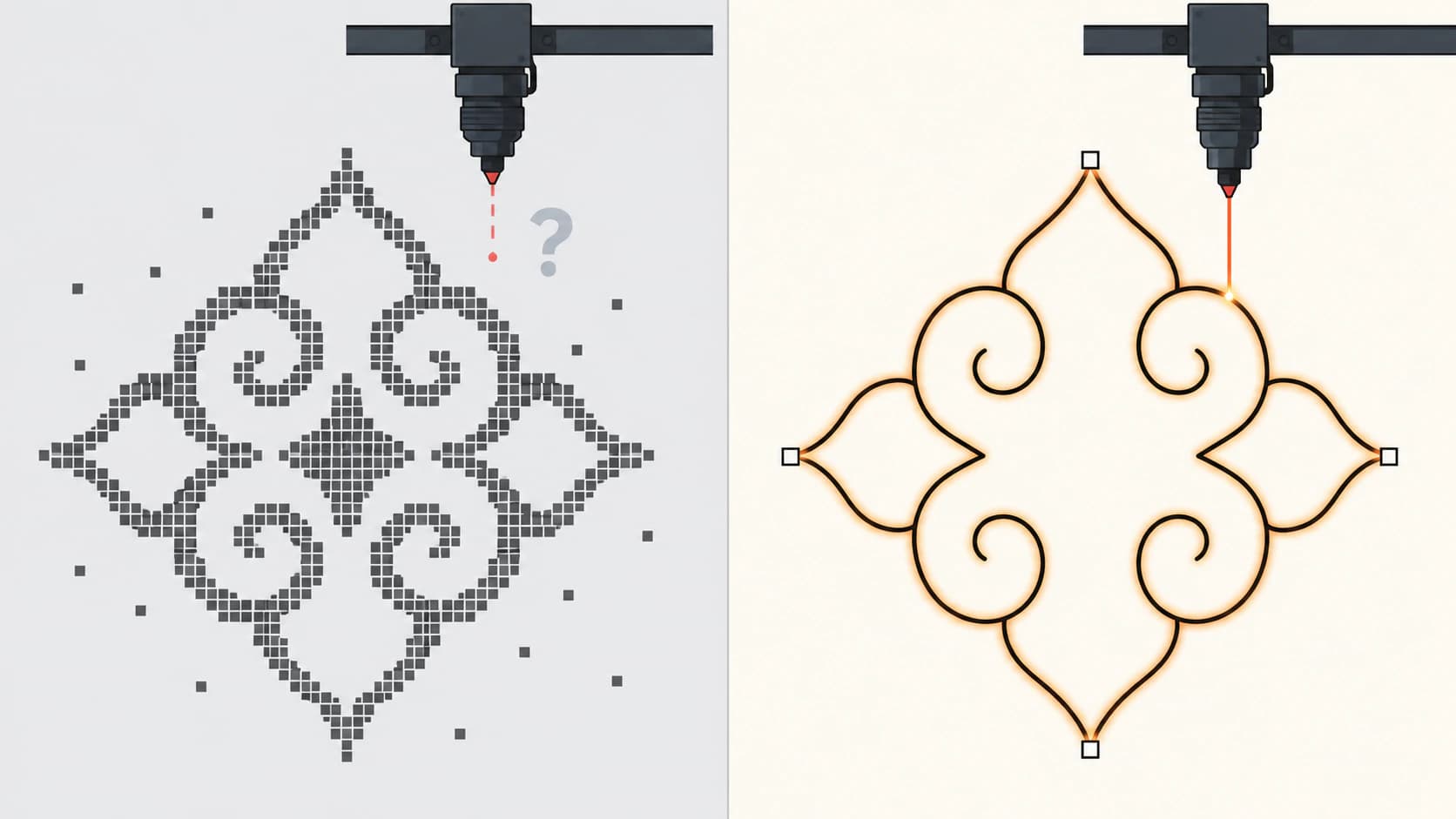
This is the decision most converter tools skip, and it's where most wasted material comes from. If your design should be engraved, you may not need an SVG at all. If it should be cut, the quality of those paths decides everything that happens on the machine.
Cut file or engrave file? Decide before you convert
Which images make good laser cut files? Flat, high-contrast artwork with clear shapes: silhouettes, line art, logos, lettering, mandala and ornament designs. These trace into clean closed paths a laser can follow. Photographs and gradient-heavy art do not become good cut files; their soft transitions turn into blobby, meaningless outlines. Engrave those as raster images instead.
| Your image | Cut, engrave, or skip | Why |
|---|---|---|
| Silhouette, line art, lettering | Cut (convert to SVG) | Clear edges trace into clean closed paths |
| Logo or flat illustration | Cut, or cut + engrave | Outlines cut; interior detail can engrave |
| Photo or gradient AI art | Engrave as raster | Soft transitions can't become sensible cut lines |
| Faded sketch or tiny thumbnail | Fix the source first | A weak source traces into jitter and noise |
If your design lands in the engrave row, stop here and send the image to your laser software as-is (AI-generated art has its own engraving playbook). For everything else, on to the conversion.
The workflow: from image to cut-ready SVG
1. Start from the right source image
The trace can only be as clean as what you feed it. Use the largest, sharpest version of the image you have, and prefer one with a transparent background so the converter doesn't trace a rectangle around your design (the classic stray-box problem). A high-resolution source also protects edge detail, which matters double here because every wobble in a path becomes a wobble the beam physically burns. There's more on protecting edges in converting without losing quality.
2. Convert it to vector paths
Upload the image to an AI vectorizer and let it trace. You can convert your image to a laser-ready SVG directly; the first conversions are free, no credit card required. What you want from this step is specific: closed paths the beam can follow all the way around, few anchor points, and flat colors rather than hundreds of speckled fragments.
3. Merge colors down to your operations
In software such as LightBurn, imported object colors map to cut layers whose operation modes and settings you control. Think in operations, then merge: outline to cut, interior detail to engrave, maybe a score line. Use only the distinctions the job needs. The thinking is the same as building a layered SVG for a cutting machine, just with burn settings instead of vinyl colors. PerfectVector's color editor does this merge before you download.
4. Check the paths before you burn anything
Open the SVG (your laser software's preview is fine) and look for four things:
- Closed shapes. A cut path with a gap leaves the piece attached. Outlines must close.
- Doubled lines. If the trace followed both sides of a thin stroke, the laser follows two boundary paths. If you need one line, use a centerline trace or redraw a single path; a cleaner outline trace still describes both edges of the region.
- Node count. Hundreds of needless anchor points make the head stutter along the line instead of gliding, and they're the main reason files crawl on import. Why traces end up over-noded explains what a sane path looks like.
- Islands and bridges. Anything fully enclosed by a cut line falls out. The middle of an "O" drops, counters of letters drop, the inner rings of an ornament drop. If a piece must stay, add small bridges (tabs) connecting it to the rest, or move that detail to an engrave layer.
5. Import, size, and assign operations
Bring the SVG into your machine's software. Two things to verify on import are the size and the operation mapping. LightBurn's settings documentation includes an SVG import DPI setting for files without physical units, and its Cuts/Layers documentation explains how object colors map to operation layers. Glowforge also separates uploaded design elements into steps you assign as cut, score, or engrave. Check the preview rather than assuming styling has a universal machine meaning.
For a WeCreat workflow, import and prepare the SVG in MakeIt before assigning operations.
6. Test cut on scrap
Run the job small, on scrap of the same material. You're checking that closed paths actually release, bridges hold, doubled lines didn't sneak through, and the kerf (the sliver of material the beam burns away) doesn't swallow your thinnest details. One scrap test costs a few minutes; a failed full-size cut costs the sheet.
What this looks like with PerfectVector
PerfectVector was built for exactly the part of this workflow that goes wrong: the trace. It rebuilds your image as smooth, closed, low-node paths instead of pixel-chasing jitter, and the built-in color editor merges a noisy palette down to the two or three operation layers you actually want, before the file ever reaches your laser software.
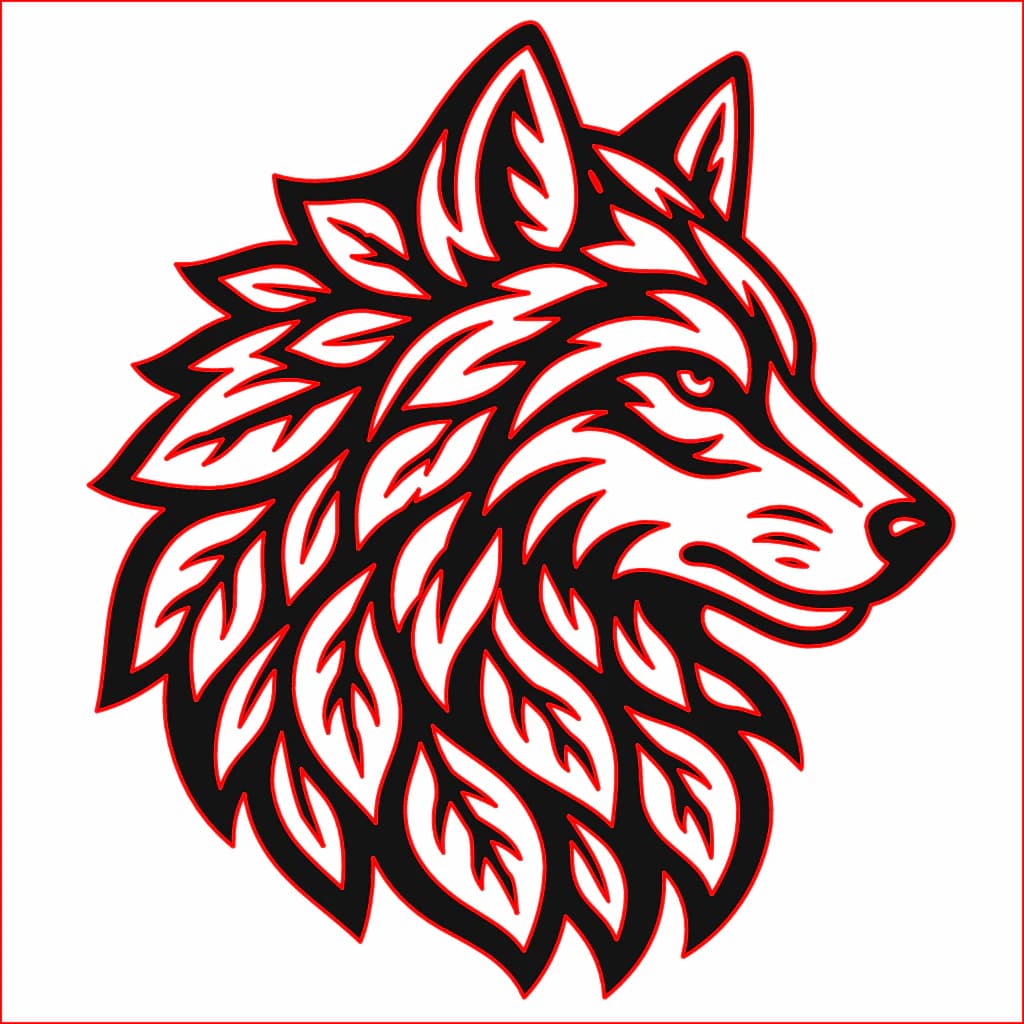
After converting, do the step-4 check on your own file: closed shapes, single lines, lean nodes. That inspection habit, more than any tool choice, is what separates files that cut from files that fight you. Convert an image and check the result yourself, or start from the general image to vector converter if your project isn't laser-specific.
When converting is the wrong move
Honesty saves plywood:
- Photos never become good cut files. No converter changes this; it's what raster engraving is for. Vectorizing a portrait gives you blobs.
- Gradient-heavy AI art has the same problem. Flatten it to solid colors first, or engrave it as-is.
- Hairline detail thinner than the kerf burns away entirely. Thicken strokes in the source, or accept that detail as engrave-only.
- Halftones and stippling are thousands of dots; as cut paths they're thousands of pierces. Engrave them.
Quick troubleshooting
| Symptom on the machine | Likely cause | Fix |
|---|---|---|
| Cuts every line twice | Outline trace followed both edges of a thin stroke | Centerline-trace or redraw one path; use a filled shape only when both boundaries are intended |
| Piece won't release | Cut path isn't closed | Close the gap, or re-convert for closed shapes |
| Centers fall out (letters, rings) | Enclosed islands with no bridges | Add tabs, or move that detail to engrave |
| Head stutters, slow job | Over-noded paths | Re-convert for low-node paths; merge colors |
| Imports at the wrong size | Unit interpretation differs by program | Check dimensions on import and rescale |
| It engraves where it should cut | Operation mapping (fills vs strokes, colors) | Reassign operations; keep one color per operation |
FAQ
Can I laser cut a photo? Not usefully. A photo's soft gradients can't become sensible cut lines, so converting one produces blobby paths and wasted material. Engrave photos as raster images instead, and save SVG conversion for flat, high-contrast artwork.
Why does my laser cut every line twice? The outline trace followed both sides of a thin stroke, so what looks like one line is two boundary paths. If the intended result is one cut, centerline-trace the source or redraw a single path. A cleaner filled-region trace may smooth the two boundaries, but it does not collapse them into one.
Should I use SVG or DXF for laser cutting? Glowforge, xTool Creative Space, and LightBurn all document SVG import. LightBurn and xTool also import DXF, while Glowforge reserves DXF import for Premium users. If both work, choose the format that preserves your source geometry and verify scale and operations after import.
Why does my SVG import at the wrong size? An SVG without explicit physical dimensions can be interpreted through an importer's DPI setting. After importing, check the design's measurements against your intended cut size and correct the dimensions before running the job.
Do I need Illustrator to make laser cutting files? No. An AI vectorizer plus your laser's own software covers the whole workflow for most projects: convert, merge colors, import, assign operations. Illustrator or Inkscape only become necessary for heavier edits like redrawing shapes or adding bridges by hand.
Sources
- Glowforge — Upload your own design file — vector cutting inputs, raster engraving inputs, and Premium DXF support.
- xTool — XCS supported file formats — SVG, DXF, and raster import behavior.
- LightBurn — Layer modes — Line, Fill, and combined operation behavior.
- LightBurn — Cuts/Layers window — mapping object colors to operation layers.
- LightBurn — Settings and preferences — SVG DPI and import-unit controls.
- Inkscape — Tracing tutorial — outline versus centerline tracing.
- W3C — SVG paths — technical definition of path geometry.
Got an image waiting to become a cut file? Convert it to a laser-ready SVG, merge the colors down to your operations, and run the path check before you burn. Your scrap pile will thank you.
More from the blog
Convert an Image to SVG With Clean CNC Cut Paths
A CNC follows vector paths, not pixels, so your design has to become a clean SVG or DXF first. Here's how to convert an image into CAM-ready, closed-path vectors.
Convert an Image to SVG for Clean 3D Printing
A 3D printer can't extrude pixels, so flat designs start as an SVG. Here's how to turn an image into a clean, closed-path SVG that imports and extrudes the first time.