Can Adobe Firefly Make SVGs? Use Text to Vector
Firefly generates real, editable SVGs, but only in its Text to vector module. Prompting the image generator for an SVG just burns credits. Here's the map.
On this page
Yes, Adobe Firefly can make a real SVG, and it's one of the few mainstream AI tools that genuinely can. The catch is that the ability lives in a specific workflow. Firefly's web app has a dedicated Text to vector module that generates editable vector graphics and downloads them as .svg files, and Illustrator offers Text to Vector Graphic. What trips people up is the module next door: the regular text-to-image generator outputs raster images, and typing "SVG" or "vector" into its prompt does not change the export format. Here's where the real vector generation lives, what it's good for, and where its limits are.
The quick version
- Yes: Firefly generates true, editable SVGs in its Text to vector module (Firefly web → Generate → Text to vector), and in Illustrator via Text to Vector Graphic.
- The trap: the normal image generator never outputs SVG, whatever the prompt says. People burn credits asking it for vectors and always get raster files back.
- The boundary: Text to vector generates new art rather than faithfully tracing an existing image. Illustrator's Concept to Vector can reinterpret a raster prompt, while faithful conversion still calls for Image Trace or an image-to-vector converter.
The trap first: the image tab never makes SVGs
The text-to-image module generates raster images. Vector output isn't a prompt keyword; it is a different workflow.
So before anything else: if you've been asking the image generator for SVGs, stop. Nothing is broken, and no prompt will fix it. The vector tool is one click away.
Where Firefly really makes SVGs: Text to vector
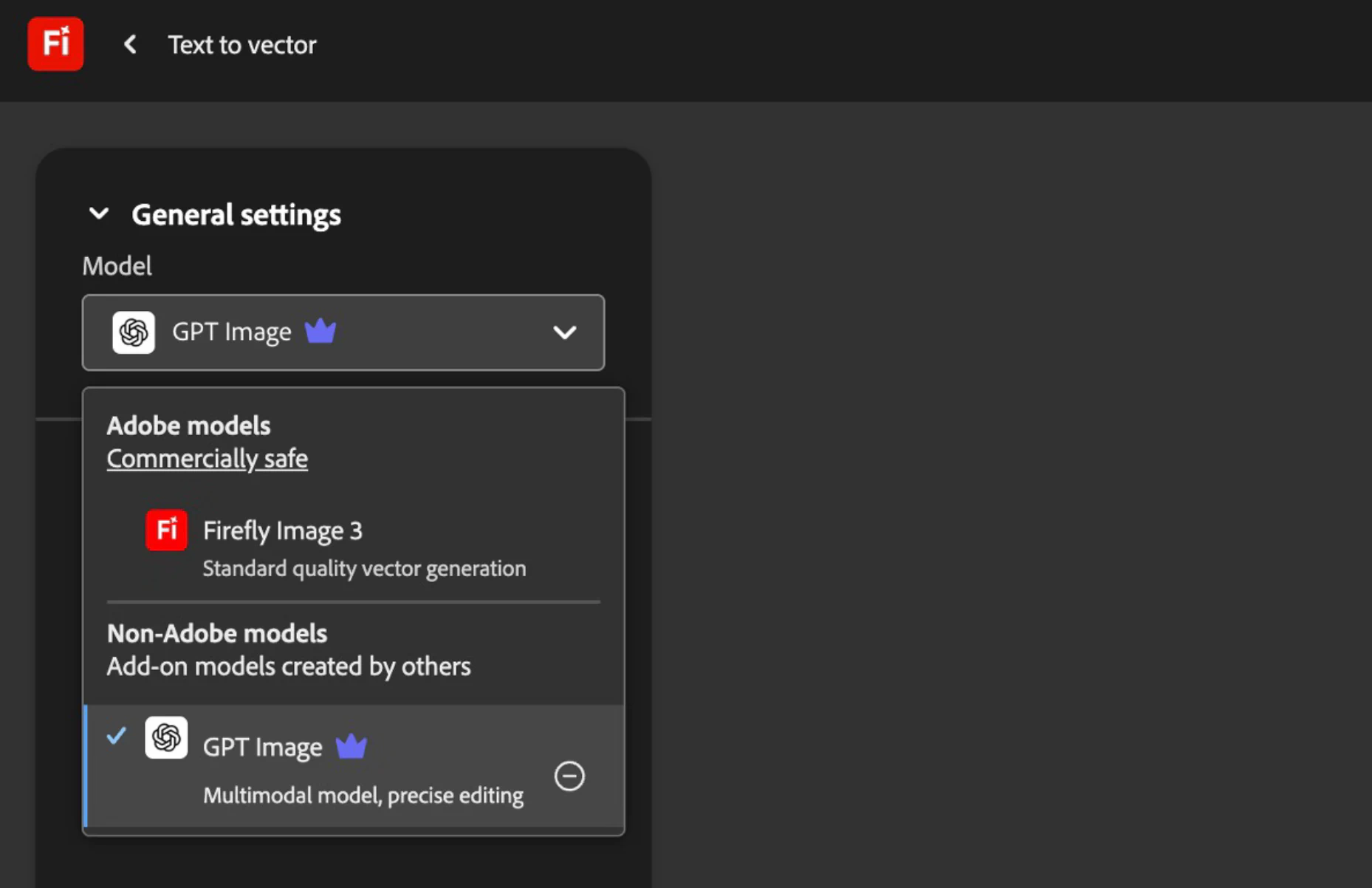
In the Firefly web app, choose Generate in the left panel, then Text to vector under the Image tab. This module is built for vector output from the ground up:
- Pick the available vector model. Adobe changes model menus over time, so use the choices shown in the current Text to vector workflow rather than relying on an old model list.
- Pick a content type. Subject generates a standalone element; Scene builds a full composition.
- Steer the style. You can attach a style-reference image, apply effects like minimalism, and control color and tone.
- Generate and export. Each variation offers Download as an .svg file, Open in Illustrator desktop, or Copy SVG to paste straight into a vector editor.
The output is genuine vector art: paths and shapes you can recolor and edit, not pixels wearing a vector costume.
The same engine inside Illustrator
If you work in Illustrator, you don't need the web app. Text to Vector Graphic generates editable vector artwork on the artboard: select a shape, open the feature, and describe what you want. It adds a third content type, Icon, alongside Subject and Scene, plus controls for detail and style reference. For designers already using Illustrator, this is the more natural home: the result lands in context, ready to refine.
That plan detail matters. Adobe changes generative-credit allowances and paid limits over time, so check the current generative-credit terms before building a high-volume workflow around it.
The three routes, side by side
| Image generator (image tab) | Text to vector (Firefly web) | Text to Vector Graphic (Illustrator) | |
|---|---|---|---|
| Output | Raster (PNG-class), always | Real SVG | Editable vectors on your artboard |
| "SVG" in the prompt helps? | No, never | Not needed | Not needed |
| Content types | Any image | Subject, Scene | Subject, Scene, Icon |
| Where it fits | Concepts, photos, raster art | Standalone vector art | Vector art inside a design you're building |
| Cost reality | Subject to the current Firefly plan | Subject to the current Firefly plan | Illustrator access + current generative-credit terms |
Generation is not faithful tracing
The Text to vector workflows above generate: type a description, get new artwork. A style reference influences the look of new art rather than faithfully tracing every curve, the same fidelity trap that catches people with every AI generator. Illustrator now also offers Concept to Vector, which uses a raster image as a prompt for a new vector interpretation. For faithful raster-to-vector conversion, Adobe still documents Image Trace, the classic auto-tracer built into Illustrator.
So match the tool to the job. Need new vector art from a description? Firefly's Text to vector is a legitimate answer. Need your existing image as a clean SVG, with its exact shapes and letterforms preserved? That's a vectorizer's job, whether that's Image Trace inside Illustrator or a dedicated converter that turns your logo into faithful paths.
What this looks like with PerfectVector
PerfectVector covers the side Firefly doesn't: converting an image you already have into a clean, editable SVG. Upload a PNG or JPG, and it rebuilds the actual artwork as low-node paths with each color as its own shape, ready for Illustrator, Figma, or a cutting machine. That makes the two tools complementary rather than rivals. Generate concept art in Firefly when you're starting from nothing; run your real files through a vectorizer when the artwork already exists and has to stay itself. The first conversions are free, no credit card required.
FAQ
Can Adobe Firefly export SVG files? Yes, from the right module. Text to vector in the Firefly web app generates vector graphics with a per-variation SVG download, and Illustrator's Text to Vector Graphic produces editable vectors on your artboard. The standard image generator can't export SVG at all.
Why does Firefly keep giving me a PNG when I ask for an SVG? Because the text-to-image module only produces raster output, and prompt wording can't change an output format. Switch to the Text to vector module in the Firefly web app, which is built for vector generation and offers SVG downloads.
Is Firefly's Text to vector free? Firefly is free to start with a limited number of generations. Continued use is subject to Adobe's current plan limits, and the Illustrator version requires an Illustrator subscription. Check Adobe's current plans because the allowance and pricing can change.
Can Firefly convert my logo or image into an SVG? Text to vector generates new artwork, and a style-reference image influences the look rather than tracing the original exactly. Illustrator's Concept to Vector can reinterpret a raster image as vector art, but for a faithful conversion use Image Trace or a dedicated vectorizer and verify the result against the original.
Are Firefly's SVGs actually editable? Yes. The Text to vector output is real vector paths that open in Illustrator, Figma, or Inkscape with selectable, recolorable shapes. As with any generated vector, inspect the file before building on it: check the node count and confirm the shapes are separated the way you'd want.
Which is better for SVGs, Firefly or a dedicated vectorizer? They do different jobs. Firefly generates new vector art from text, so it wins when you're starting from nothing. A vectorizer converts artwork you already have, so it wins for logos, drawings, and any design that must stay exactly itself. Many workflows use one then the other.
Sources
- Adobe Firefly: Generate vectors using text prompts — Documents the web Text to vector workflow and SVG export.
- Adobe Illustrator: Generate scenes, subjects, and icons — Documents Text to Vector Graphic inside Illustrator.
- Adobe Illustrator: Generate vector artwork from images — Explains the newer Concept to Vector reinterpretation workflow.
- Adobe Illustrator: Image Trace — Documents faithful raster-to-vector tracing controls.
- Adobe: Generative credits — Current source for Firefly access and generative-credit treatment.
Starting from an image instead of a prompt? Convert it to a clean, editable SVG and see the paths for yourself. Generation is for new art; your existing art deserves a faithful trace.
More from the blog

Can AI Image Generators Make Real Vector SVGs?
Diffusion models paint pixels, so most AI images can never be SVGs. Here's why that's baked into the technology, and the three real routes to vector output.

Can Kittl Vectorize an Image? Compare Its Two Tools
Kittl can vectorize an uploaded image and generate new vector art from a prompt. Learn which tool to use, the workflow, and how to inspect the SVG.