Recover a Logo From Your Website Without a Screenshot
Find the logo file your website already serves. Recover an SVG or a larger PNG from the header and check its dimensions, artwork, and transparency.
On this page
- Find out how the logo appears on the page
- Check which image the browser actually loaded
- Compare the recovered files
- Choose a file for the next use
- FAQ
- Is the website logo always an SVG?
- Why does the logo look small if the PNG is 640 pixels wide?
- What if saving an SVG gives me a blank file in my editor?
- Sources
Open your own website and inspect the logo in the header. If the site already serves a standalone SVG, save that file and open it in a vector editor. If it serves a PNG, check whether the header offers a larger version of the same artwork. A screenshot captures the display. Opening the asset directly gives you the file available to the browser.
Start with a website or brand asset you are authorized to use. If you can access the site's media library or theme files, check there too. The published header may use a simplified small-screen mark in place of your print lockup.
Find out how the logo appears on the page
Right-click the logo and choose Inspect in Chrome. A logo often sits inside a home link. In the Elements panel, expand that link until you reach the element that draws the image. Chrome DevTools DOM inspection
| What you see | Where to look |
|---|---|
An <img> with a file URL | Open the selected file and inspect its format |
An <img> with srcset or a surrounding <picture> | Inspect the available files and compare variants before saving |
An inline <svg> | Look for the original symbol or use the site's source files if the SVG relies on shared styles or definitions |
| A CSS background image | Inspect the computed background-image and open the logo URL if it is a standalone resource |
A simple search in the site's media library can be faster if the visible mark is assembled from several elements. Check the real name and proportions before choosing an icon, wordmark, or full logo lockup.
Check which image the browser actually loaded
The HTML attribute src is the basic source. The srcset attribute can provide alternate URLs for different sizes. While the image is selected in Chrome's Elements panel, enter $0.currentSrc in the Console to read the URL the browser chose. Listing $0.getAttribute("srcset") shows the candidates declared on that element. On a <picture>, also inspect its <source> elements. Chrome DevTools console utilities · WHATWG image sources
Open the relevant file directly. Use its file information to check actual pixel dimensions. A width shown in page layout is in CSS pixels and can be much smaller than the downloaded image. A larger option can also use a different crop or art direction, so make sure it is the same logo composition before choosing it.
Compare the recovered files
We created a small site with a 160 × 60 PNG, a 640 × 240 PNG, and a separate SVG of the same original logo. On a 2× display in the test browser, the raster logo occupied 96 CSS pixels and currentSrc pointed to the 640-pixel file. Downloading the PNG and SVG directly returned the original asset bytes.
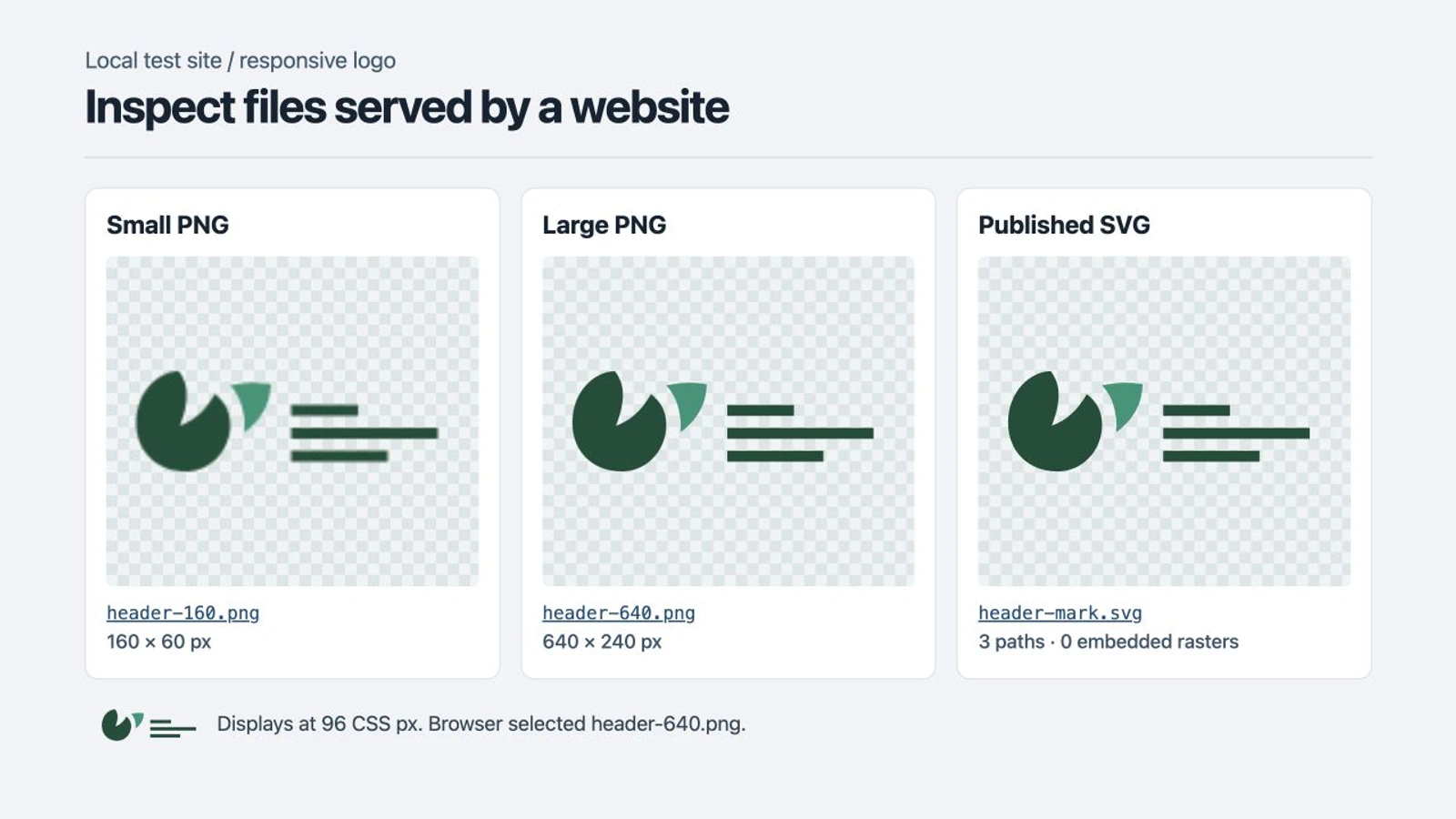
The PNGs had transparent corners. The SVG contained three path elements and no embedded image. A real site can serve an SVG with a bitmap inside it. To check, open the file in a vector editor and try selecting a shape, or inspect the SVG for embedded raster data. W3C SVG embedded images
If the only logo is inline SVG, look for a reusable asset first. An inline mark may refer to a page-level <symbol>, a gradient, or a CSS variable. Copying its visible markup alone can omit those dependencies. Test a saved copy away from the web page before using it.
Choose a file for the next use
An original path-based SVG is ready for a vector editing check. Reopen it and verify the outline, colors, spacing, and inner gaps. Save the website original along with any edited version.
When your best source is a PNG, compare the candidates at the same zoom. Pick the cleanest complete artwork with the right proportions. If the site only contains a favicon or a damaged image, look in the media library or request a better logo file before recreating missing detail.
FAQ
Is the website logo always an SVG?
A site can render a PNG, WebP, SVG, or an inline mark. Inspect the logo element and open the resource to find out how that specific site delivers it.
Why does the logo look small if the PNG is 640 pixels wide?
The web page can display an image at a smaller CSS width. Inspect the downloaded file to verify its pixel dimensions independently of the page layout.
What if saving an SVG gives me a blank file in my editor?
Check whether the SVG references styles, symbols, or other assets from the original page. Look in the media library or source files for a standalone version and test it by reopening it.
Sources
- Chrome DevTools — Get started with viewing and changing the DOM — inspect the element that renders an image.
- Chrome DevTools — Console utilities — refer to the selected DOM element with the Chrome console helper.
- WHATWG — Images — responsive image sources and candidate descriptors.
- W3C — SVG 2 embedded content — SVG image elements can reference raster content.
If your best recovered logo is a raster file and you need editable shapes, preview a trace in PerfectVector. Compare the result against the source, especially small lettering and the space inside each shape.
More from the blog
Split a PNG Sprite Sheet Into Separate SVG Files
Slice a regular PNG sprite sheet by row, column, margin, and gutter. Trace the cells individually and check that neighboring shapes stay out of each SVG.
Extract a Logo From Word Without Losing Pixels
Recover the image stored inside a Word or PowerPoint file, check its pixel dimensions and crop, then decide whether the logo needs tracing or a better source.