
Turn one GIF frame into DXF contours.
Choose a complete still, trace its shapes and inspect the outlines. Export DXF at your chosen width, then plan connected pieces and cutting operations in CAD or CAM.
or try by clicking an image
ONE FRAME, ONE PHYSICAL DESIGN
A moving graphic needs a still decision.
Choose one complete GIF frame before thinking about the machine. The frame selector determines the artwork; a separate geometry review determines whether it makes a useful stencil, token or template.
The whole animation stays in your GIF.
One confirmed still becomes geometry.
- 01
Choose the moment
Prefer a complete emblem without blur or partly revealed edges. The first frame is not always the best frame.
- 02
Inspect the regions
Dither dots and small highlights can become separate contours. Review whether those details belong in the physical design.
- 03
Plan the operation
A filled line can produce boundaries on both sides. Decide whether you need an outline cut, an engraving or a separate centerline process.
TWO DIFFERENT REVIEWS
Three decisions the animation cannot make for you.
The still image supplies shapes. You supply the intended physical object.
KEEP IN THE ARTWORK
- The chosen complete frame
- Intended holes and enclosed regions
- Only details useful at the final size
SET IN CAD / CAM
- Connections and structural bridges
- Cut or engrave assignments
- Kerf, feeds, speeds and machine code
ACTUAL SAVED PATHS / PNG REFERENCE
A still image can contain many separate paths.
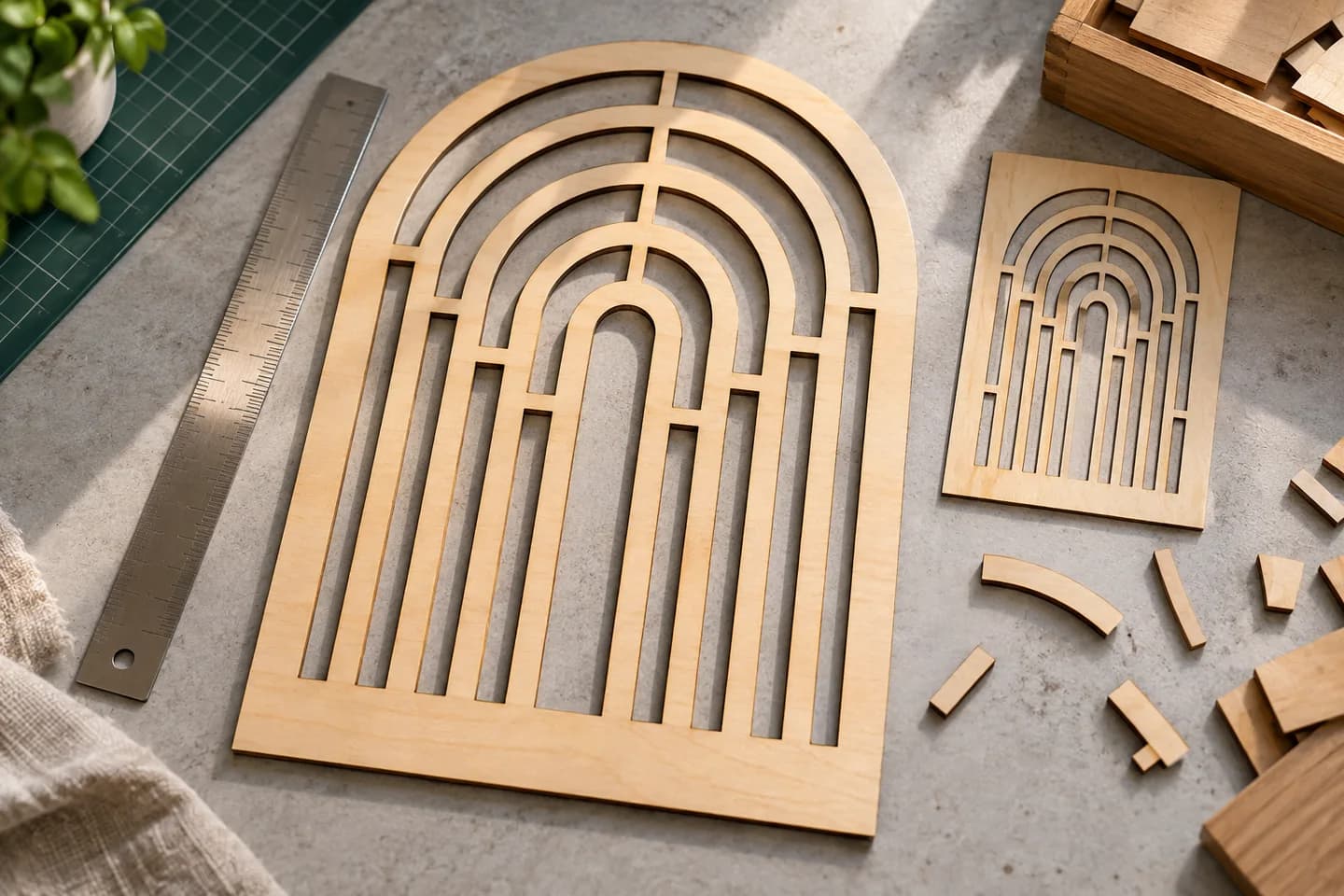
This existing PNG example shows actual traced geometry. It demonstrates what to inspect before DXF export; it is not a GIF conversion result.
Loading the saved paths…
SAVED VECTOR REFERENCE
Inspect real traced boundaries.
This saved PNG conversion shows the geometry behind a decorative panel. Switch to contours and show anchors to see what should be reviewed before a DXF handoff.
FROM IMAGE SPACE TO PHYSICAL SIZE
Choose a width.
Then verify it.
The export width scales the traced artwork. Confirm the dimensions after import, particularly when a template must fit an existing part.
This planning guide does not change your file. Set the intended width again in DXF export after unlocking.
Changing units converts the number. It does not resize the design.
Check contours and dimensions in CAD/CAM.
Set machine operations and toolpaths there.
GIF TO DXF
Choose the source. Review the geometry.
- 01
Upload your GIF
Upload your GIF. If it is animated, use the frame selector to choose one complete still image.
- 02
Inspect the free preview
Compare the free preview with the selected image. Check narrow gaps, jagged edges and small fragments caused by dotted shading.
- 03
Unlock and set export size
Unlock the result with one credit to edit and export. Select DXF, review the Cutting & CAM R12 settings, enter the finished width and choose millimeters or inches.
- 04
Review in CAD or CAM
Download the DXF and verify dimensions and contours in CAD or CAM. Set cutting or engraving operations, toolpaths and allowance for the cut width in that application.
PREPARE THE GIF
Choose clear shapes from the GIF.
A frame that works in motion may have overlaps or missing details when viewed alone. Choose a complete design before tracing.
Turn one GIF frame into DXF outlines.
Select a static GIF or one complete animation frame. PerfectVector traces the visible shapes and exports their boundaries as DXF. Clear outlines and solid colors make small gaps and unwanted fragments easier to spot.
Use the free, view-only preview to check unwanted outlines, isolated shapes and enclosed spaces. Unlock the result with one credit to edit and export.
The Cutting & CAM profile exports R12 DXF at a width you choose in millimeters or inches, with geometry grouped by color. Verify the dimensions in CAD or CAM. Prepare any centerlines, cut-width allowances, toolpaths and G-code there; the trace does not recover the original measurements.
If the selected frame is intended for a laser project, review the laser-cutting artwork workflow before production. It explains the separate checks for cuts, engraving, small fragments and physical size.
Good starting points
- Limited-palette badges and emblems
- Bold still graphics from an owned animation
- Simple icons with distinct shapes
Source checks
- For an animated GIF, confirm the exact still frame in the frame selector.
- Choose a frame where the complete artwork is visible without overlapping motion.
- Check dotted shading (dithering), jagged edges and tiny gaps in the preview.
Before manufacturing
- Dotted shading and tiny isolated pixels can produce unwanted contours.
- A thick visible stroke may trace as boundaries on both sides, not a centerline.
- The chosen export width scales the artwork; it does not recover measurements or correct perspective.
Questions before you convert?
Can the whole animated GIF become a DXF sequence?
No. Choose one still frame from an animated GIF, or upload a static GIF directly. The selected image is traced into vector boundaries for DXF export. Animation timing and frame sequences are not exported.
How do I choose the best GIF frame for cutting?
Prefer a fully visible design with crisp boundaries and readable openings. Avoid transitions, motion blur and dithered frames when a cleaner complete frame exists.
Why might my GIF produce many small DXF shapes?
GIF dithering, pixel-level highlights and small color regions can become separate contours. Inspect them and remove unwanted details after unlocking before preparing the machine job.
Can I cut a connected stencil directly from a GIF?
A traced design may contain disconnected islands. Add or verify structural bridges in your design workflow, check feature sizes for the material and run a suitable test in your machine workflow.
How are units handled for a GIF-to-DXF export?
DXF export offers the Cutting & CAM R12 profile with a chosen width in millimeters or inches. The width scales the selected frame’s geometry; it does not infer a real-world size from the animation.
Will a line in the GIF become a single toolpath?
Not necessarily. A thick line is a filled region and can create boundaries on both sides. Centerline tracing, operation assignment, kerf compensation and G-code are separate downstream work.
Can I preview the conversion for free?
Vectorizing and viewing the protected preview are free and unlimited. The first unlock of a result costs one credit and enables editing and export. Downloading that same unlocked result again does not use another credit.
Related tools.
GIF → DXF GEOMETRY