Turn your PNG into editable vector artwork.
Trace a PNG logo or illustration into scalable shapes. Check transparent edges and small openings in the free preview, then unlock editing and choose the export your project needs.
or try by clicking an image
THE BACKGROUND TEST
The edge should work on more than white.
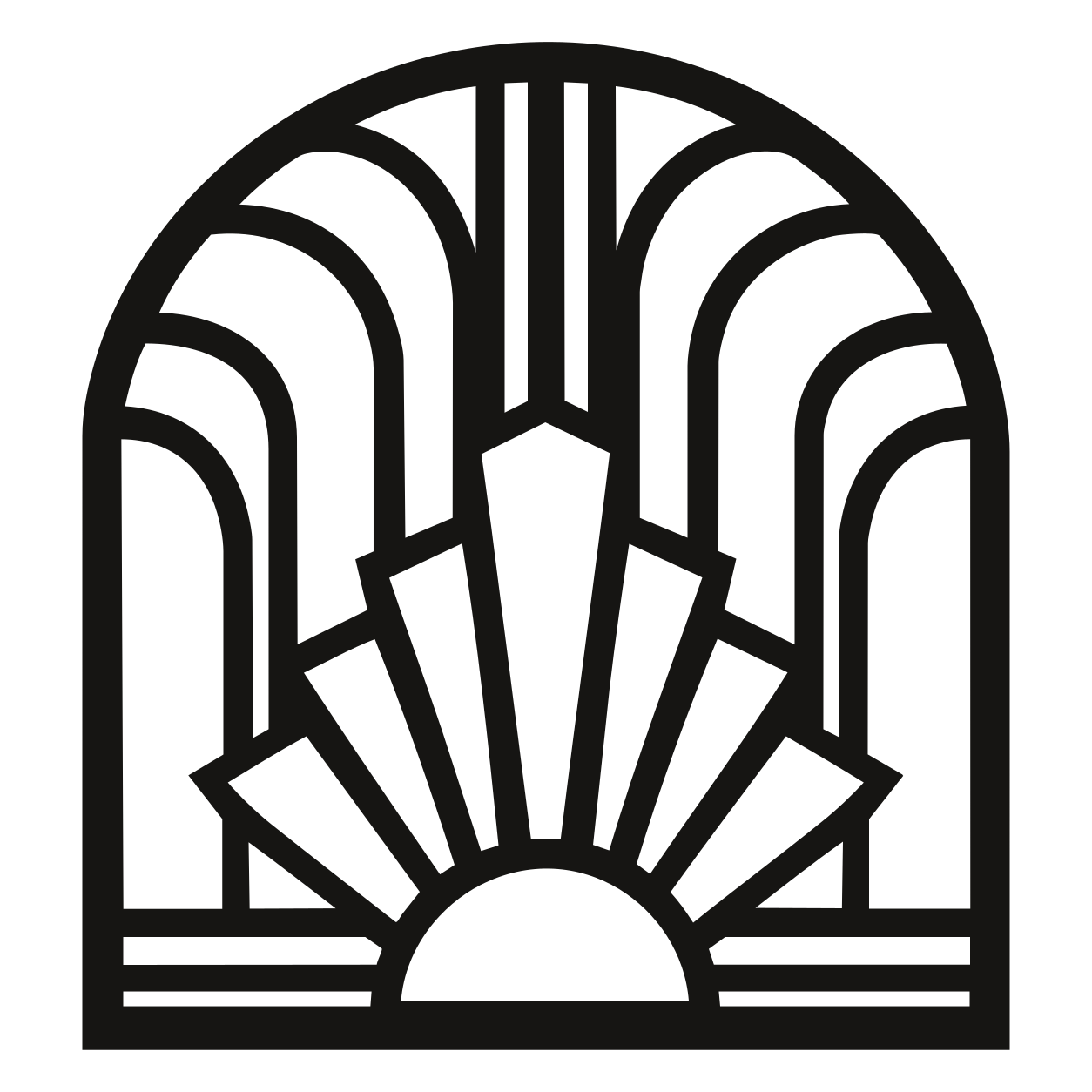
Use the saved PNG-to-SVG example below to inspect its silhouette against different backgrounds. A background change exposes gaps and edge assumptions.
 SAVED SVG
FROM A FILE TO A SYSTEM
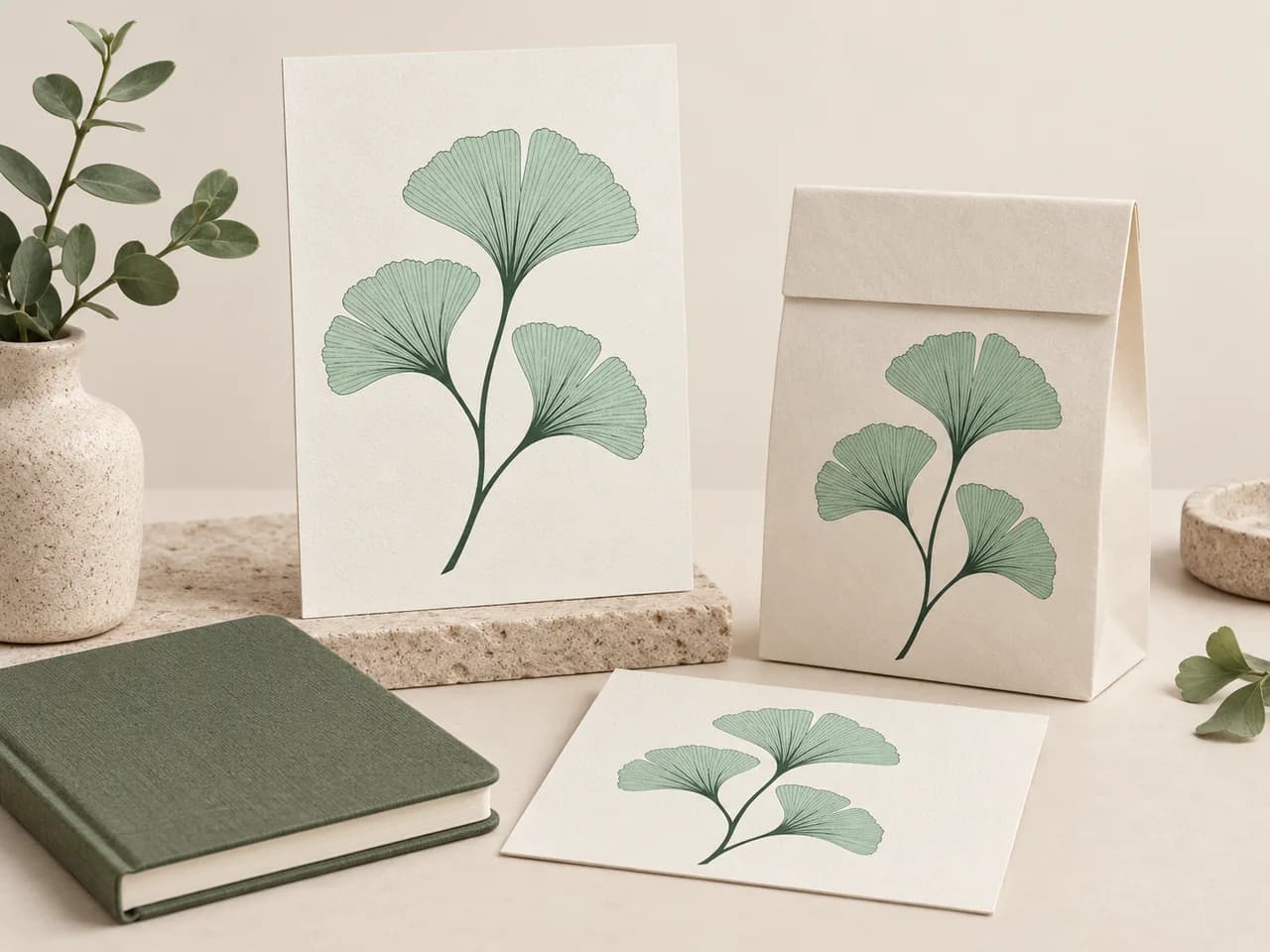
One mark. More places to use it.
Keep a reviewed vector master, then prepare a copy for each destination. A label, a large sign and a digital layout do not need the same file settings.
- Review the master at large and small sizes.
- Check the background in each destination.
- Keep source, master and handoff files together.
A FORMAT WITH A PURPOSE
Pick the handoff, not just the suffix.
SVG retains a flexible editing format. PDF carries artwork into a page workflow. EPS and DXF require their own output checks.
SVG · shapes and curves
Keep editing
A flexible master for vector editors and browser layouts.
Open the SVG workflowPNG TO VECTOR
From PNG to a reviewed vector file.
- 01
Choose your PNG
Upload the largest clear original you have. Check whether the background is transparent or saved as visible pixels.
- 02
Check edges and small openings
Compare the free preview with the PNG. Look for pale borders, lost details and small holes that have closed up.
- 03
Unlock and refine
Unlock the result with one credit to edit and export. Adjust colors or remove unwanted shapes if needed.
- 04
Choose the export
Keep an SVG copy for later editing. Choose PDF, EPS or DXF when your next application requires it, and check that format's background or size settings.
SOURCE & HANDOFF NOTES
Check transparency before choosing an export.
A clear PNG logo with flat colors can be a useful source when the editable original is missing.
Make a vector copy you can resize and edit.
PNG stores pixels without JPEG-style compression, but a small image still has limited detail. PerfectVector traces its visible shapes into vectors. After unlocking, you can edit those shapes and export the format your next project needs.
Check the background and edges closely. A transparent PNG, a white background and a checkerboard saved into the pixels will produce different results. View pale details and soft edges against both light and dark backgrounds.
Start with SVG when you want a flexible vector master. Export another format when your printer, layout application or CAD workflow requires it. Those formats have different transparency and geometry constraints.
For a cutting workflow that requests geometry instead of a filled graphic, review PNG to DXF and verify the imported width in CAD or CAM.
Useful starting points
- Transparent logo files supplied without an editable original
- Flat illustrations reused across packaging and digital layouts
- Symbols with clear gaps between shapes and a few distinct colors
Before the handoff
- Check partly transparent edges on both light and dark backgrounds.
- Check that small holes remain open at the intended size.
- Keep an SVG master before preparing output-specific copies.
Know the boundaries
- A checkerboard embedded in the pixels is artwork, not transparency.
- Soft shadows and gradients may produce more regions than a simple flat logo.
- EPS uses an opaque background; DXF carries geometry rather than PNG appearance.
Questions before you convert?
Does PNG become vector just by changing its extension?
No. Renaming the file does not replace pixels with paths. The converter traces the image and lets you inspect the resulting geometry.
Which vector format should I choose for a PNG logo?
SVG is a useful editable master for a PNG logo; PNG to SVG covers that handoff. Choose PDF or EPS when the recipient requests it, and DXF when the next step is geometry review in CAD or CAM.
What happens to a transparent PNG background?
A truly transparent PNG can isolate the artwork for tracing. Inspect pale fringes and small openings in the result. SVG and PDF can retain supported transparency; this EPS export uses an opaque background, and DXF carries geometry.
Can you remove a checkerboard from a screenshot?
A baked checkerboard is visible pixel artwork. Prefer the original transparent PNG. After unlocking, inspect and remove unwanted traced regions if practical.
Will small details be recovered from a tiny PNG?
Missing information cannot be reliably restored. Use the largest original and check fine details against it.
Can one result be exported in several formats?
An unlocked result can be downloaded again without another unlock credit. Select an export supported by the artwork and check its format-specific constraints.
Can I preview the result for free?
Vectorizing and viewing the protected preview are free and unlimited. The first unlock of a result costs one credit and enables editing and export. Downloading that same unlocked result again does not use another credit.
Related tools.
PNG → VECTOR · BRAND MASTERS
See how your PNG traces.
Check the edges before you commit. Your vector preview is free; one credit unlocks editing and download.
Preview your PNG for free