
Recover BMP artwork as EPS vector shapes.
Start with a supported uncompressed BMP or DIB logo or drawing. Preview the traced artwork for free, then unlock editing and EPS export for a new design or print project.
or try by clicking an image
REOPEN THE ARTWORK ARCHIVE
An old bitmap can still have a useful next chapter.
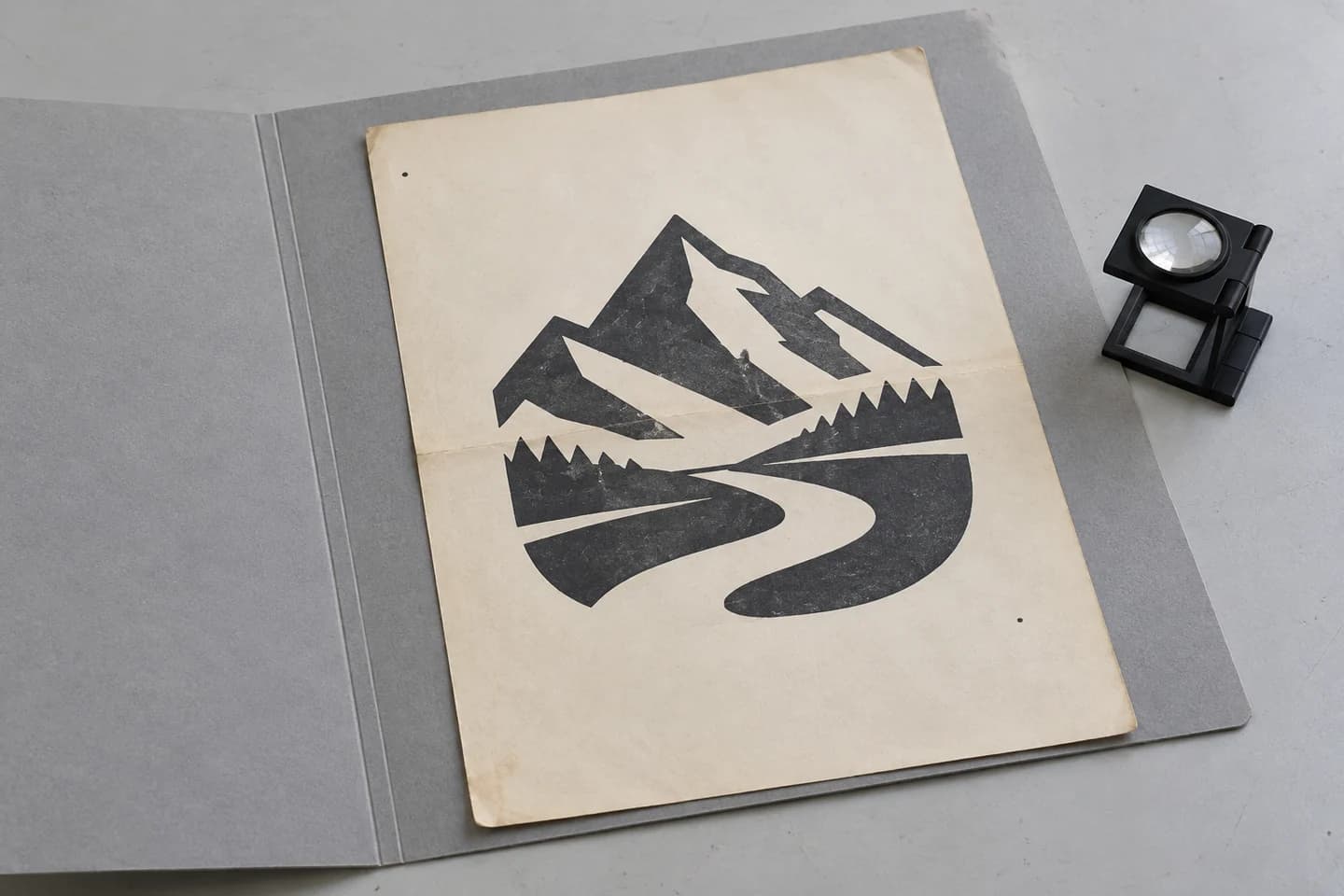
Legacy signs and brand marks often survive as BMP files. Recover the visible design as paths, while keeping a clear record of what tracing can and cannot reconstruct.
Open the file
Standard uncompressed Windows BMP/DIB variants are supported. For a rejected legacy variant, export a fresh BMP or PNG copy first.
Clean the source
Crop empty borders and unrelated archive markings. Correct scan defects in an image editor before vectorizing.
Reissue carefully
Compare proportions and lettering with the source, then have the EPS checked for the new print process.
BEFORE YOU SEND THE EPS
Check the artwork.
Confirm the print requirements.
Your EPS contains filled vector shapes in RGB, with a white or black background. Check that this matches what your printer or designer needs.
Preview your BMP for free- Vector shapes
- Inspect the traced artwork and its smallest details.
- RGB fills
- Ask the printer about CMYK conversion or spot-color preparation.
- Opaque background
- Choose white or black. Use a different format when transparency is required.
- Final placement
- Open the export in the receiving application and verify its scale and appearance.
BMP TO EPS
From source pixels to a reviewed EPS.
- 01
Choose the BMP source
Use a clear original bitmap rather than an enlarged copy of a small icon.
- 02
Inspect the free preview
Compare the free preview with the bitmap. Check letter spacing, small openings and marks from the old background.
- 03
Unlock, then refine
Unlock the result with one credit to edit and export. Adjust colors or remove unwanted shapes if needed, then select EPS.
- 04
Download and check the EPS
Choose a white or black background and download the EPS. Open it in the receiving application to check its size, background and colors.
KNOW YOUR BMP SOURCE
Check the archived file before reusing it.
Open the original BMP and check its lettering and edges. If its format is rejected, export a compatible copy first.
What changes when BMP becomes EPS?
An archived BMP logo or drawing can be traced into shapes for an EPS file. Use a supported uncompressed BMP or DIB source, then compare the lettering, spacing and edges with the original before reusing it.
Inspect the preview for free. Unlock the result with one credit to edit and export, then select EPS and choose a white or black background.
This EPS export uses RGB colors and an opaque background. If your supplier needs CMYK, named spot colors or separate ink plates, prepare those in a print application. Check the final file against the supplier's requirements.
For a recipient who wants a vector PDF instead, use BMP to PDF. In either case, retain the original bitmap and inspect the reconstructed shapes before delivery.
Useful starting points
- Archived monochrome marks and signs
- High-contrast bitmap motifs
- Clean scans of bold artwork
Before vectorizing
- Use a clear original bitmap rather than an enlarged copy of a small icon.
- Check scanned paper, specks and stair-stepped diagonal edges.
- If a legacy BMP is rejected, re-export a copy as a standard uncompressed BMP or PNG in an image editor.
Before exporting EPS
- Common uncompressed Windows BMP and DIB files are supported. Compressed or unusual older variants may need a PNG copy first.
- An uncompressed file can still have blurred edges or too few pixels for small details.
- Tracing does not recover editable fonts, design layers or original construction geometry.
Questions before you convert?
Which BMP files can I convert to EPS?
The converter accepts a supported subset of uncompressed Windows BMP and DIB files, including palette, 16-bit, 24-bit and opaque 32-bit layouts. Compressed variants, unsupported headers and non-opaque 32-bit files need a compatible PNG export from an image editor first.
Can an old BMP logo become editable text in EPS?
No. The bitmap is traced into shapes. Original fonts, text objects and editable wording are not reconstructed.
Will converting BMP to EPS increase the original resolution?
The result uses scalable paths, but the trace still depends on the source pixels. An enlarged low-resolution BMP does not reveal details that were never present.
Can I recover a monochrome scanned sign from BMP?
A clear high-contrast scan can be useful. Crop unrelated material and inspect dust, paper marks, broken strokes and small enclosed spaces before using the traced artwork.
Does BMP-to-EPS recover the original print separations?
No. The exporter writes RGB fills. Original CMYK plates, named spot colors, overprint settings and design layers cannot be recovered from a flat bitmap.
What background will the EPS have?
The EPS export uses a selected white or black opaque background. Inspect its appearance in the receiving design application, especially if the original bitmap had a painted background of another color.
Can I preview the conversion for free?
Vectorizing and viewing the protected preview are free and unlimited. The first unlock of a result costs one credit and enables editing and export. Downloading that same unlocked result again does not use another credit.
Related tools.
BMP → EPS