
Turn JPG artwork into editable vector shapes.
Reuse a flattened logo, old illustration or clear scan. Compare the original with its vector preview, check compressed edges, then unlock the result to edit and export.
or try by clicking an image
LOOK WHERE THE EDGE CHANGES
Judge the trace at the edge.
The saved JPG and its actual PerfectVector SVG are shown at the same 4× magnification. Move the divider to inspect compression, corners and negative space.
ACTUAL SAVED CONVERSION
Compare the curved edge at 4×.
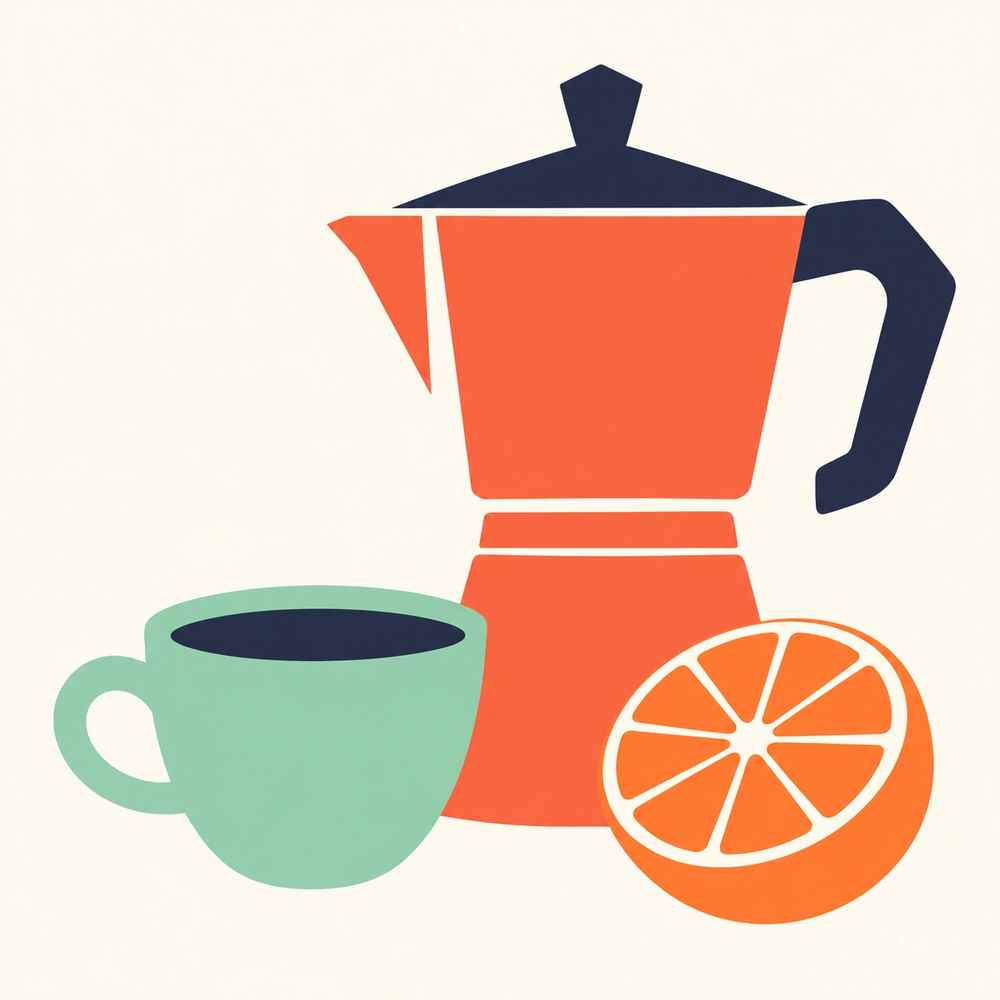
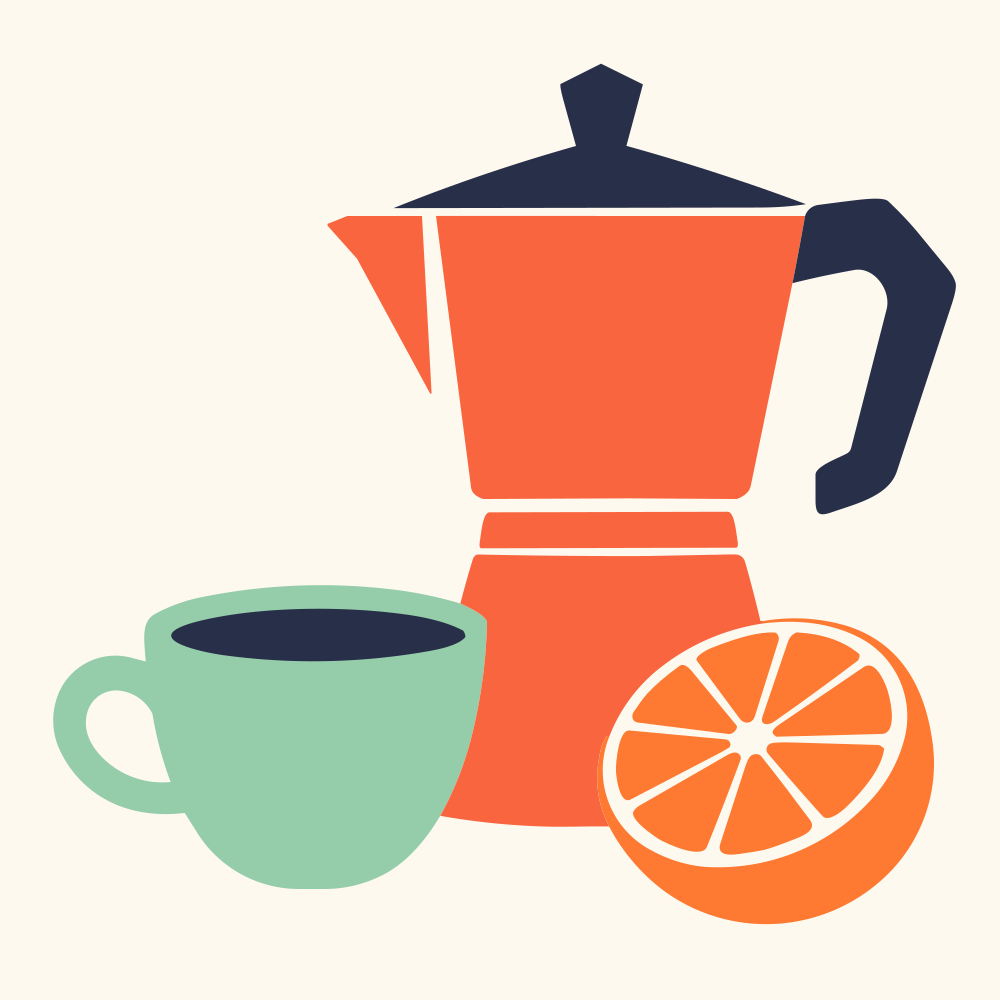
Original 1000 px JPG and its saved PerfectVector SVG. Both sides show the same orange-slice detail. Use Full artwork to see the complete illustration.
- Paths
- 20
- Fill colors
- 5
The colors in this SVG
- #282F48
- #95CDAA
- #F9653F
- #FE7931
- #FEF9EF
A PRACTICAL RECOVERY ORDER
From an attachment to a working asset.
A useful recovery starts with a better source and ends with a deliberate handoff. Review the full artwork as well as the small details.
- 01
Find an earlier source
An original attachment often holds more useful detail than a thumbnail or screenshot.
- 02
Check the small regions
Look at letters, gaps and edge halos, not just the full composition.
- 03
Refine after unlocking
Remove unwanted regions and confirm the colors before the next export.
A FORMAT WITH A PURPOSE
Your next application decides the export.
Keep a master for editing, then export the format your printer, designer or fabrication workflow needs.
SVG · shapes and curves
Keep editing
A flexible master for vector editors and browser layouts.
Open the SVG workflowJPG TO VECTOR
From JPG to a reviewed vector file.
- 01
Choose your JPG
Upload the clearest JPG or JPEG you have. Crop unrelated content and correct uneven scan lighting in an image editor if needed.
- 02
Check edges and scan marks
Compare the free preview with the source. Look for broken strokes, paper shadows and small shapes around letters.
- 03
Unlock and refine
Unlock the result with one credit to edit and export. Adjust colors or remove unwanted regions before downloading.
- 04
Choose the export
Download SVG for a reusable vector master, or choose PDF, EPS or DXF when the next application requires it. Check the selected format’s options.
SOURCE & HANDOFF NOTES
Find the clearest JPEG source.
Choose the clearest JPG you have, then decide which visible regions belong to the design.
Separate the design from the compression.
JPEG compression can leave small blocks or pale halos around sharp edges. Tracing may turn those marks into extra shapes. Zoom into corners and lettering, then compare the preview with the original before deciding to unlock it.
A scan adds another layer of source preparation: paper texture, dust and uneven lighting can all become visible regions. Crop and correct the source in an image editor when necessary. Saving the same JPG as PNG does not restore missing information.
After unlocking, you can edit the traced shapes. They do not restore the original design file: lettering remains outlines, layer names are lost and photographs become an interpretation made of colored regions.
Choose JPG to EPS when a print supplier requests EPS, or JPG to DXF when the next step is inspecting outlines in CAD or CAM. Neither export restores details lost to JPEG compression.
Useful starting points
- Flattened brand graphics from an old website or email attachment
- Bold scanned symbols and lettering on an evenly lit background
- Flat-color illustrations with enough source resolution
Before the handoff
- Zoom into corners and lettering to look for compression blocks or pale borders.
- Check whether paper shadows and dust became extra shapes.
- After unlocking, remove unwanted shapes before choosing an output format.
Know the boundaries
- Compression artifacts may become extra contours.
- Tracing cannot restore original type, layer names or hidden content.
- A photo of an object is not a dimensionally accurate drawing.
Questions before you convert?
Are JPG and JPEG treated differently?
No. They are filename variants of the same format and enter the same conversion workflow.
Should I convert my JPG to PNG first?
No intermediate PNG is needed. Resaving a JPG as PNG does not undo JPEG compression or restore missing detail. Upload the best original JPG or JPEG you have, or use an earlier lossless source if one exists.
Can I vectorize a scanned logo?
Yes, when the artwork is clear enough to trace. Crop unrelated content and inspect background texture, dust and thin details in the preview.
Why might the result contain small extra shapes?
Compression halos, dust and subtle color changes are visible pixels. Vectorization may interpret them as separate regions; review them before the final handoff.
Does it reconstruct the original editable design file?
No. It creates vector paths from the visible image. Original fonts, layers and hidden objects are not recovered.
Which export is best after tracing a JPG?
SVG is a useful editing master. PDF and EPS fit specific design handoffs, while DXF is for geometry review. Choose the format your next application expects.
Can I preview the result for free?
Vectorizing and viewing the protected preview are free and unlimited. The first unlock of a result costs one credit and enables editing and export. Downloading that same unlocked result again does not use another credit.
Related tools.
JPG / JPEG → VECTOR · ARTWORK RECOVERY
See what your JPG can become.
Start with the largest original you have. Inspect the free preview before unlocking editing and download.
Preview your JPG for free