
Negative space
Check enclosed holes and openings; losing one can change the identity of a mark.
Trace a supported BMP or DIB logo, icon or drawing into scalable shapes. Compare the free preview with the original, then unlock editing and choose the export your next project needs.
or try by clicking an image
THE ARCHIVE IS A STARTING POINT
An archived mark may still have years of work ahead of it. Recover the visible shapes, compare the details and keep the original beside the new master.
Historical source + reviewed master
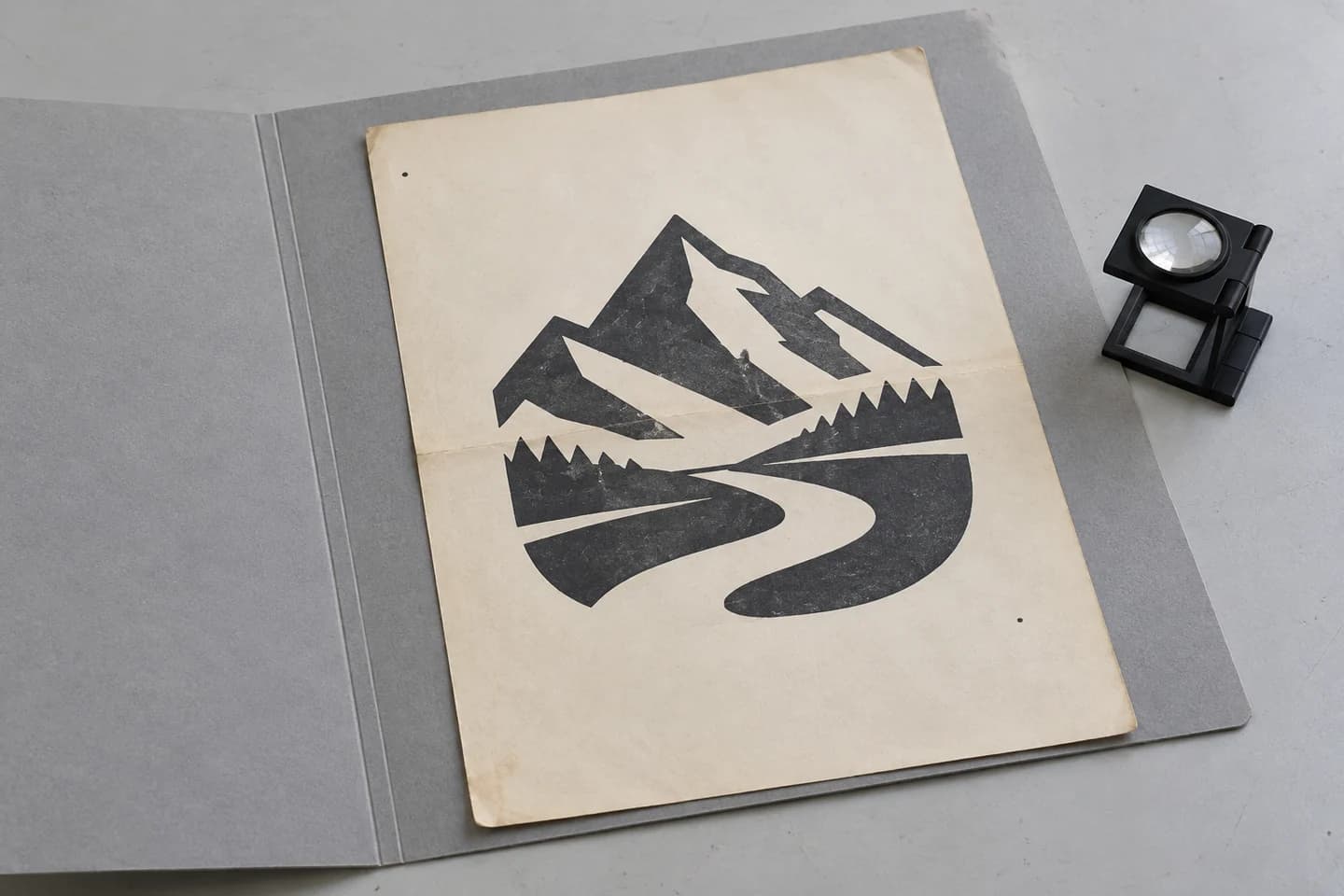
COMPARE WHAT MAKES IT FAMILIAR
Look at the negative space, the spacing between separate shapes and the thinnest meaningful detail. A familiar logo can hide a tracing error in plain sight.
Check enclosed holes and openings; losing one can change the identity of a mark.
Review the gaps between letters and separate shapes against the archive.
Check the thinnest meaningful stroke at the intended output size.
A FORMAT WITH A PURPOSE
The new vector does not replace the historical source. Keep both, then prepare a format-specific copy for the next recipient.
SVG · shapes and curves
A flexible master for vector editors and browser layouts.
Open the SVG workflowBMP TO VECTOR
Upload the original BMP or DIB. If its file layout is unsupported, export a PNG copy from a compatible image editor first.
Use the free preview to check letter spacing, small openings and jagged edges against the original bitmap.
Unlock the result with one credit to edit and export. Adjust colors or remove unwanted shapes, and keep the original bitmap separately.
Download SVG for a reusable vector master, or choose PDF, EPS or DXF when the next application requires it. Check the selected format’s options.
SOURCE & HANDOFF NOTES
An accepted file can still contain blurred edges or missing details. Inspect the preview before using it as a new working copy.
An archived BMP logo may have clear edges but still look pixelated when enlarged. Tracing creates vector shapes you can resize and, after unlocking, edit for a new layout.
PerfectVector accepts common uncompressed Windows BMP and DIB files within its supported range. If your file is rejected, open it in a compatible image editor and export a PNG copy. Compressed files and some older or partly transparent layouts need this extra step.
Keep the original bitmap alongside the vector copy. Tracing interprets the visible pixels; it cannot restore the original fonts, layers, drawing objects or information saved by the old design application.
Use BMP to SVG for a reusable vector asset. If an older print workflow explicitly requests EPS, BMP to EPS explains the background and color limits of that handoff.
The converter accepts a supported subset of uncompressed Windows BMP and DIB files, including palette, 16-bit, 24-bit and opaque 32-bit layouts. Compressed variants, unsupported headers and non-opaque 32-bit files need a compatible PNG export from an image editor first.
The file may use unsupported compression, headers, alpha or a damaged layout. Open it in software that can read it and export a lossless PNG when possible.
No. Uncompressed describes how pixels are stored. Vectorization changes the representation into shapes and curves.
You can recover vector shapes from the visible bitmap. Compare proportions, letter spacing and small openings, and keep the original archive for reference.
No. The result contains traced paths from the visible image, not the original authoring structure.
SVG is a useful editable master. Keep the original BMP too, and export PDF, EPS or DXF copies when a particular handoff requires them.
Vectorizing and viewing the protected preview are free and unlimited. The first unlock of a result costs one credit and enables editing and export. Downloading that same unlocked result again does not use another credit.
BMP / DIB → VECTOR · ARCHIVE RECOVERY
Keep the original bitmap. Inspect a new vector preview for free before unlocking editing and download.
Preview your BMP for free