
Trace JPG artwork into a vector PDF.
Reuse a scanned motif, flattened logo or bold drawing in a new layout. Preview the traced shapes for free, then unlock editing and single-page PDF export with one credit.
or try by clicking an image
THE PUBLICATION DESK
An old motif.
A new page.
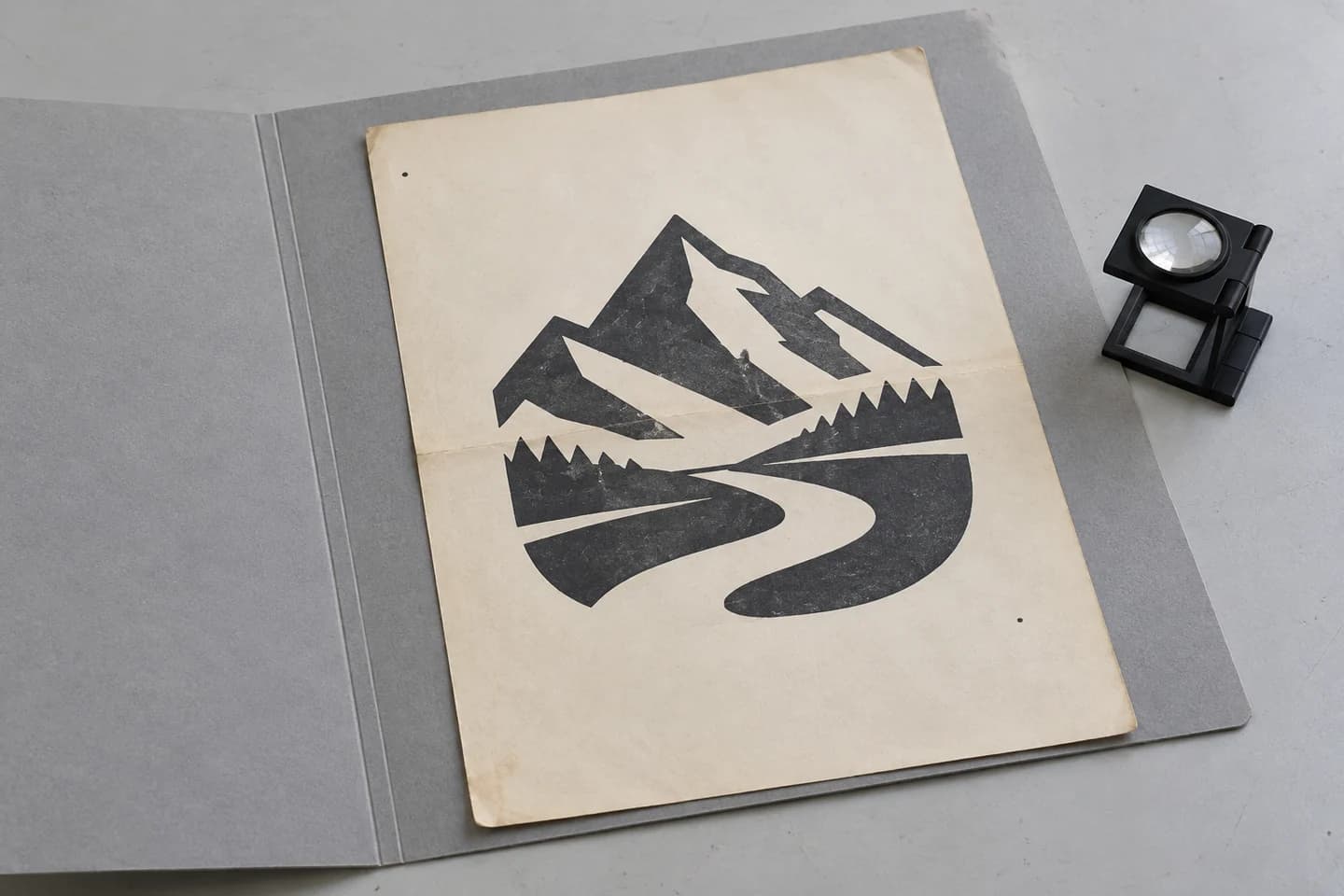
A scanned emblem can become an illustration in a collection, a chapter opener or a portfolio. The useful handoff is a reviewed graphic you can place and size in your layout.
01Compression halos
Look around high-contrast edges for blocks or pale rings. They can become extra regions.
02Paper and shadows
Keep deliberate ink texture if it belongs to the design; remove unwanted background marks after unlocking.
03Lettering and fine lines
Review closed letter spaces and broken strokes. A trace cannot reliably recover unreadable source details.
WHAT LEAVES PERFECTVECTOR
Vector artwork,
in a familiar file.
The export contains one page of traced vector artwork. Place it in your layout and check the final size, background and colors there.
- One page
- One reviewed artwork per PDF export.
- Shapes, not live text
- Traced lettering remains outlines; fonts and OCR text are not recovered.
- Check the final document
- Set margins, bleed, color requirements and print specifications in your downstream workflow.
JPG TO VECTOR PDF
Trace the drawing for your next document.
- 01
Choose your JPG
Upload the clearest JPG or JPEG you have. For a scan, crop to the artwork and correct uneven lighting in an image editor if needed.
- 02
Preview the vector trace
Compare the free preview with the source. Check for broken strokes, traced paper shadows and compression marks around letters.
- 03
Unlock and edit
Unlock the result with one credit to edit and export. Remove unwanted shapes or adjust colors if needed.
- 04
Export and place the PDF
Select PDF and download the single-page artwork. Check lettering and line continuity at the size used in your document.
JPG INPUT GUIDE
Prepare the scan before tracing.
Crop to the artwork you need, then look for paper texture, shadows and compression marks that could become extra shapes.
Keep the drawing. Check the scan marks.
A scan contains more than the drawing: paper fibers, dust, shadows and compression can all leave visible marks. Vectorization interprets what it sees, so review which of those marks became shapes before you reuse the art.
Start with the clearest scan or JPEG original. Crop unrelated content and correct uneven lighting in an image editor before uploading if needed. Lettering is traced as shapes; the PDF does not contain recovered, editable text.
Use JPG to SVG when you need a vector asset for further path editing. Both workflows trace the visible JPEG artwork; neither restores editable text from a scan.
Useful starting points
- Clear scans of bold ink artwork
- Flattened logos on plain backgrounds
- Simple motifs photographed square-on
Start with the source
- Crop the scan to the artwork you want to reuse.
- Check compression halos, paper shadows and dust before tracing.
- Inspect the protected preview before deciding to unlock editing and export.
Know the boundaries
- Saving a JPG as PNG does not restore detail already lost to compression.
- Paper texture and shadows may become extra vector regions.
- This workflow does not OCR a scan or reconstruct its original document layout.
Questions before you convert?
Are JPG and JPEG both supported?
Yes. JPG and JPEG are filename variants of the same format. Both can be traced into vector artwork and exported as a single-page PDF. This workflow does not simply embed the unchanged photograph.
Can I turn a scanned page into searchable PDF?
No. This tool traces visible artwork into vector shapes. It does not perform OCR, recover editable paragraphs or create a searchable document from the scan.
Will the original photo look exactly the same?
Vectorization interprets pixels as shapes. Photographs, texture and soft shading may change visibly. Use a normal photo-to-PDF converter when keeping the photograph unchanged is the goal.
Why did paper marks appear in the trace?
The source may include dust, paper grain, compression noise or shadows. Those visible marks can be interpreted as shapes. Use a cleaner source and review the result before export.
Should I convert the JPG to PNG first?
You can upload JPG or JPEG directly. Resaving as PNG will not undo compression. An original higher-quality image or scan is a better starting point when available.
Can I clean up the traced scan?
Inspect the protected preview for free. After unlocking the result with one credit, use the available editing tools to adjust the artwork before downloading PDF.
How does pricing work?
Vectorizing and viewing the protected preview are free and unlimited. The first unlock of a result costs one credit and enables editing and export. Downloading that same unlocked result again does not use another credit.
Related tools.
JPG → VECTOR PDF
Bring your JPG artwork into a new layout.
Choose a clear original and inspect the free preview. One credit unlocks the result for editing and PDF download.
Preview your JPG for free