
Turn PNG artwork into a vector PDF.
Rebuild a PNG logo or flat illustration as scalable shapes for a document or presentation. Check the free preview, then unlock editing and single-page PDF export with one credit.
or try by clicking an image
THE BRAND HANDOFF
One mark.
A considered handoff.
Keep the logo separate from the complete document. Export the reviewed artwork, place it in the layout, then check its background, scale and breathing room there.
Preview your PNG for free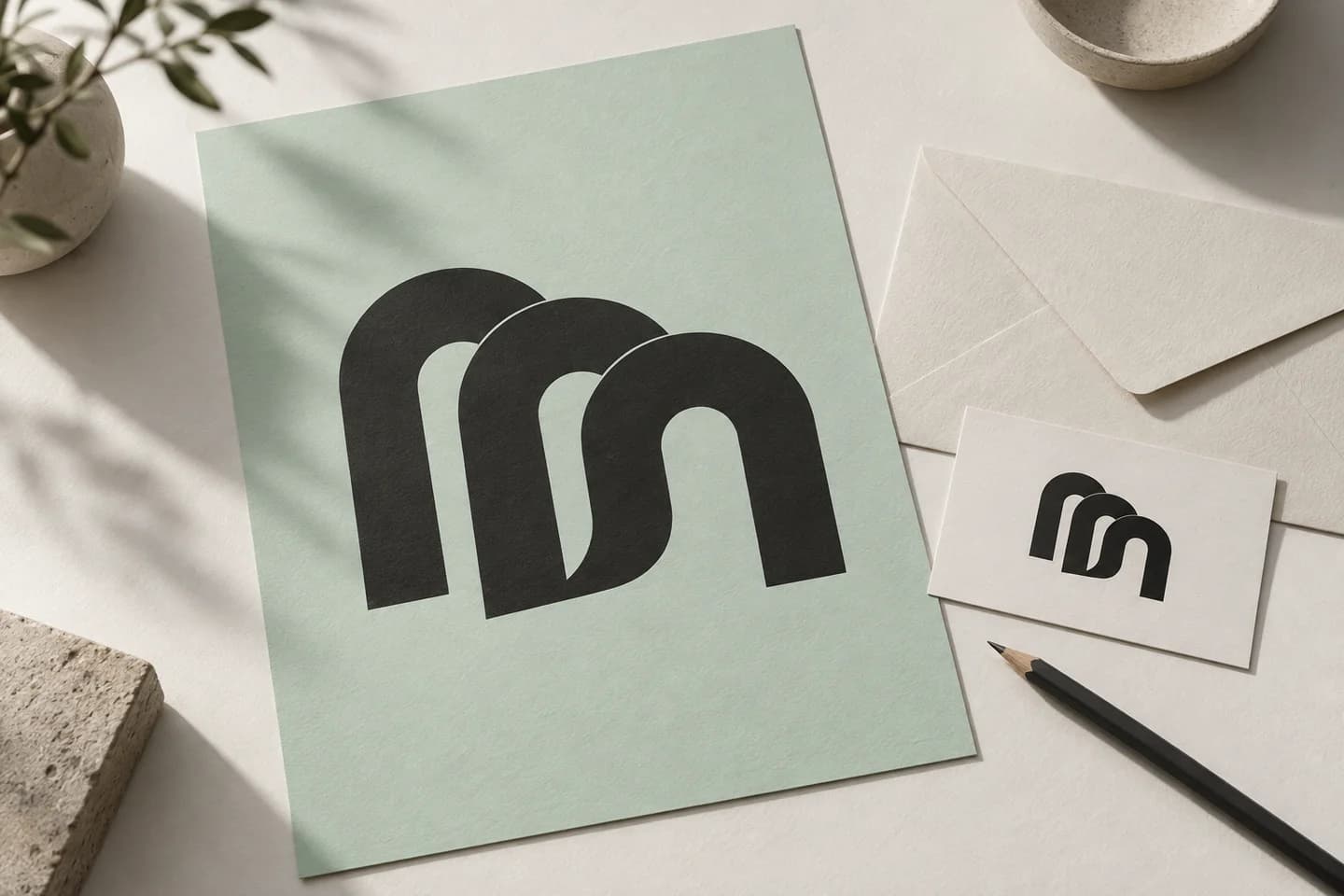
Plan the background before the handoff.
Try the same dark mark on three backgrounds. A dark background can hide its edges. Then check your own exported artwork in the real destination layout.
 SAVED SVG / BACKGROUND STUDY
- 01
Background
Check whether the source is truly transparent or has white pixels behind the mark.
- 02
Light details
Make sure pale areas still belong when the mark sits on a colored background.
- 03
Small spaces
Inspect counters and narrow openings at the size the logo will be used.
WHAT LEAVES PERFECTVECTOR
Vector artwork,
in a familiar file.
The export contains one page of traced vector artwork. Place it in your layout and check the final size, background and colors there.
- One page
- One reviewed artwork per PDF export.
- Shapes, not live text
- Traced lettering remains outlines; fonts and OCR text are not recovered.
- Check the final document
- Set margins, bleed, color requirements and print specifications in your downstream workflow.
PNG TO VECTOR PDF
Prepare your PNG for a PDF layout.
- 01
Choose your PNG
Use the original PNG rather than a screenshot of it on a white page.
- 02
Preview the vector trace
In the free preview, check pale details, small openings and unwanted background shapes against the original PNG.
- 03
Unlock and edit
Unlock the result with one credit to edit and export. Adjust colors or remove unwanted shapes if needed.
- 04
Export and place the PDF
Select PDF and download the single-page artwork. Place it over the intended background and check pale details and edges at the final size.
PNG INPUT GUIDE
Check the artwork against its new background.
Pale details and partly transparent edges can look different over a colored page. Check them in the layout where you will use the PDF.
A logo belongs in the layout.
A transparent PNG is useful on a website. For a brand presentation or layout handoff, a vector PDF carries traced shapes that can scale without enlarging the original pixels. The result still needs to be checked against the source.
Transparency and a white background are different. Inspect the visible background, pale details and small enclosed spaces before exporting. A PDF viewer’s white page alone is not a reliable check of how artwork will look when placed over a color.
For an editable web asset or a reusable SVG master, use PNG to SVG. Keep the PDF for a recipient who wants that format, and check its placement in the final layout.
Useful starting points
- Transparent logos with clear outlines
- Flat badges and brand illustrations
- Icons with clear gaps between shapes
Start with the source
- Use the original PNG rather than a screenshot of it on a white page.
- Inspect pale details, transparent edges and enclosed spaces in the traced preview.
- After unlocking, remove unwanted shapes as needed and review the exported PDF in your layout.
Know the boundaries
- Softened edge pixels and partial transparency need a closer look after tracing.
- A visible checkerboard baked into the pixels is artwork, not transparency.
- The PDF is artwork for a layout; it does not add bleed, crop marks or print specifications.
Questions before you convert?
Does converting PNG to PDF keep it as a photograph?
No. PerfectVector traces the PNG into vector shapes and exports that interpretation as PDF. For an unchanged photographic PNG on a page, use an ordinary image-to-PDF tool.
Can I use a transparent PNG?
Yes. Use the original file and inspect the traced background and edges. Check the exported PDF on the actual background in your layout application before handing it off.
Why does my PNG show a checkerboard?
Some images contain a checkerboard painted into their pixels. That pattern can become part of the traced artwork. Use a genuinely transparent original when available.
Will the PDF contain live logo text?
No. Lettering in the PNG is interpreted as vector shapes. It does not become live text or recover the original font.
Can I change colors before exporting?
After unlocking the result with one credit, you can use the available editing tools before exporting PDF. The protected preview is free; editing requires an unlocked result.
Does this create a print-ready brand file?
It creates a single-page RGB PDF containing traced vector artwork. Confirm final size, colors, bleed and any PDF/X requirements with your layout application or printer; the export does not add those production settings.
How does pricing work?
Vectorizing and viewing the protected preview are free and unlimited. The first unlock of a result costs one credit and enables editing and export. Downloading that same unlocked result again does not use another credit.
Related tools.
PNG → VECTOR PDF
Give your PNG a place in the next layout.
Preview the traced artwork for free. Unlock the result when you are ready to edit and export your PDF.
Preview your PNG for free