Best Image to SVG Converter for Laser Cutting: 8 Picks
Our pick for laser cut files from logos and line art is PerfectVector's Laser SVG. See when LightBurn, Inkscape, Vector Magic or a built-in trace fits better.
On this page
- Our picks at a glance
- What makes a converter good for laser cutting
- The converters, one by one
- PerfectVector: our pick for laser cut files
- LightBurn Trace Image: trace inside the software you cut with
- Inkscape: free, with full control
- Vector Magic: full-color tracing with an editor
- Adobe Illustrator Image Trace: when you already design in Illustrator
- VectoSolve: a laser mode in the browser
- Your laser app's own trace: Glowforge app and xTool Studio
- Adobe Express and Canva: quick, casual conversions
- Comparison table
- Which converter should you choose?
- Test a converter on your own image
- When a converter isn't the answer
- What this looks like with PerfectVector
- FAQ
- Sources
The best image to SVG converter for laser cutting depends on the image and on the laser software you finish in. For logos, signs, ornaments and flat illustrations, our pick is PerfectVector: you preview the trace free, then download a Laser SVG at the width you set, with shared edges merged so no edge is cut twice and with cutting kept apart from engraving. If you already own LightBurn, its built-in Trace Image handles simple high-contrast art without leaving the program. If the tool has to be free, Inkscape gives you full control at the cost of more cleanup.
A note on transparency: we make PerfectVector. We list it first because its Laser SVG option was built for this job, and we say so wherever another tool suits a job better. This guide covers vector cutting and line or fill engraving. Photo engraving is a different job, covered briefly near the end.
Our picks at a glance
- PerfectVector — Best for laser cut files from logos, signs and illustrations: a free preview, then a Laser SVG with Cut out or Engrave + cut, red hairline cuts, black engraving fills and a real size in millimeters or inches.
- LightBurn Trace Image — Best if you already cut in LightBurn: trace a high-contrast image in the same program, with a Center Line Trace option for single score lines.
- Inkscape — Best free desktop option: open-source Trace Bitmap plus a full vector editor for fixing paths, joining shapes and adding bridges yourself.
- Vector Magic — Best for detailed full-color art you want to trace and edit in one tool: a free preview, with downloads on a monthly online subscription or a one-time desktop license.
- Adobe Illustrator Image Trace — Best if you already design in Illustrator: presets, fine trace controls and the full editor for preparing the file by hand.
- VectoSolve — Best for a quick browser conversion in a laser-focused mode: its laser page describes closed cut paths, SVG and DXF output and a free preview.
- Your laser app's own trace (Glowforge app, xTool Studio) — Best for a hand drawing or simple sketch you want to trace and run in the app you already use.
- Adobe Express or Canva — Best for a quick, casual conversion of a clean silhouette when you will check every path in your laser software afterward.
What makes a converter good for laser cutting
Your laser follows the paths in the file, not the preview you saw. Judge each converter on what you can check in the SVG it gives you:
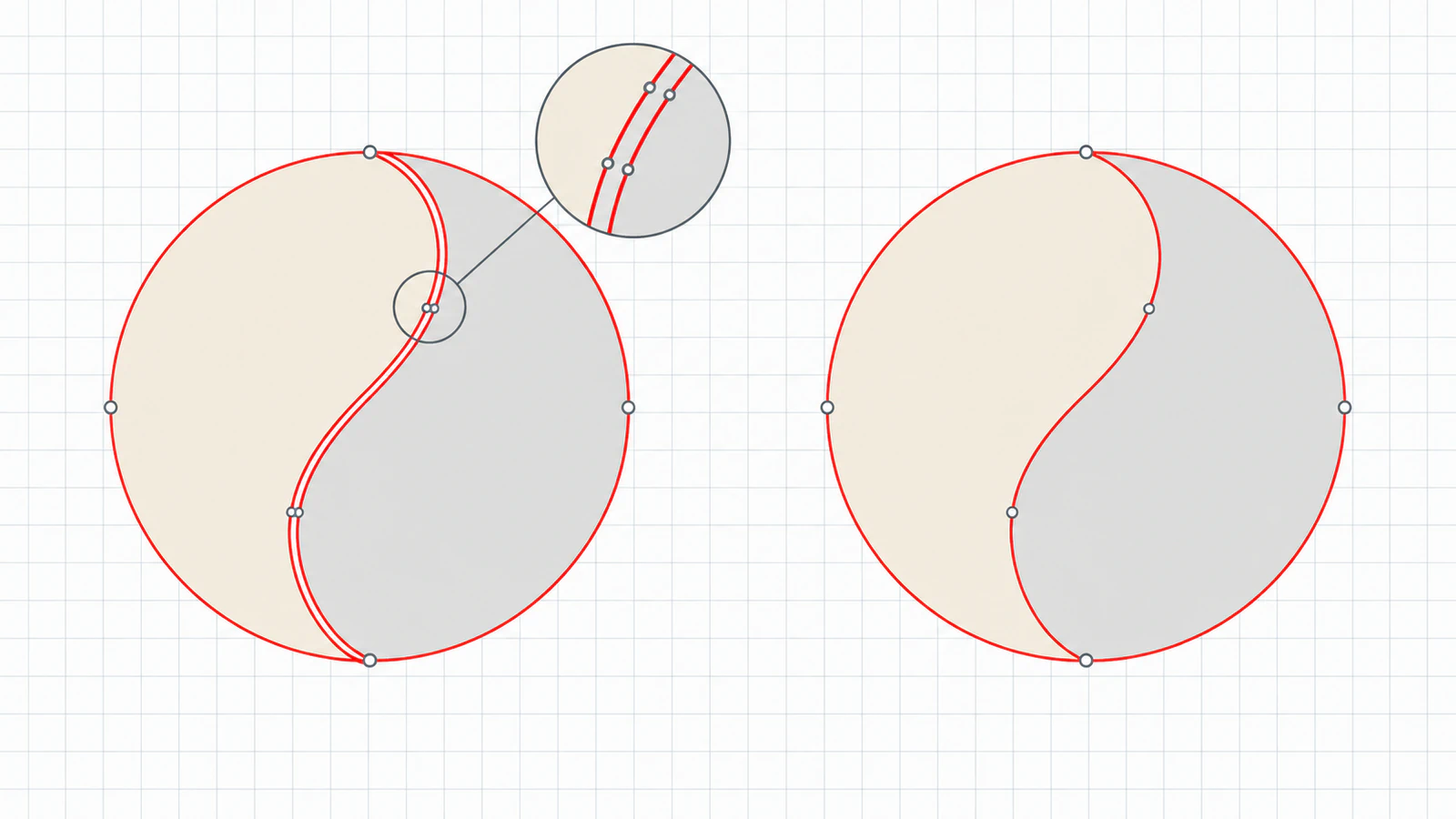
- No doubled or overlapping edges. When two neighboring color shapes each store the edge they share, the laser cuts that edge once for each shape. Stacked traces that overlap do the same. Our guide to SVG lines that cut twice covers the other common cause: an outline trace of a thick stroke.
- A size and unit you control. An SVG without a physical size can import at a scale set by your software's DPI setting. A file that states its width in millimeters or inches saves a measuring step.
- Cut and engrave kept apart. LightBurn, Glowforge and xTool assign operations by color or by fill and stroke. A file where cuts and engraving are already separate colors maps to those operations quickly.
- No background shape. A traced white background becomes a rectangle your laser will happily cut around the whole design. Check for it, or use a converter that removes it.
- Small islands and bridges handled. Anything fully enclosed by a cut falls out, like the middle of an "O". Tiny pieces can drop through the bed, and thin details can burn away. No converter decides your bridges for you, but some warn you about small pieces.
How we chose: we read each tool's current official page on October 24, 2026, and judged it against these five checks, using what each tool documents plus our hands-on work with PerfectVector. We did not run a controlled same-image benchmark across every tool, so this guide gives no scores or rankings beyond the "Best for" verdicts. Test your shortlist on your own image with the check further down.
The converters, one by one
PerfectVector: our pick for laser cut files
PerfectVector traces flat and illustrative art, such as logos, monograms, lettering, ornaments and AI-made illustrations, into editable vector paths. Vectorizing and previewing are free, so you can judge the trace before paying anything; one credit unlocks a finished result, and downloading it again is free. Editing in the editor also needs an unlocked result.
When you download, choose the Laser SVG option on PerfectVector's image to SVG converter for laser cutting. It merges neighboring shapes first, so no edge is cut twice. It stores cuts as red hairline strokes and engraving as black fills, each in its own group, and writes the width you enter, in millimeters or inches, into the file. The background shape is removed by default, and you can keep it if it is part of the design. You then pick one of two jobs:
-
Cut out: the outside edge and every opening become red cut lines, so the design itself is the piece. Borders between colors are not cut.
-
Engrave + cut: the colors you choose, the darkest by default, become black engraving fills, and red lines cut only around the outside of each separate part.
-
Pros: a free preview to judge the trace before spending a credit; shared edges merged before download; cut and engrave colors ready to map in LightBurn, Glowforge or xTool; real size in the file; nothing to install.
-
Cons: purpose-built for flat and illustrative art, so photos become simplified shapes; it cuts around shapes and does not create centerlines for single score lines; Cut out does not cut the borders between colors, so multi-piece inlays need another route; downloading the finished file uses a credit.
-
Best for: our top pick for logos, signs, ornaments, cake toppers, coasters and tags you want to cut or engrave and cut.
LightBurn Trace Image: trace inside the software you cut with
LightBurn's Trace Image tool converts an imported image into vectors and works best on high-contrast images with clear edges, such as logos and sketches. Cutoff and Threshold choose the brightness range to trace, Ignore Less Than removes specks, and Smoothness and Optimize control curves and node count. A Center Line Trace option follows the middle of a line instead of its edges, which suits line art you want to score once. The documentation warns that sharp corners and small text may not convert well.
- Pros: no file handoff; you trace, assign layers and preview the job in one program; a centerline mode for score lines.
- Cons: a threshold trace sees light and dark, not separate colors, so multicolor art needs more work; fine detail and small text may need cleanup or a different route.
- Best for: LightBurn users with a simple silhouette, logo or sketch. Our walkthrough of how LightBurn vectorizes an image covers the settings, and the inner shapes and cut order guide helps once the paths are in.
Inkscape: free, with full control
Inkscape is a free, open-source vector editor. Its manual describes Trace Bitmap modes including Brightness cutoff, which makes a silhouette-like path, and Centerline tracing, which reduces a shape to an open path for line drawings. Multiple scans give more detail, but each scan becomes a separate object stacked on the others. For cutting, that stack usually needs merging or trimming so the laser does not follow overlapping outlines.
- Pros: free and offline; a full editor for deleting fragments, joining shapes, adding bridges and setting the document size in millimeters; no account.
- Cons: a real learning curve; you choose thresholds and clean the trace yourself; multicolor traces arrive as stacked objects.
- Best for: makers who want a free tool and are comfortable editing paths. Our Inkscape Trace Bitmap guide covers the settings that matter.
Vector Magic: full-color tracing with an editor
Vector Magic traces full-color artwork automatically and lets you edit the result in the same tool. Its pricing page says you can upload, vectorize and preview as many images as you like. Downloading needs either the Online Edition, billed monthly, or the Desktop Edition, a one-time purchase. The online edition saves SVG, EPS and PDF; DXF and AI output need the desktop edition.
- Pros: free preview; full-color tracing; an editor for removing unwanted shapes and reconnecting separated ones before download.
- Cons: a general-purpose tracer, so you set the physical size, separate cut and engrave colors and check shared edges in your laser software; downloads are paid.
- Best for: detailed, multicolor art where you want to fix the trace before it reaches your laser. Our Vector Magic alternatives guide compares it more widely.
Adobe Illustrator Image Trace: when you already design in Illustrator
Illustrator's Image Trace turns a placed raster image into vector artwork, with presets and settings for paths, corners and noise. One setting matters for lasers. Adobe's Image Trace panel options describe the Abutting method as creating cutout paths where the edge of one path is exactly the same as the edge of its neighbor, and Overlapping as creating stacked paths. With Abutting, a laser cuts each shared border once for each neighbor; with Overlapping, it also cuts outlines hidden under other shapes. Merge or delete shapes before you cut. Adobe's Illustrator plans page listed the single-app plan at US$22.99 per month on an annual plan billed monthly, with a 7-day free trial, as of October 24, 2026.
- Pros: fine trace control; the full Illustrator editor for merging shapes, setting artboard size and adding bridges; familiar if you already use it.
- Cons: a subscription; the trace result needs expanding and hands-on preparation before it is ready to cut.
- Best for: designers who already work in Illustrator and prepare laser files by hand. If the trace option is unavailable, see why Image Trace is greyed out.
VectoSolve: a laser mode in the browser
VectoSolve's SVG for laser cutting page offers a Laser Mode and says its output is closed vector contours with merged nodes, "without dropouts or double-cuts". It exports SVG and DXF and shows a free preview before you pay. The same page lists an annual plan at $49 per year, billed annually, that includes engrave and cut layer separation.
- Pros: a laser-focused mode; SVG and DXF; free preview without signup.
- Cons: downloads are paid; check the size and how its layers map to your operations after import.
- Best for: a quick browser conversion when you want both SVG and DXF from one tool.
Your laser app's own trace: Glowforge app and xTool Studio
Some laser apps trace images themselves. In the Glowforge app, Trace and Print a Sketch describes tracing a drawing placed in the machine, or uploading a PNG or JPG and choosing Trace Artwork. Traced artwork is engraved by default, closed shapes can be set to cut, and owners of other lasers can export the result as SVG, LightBurn or xTool files. xTool's Trace Image article describes Auto-trace for color blocks and Center tracing for line drawings in xTool Studio, which xTool says it developed from xTool Creative Space.
- Pros: no extra software; you trace and run the job in one place; centerline options for line drawings in xTool Studio.
- Cons: simpler trace controls; xTool says blurred outlines or colors close to the background are unsuitable for tracing.
- Best for: hand drawings, marker sketches and simple silhouettes. See making SVG files for Glowforge or the xTool trace-or-import checklist.
Adobe Express and Canva: quick, casual conversions
Adobe Express offers a free JPG to SVG converter for JPEG, JPG or PNG files up to 40 MB; the image converts automatically and downloads as an SVG. Canva's SVG converter converts one JPG or PNG at a time, up to 50 MB and 250 megapixels, and asks you to sign in first. Neither page we read describes trace settings or laser output options.
- Pros: free and quick; nothing to configure; handy if you already use either app.
- Cons: no trace controls on the pages we read; you check size, background shapes and doubled edges in your laser software.
- Best for: a clean, single-color silhouette you need once. See what the Adobe Express converter produces and whether Canva can vectorize an image.
Comparison table
| Converter | Best for | Where it runs | Cost to get the SVG | Laser check after import |
|---|---|---|---|---|
| PerfectVector | Logos, signs and illustrations to cut or engrave and cut | Web app | Free conversion and preview; one credit unlocks the finished file | Size, small pieces, bridges, then a test cut |
| LightBurn Trace Image | Simple art inside LightBurn | Inside LightBurn | Included with LightBurn | Doubled lines, specks, small text |
| Inkscape | Free hands-on control | Desktop | Free, open-source | Stacked scans, document size, node count |
| Vector Magic | Detailed full-color art | Web app or desktop | Free preview; monthly online subscription or one-time desktop license | Shared edges, size, color-to-operation mapping |
| Illustrator Image Trace | Designers already in Illustrator | Desktop | US$22.99 per month, annual plan billed monthly | Abutting or overlapping shapes, artboard size |
| VectoSolve | Quick browser laser mode | Web app | Free preview; paid download or plan | Size, layer mapping |
| Glowforge app or xTool Studio trace | Hand drawings and sketches | Inside your laser app | Included with the app | Cut versus engrave setting, noise |
| Adobe Express or Canva | Quick casual conversions | Web app | Free converter; Canva needs sign-in | Background shape, doubled edges, size |
The "Best for" verdicts are our editorial picks. Features and prices come from each tool's official page as of October 24, 2026; they change, so confirm them before you rely on them. This table is not a controlled quality benchmark.
Which converter should you choose?
- Choose PerfectVector if the image is a logo, sign or flat illustration and you want a cut-or-engrave file at real size, judged in a free preview first. Start with the image to SVG converter for laser cutting.
- Choose LightBurn Trace Image if you already cut in LightBurn and the art is a simple, high-contrast shape.
- Choose Inkscape if it must be free and you are happy to edit paths and add bridges by hand.
- Choose Vector Magic if the art has many colors and you want to fix the trace in an editor before download.
- Choose Illustrator Image Trace if you already design in Illustrator and prepare files by hand.
- Choose VectoSolve if you want a quick browser conversion with both SVG and DXF.
- Choose your laser app's own trace if you are tracing a marker drawing or sketch and want to stay in one app.
- Choose Adobe Express or Canva if you need a quick conversion of one clean silhouette and will check every path yourself.
Test a converter on your own image
No list can predict how one specific image will trace. Run this check before you cut material:
- Use one real job image. Pick the logo or design you actually plan to cut and run it through two or three shortlisted tools.
- Look for doubled edges. Import each SVG into your laser software and select along a border between two colors. Two lines on top of each other, or a line that highlights twice, will be cut twice.
- Measure the size. Check the imported width against what you intended. If it is off, find the DPI or unit setting before you rescale by hand.
- Map cut and engrave. Give each color its operation and preview the job. Look for a background rectangle, tiny islands and details thinner than your kerf.
- Cut a small test. Run it on scrap of the same material, then check that pieces release and bridges hold.
For the full route from choosing the source image to the test cut, follow the image to SVG for laser cutting workflow. If you are still choosing a file format, compare SVG and DXF for laser cutting.
When a converter isn't the answer
Photo engraving is a different job. A photograph has soft tones rather than edges, so tracing it turns it into blobs. Engrave photos as raster images instead, using the image modes and dithering in your laser software or a dedicated photo-preparation tool. Our guide to preparing AI art for laser engraving covers when to engrave the image as it is.
Two more cases need something other than an outline converter. A single score line down the middle of a stroke needs a centerline trace or a hand-drawn path. Parts that share a cut line, such as inlays or puzzles, need each separating edge kept once; the shared-edge guide explains how to plan that geometry.
What this looks like with PerfectVector
Upload your logo or illustration to PerfectVector's image to SVG converter for laser cutting and look at the preview, free. If the shapes match your original, unlock the result with a credit. Choose Laser SVG, pick Cut out or Engrave + cut, set the width in millimeters or inches and download. Import the file into your laser software, give red its cut settings and black its engrave settings, check the size and small pieces, and run a test on scrap.
FAQ
What's the best image to SVG converter for laser cutting? For logos, signs and flat illustrations, our pick is PerfectVector: you preview the trace free, then download a Laser SVG with shared edges merged so no edge is cut twice, cuts as red hairlines, engraving as black fills, and a width in millimeters or inches. If you already use LightBurn, its Trace Image tool handles simple art, and Inkscape is our free desktop pick.
What's the best free way to convert an image to SVG for laser cutting? Inkscape is free and open-source: trace with Trace Bitmap, clean up the paths, and set the document size before you save. If you already own LightBurn, its Trace Image tool is included, and the Glowforge app and xTool Studio can trace simple drawings too. PerfectVector makes converting and previewing free, and one credit unlocks the finished file.
Why does my laser cut the same line twice? Usually because the SVG stores one edge twice. Neighboring color shapes can each include the border they share, stacked traces can overlap, and an outline trace of a thick stroke follows both of its sides. Merge the shapes or delete duplicates before cutting, or use a converter that merges shared edges. For a single score line, use a centerline trace.
Should I use SVG or DXF for laser cutting? SVG works well with LightBurn, Glowforge and xTool, and it can carry colors you map to cut and engrave operations. DXF is common in CAD-based workflows. Choose the format your laser software imports reliably, then check the size and operations after import.
Can I convert a photo to SVG for laser engraving? Usually you shouldn't. A photo has soft tones rather than edges, so tracing turns it into many arbitrary shapes. Engrave photos as raster images using your laser software's image modes or dithering instead, and keep SVG conversion for logos, line art and flat illustrations.
Sources
- PerfectVector — Pricing and credits — free vectorizing and preview, one credit per finished result and free re-downloads.
- PerfectVector — Image to SVG for laser cutting — Laser SVG modes, merged shared edges, red cut and black engrave colors, and real size.
- LightBurn — Trace Image — trace settings, Center Line Trace and limits on fine detail.
- Inkscape — Tracing an image — Trace Bitmap modes, centerline tracing and stacked objects from multiple scans.
- Vector Magic — Pricing — free preview, online and desktop editions and their output formats.
- Adobe — Image Trace panel options — the Abutting and Overlapping trace methods.
- VectoSolve — SVG for laser cutting — Laser Mode, SVG and DXF export, free preview and the annual plan.
- Glowforge — Trace and Print a Sketch — tracing in the Glowforge app, engrave and cut defaults and export for other lasers.
Have a logo or design you want to cut? Start free with your own image, compare the preview with your original, and check the size, small pieces and a test cut in your laser software before the real material.
More from the blog
Best SVG Converter for Cricut: Our Picks by Project
Our pick for cut-ready Cricut SVGs is PerfectVector. See when Design Space, Inkscape, Adobe Express, Canva or a free web converter fits your project better.
Best Image to DXF Converter for CNC: Our Picks by Job
Our pick for CNC outlines from logos and silhouettes is PerfectVector. See when Scan2CAD, Inkscape, your CAM's own trace or another web tool fits better.