Best Image to DXF Converter for CNC: Our Picks by Job
Our pick for CNC outlines from logos and silhouettes is PerfectVector. See when Scan2CAD, Inkscape, your CAM's own trace or another web tool fits better.
On this page
- Our picks at a glance
- What makes a converter good for CNC
- The converters, one by one
- PerfectVector: our pick for CNC outlines
- Vectorizer.AI: full-color traces with DXF export controls
- VectoSolve: a quick browser DXF for laser and CNC
- Scan2CAD: scanned drawings and technical artwork
- Inkscape: free, with full control
- Your CAM software's built-in trace
- Online file converters: for files that are already vector
- Comparison table
- Which converter should you choose?
- Test a converter on your own image
- When a converter isn't the answer
- What this looks like with PerfectVector
- FAQ
- Sources
The best image to DXF converter for CNC depends on what the image is and where the file goes next. For logos, sign lettering and silhouettes you want to route or plasma-cut, our pick is PerfectVector: it traces a PNG or JPG into closed outlines online, shows you the result free, and exports DXF at the width and units you choose. For scanned technical drawings, a desktop tool such as Scan2CAD is the better fit. If the file has to be free, Inkscape or the trace tool already in your CAM software will do the job with more hands-on cleanup.
A note on transparency: we make PerfectVector. We list it first because it is built for this handoff, and we say so wherever another tool suits a job better.
Our picks at a glance
- PerfectVector — Best for closed DXF outlines from logos, signs and silhouettes: a free preview before you pay, then an R13 DXF at a width you set in millimeters or inches, with layers by source color.
- Vectorizer.AI — Best for full-color artwork that needs DXF export controls: you can preview free and tune DXF version, curves and grouping when you download.
- VectoSolve — Best for a quick browser DXF aimed at laser and CNC software: its converter page describes R12 output with one layer per fill color.
- Scan2CAD — Best for scanned drawings, PDFs and technical artwork: desktop software for Windows and macOS that converts to DXF or DWG and can also produce G-code.
- Inkscape — Best free desktop option: open-source Trace Bitmap plus a built-in DXF R14 export, with full path editing in between.
- Your CAM software's built-in trace — Best for a simple silhouette you want to trace and toolpath in one place, such as VCarve's Trace Bitmap or Carbide Create's image trace.
- Online file converters (Convertio, online-convert) — Best for converting files that are already vector or CAD between formats and DXF versions, rather than for tracing artwork.
What makes a converter good for CNC
Your CAM software builds toolpaths from the geometry in the DXF, not from how the preview looked. Judge each converter on four things you can check in the file:
- Closed outlines. A profile or pocket needs a closed boundary. Gaps, overlaps and doubled lines are why CAM reports that it found no closed profiles.
- A sane segment count. Curves broken into hundreds of tiny lines make CAM slow and the cut faceted. Here is why a DXF arrives with too many segments and how to tell where they came from.
- Scale and units you control. DXF numbers only mean millimeters or inches if the exporter and importer agree. A file that imports 25.4 times too large or small is the classic first-cut mistake.
- Geometry your CAM imports. DXF versions and entity types vary, and older or stricter software may refuse some of them. The guide to what a DXF file can contain explains why a DXF can still hold the wrong kind of data.
How we chose: we read each tool's current official page on October 24, 2026, and judged it against these four criteria, using what each tool documents plus our hands-on work with PerfectVector. We did not run a controlled same-image benchmark across every tool, so this guide gives no scores or rankings beyond the "Best for" verdicts. Test your shortlist on your own image with the check further down.
The converters, one by one
PerfectVector: our pick for CNC outlines
PerfectVector is built for flat artwork you plan to cut: logos, monograms, lettering, sign art and silhouettes. Upload a PNG or JPG and it reconstructs the shapes as editable vector paths. Vectorizing and previewing are free, so you can judge the trace before paying anything; one credit unlocks a finished result, and downloading it again is free. When you download DXF, the image-to-DXF converter writes R13 geometry at the final width you enter, in millimeters or inches, and groups outlines into layers by source color. The file holds outlines only. Toolpaths, kerf, tabs and feeds stay in your CAM software.
- Pros: a free preview to judge the outlines before spending a credit; explicit physical size and units in the DXF; color layers you can map to operations in CAM; nothing to install.
- Cons: purpose-built for flat and illustrative art, so photos become simplified shapes; it does not create toolpaths or G-code; downloading the finished file uses a credit.
- Best for: our top pick for logos, signs, lettering and silhouettes headed for a router, plasma table or laser.
Vectorizer.AI: full-color traces with DXF export controls
Vectorizer.AI traces full-color artwork and offers a free interactive preview. Its JPG-to-DXF page says export options let you tune DXF compatibility, curves, corners and grouping, and it warns that you need to pick a DXF version your software can read. Its pricing page says downloading results requires a subscription.
- Pros: free preview; full-color tracing; DXF version and curve settings for picky receivers.
- Cons: downloads need a paid subscription; you still check closed outlines and scale yourself in CAM.
- Best for: detailed or multicolor artwork where you want control over how the DXF is written. For a wider look at this tool, see our Vectorizer.AI alternatives guide.
VectoSolve: a quick browser DXF for laser and CNC
VectoSolve's image-to-DXF page, last updated September 11, 2026, says its trace returns DXF R12 (AC1009) with closed polylines, units declared in millimeters, and one layer per fill color. It offers a free preview without signup. Its pricing page lists a one-file purchase alongside monthly and yearly plans.
- Pros: R12 output for software that prefers an older DXF version; color layers aimed at laser and CNC software; free preview.
- Cons: downloads are paid; check that its millimeter units match how your CAM imports the file.
- Best for: a fast browser conversion when your controller or CAM prefers R12.
Scan2CAD: scanned drawings and technical artwork
Scan2CAD is desktop software for Windows and macOS. Its home page says it converts images and PDFs to DXF or DWG for CAD and to DXF and G-code for CNC machines, with batch conversion and a free trial. Its pricing page listed the Pro plan at $89 per month, billed monthly, as of October 24, 2026.
- Pros: built for drawings, plans and PDFs as well as artwork; layers, text and batch conversion; a G-code route if you want one.
- Cons: a desktop install and a subscription priced for professional, regular use rather than a single logo.
- Best for: shops converting scanned technical drawings, floor plans or gasket outlines regularly. For one-off plans, our floor-plan vectorization guide covers checking scale yourself.
Inkscape: free, with full control
Inkscape is a free, open-source vector editor. Its manual describes Trace Bitmap for turning a raster image into paths, and its bundled DXF output extension saves "Desktop Cutting Plotter (AutoCAD DXF R14)" files, with options for the base unit, LWPOLYLINE output and which layers to export.
- Pros: free and offline; a full editor for joining paths, deleting fragments and fixing nodes before export; no account.
- Cons: a real learning curve; you set thresholds and clean the trace yourself; you must choose the base unit carefully or the DXF imports at the wrong size.
- Best for: makers who want a free tool and are comfortable editing paths. Our Inkscape Trace Bitmap guide covers the settings that matter.
Your CAM software's built-in trace
Some CAM programs trace images themselves, so you may not need a separate DXF at all. Vectric's documentation says Trace Bitmap "automatically traces or fits vectors to image files so they can be machined," with black-and-white and 16-color modes. Carbide Create says it can trace an image into vectors, and says its core version is free, included with Shapeoko and Nomad machines.
- Pros: no file handoff; you trace, check and toolpath in the same program; often already paid for.
- Cons: trace controls are simpler than a dedicated tool; multicolor or detailed art may need a lot of cleanup.
- Best for: simple, high-contrast silhouettes. See the VCarve Trace Bitmap walkthrough and the Carbide Create trace-or-import comparison.
Online file converters: for files that are already vector
General converters such as Convertio and online-convert handle hundreds of format pairs. online-convert's DXF converter lets you pick a target AutoCAD version, which is useful when a fabricator asks for a specific one. Convertio's JPG-to-DXF page says tracing runs on its servers. Neither page we read shows trace settings, though, so you cannot steer how a raster image becomes outlines.
- Pros: standard conversions are free; no install; handy for changing the DXF version of an existing CAD or vector file.
- Cons: built for format conversion, not careful tracing; no trace controls on the pages we read.
- Best for: converting an SVG, PDF or older DXF into the version your CAM wants. Trace raster artwork with one of the tools above first.
Comparison table
| Converter | Best for | Where it runs | Cost to get the DXF | Check before CAM |
|---|---|---|---|---|
| PerfectVector | Logos, signs and silhouettes | Web app | Free conversion and preview; one credit unlocks the finished file | Closed outlines, width and units, color layers |
| Vectorizer.AI | Full-color art with DXF export controls | Web app | Free preview; subscription to download | DXF version setting, scale |
| VectoSolve | Quick browser DXF in R12 | Web app | Free preview; paid download or plan | Millimeter units, layer mapping |
| Scan2CAD | Scanned drawings and PDFs | Desktop (Windows, macOS) | Free trial; Pro $89 per month, billed monthly | Recognized text and dimensions, scale |
| Inkscape | Free hands-on control | Desktop | Free, open-source | Base unit, stacked scans, node count |
| CAM built-in trace | Simple silhouettes, one program | Inside your CAM | Included with the CAM software | Threshold, noise, open contours |
| Online file converters | Converting existing vector files | Web app | Free standard conversions | Whether anything was traced at all |
The "Best for" verdicts are our editorial picks. Features and prices come from each tool's official page as of October 24, 2026; they change, so confirm them before you rely on them. This table is not a controlled quality benchmark.
Which converter should you choose?
- Choose PerfectVector if the image is a logo, sign, monogram or silhouette and you want closed outlines you can judge before paying. Start with the image-to-DXF converter, or the SVG and DXF converter for CNC if your CAM prefers SVG.
- Choose Vectorizer.AI if the art has many colors and your receiver needs a particular DXF version or curve type.
- Choose VectoSolve if you want a fast browser conversion and your controller asks for R12.
- Choose Scan2CAD if you convert scanned drawings, plans or PDFs often enough to justify desktop software.
- Choose Inkscape if it must be free and you are happy to edit paths by hand.
- Choose your CAM's own trace if the design is a simple black-and-white silhouette and you want to stay in one program.
- Choose an online file converter if the file is already vector and you only need a different format or DXF version.
Test a converter on your own image
No list can predict how one specific image will trace. Run this check before you cut material:
- Use one real job image. Pick the logo or silhouette you actually plan to cut and run the same file through two or three shortlisted tools.
- Look for closed outlines. In your CAM or a CAD viewer, select each outer shape and each hole. A shape that will not select as one closed loop, or a line that shows two edges a hair apart, needs fixing before you assign a profile.
- Check the segment count. Zoom into a curve. A smooth arc should not be hundreds of short straight pieces. If it is, see the segment diagnosis before blaming the machine.
- Measure scale and units. Import with the units you intend, then measure a known feature. A 25.4× error means millimeters and inches were mixed.
- Import into your actual CAM. Assign a test profile or pocket and preview the toolpath. Simulate it, or cut a small piece in scrap.
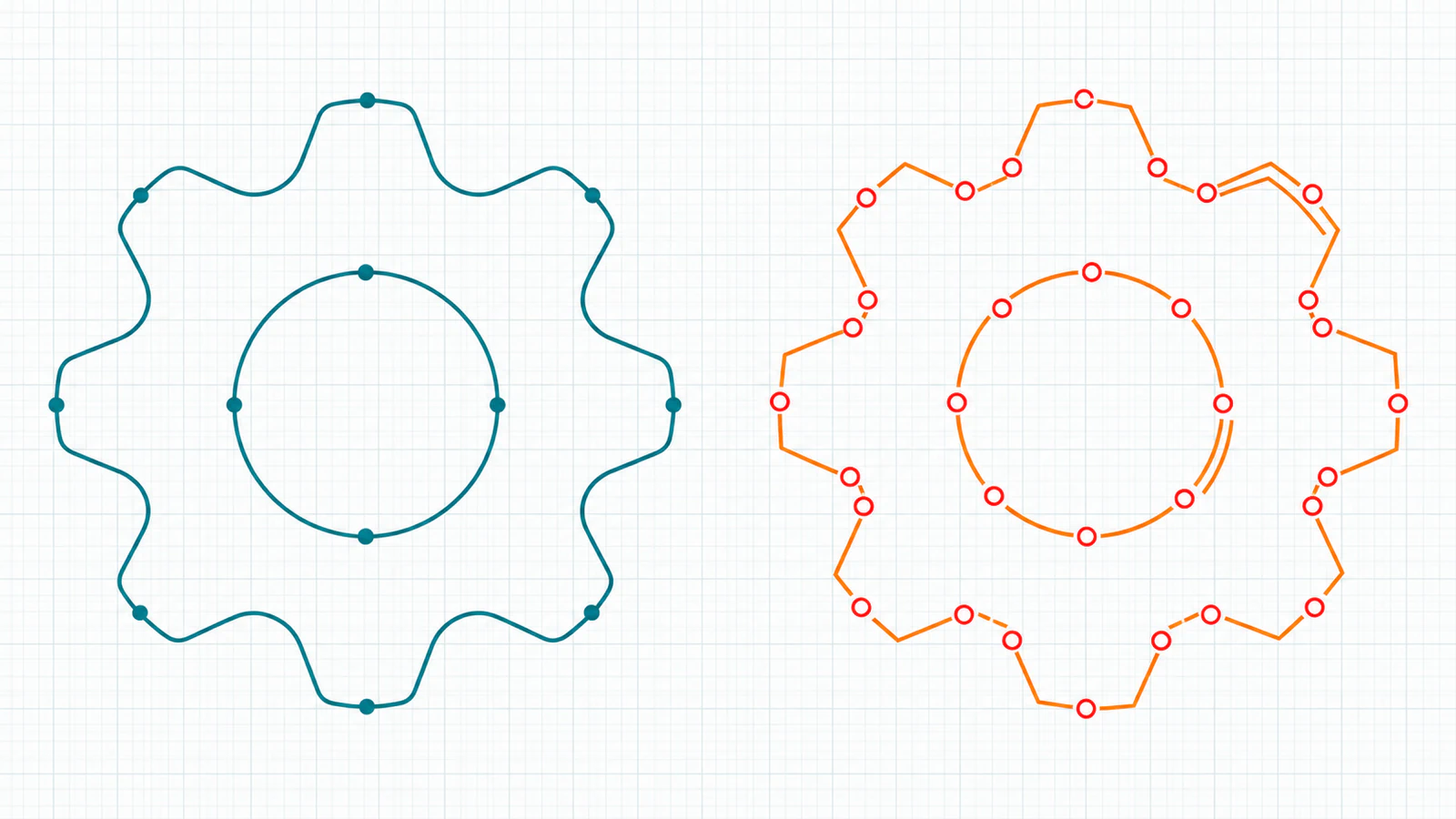
For the full preparation route, from choosing the source image to assigning toolpaths, follow the image-to-CNC vector workflow. If you are still deciding between formats, compare SVG and DXF for cutting.
When a converter isn't the answer
Some images should not become a cut file. Photos and shaded art turn into many arbitrary regions; raster engraving or a relief workflow keeps their look better. Detail finer than your bit or kerf will not survive the cut, so simplify the design or make the part bigger. On a plasma table, loose interior pieces fall out unless you add bridges, which no converter can decide for you; the plasma cutting preparation guide covers that audit. And a DXF is never a toolpath: kerf, lead-ins, tabs and feeds belong in CAM.
What this looks like with PerfectVector
Upload the logo or silhouette to PerfectVector's image-to-DXF converter and look at the preview, free. Compare its outer shapes and holes with your original. When the outlines look right, unlock the result with a credit. Then choose DXF, enter the final width, pick millimeters or inches and download. Import the file into your CAM, measure one known feature, map the color layers to operations, and preview the toolpath before you cut.
FAQ
What's the best image to DXF converter for CNC? For logos, sign lettering and silhouettes you plan to route or plasma-cut, our pick is PerfectVector: it traces closed outlines you can preview free, then exports an R13 DXF at the width and units you choose. Scan2CAD fits scanned technical drawings better, and Inkscape is our free desktop pick if you can clean paths yourself.
What's the best free way to convert an image to DXF? Inkscape is free and open-source: trace the image with Trace Bitmap, clean the paths, and save as its built-in DXF R14 format. Your CAM software may also trace images itself; Carbide Create's core version is included free with Shapeoko and Nomad machines. PerfectVector makes converting and previewing free, and one credit unlocks the finished file.
Which DXF version should I use for CNC? Use the version your CAM software or fabricator documents. Some older or stricter programs accept only R12, while newer ones read later versions. PerfectVector writes R13, and Inkscape's built-in exporter writes R14. If a file fails to import, try another version and measure scale again after import.
Does an image to DXF converter create toolpaths or G-code? Most do not. The DXF holds outlines, and your CAM software turns them into toolpaths where you set the bit, depth, kerf and feeds. Scan2CAD says it can also output G-code, and VectoSolve says its DXF download includes a G-code file, but you should still check the geometry and set your own cutting parameters before you cut.
Can I convert a photo to DXF for CNC cutting? Usually you shouldn't. A photo has soft tones rather than edges, so tracing turns it into many arbitrary shapes that make poor cuts. Simplify it to a few bold light and dark areas first, or use raster engraving or a relief workflow to keep the photographic look.
Sources
- PerfectVector — Pricing and credits — free vectorizing and preview, one credit per finished result and free re-downloads.
- PerfectVector — Image to DXF converter — R13 DXF output at a chosen width and unit, source-color layers and geometry-only files.
- Vectorizer.AI — JPG to DXF converter — free preview and DXF export options for compatibility, curves, corners and grouping.
- Vectorizer.AI — Pricing — subscription required to download results.
- VectoSolve — Image to DXF converter — R12 output, closed polylines, millimeter units and per-color layers as described by VectoSolve.
- Scan2CAD — Pricing — Pro plan price, billing and Windows and macOS availability.
- Inkscape — DXF output extension — the Desktop Cutting Plotter (AutoCAD DXF R14) export and its unit, LWPOLYLINE and layer options.
- Vectric — Trace Bitmap — VCarve's built-in image trace with black-and-white and color modes.
Have a logo or silhouette you want to cut? Start free with your own image, compare the outline preview with your original, and check closed shapes, scale and units in your CAM before you cut.
More from the blog

V-Carve Depth: Why Wider Logo Strokes Cut Deeper
Learn how artwork width and V-bit angle determine carving depth, calculate a logo example, and distinguish flat depth, pass depth, and traced outline geometry.

SVG Kerf Compensation: Size Parts and Holes Correctly
Use an idealized SVG badge to understand inside and outside kerf offsets, separate cut width from path offset, and avoid applying compensation twice.