Permanently Crop an SVG Without Hidden Paths
Crop filled SVG paths with real intersections, preserve separate colors and an opening, then inspect the saved file for geometry that clipping would only hide.
On this page
- Decide whether you need hidden artwork or removed artwork
- Start with closed fills you can identify
- Intersect each object and keep only its result
- Save, reopen and inspect the actual SVG
- Stop when the artwork needs a different representation
- Recover missing vector artwork only when necessary
- Complete the crop without losing the master
- FAQ
- Sources
To permanently crop filled SVG artwork, intersect each intended shape with the crop region, then export only the resulting geometry. Keep an editable master separately. A smaller viewBox or a clipping path can change what you see while leaving the original outer paths in the file.
Our example uses four original opaque, closed polygonal objects and a rectangular crop. One object contains a real opening. We crop the objects separately to retain their fills and paint order, save the result as an SVG, and reopen that actual file to check it. This is a bounded geometry workflow, not a general method for cropping every SVG effect or producing tested cutter files.
Decide whether you need hidden artwork or removed artwork
Clipping is useful when you want to adjust the crop later. MDN's clipping reference distinguishes the rendered result from the element's underlying geometry. Removing the clipping relationship can expose the original artwork again.
Permanent cropping changes the geometry you deliver. Use it when the next person needs the bounded shapes themselves, while keeping the uncropped source as a separate master.
| Action | What changes | What it does not establish |
|---|---|---|
| Change the viewport | The displayed document region | That outer paths were deleted |
| Add a clip | Which parts are painted | That the source geometry changed |
| Intersect each filled object | The resulting filled boundaries | Support for arbitrary strokes, effects or destination apps |
| Delete a fully unwanted object | Its presence in the file | A crop of another object that crosses the boundary |
Deleting every invisible element is a different task. A clipping shape, mask resource or referenced symbol may be necessary even when it is not directly painted. Our clip-path and mask guide explains those rendering relationships; the clip-coordinate guide covers their coordinate systems.
Start with closed fills you can identify
You need an editable source, a defined crop region and a way to inspect the saved SVG. This example runs Paper.js 0.12.18 in a browser. It handles solid, fully opaque polygonal fills without strokes. The operands are Path or CompoundPath objects, rather than arbitrary imported groups.
Our source contains a teal frame with a rectangular opening, an orange triangle, a purple diamond and a small yellow object completely outside the crop. The crop rectangle begins at (60, 40) and measures 160 × 120 SVG user units. These are authored coordinates, not physical print dimensions.
The frame's opening belongs to a compound path. Do not break its contours into unrelated filled objects merely to loop over them. The SVG holes guide explains why a white patch and an actual transparent opening behave differently.
Save this original fixture as source.svg:
<svg xmlns="http://www.w3.org/2000/svg"
     width="300" height="220" viewBox="0 0 300 220">
  <path id="frame" fill="#39786E" fill-rule="evenodd"
        d="M20 20H160V180H20Z M85 70V100H115V70Z"/>
  <path id="triangle" fill="#DE9252"
        d="M150 0L270 110L150 200Z"/>
  <path id="leaf" fill="#80618E"
        d="M180 130L240 150L180 190L120 150Z"/>
  <path id="outside" fill="#D4B35E" d="M250 10H280V30H250Z"/>
</svg>
Intersect each object and keep only its result
An intersection keeps the area shared by the object and the crop. Paper.js's intersect() documentation describes a new path item containing the intersection. Here trace: true treats both operands as areas. That option concerns Boolean geometry; it does not convert raster artwork into vectors. We use insert: false so neither the imported master nor the crop helper automatically enters the exported scene.
For a reproducible local example, install the pinned library in an empty working folder:
npm install --save-exact paper@0.12.18Save this as index.html, alongside source.svg and the crop.js file below:
<!doctype html>
<html lang="en">
<meta charset="utf-8">
<title>Permanent SVG crop</title>
<canvas id="work" width="300" height="220" hidden></canvas>
<p id="status">Running crop…</p>
<pre id="svg-output"></pre>
<pre id="receipt"></pre>
<script src="node_modules/paper/dist/paper-full.min.js"></script>
<script src="crop.js"></script>
</html>
Save this as crop.js. Serve the folder with a local HTTP server and open index.html; the script fetches the neighboring SVG file.
(async () => {
  paper.setup(document.getElementById('work'));

  const source = await (await fetch('source.svg')).text();
  const imported = paper.project.importSVG(source, {
    insert: false,
    expandShapes: true
  });
  const crop = new paper.Path.Rectangle({
    rectangle: new paper.Rectangle(60, 40, 160, 120),
    insert: false
  });
  const delivery = new paper.Group({ insert: false });
  const rows = [];

  for (const name of ['frame', 'triangle', 'leaf', 'outside']) {
    const operand = imported.getItem({ name });
    if (!(operand instanceof paper.Path || operand instanceof paper.CompoundPath)) {
      throw new Error('Expected filled path: ' + name);
    }

    const result = operand.intersect(crop, { insert: false, trace: true });
    if (Math.abs(result.area) < 1e-8) {
      rows.push({ name, removed: true });
      result.remove();
      continue;
    }

    result.fillColor = operand.fillColor.clone();
    result.fillRule = operand.fillRule;
    result.strokeColor = null;
    result.opacity = 1;
    result.name = 'cropped-' + name;
    delivery.addChild(result);
    rows.push({
      name,
      result: result.className,
      fill: result.fillColor.toCSS(true),
      area: result.area
    });
  }

  delivery.translate(new paper.Point(-60, -40));
  paper.project.activeLayer.addChild(delivery);
  const output = paper.project.exportSVG({
    asString: true,
    precision: 6,
    bounds: new paper.Rectangle(0, 0, 160, 120)
  });

  document.getElementById('svg-output').textContent = output;
  document.getElementById('receipt').textContent = JSON.stringify({
    paper: paper.version,
    rows,
    export_precision: 6,
    viewport: [0, 0, 160, 120]
  }, null, 2);
  document.getElementById('status').textContent = 'Intersection/export executed. Save the exact visible SVG output as cropped.svg and open that saved file independently.';
})().catch(e => {
  document.getElementById('status').textContent = 'FAIL: ' + e.message;
});
The explicit name list follows this source's paint order. Each retained result receives its own solid fill and is added in that order. Joining all the artwork into one silhouette first would discard the separate color regions we want to keep. Our Paper.js Boolean guide covers the different union-and-subtraction task.
The fully outside yellow object gives an empty intersection and is omitted. The small area threshold is only a guard for this fixture, not permission to delete fine details from arbitrary artwork.
We translate the retained geometry by (-60, -40) and export it into a 160 × 120 viewport starting at zero. That translation changes the output's coordinate origin. The intersection operation is what removes the unwanted exterior geometry; changing the origin or viewport alone would not do that. Paper.js's project export reference documents the explicit bounds and numeric precision used here.
Save, reopen and inspect the actual SVG
Copy the exact displayed SVG markup into cropped.svg. Open that saved file independently, rather than relying only on the program's in-memory preview. In our fixture, a separate page loaded the saved file, imported it into a fresh Paper.js scope and displayed the file through the browser's SVG image renderer.
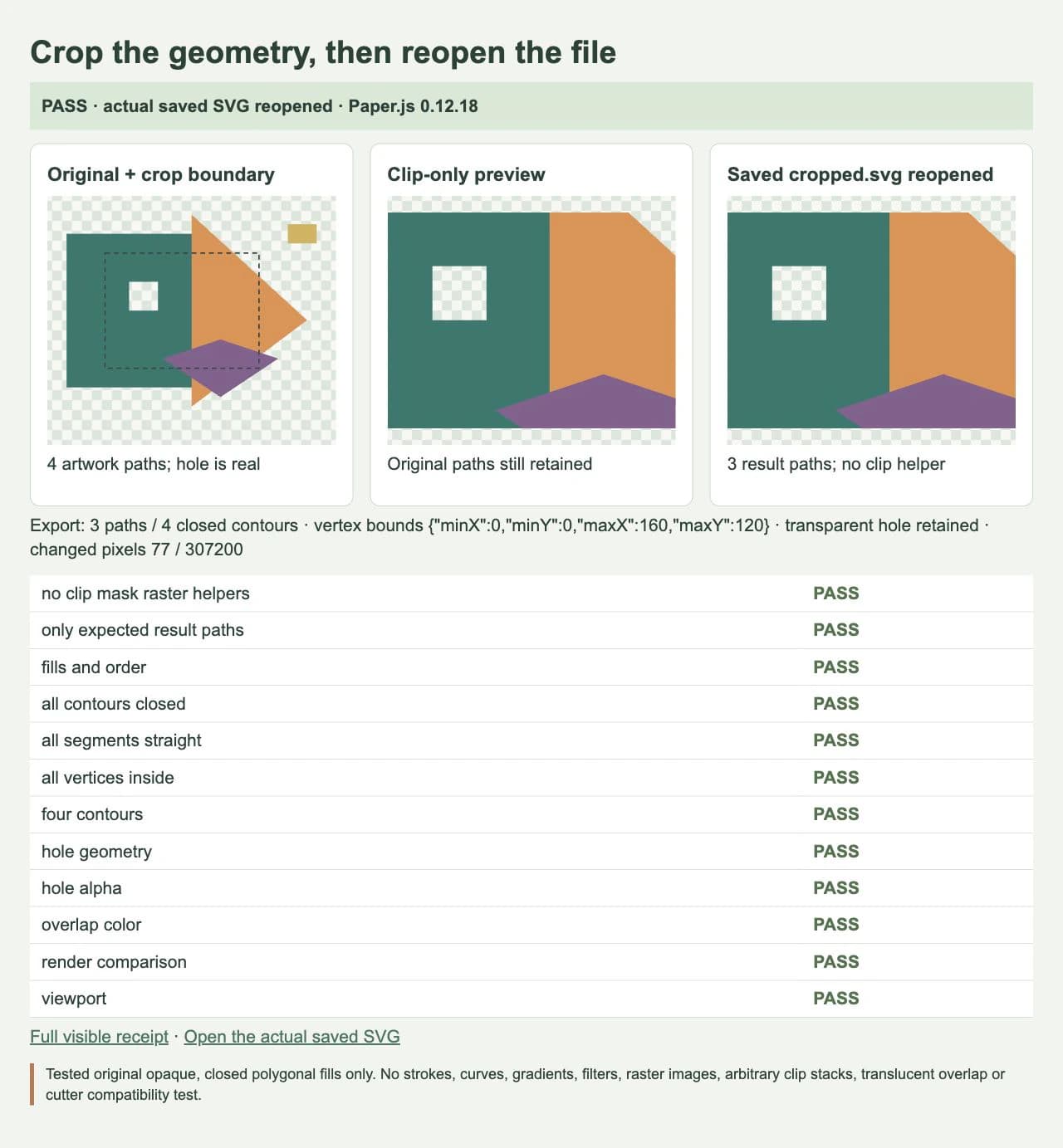
The checks separate file structure, geometry and appearance:
- The exported SVG contains three result path elements, with four closed contours because the frame retains its opening.
- The crop helper, original object IDs, clipping paths, masks, raster images and effect elements are absent from this controlled output.
- Every reopened contour is closed and has straight segments. All its vertices lie within the output's
0…160by0…120region, using a tolerance of0.00001user unit. - The intended opening remains outside the filled geometry and transparent in the rendered file. The orange region still appears above teal at the checked overlap point.
- A browser render comparison checks the clip-only preview against the cropped file at the same size, separately from the geometry inspection.
For this rectangular region and straight-segment fixture, checking every vertex and the closing edges establishes that the stored contours stay inside the region. A curve with handles or a concave crop needs a different containment check; a few sampled points would not prove the same result.
Our image comparison uses a 640 × 480 raster and a declared allowance of 0.5% changed pixels when a channel differs by more than one. The saved-file render differed at 77 of 307,200 pixels, about 0.0251%, so it passed that criterion. It was not pixel-identical: the largest individual channel difference was 255. That is a visual-comparison tolerance, not the geometry tolerance. Antialiasing near an edge and an actual retained outer path are different issues.
This operation removes geometry outside the crop. It does not remove every overlap between the retained colored objects. Those internal overlaps remain in paint order; the tested overlap point confirms the intended top color. Flattening every hidden painted overlap would be a separate task.
Stop when the artwork needs a different representation
This example does not establish support for open centerlines, strokes, curved operands, gradients, soft masks, raster images, filters, nested arbitrary clip stacks or translucent overlapping paints. Do not remove those features and assume the appearance is preserved.
A stroked route and the filled outline of that stroke are different geometry. If the job needs the visible stroke area as a filled shape, prepare and inspect an outlined copy in a suitable editor before choosing a Boolean workflow. Keep the original stroke if editability matters. A soft mask cannot be replaced by a hard intersection while preserving all of its fading edges.
For one-off editing, a vector editor may be the easier place to select and inspect the needed objects. Whatever tool you choose, check the saved result's holes, colors and boundaries. Export precision and very small details deserve particular attention before downstream use.
Recover missing vector artwork only when necessary
If the source is an existing editable SVG, crop that geometry directly. If only a suitable raster clipart image remains and you need editable shapes, PerfectVector's clipart workflow can create an SVG candidate first. Inspect the recovered contours, openings and separate fills before applying a crop. Vectorization creates paths from pixels; it does not identify the desired crop boundary or validate the Boolean result. Our original fixture was authored directly and was not traced.
Keep a raster illustration when its texture is needed and the delivery format supports the intended raster crop. A vector crop is useful because the next step needs geometry, not because every image has to become SVG.
Complete the crop without losing the master
- Preserve the uncropped master and identify the intended closed filled objects.
- Define the crop in the same coordinate context as those objects.
- Intersect each object, preserve its tested style and paint order, and exclude helpers and originals from the delivery scene.
- Export only the retained geometry with deliberate bounds and precision.
- Reopen the saved file and check its actual paths, openings, appearance and intended destination separately.
The bounded crop is complete when the saved file contains the intended geometry inside the region and retains the required hole and color relationships. If outer geometry remains, inspect whether you exported the original project contents or only changed a clip or viewport. If an opening fills in, check the compound path and fill rule before combining more objects.
We completed the saved-file task for the original polygonal fixture. We did not import it into a cutter, test physical output or establish a general SVG-compatibility guarantee.
FAQ
Does clipping an SVG permanently delete its outer paths? Clipping restricts rendering while retaining the referenced geometry. A permanent geometric crop needs an appropriate path operation and an export containing only the results.
Can I crop all colors by joining the shapes first? A single union can discard the separate fill regions you intended to retain. This example intersects each solid-filled object separately and preserves the source's paint order.
Does a smaller viewBox remove hidden artwork? It changes the viewport mapping and displayed region. It does not by itself delete source paths outside that region. Inspect the saved geometry as well as the preview.
Will the result work in every cutting application? This browser test does not establish that. Inspect the intended destination's imported geometry and operations, then perform the appropriate production check.
Sources
- MDN: SVG clipPath — Clipping affects rendering without changing the referenced element's geometry.
- Paper.js: PathItem — Intersection results and the area-based Boolean options.
- Paper.js: Project — SVG import, project contents, export bounds and numeric precision.
Need paths from a bitmap-only clipart source? Prepare an SVG candidate, inspect its holes and fills, then crop a separate working copy and reopen the saved result before delivery.
More from the blog

SVG feComposite: Compare in, out and xor Artwork
Compare SVG filter inputs with in, out and xor, test operand order and partial alpha, and preserve source paths when a visual opening is not editable geometry.

SVG z-index Not Working? Fix Path Stacking Order
When SVG z-index does not bring a path forward, check element order. Compare the same emblem before and after a reorder, then verify groups and exported files.