Check Codex MCP Setup for Image Vectorization
Check the Codex MCP server entry before sending an image to PerfectVector. Read the transport and URL, then identify the local source and expected SVG path.
On this page
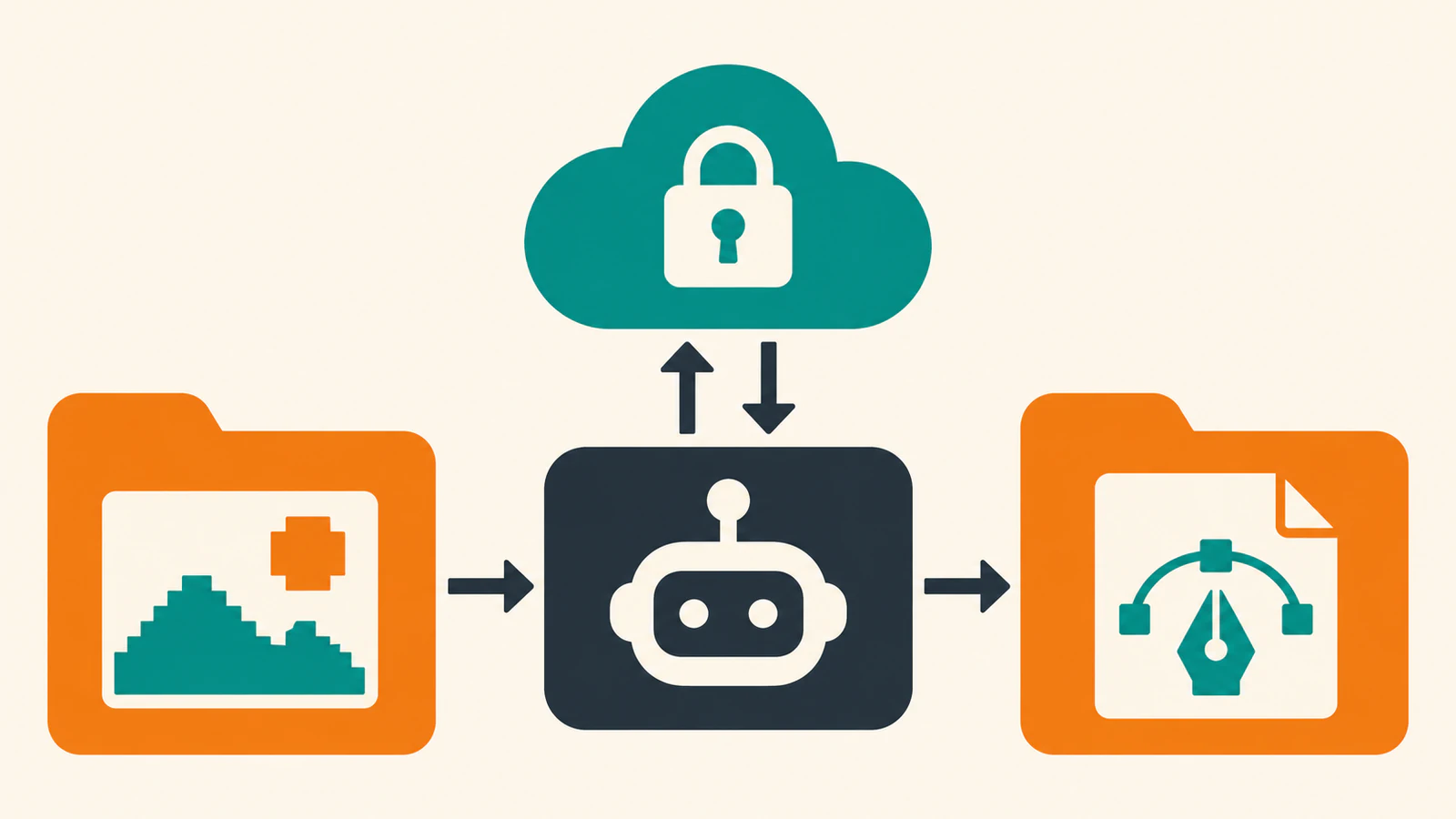
When you have a raster image in a Codex workspace, the PerfectVector MCP connector gives Codex a tracing tool. Codex can pass the local file to the remote service and save the SVG in the workspace you specify. This setup reference shows how to check the server entry, distinguish it from an authenticated connection, and identify the source and destination for a later conversion. PerfectVector Codex setup · PerfectVector conversion guide
Read the remote server configuration
A remote MCP server exposes tools over a network connection. PerfectVector uses Streamable HTTP for that connection. The documented Codex setup command is:
codex mcp add perfectvector --url https://mcp.perfectvector.com/mcpUse the PerfectVector Google sign-in when Codex prompts you. If sign-in did not finish, the setup guide documents codex mcp login perfectvector. To inspect an entry already in your configuration, run codex mcp get perfectvector --json. The server name, transport, and URL are useful when you need to identify which entry Codex will use. PerfectVector Codex setup · OpenAI remote MCP configuration
Our CLI check used a temporary configuration override. Codex reported streamable_http and the expected server URL. A separate public endpoint check returned OAuth discovery metadata, while an unauthenticated MCP initialize request returned HTTP 401. The evidence covers local config parsing and the public authentication boundary. Successful sign-in still requires the account flow.
Name one source and one output
For a single raster already in the repository, give Codex the exact relative path from its working directory. A prompt can also specify a separate output directory and ask for the saved path when the job is complete.
Use PerfectVector to vectorize ./assets/badge.png.
Save the returned file as ./assets/vector/badge.svg.
Keep the source PNG. Tell me the exact path when the SVG is saved.
Codex may ask for network access for the upload command. The PerfectVector price check and your approval are another part of the workflow. If you instead provide a public HTTPS image URL, PerfectVector can fetch that image without a local file upload command. Use a URL that already serves the file publicly. PerfectVector conversion guide · PerfectVector image requirements
Read the saved file before using it
Open the requested output path and verify that it contains an SVG. Compare it with the original at the size it will appear in your project. Check the silhouette, holes, and any small lettering. If Codex reports a result link without a local path, ask it to save the existing result to the path you specified. If the link expired, request a fresh link while the SVG remains stored. A link works for 24 hours. PerfectVector MCP downloads
FAQ
Can I pass a local image path to Codex?
Yes, if the agent can read the file in its workspace. Give the exact path and use a supported PNG, JPEG, or WebP. Codex may ask for network permission to upload the image. PerfectVector conversion guide
Does a listed server mean my PerfectVector account is connected?
The CLI entry identifies the server configured for Codex. To verify the account connection, ask Codex to check your PerfectVector credit balance. The balance check is free. PerfectVector connection check
Sources
- PerfectVector — Connect your assistant — Documents the Codex command and account verification.
- OpenAI — Docs MCP — Shows Codex's remote HTTP configuration syntax.
- PerfectVector — Convert an image — Describes the local image handoff and approval.
- PerfectVector — Image requirements — Describes valid files and public links.
- PerfectVector — Credits and downloads — Explains SVG download and retrieval.
Open PerfectVector MCP to find the Codex connection details. Check that the CLI lists the expected server URL. Then choose one eligible image and write down its source path and intended SVG path before you ask for a conversion.
More from the blog

Can ChatGPT Create Vector Images? How to Get a Real SVG
ChatGPT's images come out as PNG, WebP, or JPEG, not traced SVG paths. See what it makes, how to spot a fake SVG, and how to turn its image into a real vector.
Plan a Folder-to-SVG Batch in Claude Code
Plan a folder-to-SVG batch in Claude Code with PerfectVector MCP. Give each raster a unique output path and use a tested local audit to identify missing SVGs.