Moho Bitmap to Vector: Trace or Keep the Raster?
Choose native tracing, layered raster art, or SVG import in Moho. Check color regions, holes, and movable parts before building an animation rig from your art.
On this page
Moho can turn bitmap artwork into vectors with Draw > Trace Image, but conversion is optional. You can also animate imported raster artwork, retain a layered PSD, or import an SVG prepared elsewhere. Choose the route according to what needs to move and what you need to edit.
A trace reconstructs visible shapes. It does not decide which shapes belong to a hand, recover an arm hidden behind a body, or build a finished rig. That distinction matters more than whether the imported picture looks sharp.
Choose the artwork route
- Keep raster art when painted texture is part of the design and the existing parts suit your animation.
- Try Moho's native trace when you want to convert a simple image inside the animation application.
- Import an existing SVG when you already have useful editable vectors.
- Trace externally when you want to prepare and inspect a raster drawing as SVG before bringing it into Moho.
- Redraw the moving parts when the trace does not provide the structure your animation needs.
Start with the movement, not the file extension
Before tracing, write down a small action the artwork must perform. Does a pencil lift off a book? Does a character's arm bend? Does the camera simply move closer to a painted background? Those jobs require different preparation.
| Artwork and intended action | Starting route | What still needs checking |
|---|---|---|
| Painted character with deliberately separated parts | Layered PSD or separate raster images | Part boundaries, overlaps, resolution at the closest shot |
| Flat drawing that needs local shape edits | Native Trace Image or an external trace | Path placement, color regions, enclosed gaps |
| Existing vector prop | Import the original SVG | Appearance, grouping, stacking, and editable points after import |
| Character that needs substantial changes of pose | Draw or reorganize the required parts | Hidden artwork, joints, origins, binding, and deformation |
| Painted background that only pans or scales modestly | Keep the raster | Whether it has enough detail for the planned framing |
Moho's current feature documentation describes PSD import with layers, as well as meshes for animating images and vectors. A bitmap is therefore not an unfinished vector file that must be converted before you can animate it. The advanced import and rigging discussion here is aimed at Moho Pro 14; check your edition's available features before following a Pro workflow.
Before converting a layered PSD to SVG, read the PSD layer-preservation limits. Keep the layered source when the animation needs its separated parts; a trace of the visible composite is a different asset.
If you are comparing animation applications, the Adobe Animate tracing guide covers its separate Trace Bitmap commands. Do not transfer those menu names or settings to Moho.
Use native Trace Image for a first sample
The current Moho 14 Trace Image chapter documents this sequence: import the drawing into an Image layer, select it, then choose Draw > Trace Image. After you accept the trace, Moho adds a vector layer and turns off the original Image layer. The bitmap reference is retained.
Choose a mode for the artwork you want to create:
| Mode | Documented controls and purpose |
|---|---|
| Black and white | Threshold, Detail reduction, and Fatten Lines for a monochrome trace |
| Color, Pro only | Number of Colors, Detail reduction, and Outlines for colored vector artwork |
| Photo Edges, Pro only | Threshold for strokes at detected edges |
Tune a small sample before committing. Detail reduction trades resemblance for fewer points; additional colors can preserve distinctions you may then have to organize. Photo Edges is an edge-stroke route, so do not expect the same filled regions as a color trace.
Start with one representative part or prop. A complete shaded character combines too many questions at once: facial features, texture, overlapping limbs, and small details may all need different treatment.
After tracing, inspect the new artwork rather than accepting its appearance alone. Check the silhouette, the spaces between shapes, and the number of separate pieces you would have to move together. If an eyelid or elbow needs a carefully placed curve, redrawing that area can be a more controllable next step than preserving every traced point.
Also distinguish Trace Image from using an image as a manual tracing reference. Automatic tracing constructs vectors from pixels. A reference image lets you draw the intended structure yourself. Neither route removes the need to plan how the artwork will move.
Keep PSD layers when the painted artwork is useful
A layered source can preserve work you would otherwise have to reconstruct. If the illustrator has already separated a hand, forearm, torso, and clothing, keep that master. A flattened PNG discards that separation, and tracing the PNG cannot retrieve the original layer contents.
For a raster workflow, prepare the art around the intended movement:
- Name the parts so you can identify them after import.
- Include enough overlap where parts meet for the planned poses.
- Keep texture and shading attached to the part they should move with.
- Check the art at the closest planned camera framing.
- Test a small movement before preparing the full character.
These are preparation checks, not a promise that any PSD will arrive as a finished puppet. Moho's PSD support provides a route for importing layered artwork; you still arrange and rig it. For a turn that reveals the side of a head, you may need another drawing or additional geometry rather than a more detailed trace of the front view.
Import SVG using current Moho guidance
Moho 14 introduced improved SVG import, including support for layers, gradients, and masks, according to the official feature page. Older online Moho manuals that list only Illustrator and EPS do not describe that current capability.
If you already have an SVG, keep the original vector file. Taking a screenshot and tracing it again adds another reconstruction step. If your source is a flat PNG or JPEG and you want to prepare its shapes externally, PerfectVector's image-to-vector converter can produce an SVG to inspect before import. Compare the result with the source, then decide how its shapes should be organized for the animation.
An SVG group is a container for elements; it is not a skeletal rig. The SVG specification's grouping model explains that structure. A file can contain many editable paths without having useful named parts. If everything selects together, use the SVG object and ungrouping diagnosis before concluding that the file is a bitmap.
Audit a prop before treating it as animation art
The example below uses an existing PerfectVector conversion of a team-directed classroom illustration. It contains a globe, books, and a pencil. The file audit found 33 paths, 12 solid fill colors, and no embedded images. It also found no SVG groups organizing those paths into named props.
Two details make it a useful preparation example:
- One color spans separate objects. The five paths using the same yellow fill include parts of both the book and pencil. Selecting that color does not select a complete pencil, and moving the selection would also move part of the book.
- A white-looking gap is still a filled shape. The narrow area between the globe and its outer support is an opaque near-white region. The outside background is transparent, but that enclosed region is not. On a different background, the difference matters.
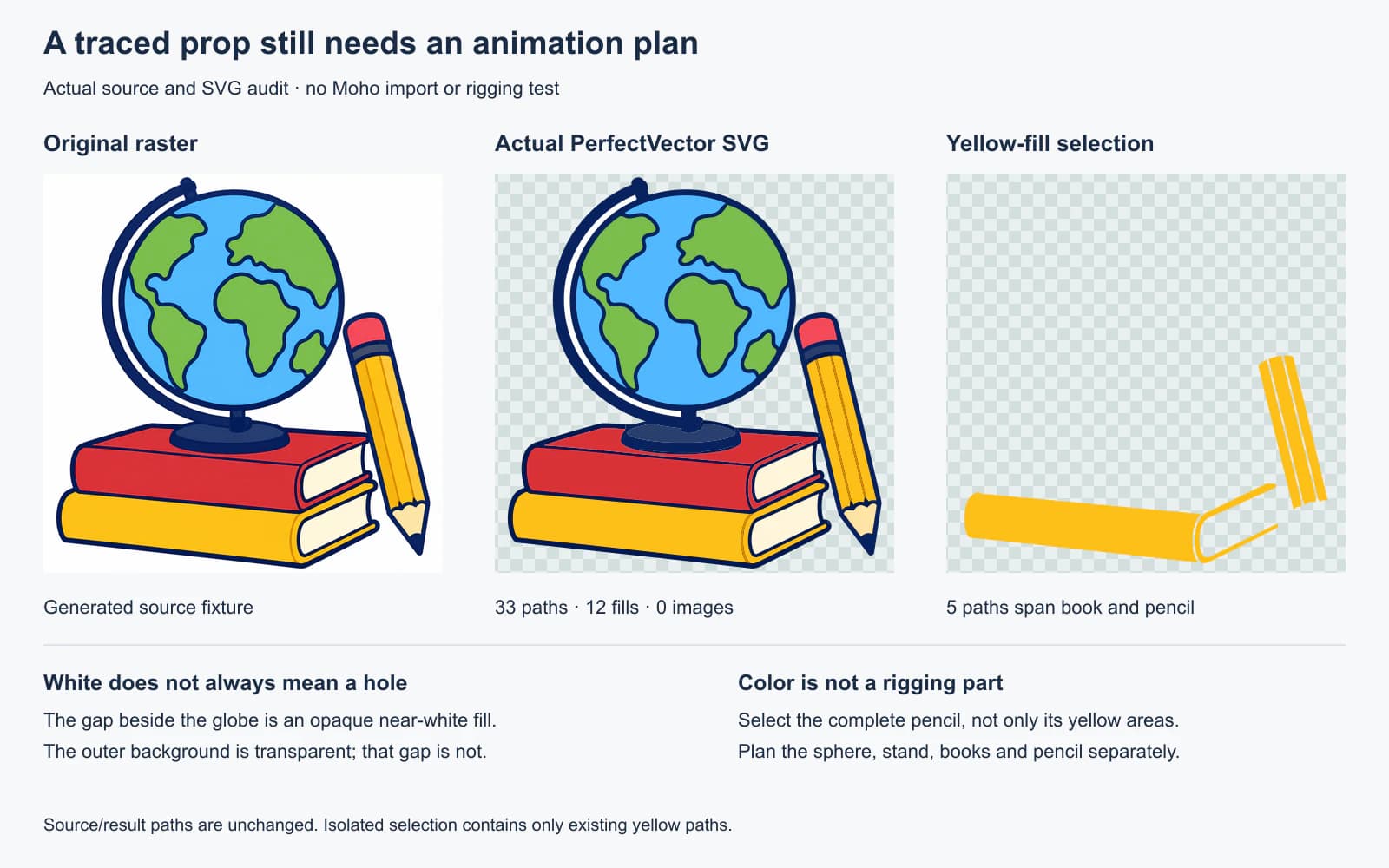
For a shot where only the pencil lifts, identify every path that belongs to the pencil: its outline, eraser, band, yellow body, shading, wood, and tip. Keep the books and globe outside that selection. Then inspect anything the pencil previously covered; moving it may reveal an area the original picture never described.
For a rotating globe, the sphere artwork and the stationary stand need a different plan. A flat map drawn on a circle is not a recovered 3D globe. Decide how to draw or animate the intended turn before investing time in grouping paths.
The near-white gap needs a deliberate decision too. Preserve it if it is meant to be a painted region. If the scene background should show through, edit that region and inspect the surrounding edges on a copy. Do not delete every pale fill: the book pages and pencil wood have their own light colors.
Run a small import and movement check
SVG support is a starting point for a destination test, not proof that this particular prop will behave correctly in Moho. Use a copy of your file and check:
| Check | What to inspect |
|---|---|
| Appearance | Silhouette, fills, gradients, masks, and stacking against the source |
| Structure | Which parts become selectable and how the imported layers are organized |
| Separation | Whether moving one intended part also moves unrelated artwork |
| Transparency | Enclosed holes and pale regions against the actual scene background |
| Origin and binding | Whether the part moves around the intended joint or pivot |
| Deformation | Whether a small planned bend or turn distorts edges or reveals missing artwork |
Test one useful action before building a complex rig. For the prop, lift the pencil and inspect the exposed area. For a character, test one joint with the intended binding. Fix the structure at that scale, then expand the work.
If the destination test fails, more tracing detail is not automatically the answer. Reorganize the parts, repair the missing area, redraw a curve, or keep the raster where it gives the appearance you want. The vector trace quality scorecard treats destination behavior as a separate check from a clean-looking preview.
FAQ
Can Moho convert a bitmap to vector artwork? Yes. Import the bitmap into an Image layer and use Draw > Trace Image. Inspect the resulting vectors and organize the parts you intend to animate; tracing does not create a finished rig.
Do I have to vectorize a PSD before animating it in Moho? No. Moho supports layered PSD artwork, so a raster workflow can be appropriate when you want to retain painted detail. You still need to prepare the parts and test the rigging for your intended movement.
Can Moho 14 import SVG files? Yes. Moho 14 introduced improved SVG import with support for layers, gradients, and masks. Check the imported appearance and structure of your own file before relying on it for animation.
Will tracing separate a character into arms, legs, and a head? Do not assume it will. Tracing follows visible regions, which may split one body part across many paths or connect unrelated parts by color. Organize or redraw the parts around the movement you need.
Sources
- Lost Marble — Moho features — Documents layered PSD workflows, image/vector meshes, and Moho 14's improved SVG import.
- Lost Marble — Moho 14 Trace Image — Documents the native tracing command, conversion modes, controls, and retained bitmap reference.
- W3C — SVG document structure and groups — Defines groups as artwork containers rather than animation-part or rig metadata.
If your raster drawing needs editable shapes before animation, convert one representative part with PerfectVector. Compare its contours and enclosed gaps with the source, organize the intended moving parts, then test that SVG in Moho before preparing the rest.
More from the blog

VectorStyler Image Trace: Live Trace, Expand, and Cleanup
Use VectorStyler Image Trace to tune a linked trace, expand it into editable paths, inspect clipping, and choose manual Tracing Guides when needed for your art.
Xara Bitmap Tracer: Tune the Trace and Inspect the Shapes
Use Xara Bitmap Tracer modes and controls to turn a bitmap into editable shapes. Check curves, corners, color regions, and exported artwork before delivery.