PSD to SVG Without Losing Layers: What Survives
A PSD can hold shape layers, live text, masks, and pixels, but an SVG will not preserve all of them. Learn which parts to export, flatten, or trace first.
On this page
You cannot convert every Photoshop layer into an equivalent SVG layer. A PSD can mix shape layers, live text, masks, effects, Smart Objects, and ordinary pixels. SVG can represent paths, text, groups, and images, but those objects do not map cleanly to Photoshop's document model. The safest workflow is to preserve vector content through a native export, then trace only the raster artwork that has no reusable vector source.
The quick decision
- If the PSD already contains clean shape paths, preserve or move those paths into a vector editor.
- Keep editable text as text only when the destination has the font and can handle SVG text reliably. Otherwise, outline a delivery copy.
- Treat masks, effects, Smart Objects, and pixel layers as visible appearance, not portable layer structure.
- If all you need is the flattened artwork as editable shapes, review the saved composite and trace it.
- Open the final SVG and inspect its objects. The
.svgextension does not prove that layers survived or pixels became paths.
A PSD layer is not an SVG layer
Photoshop's Layers panel describes how a document is edited. SVG describes what a renderer draws. Those are different jobs.
| PSD content | Best route | What to expect in SVG |
|---|---|---|
| Shape layer or Photoshop path | Preserve or move it natively | Editable paths, if the export keeps vector geometry |
| Live text | Keep live or outline a copy | Editable text needs the font; outlines preserve appearance but lose text editing |
| Pixel layer | Trace only if vector shapes are useful | New paths approximate the visible pixels |
| Layer mask or clipping mask | Rebuild or flatten deliberately | The visible crop may survive, but not the Photoshop editing setup |
| Smart Object | Open its original source first | The placed result alone may reveal only rendered pixels |
| Layer effect, texture, or soft shadow | Keep raster or simplify | Smooth effects often become pixels or a large set of shapes |
Adobe's current Image Assets workflow can generate SVG assets from named layers or layer groups. The same documentation says that a layer-group asset is flattened, even when the group contains shapes and live text. In other words, choosing SVG as the output does not turn the Photoshop hierarchy into an equivalent SVG hierarchy.
Inventory the file before you convert it
Duplicate the PSD before changing anything. Then inspect the Layers, Paths, Properties, and Smart Objects panels.
- Hide the pixel layers. If useful artwork remains, you may already have vector shapes worth preserving.
- Select each text layer. Record the font family and weight before outlining or moving the text.
- Open Smart Objects. A linked Illustrator file or another vector source is better than tracing its rendered preview.
- Toggle masks and effects. Decide whether the editable construction matters or only the final appearance.
- Check the saved composite. If the file opens differently on another machine, re-save a verified copy before using a flattened workflow.
Adobe also documents exporting selected layers as separate files. Separate exports can preserve useful boundaries between assets, but they still do not create one SVG that behaves like the original PSD layer stack.
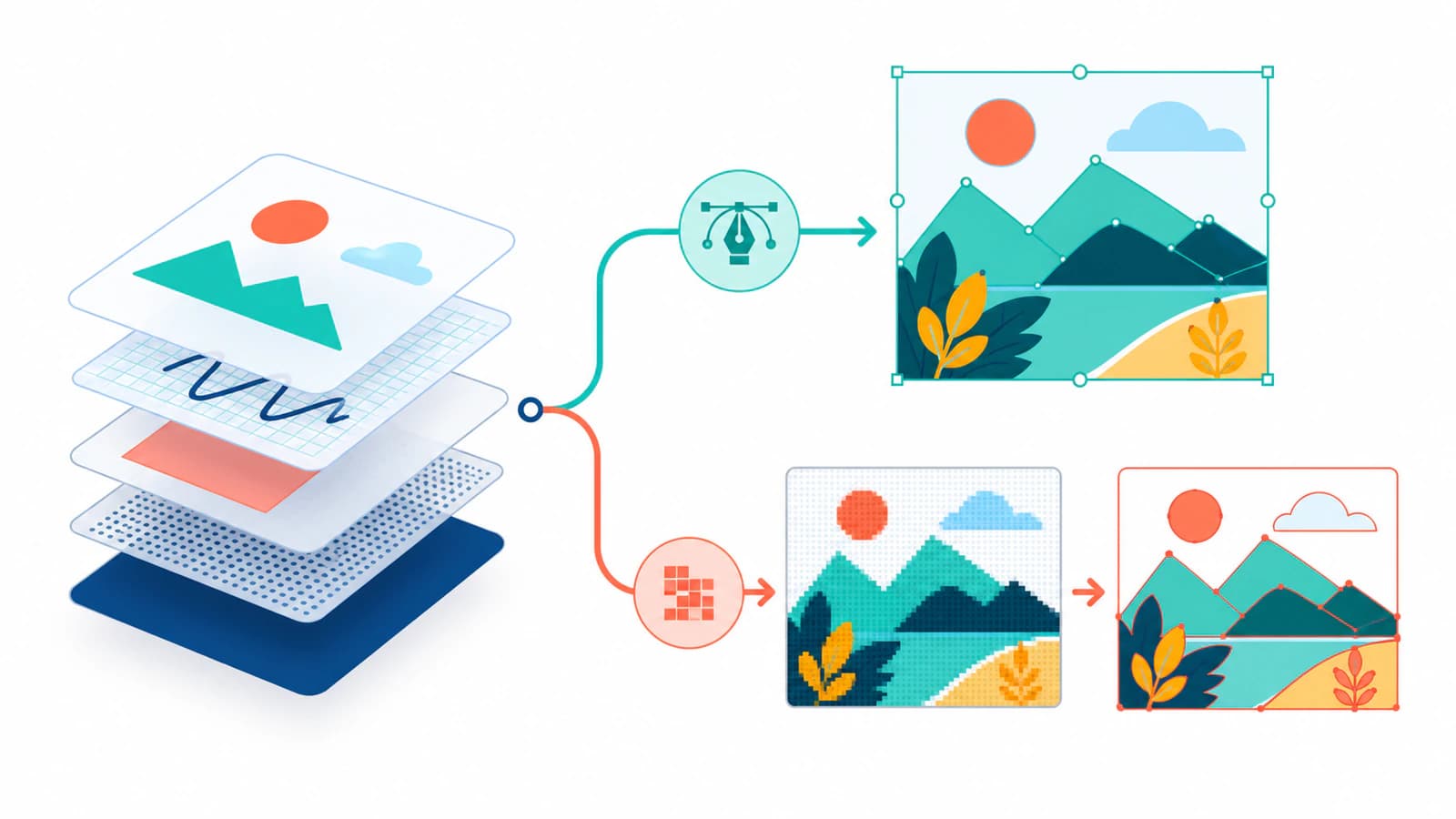
Route 1: preserve the vector content
Use this route for shape layers, pen paths, simple live text, and Smart Objects whose original vector source still exists.
Move or export one logical asset at a time, then open it in Illustrator, Inkscape, or another SVG editor. Check whether the result contains paths and groups rather than one rectangular image. If text must remain editable, open the SVG on another machine that does not have your Photoshop document and confirm that the intended font loads. For logos and production files, keep a live-text master and make an outlined delivery copy.
Do not flatten a good vector source merely to run it through a tracer. Tracing redraws the rendered appearance, so it can add nodes, alter curves, and turn text into approximated outlines. Native geometry is the cleaner starting point.
Route 2: flatten the visible art, then trace it
Use tracing when the useful design exists only as pixels, or when the PSD's saved visible appearance is the best surviving source. Flat logos, badges, icons, lettering, and illustrations with clear color boundaries usually suit this route. Photos, subtle gradients, brush texture, and soft shadows usually do not.
Before tracing:
- Hide anything that should not appear in the vector.
- Put the artwork on the background or transparency it needs for delivery.
- Check small counters, holes, and fine lettering at the intended output size.
- Save a compatibility copy or export a high-quality PNG when the PSD has no reliable merged view.
- Keep the original PSD. The trace is a new delivery asset, not a replacement for the document.
An SVG can legally contain an embedded raster image under the SVG 2 embedded-content model. A format-only converter may therefore place the flattened PSD pixels inside an SVG without tracing them. Zooming and inspecting the object type is how you catch that fake-vector result.
What this looks like with PerfectVector
PerfectVector opens a supported PSD or PSB through its saved merged compatibility image. The browser prepares that visible image locally and asks you to review it before vectorization. It does not upload the original Photoshop document or claim to reconstruct layers, masks, live type, effects, paths, artboards, or Smart Objects. The Photoshop-to-SVG workflow rebuilds the prepared pixels as SVG paths.
That makes it the trace route, not the layer-preservation route. Use it when the saved composite is the right appearance and editable path geometry is more useful than the original Photoshop construction. After conversion, inspect the silhouette, color regions, text shapes, negative space, and node structure. If the PSD already contains clean vector sources, move those sources directly instead.
Check what survived in the SVG
Reopen the downloaded SVG in a vector editor rather than trusting the first preview.
- Select one color region. It should behave like a path or shape, not part of one image rectangle.
- Open the Layers or Objects panel. Look for a manageable group structure rather than expecting the PSD layer names.
- Zoom into curves and letter counters. Check for flat spots, accidental closures, and noisy edges.
- Change one fill color. A real path should recolor without altering nearby regions.
- Search the source for an
<image>element when any area still pixelates. - Import the SVG into its real destination and check size, fonts, masks, and effects there.
If every visible piece behaves as one object, use the SVG ungrouping diagnosis before applying destructive path operations. The file may be one compound path or an embedded image rather than a group.
When the PSD should stay a PSD
Keep Photoshop as the master when you still need editable text, adjustment layers, masks, Smart Objects, artboards, photographic texture, or effects. SVG is a strong delivery format for scalable graphic shapes, but it is not a Photoshop document substitute.
You may end with two files: the PSD as the editable source and an SVG as the production asset. That is a healthy handoff. The two files preserve different kinds of editability.
FAQ
Can a PSD be converted to SVG with all layers intact? Not reliably. Some shape and text content can move into SVG, but Photoshop masks, effects, Smart Objects, adjustment layers, layer names, and pixel layers do not have one-to-one SVG equivalents. Preserve native vector objects first and treat the rest as rendered appearance.
Why does my PSD-to-SVG result have only one layer? The converter probably used a flattened composite or embedded one raster image. One SVG object can also be a compound path or group, so inspect the object type before assuming the file is still raster.
Does saving a Photoshop file as SVG vectorize the pixels? No. SVG can contain raster images. A format export may place pixels inside an SVG container without tracing them. Check whether the artwork selects as paths and stays editable at the object level.
Should I outline text before exporting SVG from Photoshop? Outline a delivery copy when appearance must stay fixed and text editing is no longer needed. Keep a live-text master if wording or localization may change. Outlining does not preserve font editing; it turns letters into paths.
Can PerfectVector recover Photoshop layers from a PSD? No. PerfectVector uses the supported file's saved merged compatibility image and traces that visible image into paths. It does not reconstruct the original Photoshop layer stack or live document features.
Sources
- Adobe — Create image assets from layers — Documents SVG asset generation and the flattening of layer-group assets.
- Adobe — Export layers as files — Documents current per-layer export behavior.
- Adobe — Draw shapes and paths in Photoshop — Defines Photoshop's shape, pen, and path tools.
- W3C — SVG embedded content — Explains why an SVG may still contain raster image data.
- PerfectVector — Photoshop to SVG — Describes the supported saved-composite workflow and its layer-recovery limits.
If the saved composite is the source you need, review it in the Photoshop-to-SVG converter, vectorize it, then reopen the SVG and confirm that the important regions are paths.
More from the blog

Moho Bitmap to Vector: Trace or Keep the Raster?
Choose native tracing, layered raster art, or SVG import in Moho. Check color regions, holes, and movable parts before building an animation rig from your art.

PNG to Android Vector Drawable: An Import Checklist
Convert a PNG into real SVG paths, import them as Android VectorDrawable XML, and check fills, gradients, masks, viewport sizing, and path complexity.