
Image Vectorization MCP vs API: Which Fits Your Job?
Choose between image vectorization through an assistant and a direct API. Compare who starts the work, how to recover a result, and when credits are used.
On this page
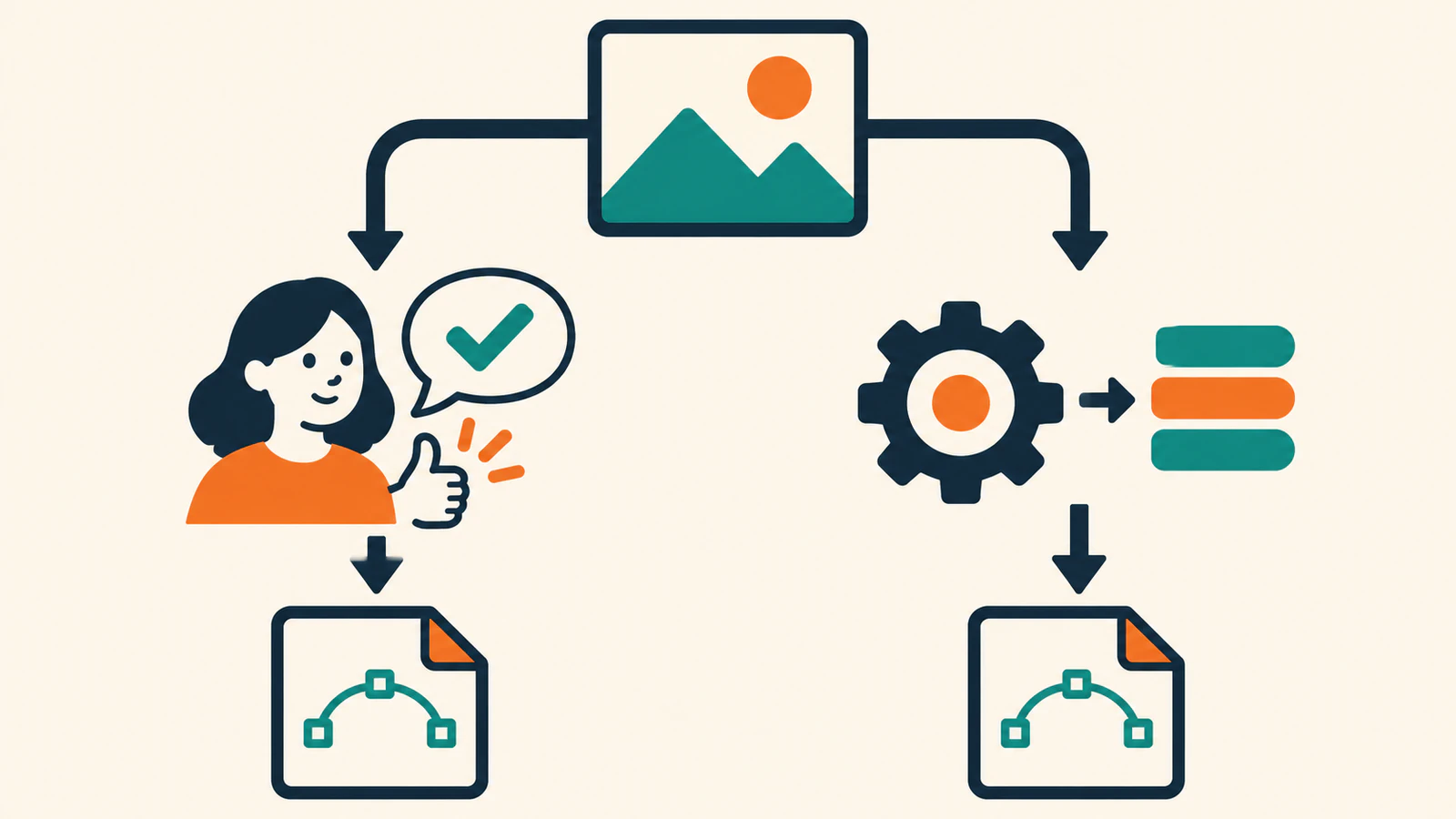
Choose MCP when someone wants to convert an image during an assistant conversation. Choose a direct vectorization API when your app needs to receive images, keep track of each conversion, and save results on its own.
Model Context Protocol (MCP) lets an assistant use tools from an external service. In the PerfectVector MCP workflow, the assistant sends the image to the vectorizer and gets an SVG back. With the PerfectVector Developer API, your code submits the image, handles the response, and decides where to save it. MCP architecture · PerfectVector MCP · PerfectVector Developer API
Decide who owns each conversion
The comparison below uses PerfectVector's published interfaces. It compares the handoffs, billing events, and recovery steps. It makes no comparison of SVG quality or conversion speed.
| Decision | PerfectVector MCP | PerfectVector Developer API |
|---|---|---|
| Who starts it? | A person asks an assistant to convert an image. | An app or script submits an image over HTTP. |
| What connects it? | The assistant connects to PerfectVector with a Google sign-in. | Your app authenticates requests with an API key. |
| Where does the SVG go? | The assistant receives a link, or the card offers a download. Save the file where the next task needs it. | Your code reads the SVG response or retrieves the result for a saved conversion ID. |
| What should you keep? | The original image and the SVG you received. If a reply stops, ask to continue the same conversion. | The source, idempotency key, conversion ID, and final output location. |
| Which balance applies? | The website credit balance. An SVG uses a credit when delivered. | A separate API credit balance. A successful live conversion uses a credit. |
The authentication, results, and credit rules are specific to these two PerfectVector interfaces. MCP setup · MCP credits and downloads · API results · API credits
Put the same logo through two scenarios
A designer is in a chat with a PNG logo and wants to discuss whether its small lettering survived tracing. PerfectVector MCP suits that job because the designer can ask for the conversion, retrieve the SVG, and keep the review in the conversation. The designer can compare the lettering with the original before handing off the file. PerfectVector conversation workflow
Now put that logo in a customer upload form. Your app needs to associate the result with an upload record even if the user closes the page. The Developer API suits that job. Give each logical upload an idempotency key. If you lose the response, replay with the same key, image bytes, and options in the same account and mode within 24 hours. If you already have a conversion ID, check that ID first. Store the conversion ID and write the final SVG to your own storage. The app still needs to decide what to show for failures and how long to keep its saved result. API idempotency · API results
A folder can fit either route. For a set of icons someone reviews once, let the assistant help manage the files. For nightly ingestion with a record per asset, use an app-owned queue. The deciding question is who must know that every input has a saved result, even after the original session ends.
FAQ
Does PerfectVector MCP use my API key?
The MCP setup connects your assistant to your PerfectVector account through Google sign-in. The Developer API uses a separate API key and credit balance. MCP setup · API credits
Can both workflows return an SVG?
Yes. The MCP flow makes an SVG available in the assistant. The API lets your code receive or retrieve the SVG. In either case, open the saved file and compare the important shapes with the source. MCP conversion guide · API results
Sources
- Model Context Protocol — Architecture overview — Defines the host, client, server, and tool relationship.
- PerfectVector — MCP overview — Describes assistant-led image conversion.
- PerfectVector — Connect your assistant — Documents the MCP sign-in.
- PerfectVector — MCP credits and downloads — Documents billing and retrieval.
- PerfectVector — API overview — Defines the API workflow and key authentication.
- PerfectVector — API credits — Explains the separate API balance.
- PerfectVector — API results — Documents conversion IDs and SVG delivery.
- PerfectVector — API idempotency — Explains how repeat submissions are recognized.
If a teammate starts the job in a conversation, connect PerfectVector MCP and try one of your own logos. Save the SVG where the next task needs it, then open the file beside the source and check the details you need to keep.
More from the blog
Best AI Image Vectorizers 2026: Top Picks by Use Case
Our 2026 picks: PerfectVector for logos, icons and cut files, and its API for image-to-SVG in your own app. See which tool fits full-color, free or Adobe work.
Plan a Folder-to-SVG Batch in Claude Code
Plan a folder-to-SVG batch in Claude Code with PerfectVector MCP. Give each raster a unique output path and use a tested local audit to identify missing SVGs.