VTracer PNG to SVG: Check Colors and Small Details
Convert a PNG with the tested VTracer CLI, compare palette and speckle settings, and inspect which colors and small regions remain in the actual saved SVG.
On this page
For a VTracer PNG-to-SVG workflow, save a baseline trace before reducing colors or filtering small regions. Then change one control at a time and inspect each saved SVG. In our original flat-color test, a color limit merged important regions, while a stronger speckle filter made intentional small marks disappear. The smallest file or shortest palette was not the file that retained our intended artwork.
If you need one PNG traced online, start free with PerfectVector and inspect the preview's color regions and small details against the original. Editing and export follow unlock. The commands below remain a complete local VTracer workflow; no output-quality comparison between the tools was performed.
Match the commands to the installed CLI
This walkthrough used the official VTracer 1.0.0-alpha.4 CLI, with its own executable help. Get the matching platform binary from the official release. The examples assume the executable is named vtracer in your working folder, beside a permitted copy of your PNG named artwork.png.
You also need a terminal and an SVG viewer or plain-text editor. Preserve the untouched PNG and use distinct output filenames. Check the actual binary before tracing:
./vtracer --version
./vtracer --help
Our version command returned vtracer 1.0.0-alpha.4. If your help does not list a flag below, use the documentation for your installed interface. The Python package is a separate interface; Python keyword arguments and CLI flags are not interchangeable.
The official project documentation describes color tracing, palette controls and the CLI. This article uses that local executable, rather than reporting a test of the browser demo or Python binding.
1. Save a baseline that keeps intentional small marks
Start with a simple trace you can compare against later:
./vtracer artwork.png baseline.svg \
  --mode polygon --color-precision 8 --filter-speckle 0
We used polygon fitting because our controlled image contains straight-edged regions. This is a baseline for that flat artwork, not a universal setting for every photograph or curved illustration.
The three named options answer different questions:
| Option | What it controls | What to inspect |
|---|---|---|
--mode polygon | The selected curve-fitting mode | Whether the resulting contours suit the source |
--color-precision 8 | Significant bits per RGB channel | Whether intended colors remain distinguishable |
--filter-speckle 0 | The small-patch filtering setting | Whether wanted small marks survive the baseline |
Open baseline.svg beside the PNG. Identify a few critical regions before changing settings: a brand color, a small isolated accent, a thin feature or a gap that separates two shapes. A smooth large silhouette can hide the loss of any of these.
2. Compare a color limit with a fixed palette
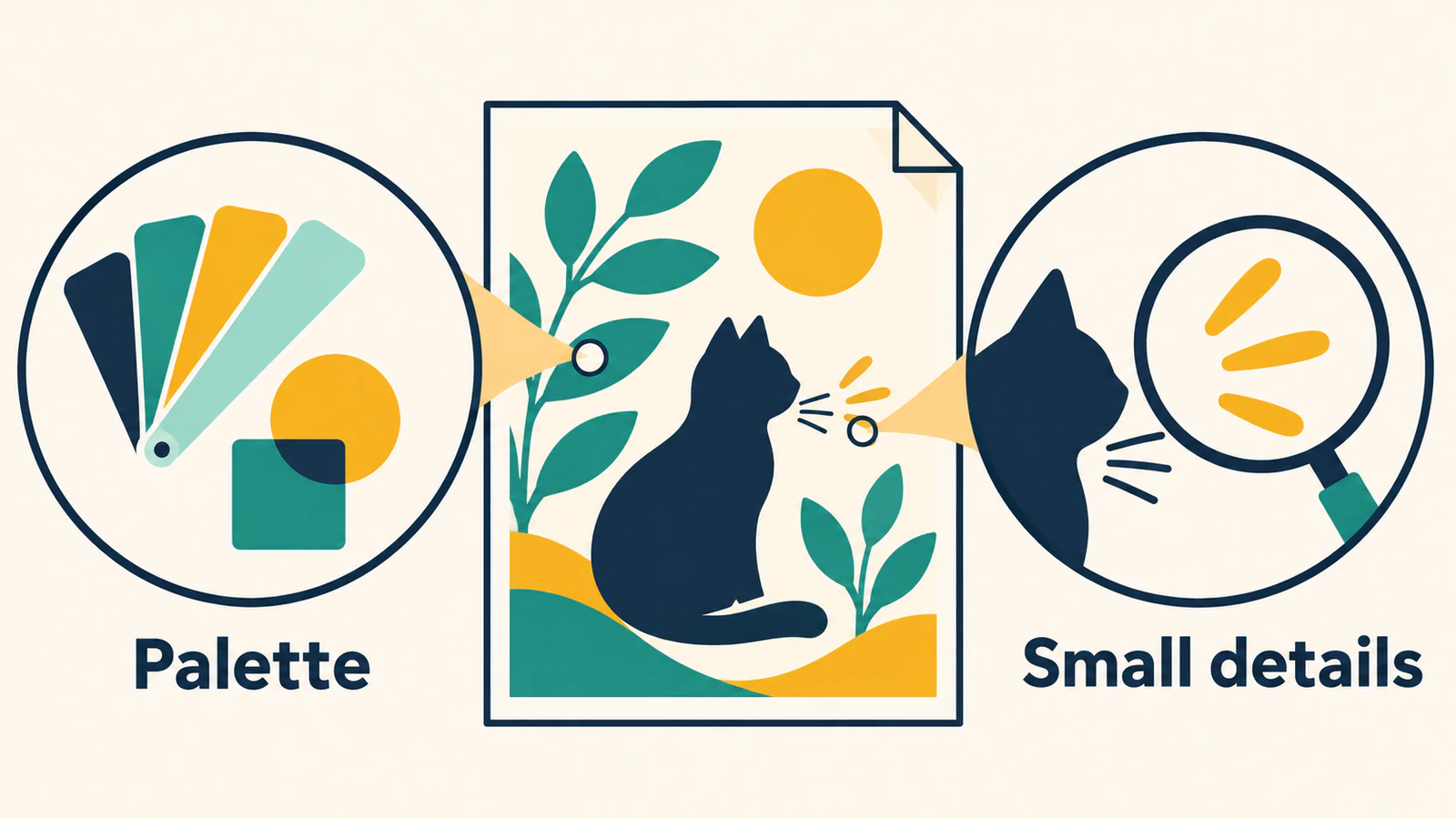
The tested CLI offers --max-colors for an upper color limit and --palette for supplied hex colors. A palette is the set of colors you intend the artwork to use. Decide which colors must remain different before asking the tracer to reduce them.
This variant holds the baseline options constant and adds a three-color limit:
./vtracer artwork.png fewer-colors.svg \
  --mode polygon --color-precision 8 --filter-speckle 0 \
  --max-colors 3
An upper limit is not a promise of exactly that many visible colors. Our actual output had only two unique solid fill values, including white. The navy and teal regions became the same muted color, and the gold region was no longer distinguishable from the white background.
When you already have an intended palette, test supplied colors instead:
./vtracer artwork.png fixed-palette.svg \
  --mode polygon --color-precision 8 --filter-speckle 0 \
  --palette '#ffffff,#17324d,#298d83,#d49c32'
Our source gold was #e7b64c; this supplied palette used #d49c32 in its place. The saved SVG used that new gold while retaining the listed navy, teal and white. That was an intentional recoloring choice, not preservation of the original palette. For broader decisions about which colors can merge without losing meaning, use the SVG palette-reduction guide.
3. Test small-region filtering on a separate copy
Return to the baseline options, then change only the speckle filter:
./vtracer artwork.png filtered.svg \
  --mode polygon --color-precision 8 --filter-speckle 8
Speckles are small isolated regions that may be unwanted noise or deliberate artwork. Their size alone does not tell you which. In our fixture, both the isolated 2 × 2 and 8 × 8 navy marks were visible in the baseline and disappeared in this filtered variant.
Treat the flag value as a setting to verify on your file, not a promise that a mark of the same numerical width will survive. Compare the saved output at the intended size, then zoom into the specific marks you meant to retain. If a wanted detail disappears, lower the filter and retrace from the original PNG.
Recheck colors too. Our filtered SVG introduced #fefefe alongside white. That observation is a reason to inspect the actual output palette after a detail change, rather than assuming one setting affects only the property named in the flag.
What the four actual saved files showed
We made an original 384 × 256 PNG with a white background, a navy frame with a white center, a teal triangle, a gold rectangle and two isolated navy square marks. All four conversions used the same input and polygon mode. The table reports actual SVG markup and independent renders, not a destination-editor or physical test.
| Output | Unique solid fills, including background | Small 2 × 2 and 8 × 8 marks | Main observation |
|---|---|---|---|
baseline.svg | Four | Both visible | Original solid colors retained in this control |
fewer-colors.svg | Two | Both visible in the merged color | Navy/teal merged; gold region read as white |
filtered.svg | Five | Neither visible | Small marks lost; near-white fill introduced |
fixed-palette.svg | Four | Both visible | Gold changed to the supplied #d49c32 |
All four SVGs contained paths and no image element. Those facts establish actual tracing in these files, but do not grade the contours or prove successful editing in another app. The white frame center and background in this experiment are opaque; this is not a PNG-transparency test.
For this fixture's original colors and intentional marks, we would keep the baseline. The fixed-palette variant fits the separate job of changing the gold deliberately. The reduced-color and filtered files fail those particular retention requirements. None of these choices establishes a universal best preset or a comparison with another tracer.
Choose a file you can explain
Before keeping an SVG, record its input, executable version, full command and the reasons for your choice. Check the palette by role, the smallest required regions, gaps and contours. Then open it in the actual destination and try the edit or import your job requires; that later step was not part of this test.
| Failed check | Next action |
|---|---|
| Important colors merge | Raise or remove the color limit, or supply the intended palette |
| Tiny accents disappear | Compare against the low-filter baseline and retrace with a lower speckle setting |
| White or near-white fills appear unexpectedly | Inspect the actual saved fills and their visible regions before removing them |
| A command rejects a flag | Read that binary's version/help and match its CLI documentation |
| The trace still misses a critical contour | Revisit the source or redraw that feature deliberately |
The trace-quality scorecard adds contour, editability and destination checks beyond this palette/detail experiment. For an explicit monochrome workflow, the Potrace PNG-to-SVG guide covers a different tracing task.
Keep the original and the accepted SVG together. If you want to try the same PNG online, start free with PerfectVector and check the preview's intended colors and smallest required details against your source.
FAQ
Can VTracer convert a color PNG into actual SVG paths?
Yes. All four files in our tested CLI workflow contained paths and no image element. The useful result still depended on which colors and small regions remained after the chosen settings.
Does max-colors 3 guarantee exactly three colors?
No. It sets an upper limit. Our control produced two unique solid fills, including white, and lost important color distinctions. Inspect the actual saved palette rather than the requested number alone.
Why did small marks disappear after filtering?
The speckle setting can discard small regions. Both intentional square marks in our control disappeared at filter-speckle 8. Compare with a low-filter baseline and lower the setting if your artwork needs those regions.
Can I paste these flags into a Python VTracer example?
Use the interface and version you installed. This guide tested the 1.0.0-alpha.4 executable and its CLI help. Python binding examples use their own function arguments and documentation.
Sources
- Official VTracer project — color tracing, CLI usage and palette/detail options.
- VTracer 1.0.0-alpha.4 release — the version-pinned executable used for this workflow.
- VTracer Python package — the separate Python binding interface, distinguished from the tested CLI.
More from the blog

AutoTracer Settings: Check Colors, Noise and White
Use AutoTracer's color, despeckle and white-background controls on a saved baseline. Check the exported SVG for missing colors and filled openings before use.

Geometrize Image to SVG: Export Geometric Shapes
Use Geometrize's browser demo to turn an existing image into geometric SVG art, then inspect a bounded rectangle export and its limits before further editing.