Geometrize Image to SVG: Export Geometric Shapes
Use Geometrize's browser demo to turn an existing image into geometric SVG art, then inspect a bounded rectangle export and its limits before further editing.
On this page
Geometrize can turn an existing image into SVG artwork built from fitted geometric shapes. Choose it when that approximation is the effect you want. An SVG made from overlapping rectangles can be real vector geometry without reconstructing the source as a frame, a triangle and a separate accent object.
The official Geometrize web demo lets you open your own image, choose shape types, control the shape cap and save an SVG. This walkthrough uses a deliberately small rectangle-only run to show the difference between saving geometry and recovering meaningful design objects.
Decide whether geometric approximation fits the image
A geometric primitive is a simple shape, such as a rectangle, ellipse or triangle. Geometrize's project page describes reconstructing images with these shapes. The web demo explains that it repeatedly tries and mutates candidate shapes, choosing ones that fit the source.
That process suits deliberate geometric art. It is a different goal from preserving a logo's exact silhouette or rebuilding lettering for precise edits. Before you start, decide whether a stylized arrangement of pieces is useful or whether you need contours that closely follow the original.
You need a permitted raster image, a retained original, a web browser and somewhere to save the SVG. For a first run, use a small image whose important regions you can recognize. Keep the source open separately so the evolving approximation does not become your only reference.
Method: On November 8, 2026, we opened our original 384 × 256 RGB geometric control in the browser demo. It had an opaque white background, a navy frame and small marks, a teal triangle and a gold rectangle. We selected rectangles only and set a cap of 20 for a bounded example. Twenty was our chosen test cap, not the tool's default, maximum or recommended quality setting. We did not test a photograph, a larger shape count, native editor import or physical output.
Open your source and run a bounded rectangle example
The demo can already be running on its own sample when you arrive. Pause that sample before setting up your own image, so you can distinguish the supplied example from your test.
- Select Pause if the demo is running, then expand Settings.
- Set Max Shapes Cap to 20 for this small example.
- Select Open Image and choose your permitted source. Confirm that the canvas changes to your artwork.
- In Settings, select Rectangles and clear the other shape types. Our starting selection was Rotated Ellipses, which we cleared.
- Keep the remaining values fixed for this comparison. We used Shape Opacity 128, Initial Background Opacity 255, Random Shapes Per Step 50 and Shape Mutations Per Step 100.
- Select Run. In our test, Shapes Added reached 20 and the control returned to Run after the bounded process stopped.
- Select Save Svg, retain the downloaded file, and compare its artwork with the source.
The demo's explanation describes Run/Pause, Step, Open Image, Reset and its save options. Step adds one primitive when you want to inspect the process incrementally. Reset clears the current shapes, so save a result you want to keep before starting again.
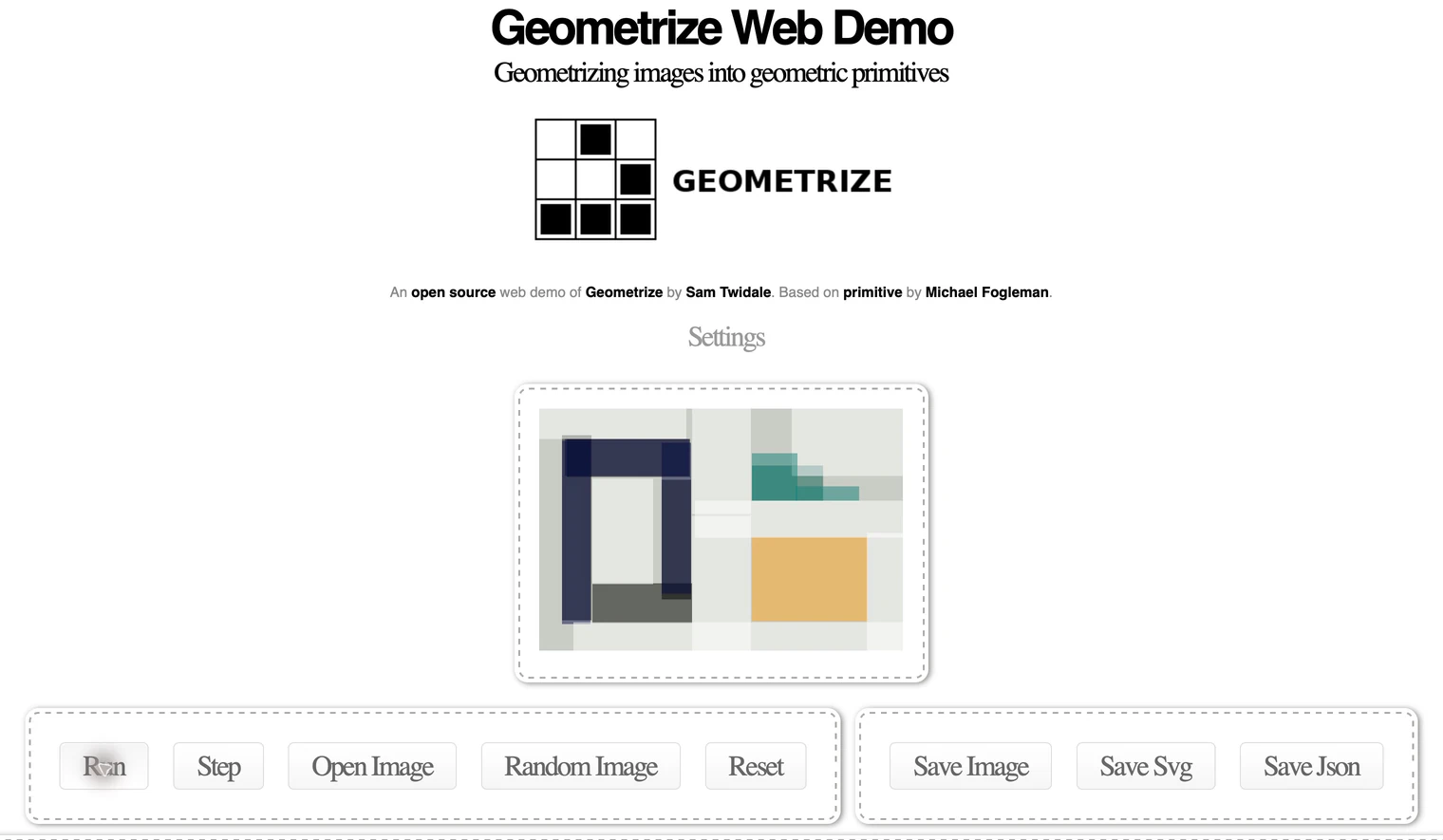
If the canvas still shows the supplied sample, stop and reopen your source before judging the result. If a new run changes a version you wanted to keep, return to the saved SVG and original image rather than assuming Reset will restore the previous fit.
Read the saved shape count correctly
Our downloaded file was 2,292 bytes and declared a width of 384 and height of 256. XML inspection found 20 <rect> elements and no <image> element. A rectangle is itself vector geometry; it does not have to be serialized as a <path> to count as a vector shape. The SVG basic-shapes specification defines the rectangle element.
One of those 20 rectangles was the opaque background. The other 19 had fill-opacity of approximately 0.502. The count therefore did not mean 20 distinct foreground design objects, nor did it mean one rectangle for each region in the original.
The actual canvas shows why that distinction matters. Several rectangles overlap to suggest the navy frame, and stepped pieces approximate the teal triangle. The source's white background and interior opening are represented through this fitted composition. Selecting a single rectangle later would not necessarily select the entire frame you recognize visually.
Fill opacity controls how opaque the paint inside a shape is. With partially transparent shapes, overlap contributes to the visible color; a rectangle's stored fill alone does not describe every pixel of the final composite. The SVG painting specification defines that paint property.
| What we checked | Actual saved result | What it establishes |
|---|---|---|
| Output geometry | 20 rectangle elements, no image element | This file contains geometric vector shapes |
| Background | One opaque rectangle included in the count | The total includes the background |
| Other fills | About 0.502 fill opacity | The visible artwork uses overlapping translucent paint |
| Native editor or cutter | Not tested | No application or production acceptance is claimed |
Keep file structure separate from visual style
The retained SVG also contained literal brackets and commas between the rectangle elements. We kept the downloaded file unchanged. This guide does not establish how your chosen editor will handle that serialization, so check the actual saved file in its intended destination before depending on it.
For the next check, open a copy of your SVG, confirm that it renders, and inspect how its shapes can be selected. If a receiving app rejects it or displays unexpected content, preserve the original export and diagnose that specific import before using the file. A working browser canvas alone does not prove that an exported document meets another application's requirements.
Do not assume a higher shape count will recover the original object's structure. We did not run a larger-count comparison. If you explore another cap or shape type, save each result separately and judge its visual effect and editing needs on that image.
Our Boxy SVG tracing and geometry guide explains the same design choice in an editor context. For photographic sources, photo-to-SVG expectations helps decide whether to keep the raster or choose a stylized result.
When contours are more useful than geometric art
PerfectVector is an alternative when your goal is an automatic image-to-vector trace that you can inspect against the original, rather than a deliberate rectangle composition. Use the image-to-vector page with your source, then check the important silhouette, interior openings and separate color regions. We did not run a PerfectVector conversion on this control or compare its output with Geometrize.
PerfectVector's product facts describe a free view-only preview, with editing and export after unlocking. If the geometric treatment is the artwork you want, stay with that creative choice. If you need exact construction or specific object boundaries, manual drawing may be a better fit than either automatic route.
Use the trace-quality checklist to write down the features that must survive. The accepted file should support the next task, whether that task is arranging a geometric illustration or refining a recognizable contour.
FAQ
Does Geometrize export SVG from an existing image? Yes. The web demo provides Open Image and Save Svg controls. Our actual browser run saved an SVG containing rectangle geometry from the uploaded control.
Does 20 shapes mean 20 foreground objects? No. In our saved 20-rectangle file, one rectangle was the background and the others overlapped to approximate the picture. That count did not reconstruct the source's meaningful objects.
Was 20 the default or maximum shape count? No. We deliberately selected 20 for this bounded example. We did not test the tool's capacity or compare quality at larger counts.
Does a geometric SVG guarantee an easy editing or cutting file? No. Inspect its structure in the receiving app. This test stopped at the actual browser result and saved SVG; native editor import, editing and cutting were not tested.
Sources
- Geometrize — Project homepage — The intended image-to-geometric-primitives approach.
- Sam Twidale — Geometrize web demo — The actual source-image, settings, run and SVG-save controls used here.
- W3C — SVG 2 basic shapes — Rectangle elements are vector geometry.
- W3C — SVG 2 fill opacity — How opacity applies to a shape's interior paint.
- PerfectVector — Product facts — The preview and unlocked editing/export workflow.
Start free with your own image in PerfectVector, then inspect its contour and smallest important opening before deciding which geometry suits your work.
More from the blog

AutoTracer Settings: Check Colors, Noise and White
Use AutoTracer's color, despeckle and white-background controls on a saved baseline. Check the exported SVG for missing colors and filled openings before use.

Vectorization Org: Check a Black-and-White Trace
Vectorization.org turns images into black-and-white vectors. Follow a real PNG-to-SVG run and check lost colors, small features and saved geometry before use.