SolidWorks Image to Sketch: Choose the Right Route
Turn a SolidWorks Sketch Picture into useful geometry with Picture to Sketch, AutoTrace, manual reconstruction, or a DXF handoff, then verify the result.
On this page
A SolidWorks Sketch Picture is a raster reference; it does not automatically become editable sketch entities. In SOLIDWORKS 2026 SP1/FD01, Picture to Sketch (Beta) can create sketch entities from selected image regions. You can also redraw with native constraints, use the separate optional AutoTrace add-in, or prepare flat artwork outside SolidWorks and bring it back as CAD geometry.
The source decides the route. Rebuild a functional part from measurements. Trace a logo or decorative profile only when its visible boundary is the geometry you actually want.
Pick the route that matches the source
- Mechanical part or dimensioned drawing: scale the Sketch Picture and reconstruct it with native sketch tools.
- SOLIDWORKS 2026 SP1/FD01: Picture to Sketch (Beta) may provide a starting point for a selected image region.
- Legacy automatic workflow: AutoTrace may help with simple high-contrast artwork, but it cannot be enabled at the same time as Picture to Sketch.
- Flat multicolor or noisy artwork: create a cleaner vector or DXF candidate outside SolidWorks, then inspect it after import.
- Perspective photo: use it as a visual reference only. It cannot establish reliable fit-critical geometry.
Start with a calibrated Sketch Picture
SolidWorks' Sketch Picture documentation describes inserting bitmap images on sketch planes. The related resize workflow covers positioning and scaling the picture.
Use a known dimension in the image to set scale, then check a second dimension. If the second value is wrong, do not force the sketch to match both. The image may be stretched, photographed at an angle, or affected by lens distortion.
Once calibrated, draw from design intent:
- Establish origin, axes, and major centerlines.
- Add straight edges and symmetric relationships.
- Replace visible holes with dimensioned circles.
- Build true arcs and fillets instead of following pixel stair-steps.
- Fully define the sketch using known measurements.
This route takes more judgment, but it produces geometry that behaves like a SolidWorks model rather than a frozen outline.
When Picture to Sketch (Beta) is worth trying
SOLIDWORKS added Picture to Sketch (Beta) in 2026 SP1/FD01. It automatically generates sketch entities from a selected image region, but it is still a starting point rather than verified engineering geometry.
To evaluate it:
- Open Tools > Add-Ins and clear AutoTrace if it is enabled. Picture to Sketch is unavailable while AutoTrace is active.
- Edit a sketch, choose Tools > Sketch Tools > Sketch Picture, and select the image.
- Choose the region with Crop, Rectangle, Lasso, Polygon, or Color Select.
- Click Calculate to preview the sketch entities.
- Accept the result only after checking the intended outline, internal openings, and entity density.
Because the feature is explicitly labeled beta, keep its output provisional. Rebuild fit-critical circles, slots, straight edges, and radii with native constraints and measured dimensions.
When AutoTrace is worth trying
AutoTrace is a separate optional SolidWorks add-in, not a promise that any photo will become a production sketch. In SOLIDWORKS 2026, you must choose between AutoTrace and Picture to Sketch because enabling AutoTrace makes the beta feature unavailable. A clean, high-contrast logo or silhouette is the best AutoTrace candidate. GoEngineer's AutoTrace walkthrough shows the feature as a starting point that still needs selection and cleanup.
Before tracing, remove the background, increase contrast, and crop tightly. After tracing, suppress the picture and inspect only the sketch entities. Look for broken loops, missing counters, lumpy curves, and excessive spline points. If cleanup takes longer than redrawing the important shapes, stop tracing and rebuild them.
When a DXF handoff is faster
A vector-first route for CNC-style artwork helps when the source is flat artwork and the desired result is its outline. For those inputs, convert the image to DXF with PerfectVector, choose a physical export width, and import the candidate into a separate SolidWorks file or sketch for evaluation.
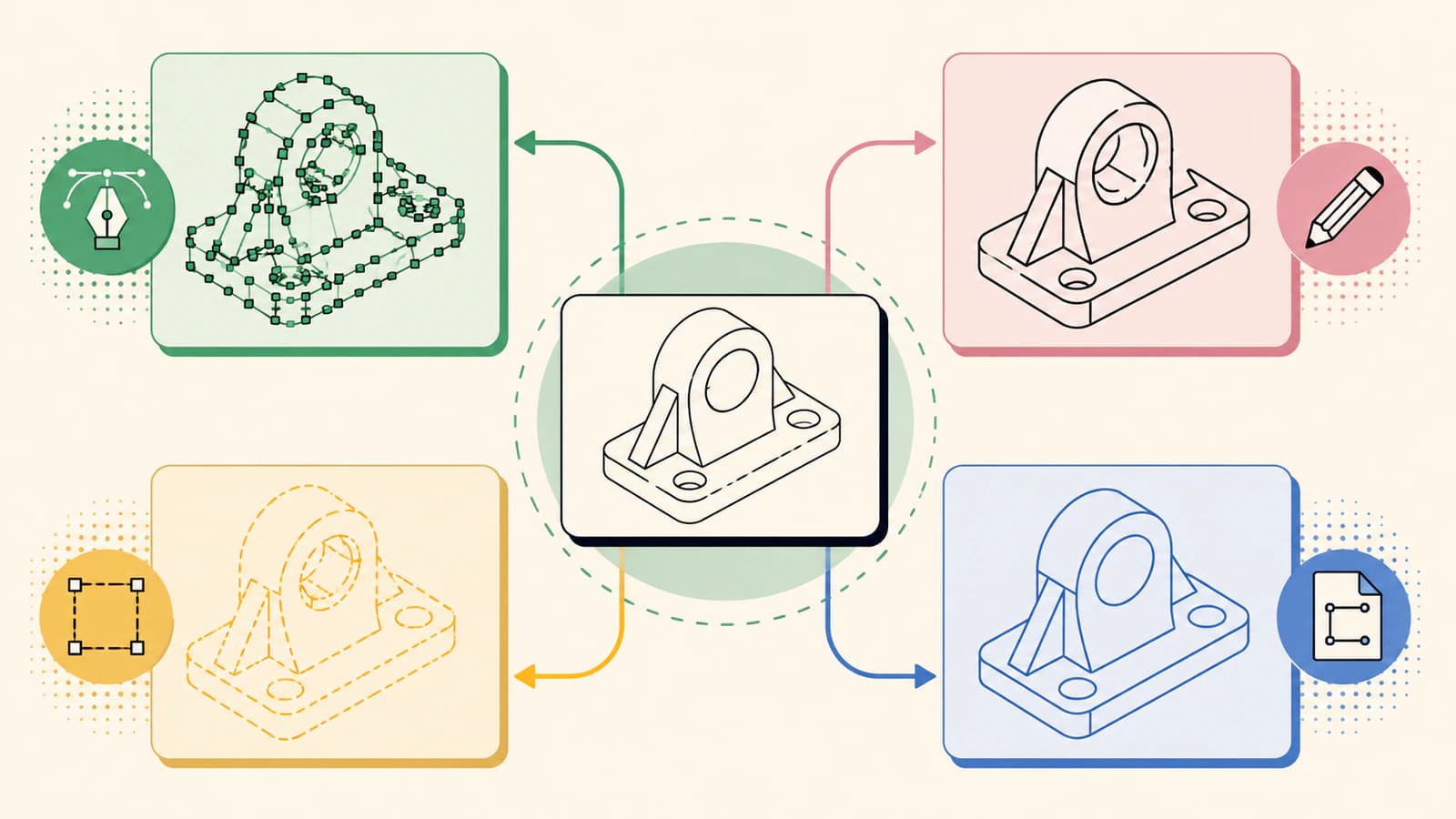
The imported file should be treated as provisional. It contains reconstructed boundaries, not engineering intent. Use it for decorative outlines, logos, etching geometry, and other noncritical shapes. Replace critical circles, slots, straight edges, and radii with native constrained entities.
Inspect before you build a feature
Run these checks while the geometry is still easy to replace:
| Check | What failure looks like | Safer response |
|---|---|---|
| Overall size | Imported sketch is too large or small | Correct units or re-export at a known physical width |
| Closed profiles | Extrude or cut cannot select the intended region | Find gaps, overlaps, and self-intersections |
| Entity count | Selection and rebuild become slow | Simplify or redraw basic shapes |
| Curvature | Smooth edges look faceted or wavy | Replace them with arcs, circles, or controlled splines |
| Critical dimensions | Hole spacing or fit features do not match | Reconstruct them from measurements, not pixels |
A viewport match is not enough. Dimension the result, select profiles, and inspect the feature preview. Those tests reveal structural problems that a clean-looking line can hide.
Photos require a different standard
A photo can help recover proportions or communicate shape, but it rarely supports exact reconstruction on its own. Perspective changes parallelism, foreshortening changes lengths, and shadows shift apparent edges. For replacement parts, gather multiple square-on views and real measurements. Use the image to understand the object, not to certify dimensions.
FAQ
Can SolidWorks automatically trace an image into a sketch? In SOLIDWORKS 2026 SP1/FD01, Picture to Sketch (Beta) can automatically convert selected image regions into sketch entities. AutoTrace is a separate optional add-in for suitable high-contrast images, and it must be disabled before Picture to Sketch is available. Either result still needs cleanup and dimensional verification.
How do I scale a Sketch Picture accurately? Use the scale tool with a distance that is known in the real object, then verify another known distance. If the second check fails, the image is distorted and should not control exact geometry.
Is manual tracing better than automatic tracing? For mechanical parts, usually yes because native lines, arcs, circles, dimensions, and constraints preserve design intent. Picture to Sketch and AutoTrace are more useful as starting points for simple logos and decorative shapes whose visible outlines are the desired result.
Can I convert a PNG to DXF and open it in SolidWorks? You can convert suitable flat artwork into a DXF candidate, then import and inspect it. Verify units, overall size, closed contours, duplicates, and entity count, and redraw any fit-critical features natively.
Sources
- SOLIDWORKS 2026 What's New — Converting Images to Sketches (Beta) — Official introduction, version requirement, AutoTrace conflict, and conversion workflow.
- SOLIDWORKS Design Help — Sketch Picture — Official description of bitmap references in a sketch.
- SOLIDWORKS Design Help — Inserting and Resizing Sketch Pictures — Official workflow for placing and scaling a sketch picture.
- GoEngineer — SOLIDWORKS AutoTrace Tool Tutorial — Specialist walkthrough of enabling and using the optional AutoTrace feature.
- PerfectVector — Image to DXF Converter — First-party description of vector reconstruction and physical-width DXF export.
When the source is flat artwork rather than a mechanical drawing, create a DXF candidate with PerfectVector, import it into a test sketch, and approve it only after dimensions and closed profiles survive inspection.
More from the blog

FreeCAD Image to Sketch: Build Editable Geometry
Choose the right FreeCAD image-to-sketch workflow: trace a scaled reference for exact CAD work, or convert suitable flat artwork to DXF and clean it up.

Onshape Image to Sketch: Recover Clean DXF Geometry
An image inserted in Onshape is a tracing reference, not editable sketch geometry. Learn when to trace manually, convert to DXF, and verify scale and paths.