Seam Allowance: Offset the Pattern, Don't Scale It
See why enlarging a sewing pattern does not add equal seam allowance. Measure original SVG examples, distinguish corner joins, and keep the seam line unchanged.
On this page
To add a specified seam allowance, measure outward from the seam line. Do not enlarge the whole pattern and assume the gap will be equal. Scaling changes coordinates relative to an origin; an offset constructs a boundary at a chosen distance from the original edges. A larger bounding box can conceal unequal allowances inside a concave shape.
First check whether the pattern already includes seam allowance. Keep the seam line, cutting line, fold lines and notches identifiable. The measured example below is an original L-shaped geometry study, not a garment pattern or a recommendation for how much allowance your project needs.
Keep size and allowance as separate decisions
Calibrate a scanned pattern to its intended physical size first. Preserve that seam-line master, then construct the allowances required by the pattern instructions. Enlarging the drawing to correct a scan and adding material beyond a seam line are different operations.
Define the seam line and cutting line
The seam line is the intended stitching route. The cutting line defines the edge of the piece to cut. Seam allowance is the material between them. In the Folds' seam-allowance tutorial explains adding material beyond the finished outline.
The required width can differ between edges. The same tutorial considers the fabric and seam finish when choosing allowances. Its skirt-block example also treats the cut-on-fold edge differently from the seams. Read the actual pattern instructions before adding a uniform border everywhere.
If you start from a scan, the sewing-pattern digitizing guide covers source capture, calibration and rebuilding markings. Calibration restores intended size. It does not determine which line is the seam or whether allowance is already present.
A larger bounding box can hide a smaller inner gap
We authored an L-shaped outline using these coordinates in illustrative millimeters:
(0,0) → (100,0) → (100,60)
      → (60,60) → (60,100) → (0,100) → close
The overall bounding box is 100 × 100 mm. The inward corner at (60,60) brings the boundary into the interior of that box. No body measurements, garment construction or fitted pattern are represented.
We made a copy scaled to 120% about (50,50). Its new coordinates include:
Original outer left x=0   → scaled x=−10
Original outer right x=100 → scaled x=110
Original inner vertical x=60 → scaled x=62
Original inner horizontal y=60 → scaled y=62
The outside straight edges move 10 mm, but the two inner straight edges move only 2 mm. Although the bounding box grows to 120 × 120 mm, the gap is not a uniform 10 mm.
The reason is visible in the scale formula:
new coordinate = origin + factor × (old coordinate − origin)An edge farther from the scale origin moves farther. Changing the percentage until the outer width looks right cannot make every edge of this L receive the same allowance. This is a geometric problem, not a loss of SVG sharpness.
Construct a measured parallel-edge offset
For comparison, we constructed a second outline by moving each straight supporting line outward by 10 mm and intersecting adjacent offset lines. The construction uses sharp, or miter, joins at the corners.
PatternLab's digital allowance lesson also uses an offset of selected outlines. The coordinates here were constructed directly; we did not run that application's command.
Its vertices are:
(−10,−10) → (110,−10) → (110,70)
          → (70,70) → (70,110) → (−10,110) → close
This outline also has a 120 × 120 mm bounding box. The inner vertical edge is at x = 70 instead of 62, and the inner horizontal edge is at y = 70. Their perpendicular distance from the corresponding original straight lines is 10 mm.
| Construction | Outside straight-edge gap | Inner straight-edge gap | Bounding box |
|---|---|---|---|
| Scale 120% about (50,50) | 10 mm | 2 mm | 120 × 120 mm |
| Parallel-edge offset with miter joins | 10 mm | 10 mm | 120 × 120 mm |
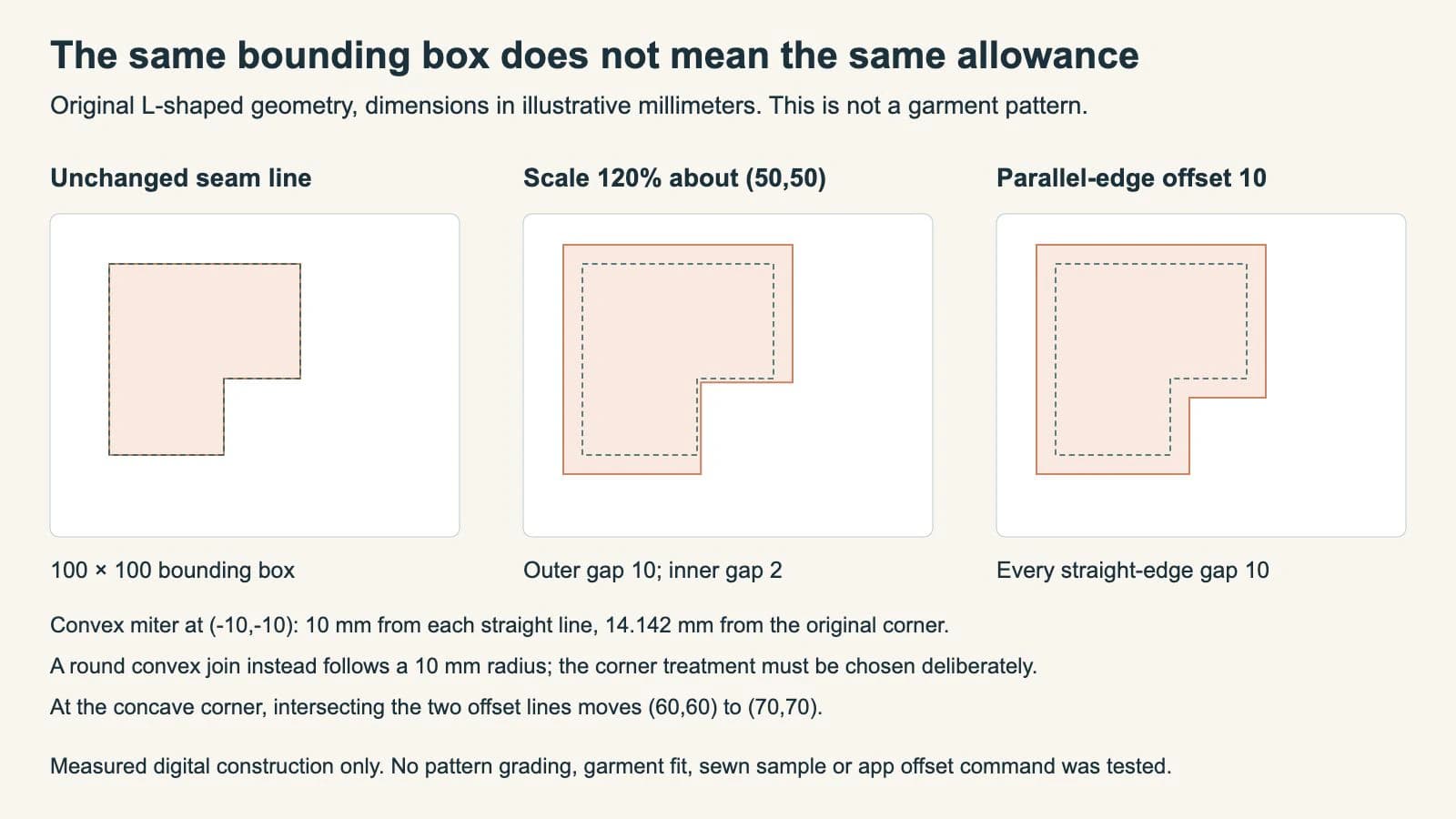
We reopened the saved SVG polygons, checked each corresponding edge's perpendicular distance and compared the two bounding boxes. The measured gaps match the table. The original seam-line polygon remains unchanged in the comparison.
Decide how the corners should join
An edge distance does not completely specify the corner. A miter join extends adjacent straight offset edges until they meet. At our outer corner (0,0), the offset lines meet at (−10,−10). That point is 10 mm from either straight supporting line, but about 14.142 mm from the original corner itself.
A round join can connect those outer edges with an arc of radius 10 mm. A bevel instead connects the offset edge ends with a straight cut across the tip. These produce different outlines even when the straight-edge allowance is the same. The SVG painting specification distinguishes miter, round and bevel stroke joins; a displayed stroke is still not automatically a saved cutting boundary.
At the L's concave corner, intersecting the outward parallel lines moves the corner from (60,60) to (70,70). That reduces the rectangular recess rather than enlarging it as the scaled copy does. On more intricate artwork, offsets can meet, collapse small gaps or require trimming. Inspect the resulting contour instead of accepting a percentage or one bounding-box measurement as proof.
A garment pattern needs further construction decisions. Darts, hems, folded edges and intersecting seams can require their own treatment and checking. The sample's miter construction is an explicit geometry choice, not an instruction to use sharp corners on every sewing pattern.
Check the edited outline before using it
Keep the original seam line visible while checking the new cutting boundary. Measure perpendicular to each relevant straight section and inspect curves at several positions. Follow the pattern's edge-specific allowances, then check corners and notches against the original construction information.
Also confirm the file's physical scale. Our saved SVGs declare millimeter dimensions and matching coordinate mapping, but a receiving application or print setup still needs a size check. The wrong-size SVG guide explains that separate issue.
If an inner gap differs from the requested allowance, inspect whether you scaled the entire piece, moved the wrong boundary or used a different corner treatment. If the pattern already includes allowance, adding another offset can add it twice. Resolve the source meaning before trying another geometric correction.
Where PerfectVector fits
If the only source is a clean raster scan and you need editable outlines, prepare an SVG candidate with PerfectVector. Compare the recovered contours and small markings with the source, calibrate the drawing, and identify the actual seam line before constructing any allowance. Use the original editable vector pattern when available.
Vectorization does not identify your pattern size, choose an allowance, perform pattern grading or certify garment fit. A trace of a thick printed line can also describe its two painted edges rather than one intended sewing route. Inspect and edit the paths using the SVG editing guide. Our L-shaped study was authored directly as native SVG.
FAQ
Can I enlarge a pattern by a percentage to add seam allowance? A scale transform does not generally produce a constant edge gap. In our L-shaped example, 120% scaling gives a 10 mm outside gap but only a 2 mm gap along the inner straight edges.
Does the same bounding box mean the allowance is correct? No. Our scaled copy and parallel-edge offset both measure 120 × 120 mm overall, but their inner boundaries differ. Check the relevant edge distances and corners.
Should every pattern edge receive the same allowance? Follow the actual pattern instructions and construction. Seam finishes, hems and cut-on-fold edges can need different treatment, and allowance may already be included.
Does an offset outline prove that a garment will fit? No. The example establishes digital line distances only. Pattern construction, fabric, assembly and fit still need the appropriate patternmaking checks and sample.
Sources
- PatternLab — Add Seam Allowance to Patterns — A digital allowance workflow based on offsetting selected outlines.
- In the Folds — How to add seam allowance to a sewing pattern — Choosing and measuring allowances for specific seams and treating the example's fold edge separately.
- W3C — SVG Painting: Line joins — The distinction between miter, round and bevel stroke joins.
Starting with a raster pattern scan? Recover editable outlines with PerfectVector, compare and calibrate the result, then build and measure the allowances specified for the actual pattern.
More from the blog

How to Vectorize a Floor Plan Without Losing Scale
Turn a scanned floor plan into clean vector lines, calibrate it from one known measurement, and verify the scale before you use the SVG or DXF downstream.

Resize a Rhinestone SVG Without Changing Hole Size
Learn when to restore a rhinestone SVG's import size and when to rebuild its layout. Keep hole diameters fixed, check spacing, and test with your actual stones.