
Vectorize an Image in Make With an HTTP Workflow
Send a Google Drive image to a vectorization API from Make. Map the file bytes, handle pending or failed responses, and save the SVG in another folder.
On this page
Use this reference to map the file and response fields for a Make HTTP v4 scenario that reads a raster image from Google Drive. It covers the request, conversion ID and SVG result. The API exchange was verified with a test key, and the Make and Drive mappings follow official module documentation.
Start with one file and a test key
Connect Google Drive to Make. Put a single-frame PNG, JPEG or WebP in a test folder, choose a separate folder for outputs, and get a PerfectVector test key. Pick a file no larger than 5 MiB and between 100 and 4096 pixels on each side. A successful test conversion returns a fixed sample SVG. PerfectVector test mode
Add Google Drive → Download a File and select the source file by its ID. If you add a folder trigger later, map the ID from that trigger to this module. For the first run, use one known file so you can inspect its filename and data in the module output. Make's guide to working with files
Map the file into the HTTP request
Use HTTP → Make a request in Make's HTTP v4 app. Store your test key under Credentials with API key authentication. In the keychain, put the full value beginning with Bearer in the Key field, choose header placement, set the parameter name to Authorization, and restrict it to the origin https://api.perfectvector.com. Use the same keychain for the download. Make's API key setup
Use https://api.perfectvector.com as the origin for each endpoint below.
| HTTP v4 setting | Value for the first run |
|---|---|
| URL and method | POST /v1/vectorizations |
| Body content type | multipart/form-data |
| Body field | Type File, name image. Map the filename and file data from Download a File. |
| Header | Idempotency-Key: choose a stable value such as drive-logo-test-0001 for this operation. |
| Header | Prefer: wait=10 |
| Parse response | Yes. Run once to populate mappable output fields such as id and status. |
| Timeout | 30 seconds for this request. |
Make builds the multipart boundary when you choose the body type. Leave the POST response as JSON. That gives you one format to inspect whether the conversion completes immediately or needs more time. The two seconds in PerfectVector's polling guidance refer to the interval between status checks. Make HTTP modules · PerfectVector waiting and async
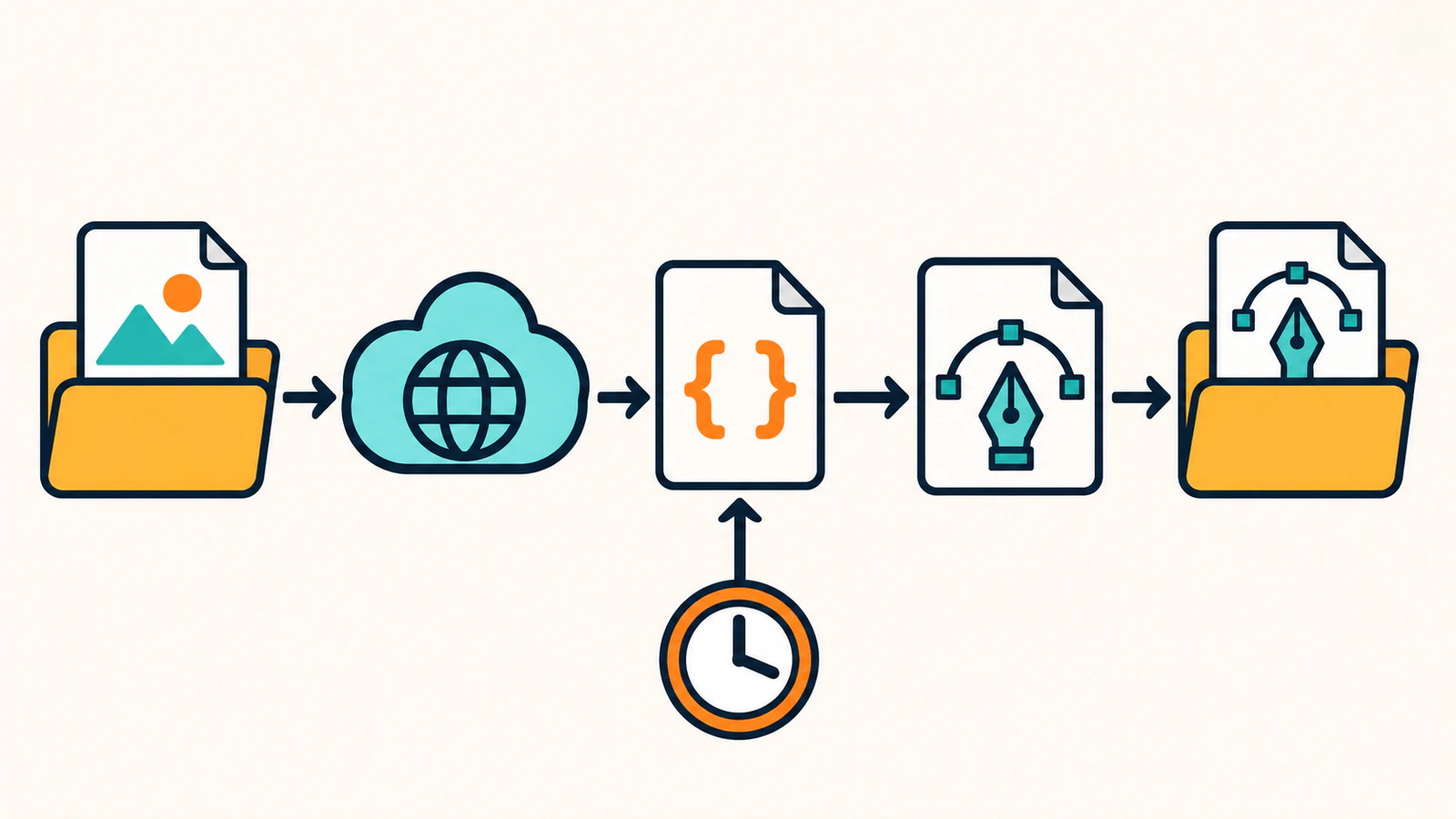
Download only after the conversion succeeds
Filter the route before HTTP → Download a file so that it runs only when the parsed conversion status is succeeded. Use the same API origin and the path /v1/vectorizations/{id}/result. Replace {id} with the mapped conversion ID. Use the API keychain and set Return error if HTTP request fails to Yes. The download module provides file data for the next module. Make HTTP modules · PerfectVector results
Add Google Drive → Upload a File and choose the output folder. Select the file from HTTP → Download a file as the source. To override the name, choose Map in the file input, keep the downloaded data, and enter a name such as logo-test.svg. Leave Convert a File off to keep the SVG in its original format. Make Google Drive modules Open the uploaded file and look for the “TEST MODE” sample. That checks the mapping through the entire scenario.
| Response from the POST | Route or recovery |
|---|---|
201 and succeeded | Download the SVG and upload the file data to Drive. |
202 and queued or processing | Save the conversion ID for the status check below. Leave the download filter closed. |
201 and failed | Record the conversion ID and its error. Stop this route before the download. |
4xx or 5xx | Inspect the module error and API problem code, when present. For 429 or 503, honor Retry-After when supplied and reuse the same key and bytes within the replay window. If a live conversion is already in progress, wait for it to finish first. |
Check a pending conversion before downloading
The run-once scenario covers one test file. If a live submission returns 202, check it with a second HTTP → Make a request module using GET, the same API keychain and Parse response set to Yes. Use the same API origin and the path /v1/vectorizations/{id}. Map the saved ID into the path. Route succeeded to the result download, leave queued and processing pending, and record the conversion ID and result error for failed. Wait about two seconds before checking a pending ID again. PerfectVector waiting and async
A client timeout can leave the submission running. Use the saved ID, or replay the same image bytes and key within 24 hours if you have no ID. A terminal failed conversion with timeout or provider_unavailable needs a new key if you choose to retry. Wait until the provider is available for the latter. Persist the key with the source file version before scheduling unattended work, and record pending IDs so the next run can check status before uploading again. PerfectVector safe retries · PerfectVector API errors
We used cURL with a PerfectVector test key to submit the multipart upload, read the conversion by ID, and download the fixed sample SVG. The Make and Google Drive steps follow Make’s official module and file-mapping documentation. Follow the run-once check in your own workspace to verify the mappings.
FAQ
Why does my Make scenario return an unsupported media type error?
Check the body content type and the file mapping. Select multipart/form-data, name the file field image, and map the data output from the download module. Open the original file to verify it is an eligible PNG, JPEG or WebP. PerfectVector API limits
What does the test SVG tell me about my artwork?
It verifies the request and file handoff. PerfectVector returns a fixed sample with a test key. Use a live conversion and inspect the resulting shapes and colors to evaluate your image. PerfectVector test mode
Sources
- Make — Working with files — Google Drive download and upload mapping for filenames and data.
- Make — HTTP — HTTP v4 multipart upload, JSON parsing and file download.
- Make — API key authentication — Bearer credential storage and service origin restrictions.
- PerfectVector — Limits — Supported input formats and multipart fields.
- PerfectVector — Waiting and async — The wait header and the immediate or pending response.
- PerfectVector — Results — Authenticated SVG result download.
- PerfectVector — Test mode — Fixed test-key SVG and expected immediate success.
- Make — Google Drive modules — Download and upload fields and the file conversion option.
Get a test key through the PerfectVector API page and use the JSON response example in the API quickstart with one eligible image. Confirm that the upload returns a conversion ID and that downloading its result produces an SVG that opens.
More from the blog
Best AI Image Vectorizers 2026: Top Picks by Use Case
Our 2026 picks: PerfectVector for logos, icons and cut files, and its API for image-to-SVG in your own app. See which tool fits full-color, free or Adobe work.

Plan a Folder-to-SVG Batch in Claude Code
Plan a folder-to-SVG batch in Claude Code with PerfectVector MCP. Give each raster a unique output path and use a tested local audit to identify missing SVGs.