LaserGRBL Vectorization Tool: Trace Cleaner Cut Paths
Learn how LaserGRBL vectorization turns raster edges into cut paths, why double lines appear, and when a clean external SVG gives you better control.
On this page
- What the LaserGRBL vectorization tool actually traces
- Set threshold before you simplify paths
- Use each cleanup control for a specific problem
- Fix double lines by choosing the geometry you need
- When a clean external SVG is still useful
- Check raster size, whitespace, and laser options separately
- A preflight before you start the job
- FAQ
- Sources
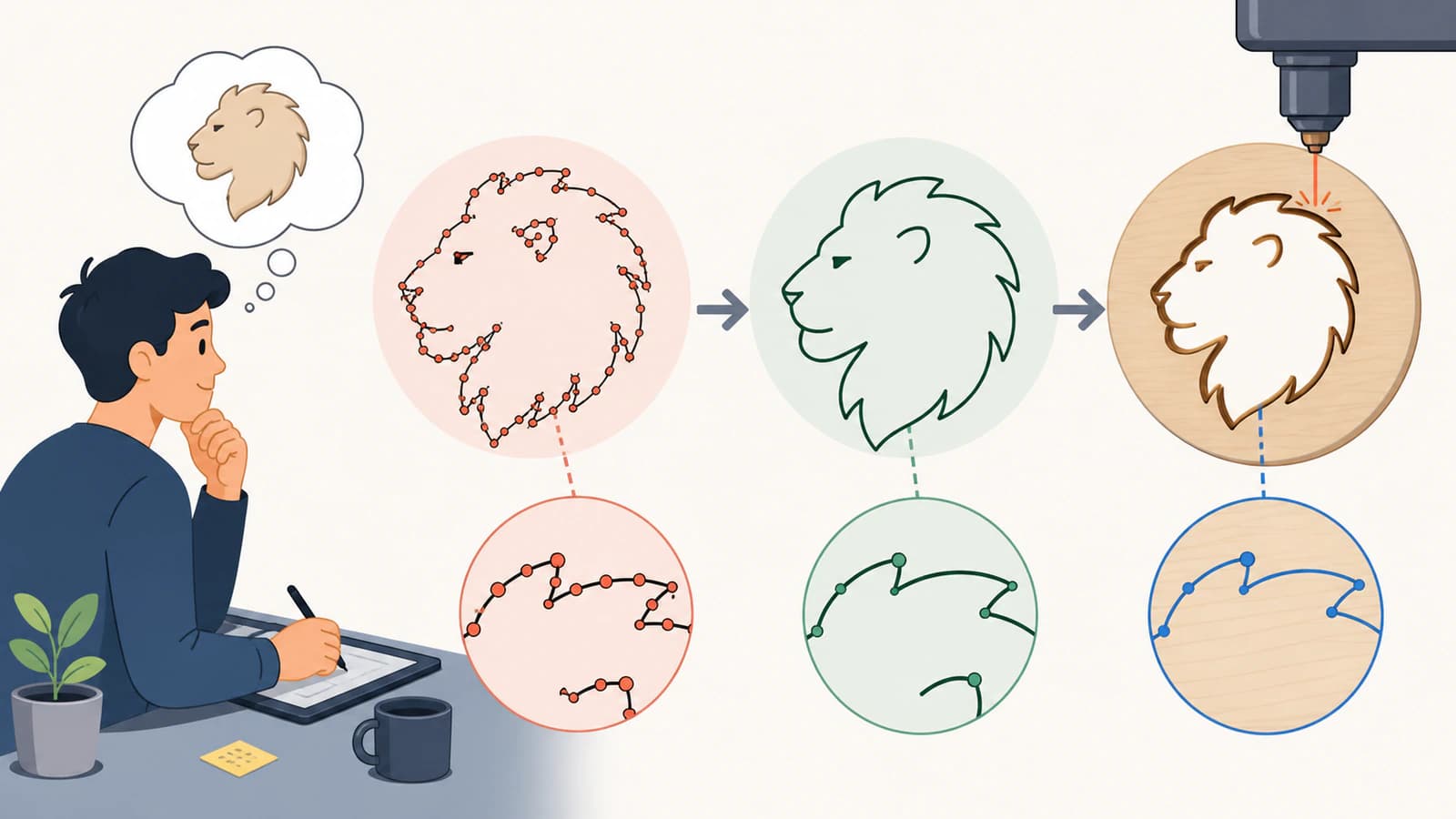
LaserGRBL's vectorization tool can turn a high-contrast raster image into paths for cutting or outlining. It uses Potrace: the threshold step separates black from white, then the tracer follows the borders of the black regions. That is why a filled silhouette often traces well and a thin raster line often becomes two outlines. (LaserGRBL Vectorization Tool)
The built-in tool is a practical choice for simple, clean artwork. An externally cleaned SVG can preserve more deliberate outline geometry, but LaserGRBL's SVG importer has important limits: convert text, replace fills with supported geometry, set size and position, and separate incompatible operations before import rather than expecting LaserGRBL to repair them.
The quick decision
- Use raster engraving when you want tones, shading, or a photograph-like result.
- Use LaserGRBL vectorization for a clean black silhouette or simple outline.
- Use a prepared SVG for exact outline geometry, but convert text to paths and do not rely on fills or per-layer operation mapping.
- Inspect the preview and run a scrap test before committing valuable material.
- There is no universal safe power or speed value for every machine and material.
What the LaserGRBL vectorization tool actually traces
The tracer does not understand that a dark mark is a "line" in the drawing sense. It sees a black region with boundaries. A broad black shape has one outer border and may have interior holes. A one-pixel or narrow brush stroke still has a left edge and a right edge, so both can become paths.
This model explains most unexpected results:
| Source image | Likely vector result | Better preparation |
|---|---|---|
| Solid black silhouette | One clean outer contour, plus any holes | Remove stray specks and keep the edge crisp |
| Thin raster line drawing | Two paths around each painted stroke | Use centerline artwork or accept an outlined stroke |
| Gray antialiased logo | Uneven borders or small fragments | Increase contrast and create a clean black-and-white source |
| Photograph | Many shapes or an unsuitable cut path | Raster engrave it or simplify it deliberately first |
Potrace itself is designed to transform bitmaps into smooth, scalable vector outlines. LaserGRBL exposes controls that influence the bitmap and the resulting paths before G-code is produced. (Potrace)
Set threshold before you simplify paths
Start with the black-and-white separation. If the threshold drops a pale but important region, no later smoothing setting can restore it. If it includes background texture, later controls have to fight geometry that should never have entered the trace.
Adjust brightness and contrast until the preview contains the intended shapes and excludes the background. Zoom into small counters in letters such as A, B, and O. Also inspect gaps between adjacent shapes. A threshold that closes those gaps can merge separate parts into one cut region.
For a weak photo or textured scan, decide whether vector cutting is the right operation before spending time on cleanup. LaserGRBL's raster import workflow includes separate modes for line-to-line and other image processing, so vectorization is only one of the available routes. (LaserGRBL Raster Image Import)
Use each cleanup control for a specific problem
LaserGRBL's official guide describes controls for removing spots, smoothing curves, simplifying geometry, and reducing source detail. They are related, but they do not solve the same defect.
| Control | Use it when | Watch for |
|---|---|---|
| Spot removal | Dust or tiny isolated regions create unwanted paths | Small intended dots and fine details can disappear too |
| Smoothing | Rough pixels make curves look nervous | Sharp corners can become rounded |
| Optimize | A trace has excessive segments and long G-code | Aggressive simplification can change tight geometry |
| Downsampling | A large source preserves pixel-level jaggedness | Small features can vanish |
| Adaptive quality | Detail should scale with the physical job size | Recheck the actual dimensions before export |
Change one control at a time. Compare the preview after each change and return to the source if cleanup starts erasing the design. If every useful setting is also destructive, preparing the artwork outside LaserGRBL is faster and easier to audit.
Fix double lines by choosing the geometry you need
Double lines are often an accurate outline of the raster pixels, not a software failure. LaserGRBL's documentation makes the same point: a rasterized line has two edges. It suggests filling closed shapes or trying centerline tracing, while noting that centerline results can be less accurate.
Choose among three outcomes:
- Filled engraving. Keep the region closed and use a fill pass when you want the interior marked.
- Contour cutting. Keep the outside boundary when the goal is to cut around a silhouette.
- Single-line scoring. Create or obtain actual centerline geometry when the machine should travel once along a line.
Deleting one side of every double outline by hand is rarely reliable. Corners, junctions, and closed loops make the two sides part of the same structural problem. The cutting double-lines guide shows how to diagnose overlapping and outlined paths before a job.
When a clean external SVG is still useful
An external SVG is useful when you need deliberate path structure rather than a fast trace. Typical cases include:
- a logo whose letterforms must remain exact;
- a cut file with tabs, bridges, or carefully sized slots;
- one outline-only job whose final size and position are already established;
- artwork with small negative spaces;
- a trace that remains noisy after reasonable cleanup.
LaserGRBL's official SVG FAQ describes SVG support as early in development and oriented toward Inkscape-compatible output. It does not support live text, shape fills, or different engraving and cutting behavior by layer or color. It also handles SVG size and offset as supplied instead of letting you change them in LaserGRBL. Convert text to paths, create any required hatch geometry externally, set final dimensions and placement in the source editor, and split incompatible operations into separate files or jobs.
Prepare the image as real paths, remove any embedded bitmap, and simplify only enough to preserve the intended shape. Too many nodes can make editing and downstream motion less predictable; too few can flatten curves. Use the SVG node cleanup guide when the trace looks correct but is needlessly dense.
If you begin with a PNG or JPEG, PerfectVector's image-to-SVG tool for laser cutting gives you a reconstruction workflow before LaserGRBL. Treat that result as artwork to inspect, not as machine settings. Confirm the silhouette, holes, scale, and path behavior in your destination workflow.
Check raster size, whitespace, and laser options separately
For raster imports and built-in vectorization, LaserGRBL's target-options page separates artwork preparation from machine configuration. The final size keeps the image aspect ratio and includes surrounding whitespace, which can make the visible design smaller than expected. Crop unnecessary empty space before import, then verify width, height, and offset in the target preview. (LaserGRBL Target Image Size and Laser Options)
Do not apply that raster-dialog guidance to an imported SVG. Set an SVG's final size and offset in the source editor because LaserGRBL handles the file as supplied.
Border and fill operations may use different speeds. LaserGRBL also exposes M3 and M4 modes, while upstream Grbl documents how laser mode changes motion and power behavior. Follow the instructions for your controller, laser, material, ventilation, and enclosure. Run a small material test when any of those variables change. (Grbl v1.1 Laser Mode)
A preflight before you start the job
- Confirm whether the job should engrave pixels, fill regions, cut contours, or score centerlines.
- Inspect the black-and-white preview for missing holes, merged shapes, and background specks.
- Check every small feature after spot removal, smoothing, or downsampling.
- Look for duplicate paths and double outlines.
- Verify physical dimensions, whitespace, and origin.
- Set machine parameters from tested guidance for your exact setup.
- Use appropriate ventilation and eye, fire, and material precautions.
- Test on scrap before the production piece.
FAQ
Does LaserGRBL vectorize images? Yes. Its Vectorization Tool uses Potrace to convert black raster regions into vector boundaries that LaserGRBL can turn into paths.
Why does LaserGRBL make two lines from one line? The raster stroke has two edges, and boundary tracing follows both. Use a filled silhouette for contour work or true centerline geometry for a single scoring pass.
Which LaserGRBL vectorization settings should I use? Start with threshold, then use spot removal for isolated noise, smoothing for rough curves, optimize for excess segments, and downsampling for overly detailed sources. Change one setting at a time and protect small features.
Should I vectorize inside LaserGRBL or import SVG? Use the built-in tool for simple high-contrast art. An externally prepared SVG can preserve exact outline geometry, but set its size and offset before import, convert text to paths, and do not expect fills or layer and color differences to assign operations.
What power and speed should I use for a vector job? Use tested values for your exact laser, controller, material, thickness, and operation. Do not copy a universal setting. Verify the manufacturer's guidance and run a controlled scrap test.
Sources
- LaserGRBL: Vectorization Tool — Official description of Potrace, cleanup controls, path ordering, fills, and double-line behavior.
- LaserGRBL: Target Image Size and Laser Options — Official size, offset, speed, power, M3, and M4 controls.
- LaserGRBL: FAQ — Official SVG import limitations for size, offset, text, fills, layers, and colors.
- LaserGRBL: Raster Image Import — Official overview of available raster-processing routes.
- Grbl: v1.1 Laser Mode — Upstream behavior and safety context for Grbl laser mode.
- Potrace — Primary project description of bitmap-to-vector outline tracing.
Need cleaner artwork before it reaches LaserGRBL? Convert the source to SVG for laser cutting, then inspect the paths, scale, and machine setup before you run the job.
More from the blog

SignLab Vectorize Image: Trace or Import Clean SVG?
Compare SignLab's native vectorization with an imported SVG. Learn how to prepare the bitmap, inspect paths, preserve holes, and test a production-ready file.

RDWorks Image Trace: Import a Vector or Trace Bitmap?
Compare RDWorks bitmap tracing with a version-compatible vector handoff, then check scale, layers, nodes, doubled lines, and laser operations.