Ignore Transparent SVG Areas in Konva Hit Detection
Make transparent SVG image areas ignore clicks in Konva. Reproduce cache-based hit detection, test holes and backgrounds, and rebuild hits after source changes.
On this page
- Separate the picture from its hit region
- 1. Save two complete SVG inputs
- 2. Load, cache, and log the actual targets
- 3. Click the solid area, hole, corner, and background
- 4. Rebuild the cache when the source changes
- Diagnose readback and targeting failures separately
- Keep artwork recovery separate from event wiring
- FAQ
- Sources
To make transparent areas of a Konva.Image ignore clicks, wait for its source image to decode, call imageNode.cache(), then call imageNode.drawHitFromCache(0) and redraw the layer. The cached scene's alpha, meaning pixel opacity, then determines which image pixels participate in hit detection.
A normal image node can receive events across its rectangle, including an empty SVG hole. Konva's Image Events tutorial demonstrates the alpha-based alternative. This article tests a hollow original SVG above a separately clickable background, so a hole that stops catching image clicks has a real underlying target to receive them.
This changes the canvas interaction area. It does not create editable Konva.Path nodes from the SVG or change DOM SVG pointer-events rules.
Separate the picture from its hit region
A hit region is the area Konva uses to choose an event target. Its shape can differ from the visible artwork. For some applications, a broad rectangular target is intentional; for others, transparent holes should let the user select a lower object.
| Intended interaction | Starting point |
|---|---|
| Select the whole image from anywhere in its rectangle | Default Image hit behavior |
| Let transparent image pixels reach an underlying node | Cache the image and build its hit region from alpha |
| Edit or attach independent actions to individual vector regions | Choose separate Konva paths and define their behavior |
| Control pointer targets inside inline DOM SVG | Use the separate SVG pointer-events guide |
The current Shape API takes an integer alphaThreshold from 0 to 255; its default is 0. Pass a number here, not a callback. This is distinct from the visual Threshold filter. The example uses 0 with fully opaque interiors and fully transparent holes; it does not establish a preferred threshold for soft shadows or antialiased edges.
1. Save two complete SVG inputs
Create an empty folder. Save this original hollow emblem as hollow.svg:
<svg xmlns="http://www.w3.org/2000/svg" width="240" height="180" viewBox="0 0 240 180">
  <path fill="#315d6f" fill-rule="evenodd"
        d="M20 30 L180 20 L215 60 L195 150 L35 160 L10 110 Z
           M80 65 L145 55 L160 110 L95 125 Z"/>
</svg>
The inner subpath makes a hole under the even-odd fill rule. Save the same outer shape without that inner subpath as filled.svg:
<svg xmlns="http://www.w3.org/2000/svg" width="240" height="180" viewBox="0 0 240 180">
  <path fill="#315d6f" d="M20 30 L180 20 L215 60 L195 150 L35 160 L10 110 Z"/>
</svg>
The second file is the source-change control. It paints the location that was previously empty. Neither file contains a white background rectangle or embedded bitmap.
2. Load, cache, and log the actual targets
The example uses Konva 10.9.0. Save these three files beside both SVGs. The HTML loads that pinned browser build; for a controlled project, you can serve the same build locally instead.
Save reader.html:
<!doctype html>
<html lang="en">
<meta charset="utf-8">
<title>Konva transparent image hit comparison</title>
<link rel="stylesheet" href="reader.css">
<main>
<h1>Transparent artwork: which node gets the click?</h1>
<p class="banner"><strong id="version">Loading Konva…</strong>. Original same-origin SVGs, actual Konva.Image nodes, and a separately clickable background. These are canvas hit pixels, not editable SVG path nodes. Desktop click test only; no mobile or accessibility audit.</p>
<div class="grid">
<section class="panel"><h2>1. Default rectangular hit</h2><div class="stage" id="default"></div><p>The hollow image still catches its transparent center and corner.</p><pre class="log" id="default-log"></pre></section>
<section class="panel"><h2>2. Cached alpha hit region</h2><div class="stage" id="alpha"></div><p>cache() then drawHitFromCache(0): the center and corner reach the background.</p><pre class="log" id="alpha-log"></pre></section>
<section class="panel"><h2>3. Opaque image fill</h2><div class="stage" id="fill"></div><p>A white fill behind this image is part of its cached scene. Its formerly empty pixels receive image hits.</p><pre class="log" id="fill-log"></pre></section>
<section class="panel"><h2>4. Replaced source, rebuilt cache</h2><div class="stage" id="updated"></div><p>The original hole is painted in filled.svg. Clear, replace, cache, and rebuild the hit region.</p><pre class="log" id="updated-log"></pre></section>
</div>
<p>Click these stage coordinates in each panel: solid (125,110), hole (195,130), transparent corner (305,55), and outside the image (20,20). The corner is inside the image viewport but outside its painted shape. Logs report actual click targets.</p>

</main>
<script src="https://unpkg.com/konva@10.9.0/konva.min.js"></script>
<script type="module" src="reader.js"></script>
</html>
Save reader.css:
body { margin: 32px; font: 16px/1.55 Arial, sans-serif; color: #183a42; background: #edf2ef; }
main { max-width: 1080px; margin: auto; }
h1 { font-size: 32px; margin-bottom: 12px; }
h2 { margin: 0 0 12px; font-size: 22px; }
p { margin: 10px 0; }
.banner { background: #dce8e4; padding: 18px; border-left: 5px solid #315d6f; }
.grid { display: grid; grid-template-columns: repeat(2, minmax(460px, 1fr)); gap: 20px; margin: 24px 0; }
.panel { background: white; padding: 20px; border: 1px solid #d1dbd5; border-radius: 12px; }
.stage { width: 420px; height: 260px; }
pre { white-space: pre-wrap; overflow-wrap: anywhere; background: #f8faf7; padding: 12px; }
table { border-collapse: collapse; width: 100%; margin-top: 20px; }
th, td { border-bottom: 1px solid #c9d5ce; padding: 10px; text-align: left; }
.log { min-height: 88px; margin-bottom: 0; font-size: 13px; }
Save reader.js:
const source = new Image();
source.src = './hollow.svg';
await source.decode();
const replacement = new Image();
replacement.src = './filled.svg';
await replacement.decode();

const clicks = [];
const scenes = [];
function makeScene(id, mode) {
  const stage = new Konva.Stage({ container: id, width: 420, height: 260 });
  const layer = new Konva.Layer();
  stage.add(layer);
  const background = new Konva.Rect({
    id: `${id}-background`, width: 420, height: 260, fill: '#eadfcd'
  });
  const artwork = new Konva.Image({
    id: `${id}-image`, image: source, x: 80, y: 40, width: 240, height: 180
  });
  if (mode === 'fill') artwork.fill('#ffffff');
  layer.add(background, artwork);
  if (mode !== 'default') {
    artwork.cache();
    artwork.drawHitFromCache(0);
  }
  layer.draw();
  const beforeUpdate = stage.getIntersection({ x: 195, y: 130 }).id();
  if (mode === 'update') {
    artwork.clearCache();
    artwork.image(replacement);
    artwork.cache();
    artwork.drawHitFromCache(0);
    layer.draw();
  }
  stage.on('click', (event) => {
    const point = stage.getPointerPosition();
    const record = {
      scene: id, x: point.x, y: point.y,
      target: event.target.id(), trusted: event.evt.isTrusted
    };
    clicks.push(record);
    document.getElementById(`${id}-log`).textContent +=
      `(${Math.round(point.x)}, ${Math.round(point.y)}) → ${record.target}\n`;
    document.dispatchEvent(new CustomEvent('fixture-click-recorded'));
  });
  const scene = { id, stage, artwork, beforeUpdate };
  scenes.push(scene);
  return scene;
}
makeScene('default', 'default');
makeScene('alpha', 'alpha');
makeScene('fill', 'fill');
makeScene('updated', 'update');
document.getElementById('version').textContent = `Konva ${Konva.version}`;
Serve this folder over HTTP rather than opening the HTML as a local file:
python -m http.server 8000Open http://localhost:8000/reader.html and wait for the four stages to appear. The 240 × 180 SVG is placed at stage coordinates (80,40) in each 420 × 260 stage. Each background is its own listening Konva.Rect, below the image. The stage's click listener reports event.target.id(), which identifies the chosen Konva node rather than merely the canvas DOM element.
await source.decode() runs before cache creation. Cache after the actual source is ready, not while the image is still loading. Konva's Node API documents the cache and clear-cache methods.
3. Click the solid area, hole, corner, and background
Test the four locations listed under the panels. These are coordinates within each stage, not coordinates measured from the browser window.
| Location | Stage coordinate | What it tests |
|---|---|---|
| Solid artwork | 125,110 | An opaque point well inside the emblem |
| Original hole | 195,130 | A transparent interior in hollow.svg |
| Transparent corner | 305,55 | Inside the image rectangle, outside its painted silhouette |
| Outside the image | 20,20 | The separately clickable background |
The following table records the tested target type. The logs include each panel's prefix, such as alpha-background.
| Configuration | Solid | Original hole | Transparent corner | Outside image |
|---|---|---|---|---|
| Default image | Image | Image | Image | Background |
| Cached alpha hit region | Image | Background | Background | Background |
| Cached image with opaque white fill | Image | Image | Image | Background |
| Replaced source and rebuilt cache | Image | Image | Background | Background |
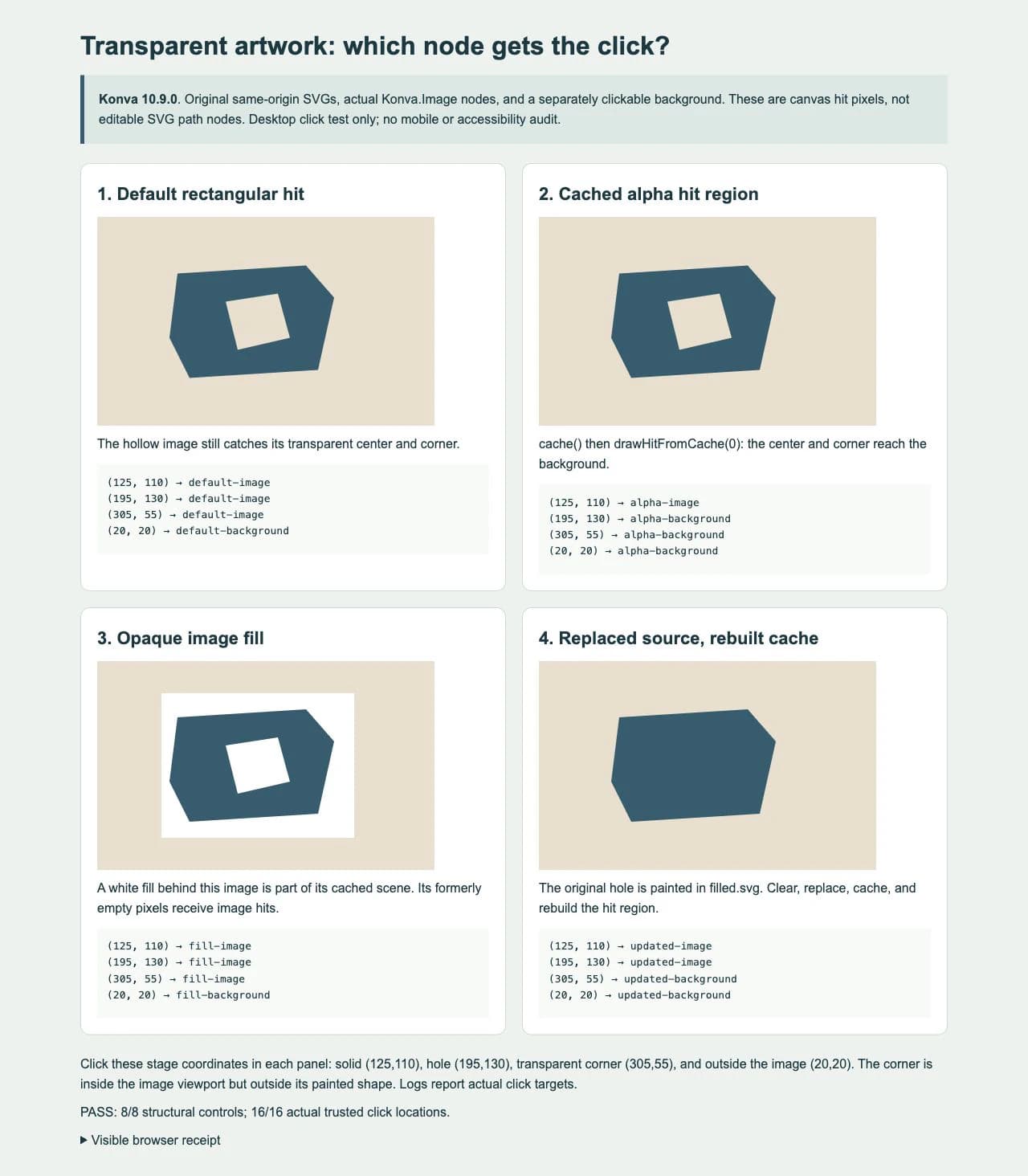
The browser test used real pointer clicks at all 16 locations and recorded native event trust, stage coordinates, and target IDs. It also checked the source-file hashes, image decode, stage and image dimensions, public intersection results, and native alpha samples from each image node's rendered canvas.
At the original hole, the hollow image node's alpha was 0. The opaque-fill and replaced-source controls had alpha 255 there. The separate page background did not make the hollow image itself opaque: it belonged to another Konva node below it. These are interior samples, away from antialiased boundaries.
This is one desktop browser test with simple original SVGs and untransformed stages. It does not establish mobile/touch behavior, keyboard interaction, a cross-browser matrix, performance gains, or a threshold that suits every soft-edged image. Repeat the click test at your app's actual displayed size and transforms.
4. Rebuild the cache when the source changes
The fourth panel starts with the hollow source and its alpha hit region. It then clears the cache, installs the already-decoded replacement image, caches again, and rebuilds the hit region. The original-hole location changes from the background to the image after that sequence.
The cache is a rendered snapshot. After a change that affects the rendered pixels, refresh the cached scene and its alpha-based hit region together. Do not assume assigning a different image has updated an existing cached hit region. For an asynchronously loaded replacement, wait for that replacement to decode before the sequence in the example.
The third panel isolates a different cause: artwork.fill('#ffffff') paints an opaque rectangle behind the image as part of that same image node. Building a hit region from that cached scene includes the painted area. Remove an unwanted image-node fill, then rebuild the cache and hit region. A white-looking region in your source file can also be actual opaque paint; inspect transparency before blaming hit detection.
Diagnose readback and targeting failures separately
| Symptom | Check first |
|---|---|
| The hole still logs the image | Confirm caching happened after decode, the hit region was rebuilt, and no opaque fill or source background covers the hole |
| Artwork changed but clicks still follow an old shape | Clear and rebuild the scene cache and alpha hit region after the source change |
| A pixel-read or tainted-canvas error appears | Check the image origin and response headers before interpreting any hit-test result |
| The whole image stops receiving events | Check listening, visibility, layer order, and whether another node is on top |
| A hole reaches the stage instead of a lower object | Confirm an intended listening object actually exists beneath that point |
| Canvas clicks work but keyboard operation does not | Design keyboard controls and semantics separately; alpha hit pixels do not provide them |
This fixture serves both SVGs from the same origin as the page. Cross-origin images require an origin-clean canvas for pixel readback. Konva's tainted-canvas guide explains using crossOrigin together with a server that permits the CORS request. Setting crossOrigin = 'anonymous' alone cannot grant access when the server does not allow it. This article did not run a cross-origin failure case.
Changing CSS pointer-events on the outer canvas does not choose which pixels inside a Konva.Image hit its internal nodes. Keep canvas targeting separate from DOM SVG pointer targeting. Also keep the SVG master: a cached hit map is pixel-based interaction data, not a replacement vector document.
Keep artwork recovery separate from event wiring
If your application only needs image placement and alpha-based hits, a suitable transparent raster image may already be enough. If only a PNG or JPG remains and the app needs editable path geometry too, PerfectVector's image-to-vector workflow can help recover an SVG candidate. Inspect the silhouette and holes, then choose the Konva representation and implement its events. This example used original native SVGs and did not perform a PerfectVector conversion.
Vectorization does not install listeners, build accessible controls, choose click targets, or keep caches synchronized. If an SVG master already exists, fix the interaction code directly. For a file that unexpectedly has a full rectangular image inside it, use the SVG embedded-raster check before assuming that its contents are separate editable paths.
FAQ
Why do transparent pixels in my Konva image receive clicks? A default Image node can use its rectangular area for hits. After the source is ready, cache it and use drawHitFromCache with an appropriate numeric alpha threshold, then redraw and test the actual targets.
What argument does drawHitFromCache take? The current API accepts an optional integer alpha threshold from 0 to 255, defaulting to 0. The tested example passes 0. It does not pass a callback or use the visual Threshold filter.
Why does a white fill make my SVG hole clickable again? An opaque fill on the Image node becomes part of its cached scene. The cached alpha then includes that painted area. Remove an unwanted fill and rebuild the scene cache and hit region.
Does an alpha hit region make SVG paths independently editable? No. The artwork remains one Image node. Use suitable separate Path nodes and an explicit scene model when your application needs individual vector-region controls.
Sources
- Konva: Image Events — Default image hit behavior and generating a hit region from cached artwork.
- Konva: Shape API — The current numeric alphaThreshold parameter and its range.
- Konva: Node API — Cache creation, clearing, event targets, and public node methods.
- Konva: Tainted canvas guide — Origin restrictions, CORS, and pixel-readback failures.
- Konva: SVG on canvas — Whole-image rendering versus separately constructed vector paths.
When editable geometry is missing, prepare an SVG candidate with PerfectVector, inspect its holes, and then test the intended Konva click targets and cache updates separately.
More from the blog
SVG Scatter Markers in Matplotlib: Check the Path
Use a simple SVG path as a Matplotlib scatter marker. Reproduce centering, orientation, holes, and size checks in actual SVG and PDF exports.

Add an SVG Watermark to an Existing PDF with Python
Merge an SVG watermark into an existing PDF with svglib, ReportLab, and pypdf. Check opacity, cropped pages, rotation, retained text, and overlay order.