
Image Vectorization API vs Potrace for Production
Compare a hosted image vectorization API with local Potrace. Use a tested monochrome trace and a two-color fixture to decide what fits your SVG workflow.
On this page
Potrace fits a local pipeline that can reduce each image to one foreground color and a background. A hosted image vectorization API fits an application that can upload images and wants an HTTP interface for the result. If your artwork needs multiple distinct colors, test those colors on the output before committing to either workflow.
Compare where the work happens
| Decision | Potrace on your own machine or server | PerfectVector Developer API |
|---|---|---|
| Input | The standalone CLI reads bitmap formats such as PBM, PGM, PPM and BMP. Prepare PNG or JPEG with a separate image tool. | The v1 API accepts eligible PNG, JPEG and WebP in a multipart upload. |
| Trace | The CLI thresholds pixels into foreground and background. Keep the preparation and cutoff under version control to reproduce a result. | Send the original raster and receive an SVG result. The service handles the tracing step. |
| Operations | Install the tools, allocate compute and record the results of each local invocation. | Manage an API key, use the default live concurrency limit and save SVGs before the result links expire. |
| Cost to run | Budget for your own compute, deployment and maintenance. | Live conversions use API credits on success. Test keys return a fixed sample SVG. |
The Potrace column describes the standard CLI, including its default monochrome tracing model. The API column describes PerfectVector v1. Other hosted services can have different input limits, billing and download rules. Potrace manual · PerfectVector API limits · PerfectVector results · PerfectVector API credits
What one Potrace pass did to two PNGs
We prepared two original 256 × 256 test images. One was a dark rounded mark with a transparent opening. The other had touching red and blue panels. We composited each PNG on white, converted it to a grayscale PGM and traced it with Potrace 1.16 at a black level of 0.5. The black level is the cutoff that separates dark foreground pixels from the light background.
| Source | What we inspected in the Potrace SVG | When that result fits |
|---|---|---|
| Dark mark with a transparent opening | One black path with two subpaths. In an ImageMagick render, the outside and center were transparent and the mark was opaque. | A monochrome silhouette whose opening needs to stay visible. |
| Touching red and blue panels | One black path with one subpath. Both panel centers rendered black. | A single silhouette. The original color boundary would need a separate preparation workflow if it matters. |
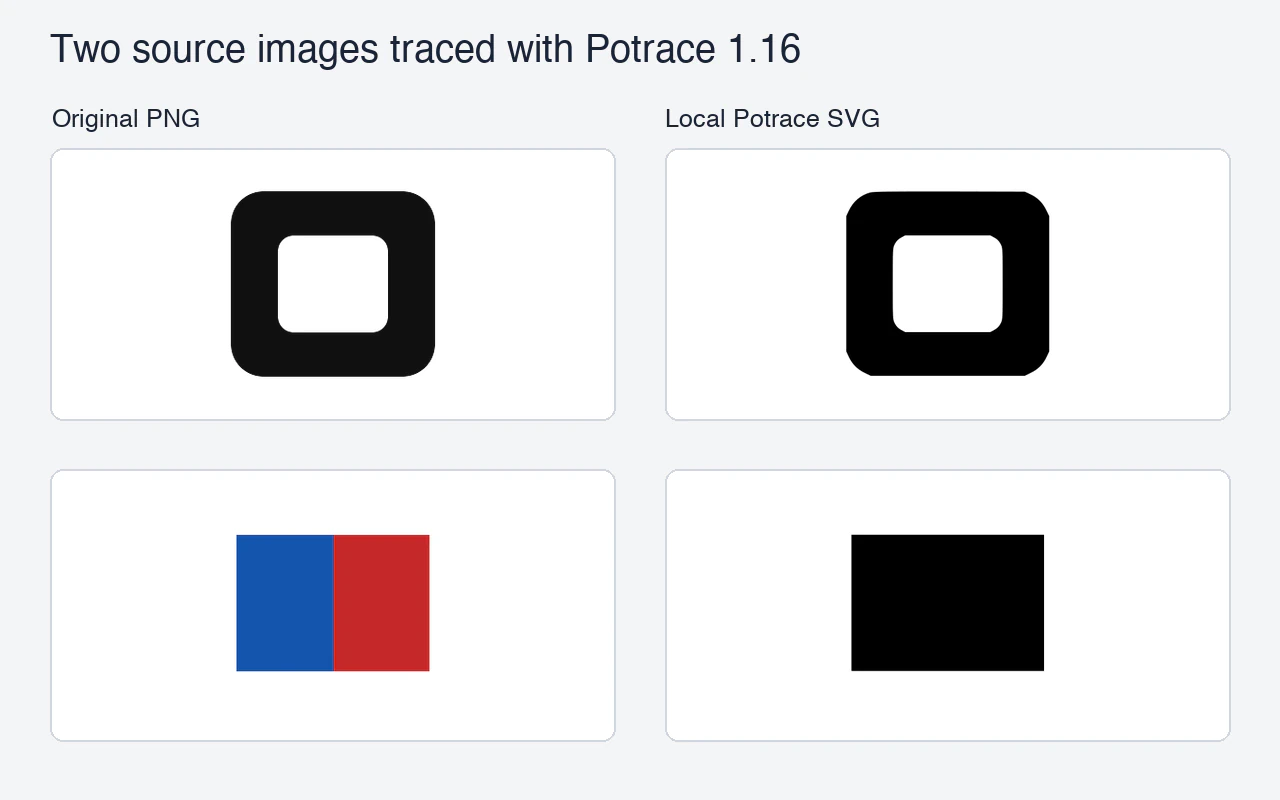
Both outputs contained paths and no embedded raster image. These observations come from two local traces. For a full command-line recipe, see how to prepare a PNG for Potrace.
Run a fair trial with your own files
Pick one monochrome mark with an important opening and one image with adjacent colors that must remain distinct. Write down the requirements before tracing. For example, the background should show through the opening, and the two adjacent colors should remain visible as separate regions at the size you actually use.
- Start both routes from the same original files. Document the matte, grayscale conversion and threshold for the Potrace route. Save its prepared bitmap along with the SVG.
- Use a PerfectVector test key to verify that upload, response handling and SVG download work. Its fixed sample SVG verifies the integration. Use a live key and the same original files to evaluate artwork quality. PerfectVector test mode
- Open both sets of outputs in the same target viewer or editor. Check the silhouette, color separation, openings and any embedded raster. Record where manual cleanup is needed.
We ran the local Potrace side and verified the hosted API contract in its documentation. The table above reports local output inspection. The trial steps let you measure hosted trace quality against the same source images in your own workflow.
FAQ
Can Potrace preserve a full palette in a single pass?
A standard Potrace pass traces foreground and background. For a color workflow, prepare separate masks for each intended color and assemble the traces, or evaluate a color-capable vectorizer on the same input. Potrace manual
Does a PerfectVector test key show how my logo will trace?
It returns the same sample SVG for eligible images. Use it to verify the request and download flow. A live conversion traces the image you sent. PerfectVector test mode
Sources
- Potrace — Manual — Standard CLI inputs, thresholding and SVG output.
- PerfectVector — API limits — Accepted image files and default in-flight limits.
- PerfectVector — Results — SVG downloads and their expiry.
- PerfectVector — API credits — Successful live conversions and API credit accounting.
- PerfectVector — Test mode — Fixed sample output and the difference between test and live conversion.
Open the PerfectVector Developer API and try one of your own source files with a test key. Once the sample download works, use a live conversion to compare that source's important openings and colors with your local result.
More from the blog

ImageMagick PNG to SVG: Check the Tracing Delegate
Find out whether your ImageMagick PNG-to-SVG command creates paths, which tracing delegate it uses, and why a color image can become a monochrome SVG trace.

VTracer PNG to SVG: Check Colors and Small Details
Convert a PNG with the tested VTracer CLI, compare palette and speckle settings, and inspect which colors and small regions remain in the actual saved SVG.