When to Mirror Vinyl: Follow the Carrier Side
Follow the carrier and final viewing side to choose vinyl mirroring. Check ordinary HTV, adhesive decals, printable exceptions, and accidental double flips.
On this page
For ordinary cut heat transfer vinyl (HTV), mirror the artwork because the cutter works from the back and the design is turned over for application. For an ordinary adhesive decal viewed from its applied side, keep the cut artwork right-reading. The useful question is which side you cut and which side the finished viewer sees.
Start with the exact material instructions. Printable iron-on, specialty films, and inside-glass applications can change the route. A material name containing “iron-on” is not enough to choose the mirror setting.
This guide follows one asymmetric design through those orientation decisions. It covers the artwork check before cutting; use the selected material's instructions for loading, cutting, and application settings.
Keep a right-reading master
Keep the approved design in its normal reading direction. Make the production reflection in one controlled place, then compare the final mat preview with the material instructions. A file flipped in the editor and reflected again for cutting returns to its original orientation.
Why ordinary HTV needs a reflected cut
A carrier holds the cut pieces in their relative positions during transfer. In the ordinary cut-HTV workflow, that carrier is already attached to the front of the material. The cutter reaches the vinyl from the other side; application turns the design over so its adhesive faces the base material.
Cricut's mirroring guide describes liner-side-down cutting for most iron-on and Infusible Ink materials, with mirroring so the transferred design appears correctly. Follow the instructions for your actual sheet rather than identifying its working side from shine alone.
For the ordinary workflow, imagine a right-pointing arrow beside a letter F. The cut preview should show the reflected version. Turning the cut design over for application restores the intended F and right-pointing arrow when viewed from the finished front.
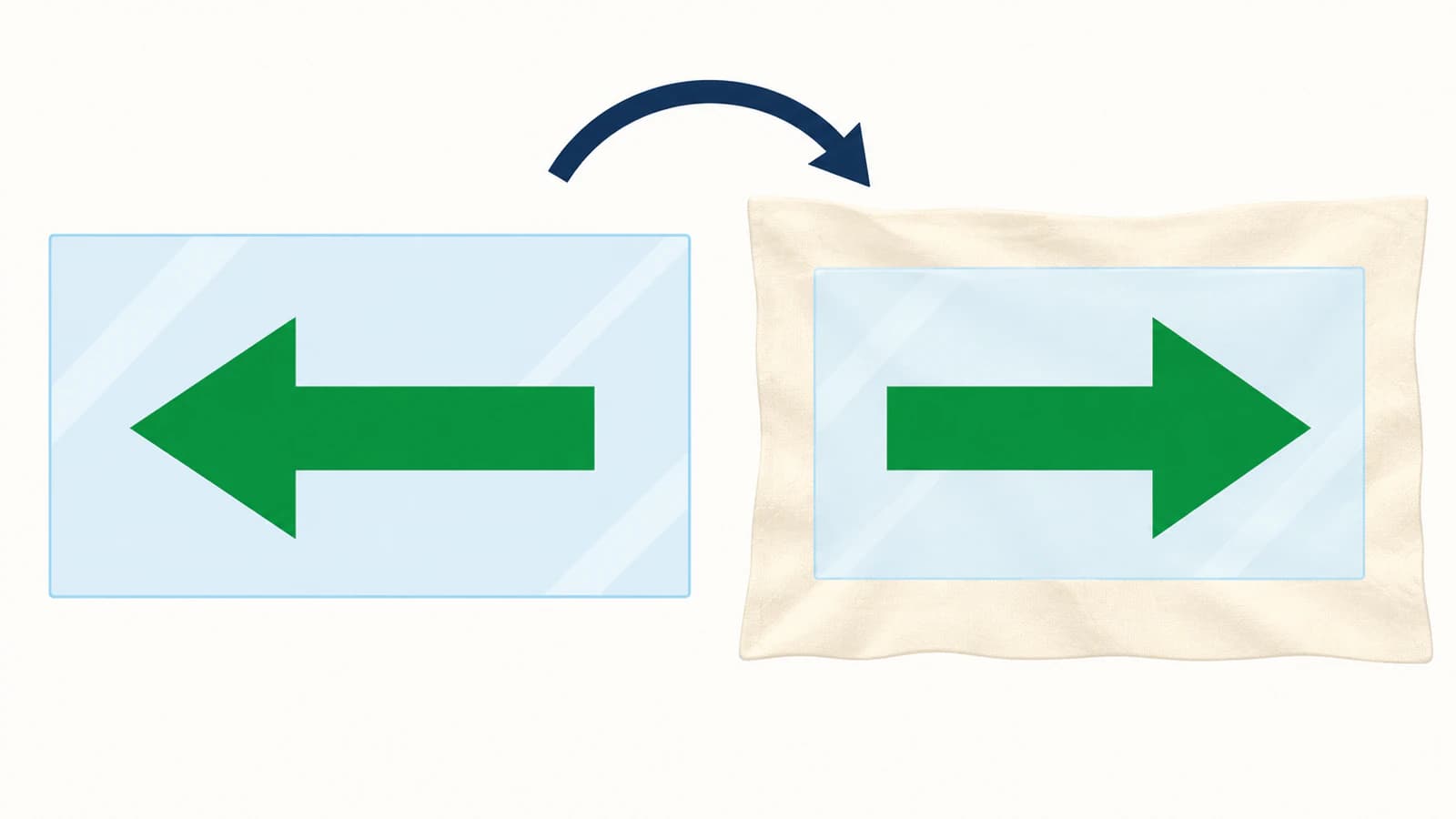
Why ordinary adhesive vinyl stays right-reading
For an ordinary adhesive decal, the cutter reaches the visible vinyl face while the backing protects the adhesive. Transfer tape then holds the weeded pieces from their front while the backing is removed. Placing the adhesive on the surface leaves the same front available to the viewer.
Threadart's material comparison describes that separate transfer-tape workflow and contrasts it with cutting HTV from the back. Transfer tape is a positioning aid; its presence does not by itself mean the cut file needs reflection.
| Ordinary workflow | Starting artwork | Cut-art orientation | Finished viewing side |
|---|---|---|---|
| Cut HTV following liner-side-down instructions | Right-reading master | Reflected | Front after the application turnover |
| Adhesive decal applied and viewed on the same side | Right-reading master | Right-reading | Original visible vinyl face |
| Adhesive decal applied inside glass, viewed from outside | Right-reading master | Requires a separate viewing-side decision | Opposite side through the glass |
| Printable or specialty material | Right-reading master | Use its exact instructions | Depends on its application method |
The car decal guide covers the inside-window exception. Do not transfer that exception to every adhesive project: decide where the viewer stands in relation to the applied decal.
One reflection and two reflections produce different files
We built an original native SVG with an F and an arrow, using a 100-unit-wide coordinate area. A horizontal reflection maps an x coordinate to 100 − x while leaving y unchanged.
The arrow tip starts at x = 90. One reflection puts it at x = 10. A second reflection puts it back at x = 90. The same calculation restored every tracked landmark of the F.
| Digital preparation | Arrow tip x coordinate | Orientation relative to the master |
|---|---|---|
| Original SVG | 90 | Original |
| One horizontal reflection | 10 | Reflected |
| Two horizontal reflections | 90 | Original again |
Method: We applied those transforms to an original SVG and checked the landmark coordinates. This demonstrates reflection arithmetic. It is not a Design Space import, cutter trial, or proof of material application.
That is the double-mirror trap: flipping the artwork in the editor and enabling a second production reflection can cancel the first. Keep an unflipped master so you always have something reliable to compare.
Check the final preview after choosing the material
Design Space can change mirroring when you select a material. Cricut documents Auto Mirror for applicable heat-transfer materials, with ordinary vinyl disabling it. An earlier preview is therefore not your final check.
For a new cut file:
- Identify the material and the finished viewing side. Use the sheet's product name and instructions. Decide whether the viewer sees the application side or looks through a transparent surface.
- Compare the imported artwork with the master. Confirm the words and asymmetric shapes have not already been reversed. Check size separately from direction.
- Select the intended material and inspect each relevant mat. Compare the displayed cut direction with the material's required route. Cricut's mirroring guide calls for checking Mirror for each mat individually.
- Stop if the direction is unexplained. Return to the source, remove an accidental editor flip, or correct the production setting. Reopen the preview and compare again before cutting.
Use a distinctive letter and a directional shape in a separate planning reference if the design is otherwise symmetrical. Keep reference marks outside the production cut file unless you deliberately want to cut them. A circle cannot tell you whether a reflection occurred; an F can.
For the rest of the geometry checks, continue with preparing SVG files for Cricut. Correct orientation cannot fix a missing hole, stray background shape, or unwanted duplicate contour.
Printable iron-on is a real exception
Cricut's current Printable Iron-On instructions explicitly say not to mirror the design and to load the printed material printed-side up. Those instructions describe peeling the design from its liner and placing it on the base material.
Do not apply the ordinary cut-HTV rule to that named product. Equally, do not generalize this printable product's instructions to every transfer paper or specialty film. Read the instructions that match the package in front of you.
If your job prints a picture and cuts around it, the Print Then Cut SVG-or-PNG guide explains the separate artwork-format decision. A photograph may remain raster even though its outer cutting contour is vector.
Where PerfectVector fits
If your custom cut design exists only as a suitable flat PNG or JPG, PerfectVector can recover SVG paths for the Cricut workflow. Inspect the traced lettering, openings, and small pieces against the source before deciding the cut orientation. Keep that reviewed SVG as the right-reading master.
Vectorization and reflection are different operations. PerfectVector's role here is reconstructing the contours from pixels; it does not choose the carrier side, identify your material, or prove that a setting in the cutter's software is correct. If you already have the original vector or can type the text with the correct font, begin there instead of tracing a screenshot.
FAQ
Does transfer tape mean I should mirror adhesive vinyl? No. In the ordinary same-side adhesive-decal workflow, transfer tape holds the design from its front while the backing is removed. Choose direction from the material instructions and the final viewing side.
Can I flip the SVG before importing it? You can reflect its geometry, but keep an unflipped master and account for any later reflection in the cutting workflow. Two horizontal reflections restore the original direction.
Should every iron-on design be mirrored? No. Ordinary cut HTV commonly uses a reflected cut, while Cricut's current Printable Iron-On instructions say not to mirror. Follow the instructions for the exact product.
Sources
- Cricut — How to mirror your design in Design Space — Explains liner-side cutting, heat-transfer orientation, and per-mat mirroring.
- Cricut — How Auto Mirror Works in Design Space — Describes changes tied to material selection and manual overrides.
- Cricut — Printable Iron-On Instructions — Establishes the named printable product's no-mirror, printed-side-up workflow.
- Threadart — Heat transfer vinyl and adhesive vinyl — Contrasts the attached HTV carrier with separate adhesive-vinyl transfer tape.
Starting from flat raster artwork? Create your SVG cut-file master, compare its contours with the source, then check its final direction after selecting the material in your cutter's software.
More from the blog

How to Make a Sticker SVG (From Your Own Art, Ready to Cut)
A sticker SVG is the clean cut path behind a die-cut sticker. Here's how to turn your own image into one, when you need a vector vs a PNG, and what won't work.

SVG Score Lines vs Cut Lines: Read the Geometry
Read SVG fold geometry before assigning Score or Cut. Compare open paths, filled bands and dashed marks, then check the documented Cricut operation workflow.