Can Pixelmator Pro Vectorize an Image? What Works
Pixelmator Pro draws and edits vector shapes but does not document automatic raster tracing. Learn what SVG export does and choose a practical vector workflow.
On this page
- Four jobs that get called vectorizing
- What Pixelmator Pro can do with vectors
- Manual tracing is a real vector workflow
- Why SVG export is not the same as image trace
- Choose the right route for the source
- Use Pixelmator Pro's Pen and Shape tools when
- Use an external vectorizer when
- Keep the source raster when
- A clean external-vectorizer handoff
- Pixelmator Pro compared with nearby design apps
- FAQ
- Sources
Pixelmator Pro works with real vector shapes, but its current documented workflow does not include an automatic tracer that turns a placed PNG or JPEG into editable paths. You can draw over an image with the Pen and Shape tools, edit vector layers, export SVG, or open an SVG made elsewhere. For automatic raster reconstruction, use a tracing tool first and bring the resulting SVG back into Pixelmator Pro.
That distinction matters because an .svg filename does not prove that the pixels were traced. Pixelmator Pro's current vector-shape guide documents drawing and editing paths, while a current capability discussion reaches the same practical answer: trace manually or use an outside vectorizer when the source is raster.
The quick version
- Automatic image trace: Pixelmator Pro does not document a built-in command comparable to Illustrator Image Trace.
- Manual vector work: Yes. Its Shape and Pen tools create editable vector paths.
- SVG export: Yes, but export does not automatically rebuild raster pixels as paths.
- Practical handoff: Trace suitable artwork externally, inspect the paths, then open the SVG in Pixelmator Pro.
Four jobs that get called vectorizing
Search results blur several different operations together. Decide which one you need before choosing a command.
| Your goal | Pixelmator Pro route | Does it reconstruct raster pixels as paths? |
|---|---|---|
| Draw a clean logo or icon by hand | Pen and Shape tools | Yes, because you create the paths yourself |
| Edit shapes or text that are already vector | Edit the existing vector layer | No new trace is needed |
| Save existing vector content as SVG | File > Export, then choose SVG | No new trace is implied |
| Turn a flattened PNG or JPEG into editable shapes automatically | Use a dedicated tracer, then open the SVG | Yes, if the resulting file contains real paths |
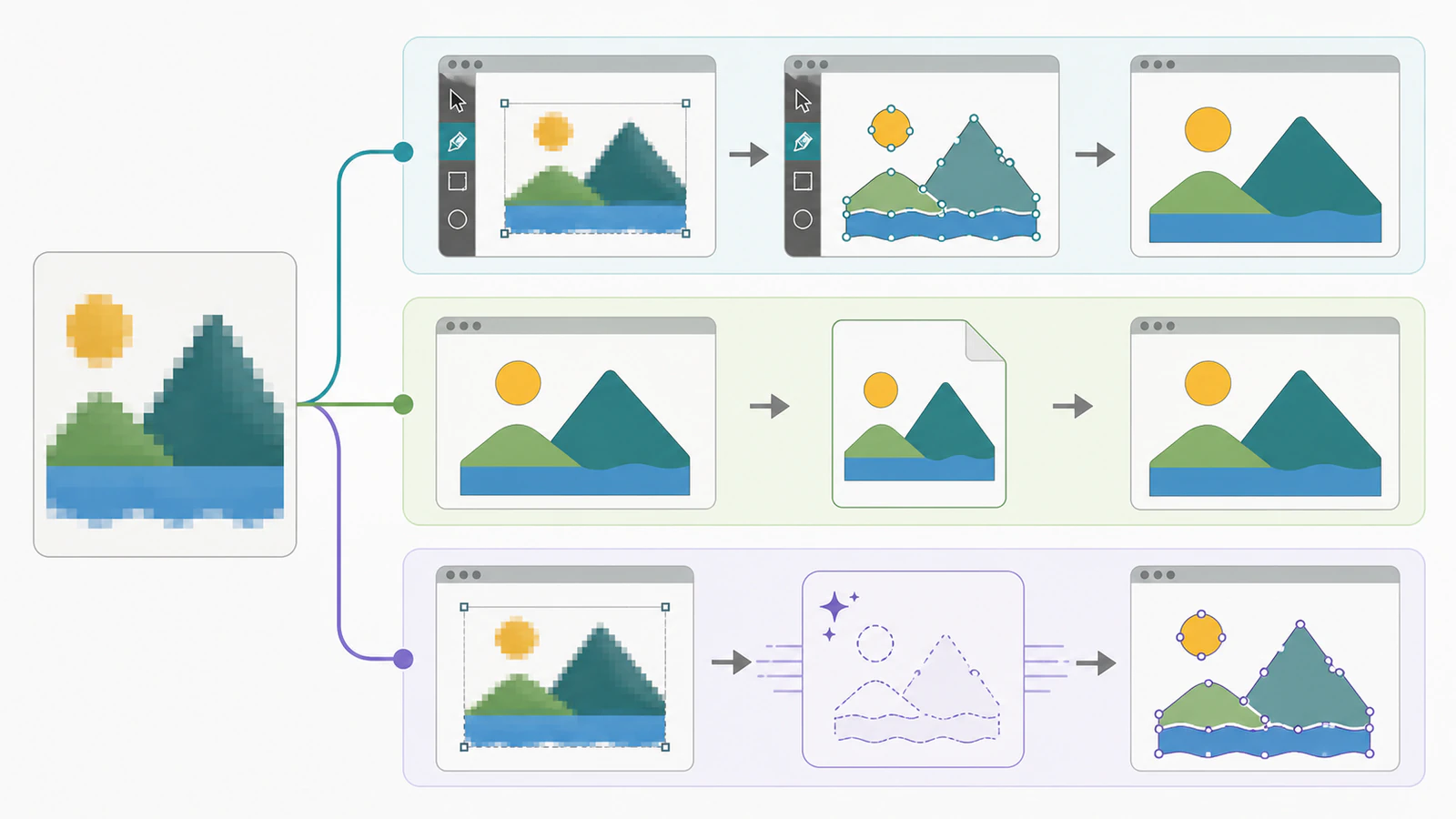
What Pixelmator Pro can do with vectors
Apple's guide says shapes, text, and Pen-tool illustrations are vector layers. These layers contain paths that can be resized and edited without the fixed pixel grid of a photo. A Pixelmator Pro document can also contain raster layers such as images, masks, and paintings beside those vectors. Apple's rasterization guide makes the boundary explicit: the documented conversion command is Convert to Pixels, which turns a vector layer into a raster layer so pixel-editing tools can act on it.
That direction is the clue. The app gives you capable vector drawing and editing tools, but those tools do not amount to an automatic reverse command for rebuilding every pixel region as a path.
Manual tracing is a real vector workflow
For a small logo, icon, or geometric mark, place the raster as a reference and redraw it with the Pen and Shape tools. Manual tracing takes longer, but you decide where every corner and curve belongs. It is often the safer route when exact geometry matters more than preserving every irregularity in the source.
If you are choosing between manual control and automatic reconstruction, the Image Trace versus AI vectorizer comparison gives you a practical set of criteria: visible fidelity, path structure, and the cleanup the file still needs.
Why SVG export is not the same as image trace
Pixelmator Pro's export guide lists SVG as an available format. That is useful when the document already contains vector shapes. It does not mean that every raster layer becomes a new set of editable paths simply because the container is SVG.
The SVG standard allows an SVG document to include raster content through an <image> element. In other words, a file can end in .svg and still display an embedded PNG or JPEG. If that raster is the artwork you needed to vectorize, changing the container has not completed the job.
Use this short audit after export:
- Open the SVG and select the artwork. Real vector content should expose paths, shapes, or nodes rather than one image rectangle.
- Zoom in. Vector edges should be calculated from paths, while an embedded raster will eventually reveal its pixel grid.
- Try changing one fill or moving one node. If the artwork behaves as one image object, it was not reconstructed as editable shapes.
- Keep the original Pixelmator document until the receiving app passes the same checks.
For a deeper file inspection, check whether the SVG contains a raster image before sending it to a client, printer, or cutting workflow.
Choose the right route for the source
Use Pixelmator Pro's Pen and Shape tools when
- the artwork is simple enough to redraw cleanly;
- exact corners, circles, or brand geometry matter;
- the source is rough and requires design judgment;
- you want direct control over each path from the start.
Use an external vectorizer when
- the source is a flattened logo, icon, line drawing, or flat illustration;
- you want an automatic first result before manual cleanup;
- the image has several color regions that would be slow to rebuild one at a time;
- you plan to compare the result with a manual redraw before choosing.
Keep the source raster when
- it is a photograph or relies on continuous tone;
- texture, grain, soft shadows, or subtle gradients are the point;
- you only need a web image at a known size;
- editable paths would not improve the final use.
Automatic vectorization interprets an image as shapes. It is most useful when the source already behaves like graphic artwork. If you are new to that distinction, what image vectorization means explains what changes and what stays approximate.
A clean external-vectorizer handoff
Pixelmator Pro's supported-format guide lists SVG among the file types it can open and work with. That makes a dedicated tracer a practical first step rather than a replacement for the editor.
- Start with the largest, cleanest version of the raster artwork you control.
- Vectorize it with a tool built to reconstruct images as paths.
- Inspect the result for edge fidelity, useful color separation, sensible node placement, and any embedded raster object.
- Open the verified SVG in Pixelmator Pro.
- Correct colors, move shapes, or redraw any geometry that needs exact creative judgment.
PerfectVector fits the external-tracing branch. Upload the original raster, inspect the reconstructed shapes in the preview, and export the SVG only if its edges, colors, and paths suit the job. Pixelmator Pro can then handle the continuing design work.
This workflow also keeps the decision honest. A dedicated vectorizer can give you an automatic starting point, but it cannot know which tiny irregularity is intentional or whether a logo corner should be mathematically exact. Check the file instead of treating the first result as final.
Pixelmator Pro compared with nearby design apps
The capability pattern differs by application. Photoshop has manual path tools but no automatic multi-color tracer. The current unified Affinity app now includes Image Trace, while older Affinity Designer versions do not. Pixelmator Pro sits on the manual-vector and SVG-editing side of that split in its current documented workflow.
The practical question is not whether an app uses the word vector somewhere in its menus. Ask whether it reconstructs the raster artwork you placed, whether the output contains paths, and how much cleanup those paths require.
FAQ
Does Pixelmator Pro have Image Trace? Pixelmator Pro's current documentation covers vector shapes, Pen-tool paths, vector editing, SVG export, and rasterization, but it does not document an automatic raster-trace command comparable to Illustrator Image Trace. Trace manually or use an external vectorizer for a flattened image.
Can Pixelmator Pro export SVG? Yes. SVG is available in Pixelmator Pro's export formats. Export works directly for vector content that already exists, but an SVG file can still contain embedded raster pixels, so inspect the result before calling it a traced vector.
Why does my Pixelmator SVG still look pixelated? The exported SVG may contain the original raster image rather than reconstructed paths. Select the artwork, zoom in, and check for editable nodes or shapes. If it behaves as one image rectangle, trace the raster itself or redraw it manually.
Can I open an SVG from another vectorizer in Pixelmator Pro? Yes. Apple's supported-format guide lists SVG as a format Pixelmator Pro can open and work with. Verify the paths in the tracing tool first, then continue editing shapes and colors in Pixelmator Pro.
Should I trace manually or use a dedicated vectorizer? Trace manually when the artwork is simple, exact geometry matters, or the source needs design judgment. Use a dedicated vectorizer for a quick first pass on flat artwork, then inspect and correct the result before production.
Sources
- Apple Support — Draw vector shapes and graphics in Pixelmator Pro — Documents Shape and Pen-tool vector paths and their editing behavior.
- Apple Support — Rasterize vector layers in Pixelmator Pro — Defines vector and raster layer types and the Convert to Pixels direction.
- Apple Support — Export photos, videos, and documents — Lists SVG among the current export formats.
- Apple Support — Media formats supported in Pixelmator Pro — Confirms that Pixelmator Pro can open and work with SVG files.
- W3C — SVG 2 embedded content — Defines how an SVG image element can reference raster PNG or JPEG content.
- MacRumors Forums — Convert raster image to vector with Pixelmator Pro help — Current user discussion that distinguishes manual tracing and SVG export from automatic raster conversion.
- PerfectVector — Image to Vector — Current first-party description of the external vectorization and path-inspection workflow used in the handoff.
Run the original image through PerfectVector, inspect whether it became useful editable paths, then open the SVG in Pixelmator Pro and continue the design there.
More from the blog

Illustrator Image Trace Greyed Out: Check the Object
Check whether Illustrator selected a raster image, a live trace, or expanded paths. Recover the right source before fixing an inactive Image Trace panel.

AI SVG Generator vs AI Vectorizer: Which Do You Need?
An AI SVG generator makes a new vector from a text prompt. An AI vectorizer converts the image you already have. Here's how to pick, and when you need both.