Can InDesign Vectorize an Image? Place Clean Vectors
Use InDesign's Capture Shapes for black-and-white vectors, separate clipping from tracing, and choose placed artwork or editable PDF conversion for your layout.
On this page
- Choose the operation before changing the file
- Try Capture Shapes for a black-and-white vector
- A clipping path changes visibility, not the picture's contents
- Place artwork when you want it to remain a separate asset
- Open a PDF for editing when its existing content is the starting point
- Trace the raster artwork only when that is the missing step
- Exporting PDF does not make every object vector
- FAQ
- Sources
Yes, InDesign can extract a black-and-white vector graphic through its Adobe Capture extension. It can also derive a clipping boundary from an image. Those operations differ from rebuilding a full-color PNG or JPG as editable colored paths, which calls for a suitable image tracer or a redraw.
A PDF needs a different first question: does it already contain the vectors you need? Current InDesign documentation includes a PDF-to-editable-document workflow. Advice that you can only place every PDF as an untouchable graphic is now incomplete. Adobe's PDF conversion guide distinguishes opening a PDF for editing from placing it on a page.
Choose the operation before changing the file
Suppose you are preparing a reading-club flyer with an owl illustration, a sponsor logo, and a photo. Those three objects do not need the same treatment.
| What you have or need | Useful operation | What to check afterward |
|---|---|---|
| A photo that needs a shaped crop | A frame or clipping path | The visible boundary and the photo's resolution |
| A monochrome image that needs vector shapes | Try Capture Shapes within InDesign | Detail, unwanted marks, and saved library asset |
| A full-color PNG illustration that needs its outlines changed | Trace or redraw the artwork | Actual paths, interior gaps, and unwanted shapes |
| An existing SVG, AI, or vector PDF for page layout | Place the vector asset | Correct file, crop, scale, and appearance |
| A PDF whose page content needs editing | Try the supported PDF conversion workflow | Reconstructed text, graphics, fonts, and effects |
| A finished layout containing photos and vectors | Export the required PDF | Both the raster images and the vector content |
Adobe lists SVG/SVGZ, AI, and PDF among supported Place formats. Support for placing a format does not, by itself, tell you which parts of its artwork become native editable objects. Supported InDesign file formats
If the sponsor supplied a clean vector original, preserve it. A screenshot of that logo creates a new tracing problem that the original file did not have. If the concern is only a fuzzy layout preview, work through the pixelated-logo checks before rebuilding the artwork.
Try Capture Shapes for a black-and-white vector
Adobe documents a Capture extension inside InDesign. Place and select an image, then right-click it and choose Extract from Image > Shapes. The Shapes controls let you adjust Detail, invert black and white, erase unwanted areas, and enable Smooth On Save. Save the result to CC Libraries. Adobe's Capture plugin guide
This is a real image-to-vector route, not just a frame around the original picture. The documented InDesign Shapes workflow creates a black-and-white graphic, so judge whether that interpretation suits the artwork. Extracting a color theme is a separate operation; it does not turn this workflow into a full-color trace. For the monochrome owl, try the native option before deciding you need another tool.
A clipping path changes visibility, not the picture's contents
InDesign's Detect Edges option derives a clipping boundary from light or dark areas in an image. You can adjust that boundary or convert a clipping path into a frame. These are useful ways to crop a picture around its subject; they do not reconstruct every black line, white region, or colored detail inside it. Adobe's clipping-path guide
There is a useful narrow exception: with suitable high-contrast artwork, a derived boundary can become an editable, fillable silhouette after you convert it to a frame and remove the picture. Include Inside Edges can retain relevant interior boundaries, with cleanup as needed. That can be enough for a simple monochrome mark; it does not reconstruct general multicolor artwork.
For the owl on a flyer, imagine two different requests. “Show this picture through a circular window” is a clipping task. “Change the shape of the owl's eyes while preserving the book” requires access to the artwork inside the picture.
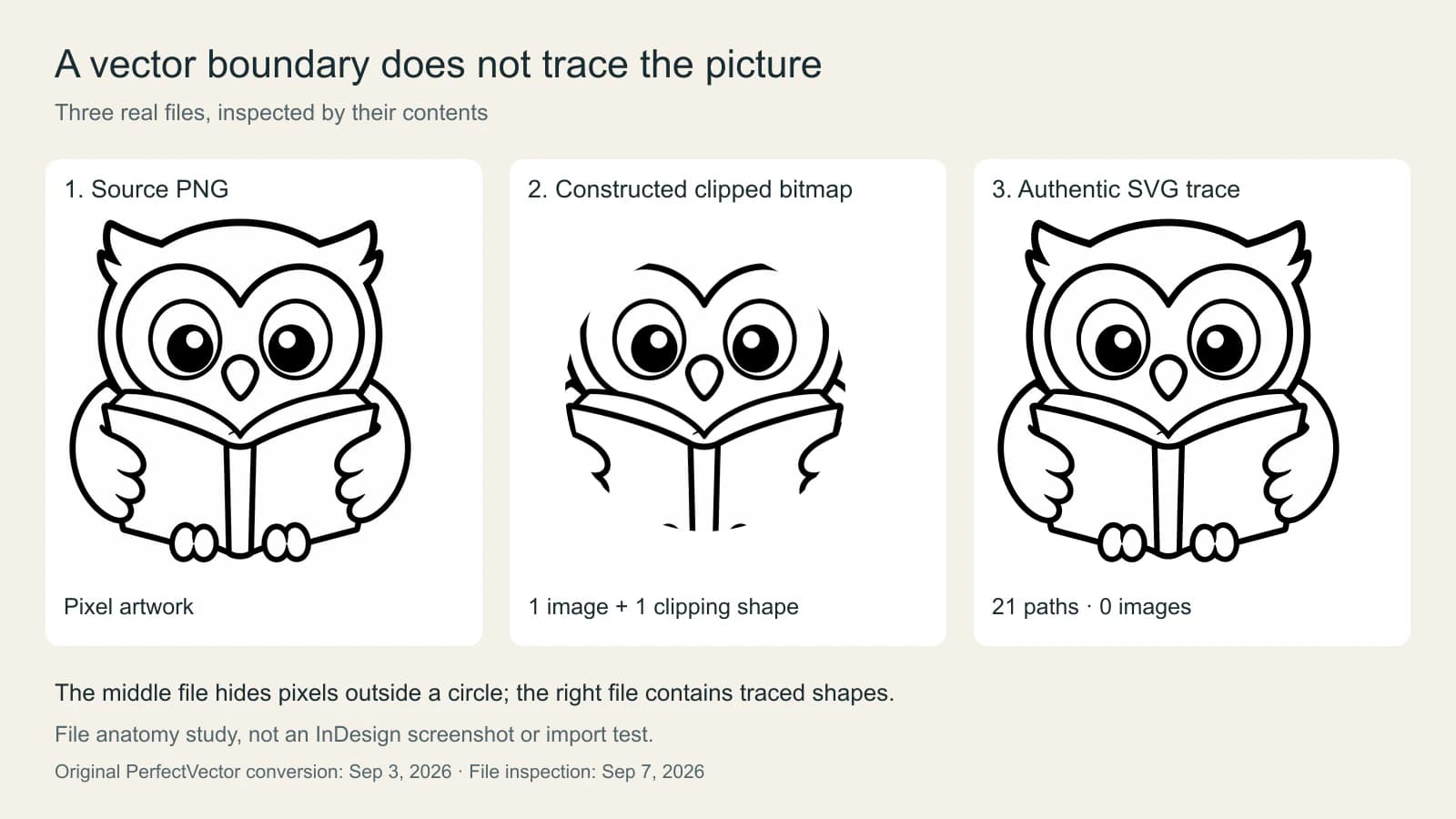
The middle file really is an SVG, but its picture is still an embedded PNG. Its one clipping shape controls what you see. The traced file has 21 path elements and no image elements, so the visible artwork is represented by paths instead of an embedded bitmap.
Those counts describe this sample only. Its two fills are black and near-white; a white-looking area is not automatically a transparent hole. The production SVG had only its full-canvas background path removed after conversion. It was not manually rebuilt into named eyes, wings, and book layers.
That is the useful inspection habit: look beyond the extension and ask what the file contains. Even a path-only trace may need cleanup before a specific edit becomes convenient.
Place artwork when you want it to remain a separate asset
For a finished illustration, keeping the artwork in its vector editor and placing it in InDesign gives you a clear division of work: edit the drawing at its source, then update the layout's linked asset.
Use File > Place, enable Show Import Options when needed, and choose the asset. For PDF and Illustrator files, Adobe documents options for selecting pages or artboards, choosing a crop boundary, and controlling relevant layer visibility. These controls determine which part of the asset enters the layout. They are not a promise that placing it will expose every internal path for drawing edits. Adobe's import options
Before proceeding, perform the edit you actually need. Can you move the whole illustration to the next column? Can you change an individual contour? Those are different requirements. A successful placement can satisfy the first while leaving the second better handled in the source editor.
For a print handoff, choose the deliverable the recipient requests rather than converting everything to the same extension. The image-to-AI print-shop guide explains the difference between usable vector artwork and merely putting an image inside a design file.
Open a PDF for editing when its existing content is the starting point
InDesign now documents File > Open PDF as a route to an editable InDesign document. It also documents a choice between Open PDF and Place PDF during PDF placement. The former converts the document for editing; the latter inserts the PDF as an image. The conversion requires an internet connection and an Adobe account. Adobe's PDF conversion instructions
Try this on a copy of the document when you need to revise a supplied page. Compare the converted result with the original before continuing. Check a heading, a body paragraph, a graphic, and any transparent or gradient effect.
Adobe documents conversion limits, including files under 150 MB and up to 200 pages. Password-protected and digitally signed PDFs are not supported. Some content, including tables and certain effects, has limited support, so an editable result still needs review. PDF conversion features and limitations
Document conversion and image tracing solve different problems. A scanned illustration inside a PDF remains a raster source to evaluate; converting the surrounding page into an editable document does not establish that the scan has become colored paths. For extracting or rebuilding artwork from a PDF, follow the PDF-to-SVG decision process before tracing the entire page.
Trace the raster artwork only when that is the missing step
If all you have is the flat owl PNG and you need editable outlines, work from that source rather than a screenshot of the InDesign page. Trace a copy, inspect it in a vector editor, and keep the original alongside it.
In Illustrator, Image Trace produces a tracing object. Adobe documents Expand as the step that turns the result into editable paths grouped together. After expansion, the tracing options are no longer adjustable, which is a reason to preserve an earlier copy. Editing Illustrator Image Trace results
For original flat artwork, PerfectVector's image-to-vector tool offers another source-to-SVG route. Inspect the output in a vector editor before placing it in InDesign. For this owl, the useful checks are whether the eye boundaries remain distinct, whether the book's narrow center is usable, and whether light regions should remain filled or become transparent.
If tracing produces an awkward arrangement of shapes, revise those regions or redraw the small motif. A successful conversion is the start of the editing decision, not proof that every visible feature became a convenient object.
Exporting PDF does not make every object vector
A flyer can contain vector text, a vector owl, and a raster photograph in the same exported PDF. The photo does not need to become vector artwork merely because the page is delivered as PDF.
Adobe's export options separately control image compression and downsampling, and compression for text and line art. That distinction matters: changing image compression does not trace pixels. Choose the export settings required for the job, then check the result rather than treating the PDF extension as an all-vector certificate. Adobe PDF export options
For the reading-club flyer, the final check is practical: the owl scales and looks right, the sponsor logo comes from the correct original, the photograph has adequate detail at its placed size, and the exported page matches the intended layout.
FAQ
Does InDesign have Image Trace? Image Trace is Illustrator's workflow. InDesign offers Capture Shapes for black-and-white vector extraction and clipping tools for derived boundaries. These are different from a general full-color Image Trace workflow.
Can I place an SVG in InDesign? Yes. Adobe lists SVG and SVGZ as supported Place formats. Inspect the source file and test the edits you need; placing an SVG does not by itself prove that its internal artwork is available as native InDesign objects.
Can I edit a PDF directly in InDesign? Current InDesign documentation includes Open PDF conversion to an editable document. It requires an internet connection and an Adobe account, has file and content limits, and should be checked against the original after conversion.
Does exporting an InDesign layout to PDF make it all vector? No. A PDF can contain both vector content and raster images. Export settings control how those objects are delivered; they do not automatically trace placed photos or PNG illustrations.
Sources
-
Adobe: Supported InDesign file formats — Confirms SVG/SVGZ, AI, and PDF placement support.
-
Adobe: Apply clipping paths to graphics — Explains Detect Edges, interior boundaries, and conversion to a frame.
-
Adobe: Import options for Adobe files — Describes PDF pages, Illustrator artboards, cropping, and layer options.
-
Adobe: Convert PDFs to InDesign documents — Distinguishes editable PDF conversion from ordinary placement.
-
Adobe: PDF conversion features and limitations — Defines file limits and partially supported content.
-
Adobe: Edit Illustrator Image Trace results — Explains expansion into grouped editable paths.
-
Adobe: InDesign PDF export options — Separates raster image controls from vector text and line art.
-
Adobe: Capture plugin in InDesign — Documents black-and-white shape extraction within InDesign.
Only have a raster illustration that needs paths? Convert the original artwork with PerfectVector, check its shapes in a vector editor, and place the result in your InDesign layout after the required edits work.
More from the blog
PDF Page Boxes: TrimBox, BleedBox and MediaBox
Understand PDF page boxes with one measured artwork example. Compare TrimBox, BleedBox, MediaBox and CropBox before exporting a logo or sending it to print.

Adobe Capture Vectorize Image: Make an Editable Shape
Use Adobe Capture to vectorize an image on your phone, refine the captured shape, save it to a Creative Cloud Library, and inspect the editable result.