Can Concepts Vectorize an Image? Export Real Paths
Concepts draws editable strokes, but imported images need tracing. Choose native SVG export or an external conversion while preserving your original artwork.
On this page
Concepts creates editable, vector-based strokes, but importing a photo does not turn its contents into those strokes. If you drew the artwork in Concepts, start with native vector export. If you imported a PNG or JPG and need editable contours, plan to draw over it or trace it with a separate image vectorizer.
That distinction matters because Concepts describes its drawing engine as a vector-raster hybrid. A pencil or watercolor mark can remain adjustable inside the app without becoming an identical, portable brush stroke in another editor. The reference image behind your sketch is a different kind of object again.
Before exporting, decide what the recipient needs: the original Concepts drawing, a faithful picture of it, or paths they can reshape elsewhere. Those are three different deliverables.
Identify what is on your canvas
An imported plant photo and an outline you draw over that photo may look like one composition. They still need different handling. Concepts' import manual describes placing images as selected objects that you can position and resize. That placement step does not describe automatic tracing of the image's contents.
By contrast, the official Sketch with Vectors guide describes native strokes retaining information such as brush style and color, with selection and Nudge tools for later changes. Moving a photo as one rectangle is different from adjusting a leaf you drew as a stroke.
Use the source of each element to choose your next step:
| What you have | What you need | Starting route |
|---|---|---|
| Native line work drawn in Concepts | Editable geometry in another app | Try the native SVG export |
| Native textured painting | The same visible texture in a layout | Export a raster image and keep the native drawing |
| Imported photo or scanned sketch | New editable outlines or filled shapes | Draw over it manually or use an external tracer |
| A composition mixing photos and strokes | A portable illustration | Decide separately which parts must remain pixels and which need paths |
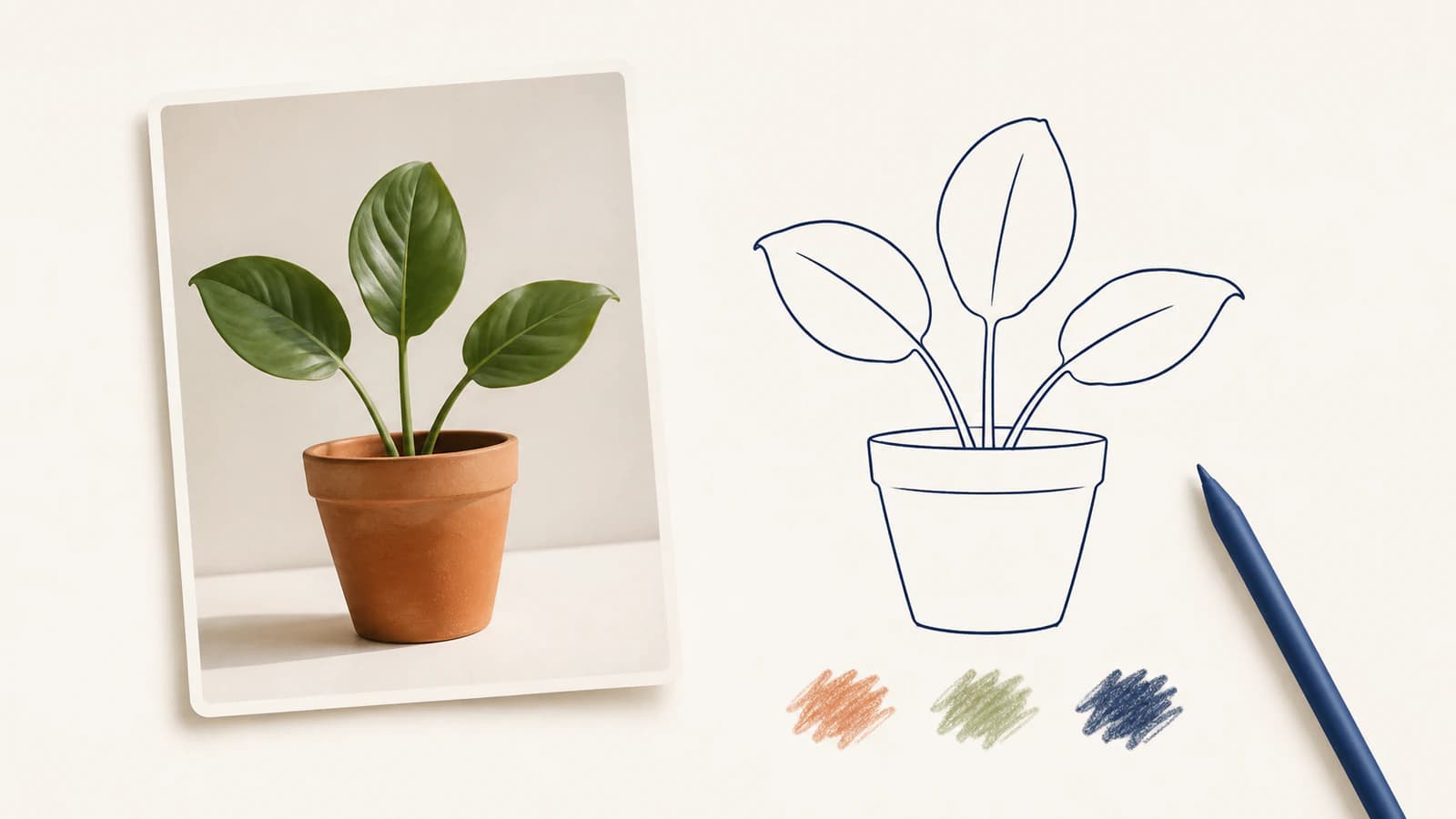
For example, imagine making a nursery label from a plant photo. You sketch three leaves and a pot over the reference, then add a pencil texture. The label may need only the outline. A larger poster may need the photo or painted appearance. Exporting the entire canvas without separating those goals makes it harder to tell which objects the recipient can actually edit.
Check SVG export on your platform
Concepts' current feature matrix lists SVG and DXF as export-only formats for both platform groups. Do not assume that Android lacks SVG export because an older discussion says so. The matrix marks these export features as available for purchase; check what your installation has unlocked.
| Platform group | SVG support | Native drawing format |
|---|---|---|
| iOS and iPadOS | Export only | .concept |
| Windows, Android, and ChromeOS | Export only | .concepts |
The same matrix says the iOS native format is not yet compatible with the Windows/Android format, while drawings can move among Windows, Android, and ChromeOS. A cross-platform account therefore does not make every native drawing interchangeable.
Keep a native copy for continued Concepts editing. Export SVG for the recipient's vector workflow, and include a raster preview when appearance matters. That gives them a visual reference without treating the SVG as a complete archive of your original drawing.
Prepare native strokes for a vector handoff
For the iOS workflow, the export manual recommends Fixed Width or Wire for work intended for vector export. It warns that specialized brush textures may look different elsewhere, and that Hard Mask and Soft Mask strokes can appear as white lines. Slice trims line work instead. Make those changes on a copy if they would alter a drawing you want to preserve.
On iOS, select the intended strokes, choose SVG in Export, and use the selection as the export region. Review the available options: Use Filters adds brush and background texture images, so that option is not a promise of artwork made entirely from paths. The manual specifically advises disabling Filters for Illustrator export.
Treat the first file as a compatibility sample. Open it in the destination editor before preparing a whole collection. Compare one textured mark, one trimmed line ending, and one overlap with the native drawing. A successful save is only the beginning of that check.
Use the plant label as an export check
Here is a small, repeatable method you can apply to your own drawing. It separates appearance from editability without requiring a large project.
- Keep the master. Duplicate the drawing before changing brushes or trimming marks. Give the working copy a name that makes its intended destination clear.
- Choose a modest sample. Use the pot, one leaf, and one textured mark. Include a line ending that you trimmed so the sample covers more than an untouched stroke.
- Export only what the recipient needs. For an outline label, select the native drawing strokes rather than the reference photo. Keep a visual preview alongside the vector file.
- Inspect the object types in the destination editor. Select a leaf and attempt a small curve edit, then undo it. If you can only move one image rectangle, investigate the file's contents before calling it editable line art.
- Check overlaps on a colored background. Look for white marks where you expected empty space. Also compare the texture and line endings with the preview.
- Try the real next edit. Recolor the pot or adjust the leaf spacing. Decide whether the exported structure makes that task practical before repeating the process for the remaining labels.
These checks answer a more useful question than whether the file opens: can the next person make the change you are sending it for? If you find an image object inside the SVG, our guide to SVG files that contain raster images explains how to inspect mixed content.
Trace imported pixels only when you need new paths
For an imported PNG, JPG, or scanned sketch that needs separate editable shapes, convert the source image to SVG with PerfectVector. Use the resulting artwork in an SVG editor, then inspect the plant's leaf contours, pot shape, and unwanted background regions before using it in the label. This route is useful when the missing step is tracing pixels into geometry.
It does not recover the original Concepts brush strokes, layers, or drawing decisions. If you already have useful native strokes, try exporting those first. Rasterizing them and tracing the result introduces a reconstruction step that may be unnecessary.
There is also an important return-trip limit. Concepts' official SVG and DXF import guidance says it cannot directly import those vector formats. An SVG created elsewhere is therefore not a route to editable imported paths inside Concepts. The documented workaround is a raster reference that you can sketch over, which creates new strokes through your drawing work.
For a simple plant outline, manual drawing may give you more deliberate curves than repairing an automatic trace. For a photograph whose lighting and surface detail matter, keep the raster. If your source came from another drawing app, the related guides to Procreate and SVG and Clip Studio Paint vector layers explain their separate export boundaries.
FAQ
Can Concepts automatically turn an imported photo into editable strokes? Image import places a reference image on the canvas; it does not turn the photo's contents into native drawing strokes. Draw over it when you need editable strokes inside Concepts, or trace the source externally when the final work belongs in an SVG editor.
Can Concepts export SVG on Android? Yes. The current feature matrix lists SVG export for the Windows, Android, and ChromeOS group as well as iOS and iPadOS. SVG export is marked as a purchasable feature, so check what your installation has unlocked.
Will a Concepts SVG preserve every brush texture? Do not assume it will. Concepts warns that its specialized textured strokes can look different in other vector apps. Keep the native drawing and a raster preview, and test a representative sample in the destination editor.
Can I import the converted SVG back into Concepts? Concepts does not currently support direct SVG or DXF import. You can bring in a rasterized reference and draw over it, but that does not restore the SVG's paths as native Concepts strokes.
Sources
- Digital Art: Raster vs. Vector — Native vector-raster hybrid strokes and adjustable textured marks.
- Import — Image placement, resizing, and supported import formats.
- Sketch with Vectors, Part 2 — Native stroke data and tools for changing drawn lines.
- Feature List — Platform export availability and native drawing-format compatibility.
- Export — Vector export options, brush appearance, and mask limitations.
- Can I import vector formats such as SVG or DXF? — Direct SVG and DXF import limits and the raster-reference workaround.
Start with the objects you have. Export native strokes when they already do the job; if your source is pixels and you need editable contours elsewhere, try an image-to-vector conversion and check the result against the edits your project requires.
More from the blog

Can Sketchbook Vectorize an Image? Export First
Keep your layered Sketchbook master, export a clean PNG, then trace it to SVG. Check desktop and mobile options, transparent backgrounds and editable shapes.

Harmony Vectorize Image: Native Drawing or SVG Import?
Vectorize an image in Toon Boom Harmony, distinguish bitmap envelopes from editable contours, and choose native line-art conversion or Harmony 25 SVG import.