
Batch Vectorize Images With a Resumable API Queue
Batch vectorize images with an API using a durable queue. Save job IDs, handle failed files, and resume a partial run without resubmitting finished work.
On this page
To batch vectorize images with an API, put each source file in a queue and save its progress before moving to the next. With PerfectVector API v1, the batch belongs to your worker. The API accepts one image per request and allows one live conversion at a time per account by default. PerfectVector API limits
Create one queue record per image
Start with a stable copy of each source image and a separate output folder. The examples below assume a single worker, a local SQLite database and a folder of single-frame PNG, JPEG or WebP files. Check the API file limits before adding files to the queue. Use unique output paths so two source files named logo.png cannot overwrite one another.
Save the following fields together before attempting the first upload.
| Field | What to keep |
|---|---|
| Source | A stable path or object version and a digest of the original bytes. |
| Request key | An idempotency key, which identifies repeat submissions of this operation. Record when you first attempt the POST. |
| Conversion ID | The API's vec_… ID, saved as soon as you get it. |
| Output | A unique local destination and the last confirmed queue state. |
| Failure details | The API problem code, request ID or conversion error, when available. |
Commit the queue record before sending the POST. If the API accepts the upload but your connection breaks before you receive the ID, you still have a key you can reuse. PerfectVector recognizes that key for 24 hours from the first request in the same account and mode. Keep the image bytes and options identical when replaying. PerfectVector idempotency
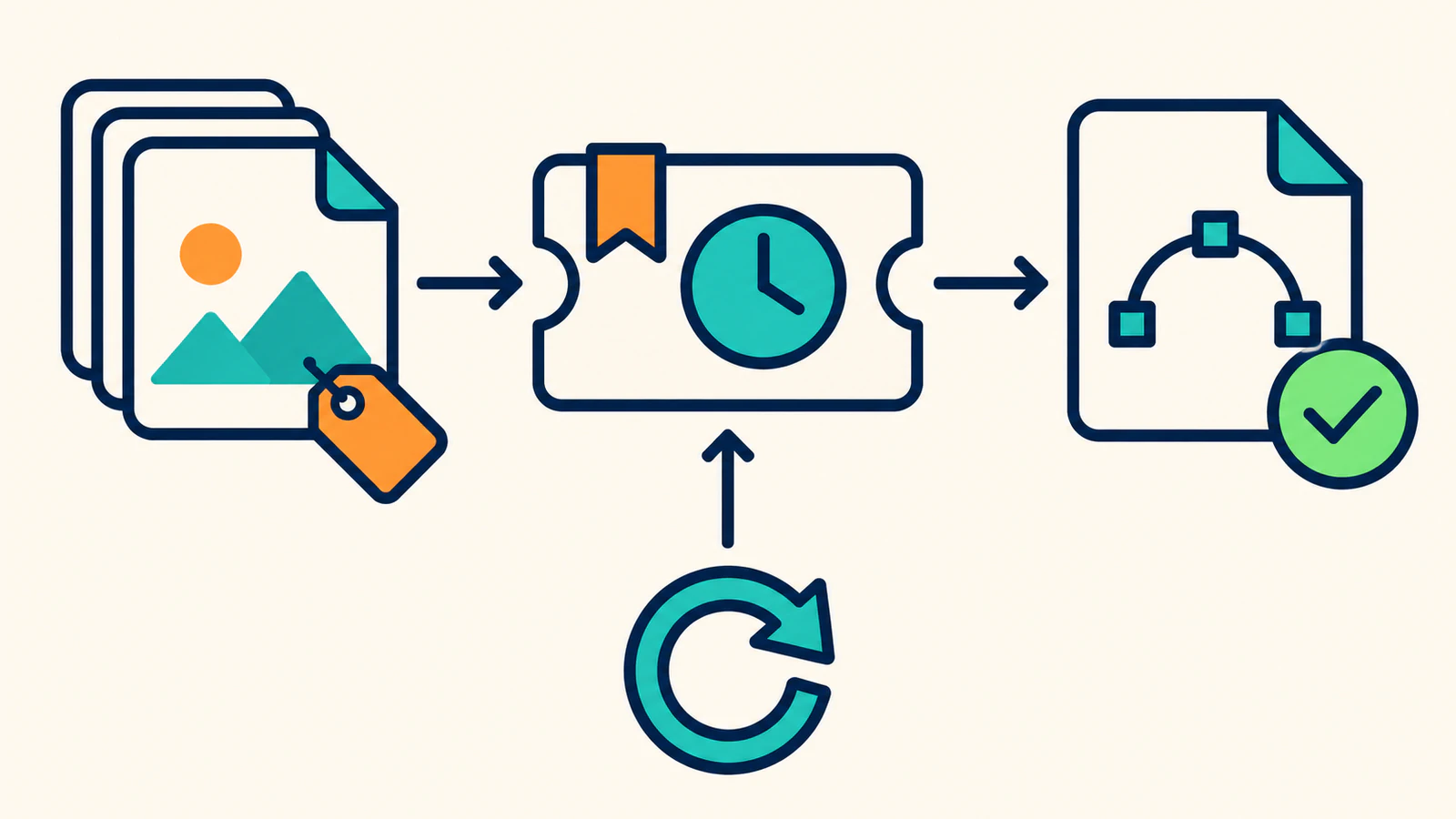
Submit, poll and save one job at a time
Send a multipart POST to /v1/vectorizations with the image in the image field and the row's Idempotency-Key header. Use Prefer: respond-async for a short submission request. Persist the ID from a successful response before polling. A 202 response means the conversion is pending. A 201 response can describe either a succeeded or a failed conversion, so read the JSON status. PerfectVector waiting and async
Here is the worker's decision sequence. A queue state such as saved is your own label. The API returns statuses such as processing and succeeded.
| Queue record on disk | Next worker action |
|---|---|
| New, with a saved key | Upload the original bytes and record the returned conversion ID. |
| Submission uncertain, ID unknown | Replay the same upload with its stored key within the replay window. If the window has passed, flag the row for review before attempting a fresh, potentially billable conversion. |
| Conversion ID saved | Poll the existing ID. Wait about two seconds between status requests and honor rate-limit delays. |
| Conversion succeeded, file missing | Download the result, check for image/svg+xml, write to a temporary file and rename it into place. Mark the row saved after the rename. |
| Saved | Skip the POST. If the output went missing, try the existing result while its download link still works. |
| Rejected or failed | Record the HTTP problem or the terminal conversion error. Fix a bad input before trying it as a new operation. |
For a POST that gets 429 or 503, honor Retry-After and retry the same image and options with the original key within its 24-hour window. If the problem is too_many_in_flight, also wait until the existing live conversion finishes. When you have a conversion ID, check it before resubmitting. A confirmed terminal failed conversion with timeout or provider_unavailable needs a new key if you choose to try again. Wait for the service to recover if the provider is unavailable. A client timeout leaves the original conversion uncertain, so use its ID or replay its original key within the window. PerfectVector API errors
A restarted worker can repeat a status check or result download without starting a new conversion. Download and store each successful SVG before advancing the queue. The API result expires 24 hours after the conversion finishes. PerfectVector results and downloads
Use this pseudocode to implement the worker against your database and HTTP client. The trial below assumes the worker logs each request and has a test-only pause immediately after it commits the second conversion ID.
for each queue row in a stable order:
    if the row is rejected or its saved SVG is still on disk:
        continue
    if the row has no conversion ID:
        verify source bytes match the stored digest
        if an earlier POST is uncertain and the replay window expired:
            flag the row for review and continue
        POST with the stored key and original bytes and options
        if the response is a permanent input rejection:
            commit the error and continue
        if the POST times out or the service requests a retry:
            keep the same key, record the retry time and stop this run
        commit the returned conversion ID
        pause here when testing recovery after a commit
    GET status by conversion ID, waiting between pending responses
    if conversion failed:
        commit its error and continue
    download the existing result and check the SVG media type
    write to a temporary file and rename it to the output path
    commit the saved state
Run a three-file restart check
Use two small PNG logos and one damaged PNG. Leave the damaged file in the test on purpose so you can see whether the queue continues after a rejection. With a test key, the two valid files should return sample SVGs. A damaged upload should fail validation and stay out of the output folder. Test mode returns the same sample SVG for both valid files. PerfectVector test mode
- Let the first file reach
saved. Pause the worker after the second valid file's ID has been written but before its output has been saved. - Restart the worker. Confirm that it skips the first file and downloads the second using the existing conversion ID.
- Confirm that the damaged file appears in the failure report with its problem code and that no SVG was written for it.
- Run the worker once more. Confirm that both saved files remain in place and that neither successful upload is submitted again.
We ran the restart check against the API with a test key. It saved two sample SVGs, recorded one damaged input as rejected, and resumed the second successful file using its existing ID. A final pass made no requests. Use a fixture to exercise the pending branch because test conversions finish immediately.
FAQ
Can I submit every file in one API call?
PerfectVector API v1 accepts one image in each POST. Submit a batch as a series of separate requests. For live work, keep to the account's in-flight limit and wait for the current conversion to finish before submitting the next. PerfectVector API limits
What if the SVG has already expired?
Use your stored SVG if you downloaded it earlier. Otherwise, inspect the conversion's status and decide whether to start a new operation. A new live conversion can use another credit if it succeeds. PerfectVector results and downloads
Sources
- PerfectVector — Limits — File checks and the default account concurrency.
- PerfectVector — Idempotency — Key scope, replay window and matching input.
- PerfectVector — Waiting and async — Async submission and status polling.
- PerfectVector — Results — Download, failures and result expiry.
- PerfectVector — Test mode — Which upload checks and outputs a test key can verify.
- PerfectVector — Errors — Retry-After delays, terminal failures and when to use a new key.
Get a test key through the PerfectVector API page and run a three-file trial with your own sources. Check that each successful row has an SVG on disk and that restarting submits no completed rows again.
More from the blog

PNG2SVG Batch Conversion: Check Your Downloaded ZIP
Follow a two-file PNG2SVG conversion, download the SVG ZIP, and verify filenames and actual path contents before trusting a larger batch of your own artwork.
Plan a Folder-to-SVG Batch in Claude Code
Plan a folder-to-SVG batch in Claude Code with PerfectVector MCP. Give each raster a unique output path and use a tested local audit to identify missing SVGs.