PNG2SVG Batch Conversion: Check Your Downloaded ZIP
Follow a two-file PNG2SVG conversion, download the SVG ZIP, and verify filenames and actual path contents before trusting a larger batch of your own artwork.
On this page
To batch convert with PNG2SVG.com, add your PNG files, wait for the queue to finish, then use Download All and inspect the saved ZIP. Check that the expected filenames are present and that each SVG contains the geometry you need. A completed queue is only the delivery check; the artwork still needs inspection.
These steps refer to png2svg.com. Check the full domain before following them: PNGtoSVG.com has a different palette-and-layer interface, and png2svg.org is another page with different output-mode choices. Similar names do not make screenshots or instructions interchangeable.
Prepare filenames before filling the queue
You need permitted PNG sources, a retained original folder and somewhere to extract the downloaded ZIP. Give each input a distinct name so you can match the SVG back to its source. If you are testing a tool for the first time, start with a small representative set before sending a larger collection through it.
Method: On November 8, 2026, we tested two byte-identical copies of our original 384 × 256 RGB geometric control, named original-geometric-control.png and identical-control-copy.png. The artwork had an opaque white background, a navy frame and small marks, a teal triangle and a gold rectangle. Using identical copies deliberately tested queue and archive identity. It did not test tracing quality across different images.
We saved the actual Download All ZIP and inspected its two SVG entries. The individual Download buttons were visible, but we did not separately test each button's download.
Finish the two-item queue and save the archive
The PNG2SVG.com page describes multiple uploads with individual or combined ZIP downloads. Use the visible queue to check completion before collecting the results:
- Select Upload Files and choose your prepared PNG files. For our bounded test, we chose the two differently named copies together.
- Wait for both queue cards to show their converted previews and individual Download controls. Match the visible filenames to the files you intended to add.
- Check the count beside Download All. Our completed queue displayed 2.
- Select Download All and confirm that an actual ZIP file appears in your downloads.
- Keep that ZIP and extract a copy into a new folder. Compare the entry names with your input list before using the artwork.
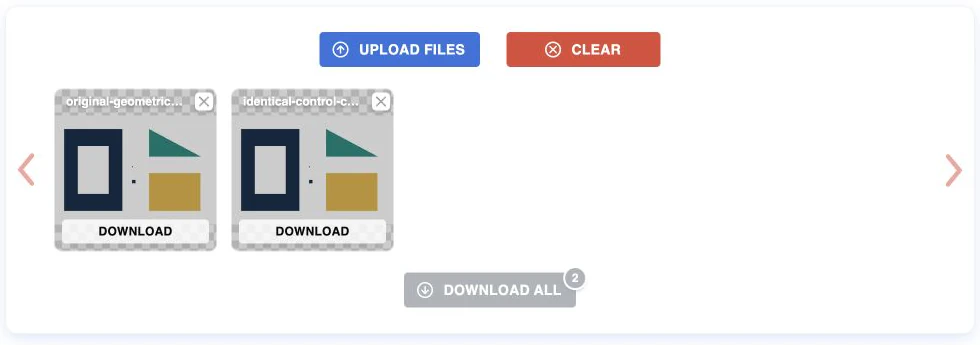
In our run, the first Download All click opened an advertisement overlay instead of saving a file. We used its visible Close control, then selected Download All again and saved the ZIP. If an overlay interrupts your attempt, return to the actual queue and verify the saved file. Clicking an advertisement is not a conversion step.
If the archive is missing, do not mark the batch complete from the queue preview alone. Check your browser's download state, return to the completed queue and retry its download control. Keep the source list so a partial delivery can be identified without guessing which files are missing.
Check the two SVG entries, not just the ZIP name
A ZIP is an archive that packages files together. Extracting it gives you individual SVG files to inspect; it does not merge all the artwork into one editable document.
Our saved archive was 2,240 bytes and contained these entries:
| Archive entry | File bytes | SVG path elements | Image elements |
|---|---|---|---|
original-geometric-control.svg | 925 | 7 | 0 |
identical-control-copy.svg | 925 | 7 | 0 |
Both entries had width 384, height 256 and viewBox="0 0 384 256". Their bytes were identical, which is consistent with our intentionally identical inputs. This confirms the named files delivered in this test; it does not establish the service's maximum queue capacity, speed or reliability on other artwork.
For your own archive, check every expected filename first. Then open each SVG and compare the important colors, openings and small features with its matching PNG. A missing entry is a delivery problem. A present file that loses lettering or fills an opening is an artwork problem. They need different fixes.
Confirm that SVG means the content you wanted
An SVG can hold vector geometry, a raster image or both. The SVG specification's image element can reference a PNG or JPEG, so changing the filename extension does not establish tracing.
In our two actual .com exports, XML inspection found seven path elements and no image element. That is evidence of path geometry in these files. It is not proof of useful grouping, native-app editability or suitability for a cutter.
For a quick source check, open an extracted SVG in a plain-text editor and look for <path and <image. If an image element is present, inspect what it references rather than assuming the entire file is raster or vector. Our guide to SVGs that contain raster images covers mixed documents and their limits.
The distinction also matters when choosing a converter mode. The png2svg.org page describes its default Lossless output as an SVG containing the original PNG. That is an observed interface description, not an output we uploaded or tested. This article's saved archive came from png2svg.com.
Expand the batch only after representative artwork passes
For varied source images, inspect a representative logo, line drawing or illustration before relying on the same route for the collection. Different lettering, color counts and fine detail can require different decisions. Our identical-copy test supplies no evidence about those differences.
If an extracted SVG fails, keep its original and isolate that file for another trace or manual repair. Do not rerun an accepted collection merely to fix one image. For the artwork checks themselves, follow PNG-to-SVG quality inspection. For a craft destination, the Cricut converter guide adds receiving-app considerations.
When to inspect one image in PerfectVector
PerfectVector is useful when a particular PNG needs an individual automatic trace and a free preview before you choose the next step. Start with that original image on the PNG-to-SVG page, then inspect its lettering, interior openings and smallest intended marks. This is a separate per-image workflow, not a claim that PerfectVector reproduces this tool's queue or ZIP delivery.
PerfectVector's product facts describe a view-only preview; editing and export follow unlocking the result. If the PNG2SVG archive already contains acceptable artwork, keep using those files. Another conversion is useful when it solves an identified problem in a particular source.
FAQ
Does Download All create one combined SVG? Our actual Download All result was a ZIP containing two separately named SVG files. It did not combine their artwork into one SVG document.
Are PNG2SVG.com, PNG2SVG.org and PNGtoSVG.com interchangeable? Use the exact domain for the workflow you intend. This test used png2svg.com. The .org page exposes different output-mode choices, while PNGtoSVG.com has a separate palette-and-layer workflow.
Did this test establish quality across a varied image batch? No. We intentionally used two identical source copies with different filenames to check queue completion and archive contents. Test representative real artwork separately before expanding a batch.
Does a path-only file prove it is ready for production? No. Geometry still needs checks for source fidelity, usable organization, dimensions and its destination. We did not perform native editor import, cutter import or a physical production test.
Sources
- PNG2SVG.com — PNG to SVG conversion — The multi-file queue, individual controls and combined ZIP workflow demonstrated here.
- PNG2SVG.org — Output modes — The separately observed default Lossless description; no output from that service was tested.
- W3C — SVG 2 embedded content — Why an SVG can still contain a PNG or JPEG.
- PerfectVector — Product facts — The free preview and unlocked editing/export workflow.
Start free with your own PNG in PerfectVector, then inspect the important colors, openings and small details before choosing its next use.
More from the blog

ImageMagick PNG to SVG: Check the Tracing Delegate
Find out whether your ImageMagick PNG-to-SVG command creates paths, which tracing delegate it uses, and why a color image can become a monochrome SVG trace.

Vectorization Org: Check a Black-and-White Trace
Vectorization.org turns images into black-and-white vectors. Follow a real PNG-to-SVG run and check lost colors, small features and saved geometry before use.