Back-Engraved Acrylic: Check the Artwork Direction
Check back-engraved acrylic artwork with an asymmetric SVG, separate the intended front view from the production copy, and catch an extra mirror before handoff.
On this page
For acrylic engraved from the back and read from the front, prepare the engraving-facing artwork in the orientation your maker requests. Keep a separate proof of the intended front view. A word, arrow, or off-center mark makes an accidental extra mirror easier to catch than a symmetrical ornament does.
The viewing side matters as much as the word “mirror.” Mirrored acrylic is a material with a reflective backing; mirroring artwork is a geometric operation. Clear acrylic can also carry a back-engraved design. Identify the material and the side people will read before changing the file.
Label two views before changing the artwork
Keep an unchanged front-view master. Make a separate production copy, apply the agreed reflection once, and compare the expected front reading with the master. Confirm whether the maker or the machine workflow will perform that reflection.
Read the material and job instructions first
A material supplier can specify a particular engraving side. MakerStock's silver mirrored acrylic instructions describe engraving the gray backing with the reflective side down and using a mirrored image file. Those directions concern that material and operation; they do not establish a rule for every clear sheet or laser.
A service may also prepare the reversal for you. CutLaserCut's silver mirror acrylic page says its reverse-side raster-engraving workflow reverses artwork when the customer has not already done so. Ask which view the service wants in the submitted file, and label the answer in the handoff.
Before preparing a production copy, identify:
- the exact material and the face that will be engraved;
- the face from which the finished design should read;
- who applies the reflection;
- whether the artwork shares alignment references with cutting or other operations.
This article checks digital orientation. Use the equipment and material supplier's instructions for compatibility, preparation, settings and operation. The sample below is neither a machine preview nor an engraving result.
Use an asymmetric mark for the orientation check
We authored a small Scalable Vector Graphics, or SVG, design containing an F-shaped path, a right-pointing arrow and an orange dot. Its canvas runs from x = 0 to x = 240. The dot starts at x = 32, near the left side.
A horizontal reflection within that canvas maps each horizontal coordinate to 240 - x. The dot therefore moves to x = 208. Reflect the result again using the same reference and the dot returns to x = 32. Its vertical coordinate stays unchanged.
The SVG coordinate specification defines the coordinate and transform framework. The particular shapes, coordinates and checks here are our original example.
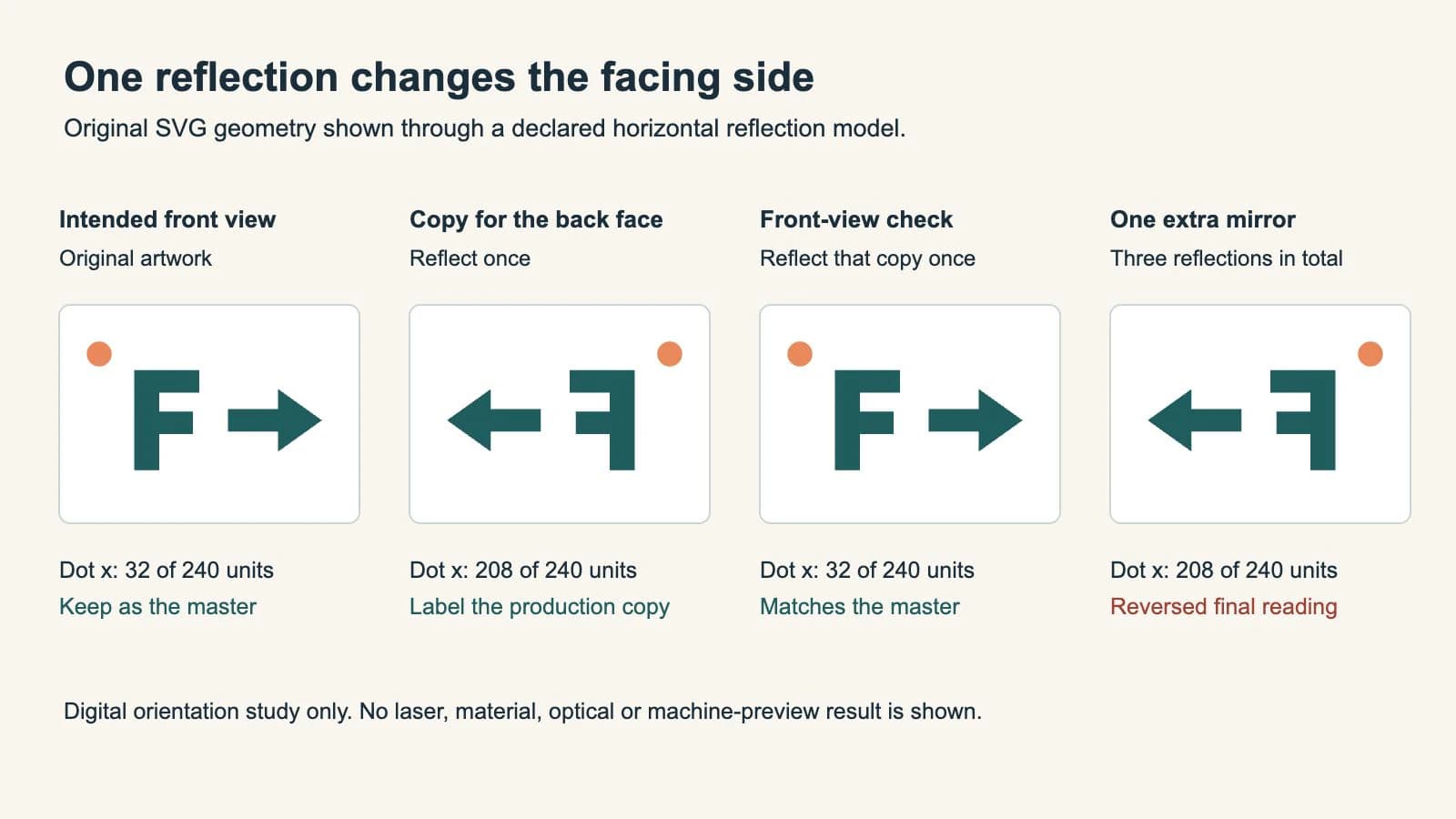
The example contains three shapes in every saved variant. Our file inspection checked their transforms and the dot's calculated position, and we opened the comparison in a browser. Two reflections return the geometry to its original orientation. That mathematical result does not verify a particular machine's import or mirroring controls.
Make the production copy and check the front reading
Use this sequence with your actual artwork and the maker's agreed orientation:
- Save the intended front view. Keep the original wording, arrow direction and recognizable asymmetry. Give the file a name such as
sign-front-view-master.svg. - Create a separate production copy. Name its purpose, for example
sign-back-engraving-copy.svg. Record whether it already includes a reflection. - Apply the agreed transformation once. Check the entire engraving artwork, including small words and directional details. Do not use an unlabeled screenshot as the orientation reference.
- Compare the expected front reading. For this example's horizontal-reflection model, reflect the production copy once for the check. It should match the unchanged master. If it does not, inspect the number of reflections and the reference axis before editing any paths.
The example's production transform is:
<g transform="translate(240 0) scale(-1 1)">
  <!-- The original F-shaped path, arrow and dot belong here. -->
</g>
That 240 belongs to a canvas starting at x = 0 with width 240. It is not a universal offset for other files. A different origin, group transform or canvas width changes the reference. Keep the canvas and artwork together while checking the result; the SVG transform-order guide explains why moving the reflection and translation changes their effect.
Retain proof labels outside the production artwork. A large “FRONT VIEW” annotation is useful on a reference page, but it should not accidentally become part of the engraving.
Catch an extra mirror before handoff
A reflection already stored in the SVG can combine with a second reflection in a downstream workflow. In our example, the production copy is reversed once. If it receives another reversal before engraving, viewing from the opposite face introduces a third reversal relative to the master. The final reading is backward again.
Use a small handoff table to make the state explicit:
| File or proof | Intended use | Orientation statement |
|---|---|---|
| Front-view master | Visual approval | Shows the desired reading from the finished front |
| Production copy | Agreed engraving workflow | States whether the artwork is already reflected |
| Front-view check | Compare with the master | States the face-reversal model used for the check |
If the job also cuts an asymmetric outside contour, do not reflect one artwork group independently and assume that alignment survives. Follow the maker's shared reference or template for the complete job. A digital orientation check cannot establish physical registration.
For printed acrylic charms with different images on each side, use the acrylic keychain artwork guide. That supplier-template workflow has its own front/back and white-ink instructions.
Where PerfectVector fits
If your flat emblem exists only as a PNG or JPG and you need to edit its shapes, PerfectVector's laser artwork workflow can help recover an SVG candidate. Compare its lettering, arrow direction, openings and silhouette with the source before making the production copy. Use an existing vector original when you have one.
Vectorization does not choose the material face, apply the service's orientation rule or confirm laser compatibility. Our sample began as native SVG geometry and was not converted with PerfectVector. The broader image-to-SVG laser guide covers the earlier source and operation decisions.
FAQ
Should I mirror every acrylic engraving file? No. Confirm the engraved face, the intended viewing face and who applies the reversal. Follow the instructions for the exact material and operation rather than treating every acrylic job alike.
Does mirrored acrylic mean the artwork is already mirrored? No. Mirrored acrylic describes the material's reflective backing. A reflection in the artwork is a separate file or workflow operation.
Why use a letter and an arrow in the proof? Their asymmetry exposes a reversal. A symmetrical shape may look unchanged even when the file has been reflected.
Does this SVG check prove the finished engraving will read correctly? It proves the declared digital reflection sequence for the example. The actual job still needs the maker's orientation and alignment check and an appropriate physical sample.
Sources
- MakerStock — Silver Mirrored Acrylic — Material-specific reverse-side engraving and image-orientation instructions.
- CutLaserCut — Silver mirror acrylic — A service workflow that reverses customer artwork when needed for reverse-side raster engraving.
- W3C — SVG coordinate systems, transformations and units — Coordinate mapping and transforms used in the original digital example.
Starting with a raster emblem? Prepare an SVG candidate with PerfectVector, inspect its lettering and asymmetric details, then label the intended front view before making the engraving-facing copy.
More from the blog

Dashed SVG Lines for Laser Cutting: Check the Paths
Diagnose dashed SVG lines that become solid in a laser preview. Compare stroke paint, separate centerlines, and outlined dashes before preparing your own file.

LightBurn Cuts Outside First: Check Groups and Layers
Diagnose outside-first LightBurn cuts with a simple SVG, closed-path checks, group and layer review, and Preview verification before choosing the job order.