
Check AxiDraw Path Order Before Plotting an SVG
Compare AxiDraw offline SVG previews to check path order, reversal and pen-up travel. Preserve drawing geometry and understand what the saved SVG retains.
On this page
To optimize SVG pen travel in AxiDraw, first confirm that the paths draw the marks you want. Then compare offline previews with the same geometry and fixed settings. Reordering may shorten the pen's raised travel without reducing the number of lifts or changing the drawn shapes.
Keep your original SVG. The preview below checks ordering and optional path reversal; it does not reconstruct centerlines, repair unwanted outlines or permanently rearrange the original SVG objects. Our test uses eight authored open strokes, not a PerfectVector trace or a physical plot.
Diagnose the jumps before changing the order
Pen-down travel is the route that makes marks. Pen-up travel is movement between marks with the pen raised. A short-looking drawing can have long pen-up travel when successive objects sit far apart.
| What the preview shows | What to address first |
|---|---|
| Two edges around a line that should be one stroke | Construct the intended single-line route |
| An empty perimeter where you wanted a shaded area | Create explicit hatch-fill pen paths |
| Correct marks, but repeated jumps across the page | Compare order and reversal settings below |
| Unwanted lines drawn between separate marks | Check pen-down geometry and joining before accepting any shorter route |
Measuring SVG path length answers how long the drawing geometry is. It does not by itself include the machine's travel between those paths.
The AxiDraw CLI reference distinguishes these settings: 0 normally follows document order with joining available, 1 also reorders paths, and 2 also permits path reversal. Joining is a separate decision. For this comparison, we disable it with min_gap = -1 so adjacent strokes cannot become one continuous mark.
Reversal can matter for direction-sensitive work. If the drawing must follow a particular writing sequence or direction, a shorter raised route is not sufficient reason to accept setting 2. Layers also constrain sorting; nested groups should not be assumed to preserve a drawing sequence under optimization. Inspect the actual preview for your document.
Run three offline previews on an unchanged SVG
This example requires Python and the official AxiDraw Python API. We tested API 3.9.6 with Python 3.9.6. Follow the official installation instructions if the module is not installed in the Python environment you use.
The Python API reference defines preview as offline simulation. Set preview = True after plot_setup and before plot_run. The script below always sets and asserts it; it contains no device connection call.
Save this small example as eight-strokes.svg, or use a duplicate of your own SVG:
<svg xmlns="http://www.w3.org/2000/svg" width="100mm" height="80mm" viewBox="0 0 100 80">
  <g fill="none" stroke="#152b3b" stroke-width="0.4">
    <path id="stroke-0" d="M 10 20 L 18 20"/>
    <path id="stroke-1" d="M 88 60 L 80 60"/>
    <path id="stroke-2" d="M 20 20 L 28 20"/>
    <path id="stroke-3" d="M 78 60 L 70 60"/>
    <path id="stroke-4" d="M 30 20 L 38 20"/>
    <path id="stroke-5" d="M 68 60 L 60 60"/>
    <path id="stroke-6" d="M 40 20 L 48 20"/>
    <path id="stroke-7" d="M 58 60 L 50 60"/>
  </g>
</svg>
The fixture has a 100 × 80 mm viewport and matching viewBox dimensions. That maps each coordinate unit to 1 mm here, following SVG's viewport and viewBox mapping. Each of its eight strokes is 8 mm long.
Save the following as preview-orders.py:
from pathlib import Path
import json
import sys
from pyaxidraw import axidraw

source = Path(sys.argv[1]).resolve()
destination = Path(sys.argv[2])
destination.mkdir()  # Use a new directory; preserve previous results.
reports = []
for order in (0, 1, 2):
    ad = axidraw.AxiDraw()
    ad.plot_setup(str(source))
    ad.options.preview = True
    ad.options.rendering = 3
    ad.options.reordering = order
    ad.options.random_start = False
    ad.options.auto_rotate = False
    ad.options.report_time = False
    ad.params.min_gap = -1
    assert ad.options.preview is True
    output = ad.plot_run(True)
    if ad.errors.code:
        raise RuntimeError(f"Preview error: {ad.errors.code}")
    (destination / f"preview-order-{order}.svg").write_text(output)
    reports.append({
        "order": order,
        "pen_down_m": ad.distance_pendown,
        "pen_up_m": ad.distance_total - ad.distance_pendown,
        "pen_lifts": ad.pen_lifts,
    })
report = json.dumps(reports, indent=2)
(destination / "distances.json").write_text(report + "\n")
print(report)
Run it with the Python environment containing the official API, using a new output-directory name:
python3 preview-orders.py eight-strokes.svg preview-checkIt saves three diagnostic SVGs and distances.json. rendering = 3 includes both raised and drawing movement. Random starts and automatic rotation are off; joining is disabled. Keep those choices fixed when comparing your own file. This script is an offline inspection method, not a command to operate a plotter.
Compare raised travel and drawn geometry separately
On our eight-stroke fixture, the exact script produced:
| Reordering | Estimated pen-up travel | Pen-down travel | Reported lifts |
|---|---|---|---|
0 | 0.509749 m | 0.064 m | 8 |
1 | 0.223592 m | 0.064 m | 8 |
2 | 0.180919 m | 0.064 m | 8 |
These are native software estimates for this file, including travel from the start and back home. The pen-down distance stayed 64 mm and the lift count stayed eight. Shorter pen-up travel did not mean fewer lifts. We did not measure a physical plot, elapsed plotting time or a guaranteed improvement for another drawing.
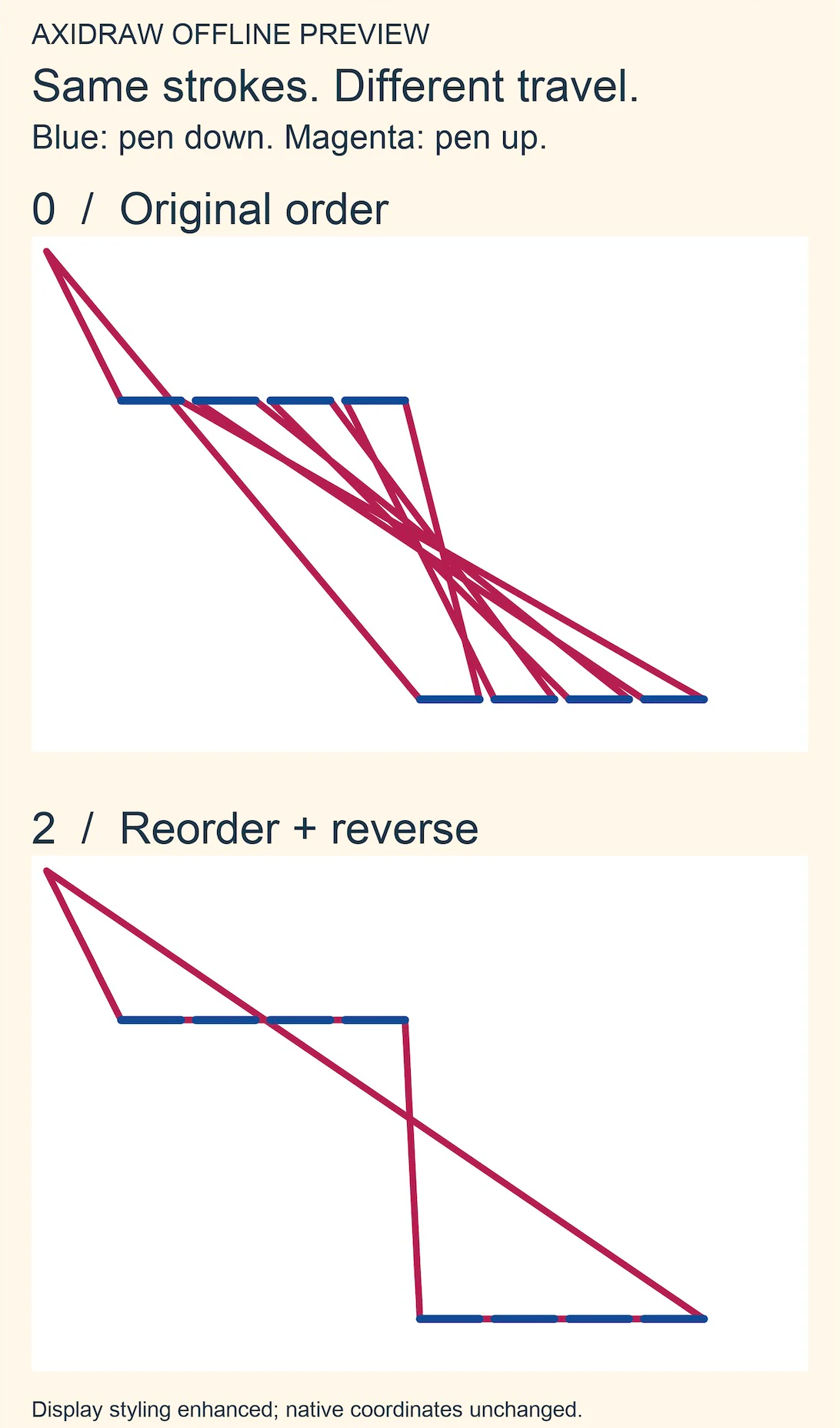
The stacked figure compares settings 0 and 2; the table also includes 1. It displays copies of the native SDK preview paths with stronger blue and magenta colors and thicker strokes for legibility. These are display styles, not physical pen widths. The native path coordinates and transforms are unchanged; the display viewport crops unused space. All three native previews were inspected, and an independent geometry check found the same eight horizontal drawing segments, allowing reversal of their endpoint order. Every sampled pen-down vertex remained on its intended segment.
For your file, open each preview SVG and examine the drawing layer separately from the raised-travel layer. Confirm the intended page size and location, all expected marks, unchanged holes or gaps, and no new drawn connector. Check that any reversed stroke is acceptable. Reject a route that draws the wrong marks even if its distance report is smaller.
Understand what the saved preview preserves
AxiDraw's reordering documentation explains that optimization happens in a temporary copy. The original objects in a saved output SVG retain their original order. Our outputs likewise retained every original stroke-* path and its original sequence.
Therefore, preview-order-2.svg is a diagnostic preview, not proof that another program will read a permanently reordered artwork file. Keep the source, chosen option and comparison report together. When using the original with AxiDraw later, apply the intended ordering settings again in the appropriate plotting workflow.
If your problem is unwanted drawing geometry, return to the route-building step. If only the raised route is wasteful, compare the fixed-setting previews. Physical size, pen behavior and machine operation still require their own checks; this offline control does not establish them.
Where PerfectVector fits before this check
If you still have only raster artwork and want its visible filled outlines as editable vector shapes, PerfectVector's image vectorizer can be a suitable earlier step. Inspect its preview against your source's contours and holes. It does not infer a single centerline or optimize AxiDraw path order; use the centerline or hatch workflow when those are the routes you need.
If you already have the correct SVG routes, keep them and perform the offline check directly. Retracing an SVG adds no missing ordering information. PerfectVector's protected preview is view-only; editing and exporting a result require unlocking it.
FAQ
Does AxiDraw reordering permanently change my SVG's object order? No. The documented optimization uses a temporary copy. A saved preview contains diagnostic movement layers, while the original artwork objects retain their order. Preserve the chosen setting separately.
Why did pen-up travel shrink while the lift count stayed the same? The same eight separate strokes can be visited in a different sequence or direction. In our joining-disabled control, all settings reported eight lifts and 64 mm of drawing, while the raised travel changed.
Can ordering fix a double-outline trace or generate shading? No. Correct the drawing routes first. Use a centerline workflow for a single stroke, or construct explicit hatch paths for area shading, then compare ordering on that accepted geometry.
Sources
- AxiDraw — Python API Reference — Defines offline preview and rendering, with examples returning preview SVGs.
- AxiDraw — CLI Reference — Covers installation, ordering and reversal settings, layer handling and temporary optimization.
- W3C — SVG Coordinate Systems, Transformations and Units — Explains the viewport mapping used by the dimensioned example.
Still starting from a raster drawing whose filled outlines you need? Start free with your own image, then inspect the preview's contours and holes against the source. Once the intended pen routes exist, check their order separately with the offline method above.
More from the blog

V-Carve Depth: Why Wider Logo Strokes Cut Deeper
Learn how artwork width and V-bit angle determine carving depth, calculate a logo example, and distinguish flat depth, pass depth, and traced outline geometry.

SVG Score Lines vs Cut Lines: Read the Geometry
Read SVG fold geometry before assigning Score or Cut. Compare open paths, filled bands and dashed marks, then check the documented Cricut operation workflow.