3D Logo Feature Width: Check Before You Print
Measure a logo's thin lines, holes, and small islands at its intended 3D print size. Separate SVG scaling from nozzle, line-width, and resin process limits.
On this page
A logo has no universal minimum size for 3D printing. Measure its smallest solid features and empty gaps at the size you intend to print, then compare those measurements with the chosen process and inspect the sliced model. A sharp SVG can preserve a detail that the printer will not reproduce.
For a flat badge, keychain, or raised mark, this check comes between preparing the SVG and committing to the 3D model. It helps you decide whether to enlarge the design, simplify a small-size version, or try another printing setup. It does not establish that a physical print will succeed.
Check the feature, not just the logo width
- Measure thin solid necks, empty slots, and isolated dots separately.
- Record the intended overall width in millimeters before judging detail.
- For filament printing, distinguish nozzle diameter from extrusion line width.
- For resin printing, use guidance for the actual printer, resin, feature type, and orientation.
- Finish by inspecting the sliced layers and testing the details that matter.
What counts as a small feature?
A positive feature is material you intend to keep: a narrow letter stem, a connecting neck, or a raised dot. A negative feature is an opening you intend to preserve: a letter counter, a slot, or the gap between two shapes. A dot standing alone also needs a useful connection to the model or its base.
Those are different questions. A thin stroke might disappear; a narrow opening might close. Passing a width check on one does not establish that the other will survive.
Manufacturer guidance makes the distinction explicit. Formlabs lists separate recommendations for embossed details, engraved details, walls, holes, and clearance. Its stated test conditions include Form 4, Grey Resin V5, and a particular layer thickness. Treat those as a process-specific reference, rather than a threshold for every resin or filament machine.
Measure the same artwork at two sizes
Suppose the artwork spans 100 SVG coordinate units. In our original geometric example, a narrow solid neck measures 0.8 units, an empty straight slot measures 1.5 units, and an isolated dot has a 2-unit diameter. These are deliberate shapes drawn for this calculation; they are not measurements of a PerfectVector result.
For uniform scaling, use:
feature width in mm = feature width in artwork units × target overall width in mm ÷ artwork overall width in units
The denominator must describe the same artwork bounds as the target width. If a 100-unit page contains an 80-unit drawing, a 40 mm page and a 40 mm drawing are different scale choices. Remove that ambiguity before calculating.
| Feature in our 100-unit drawing | At 40 mm overall width | At 80 mm overall width |
|---|---|---|
| Solid neck: 0.8 units | 0.32 mm | 0.64 mm |
| Empty slot: 1.5 units | 0.60 mm | 1.20 mm |
| Dot diameter: 2 units | 0.80 mm | 1.60 mm |
Method: We created a native SVG with straight-sided features and calculated each physical dimension from its coordinates at both target widths. Doubling the overall width doubled all three measurements. We did not slice or print this example; the table verifies scaling arithmetic, not manufacturability.
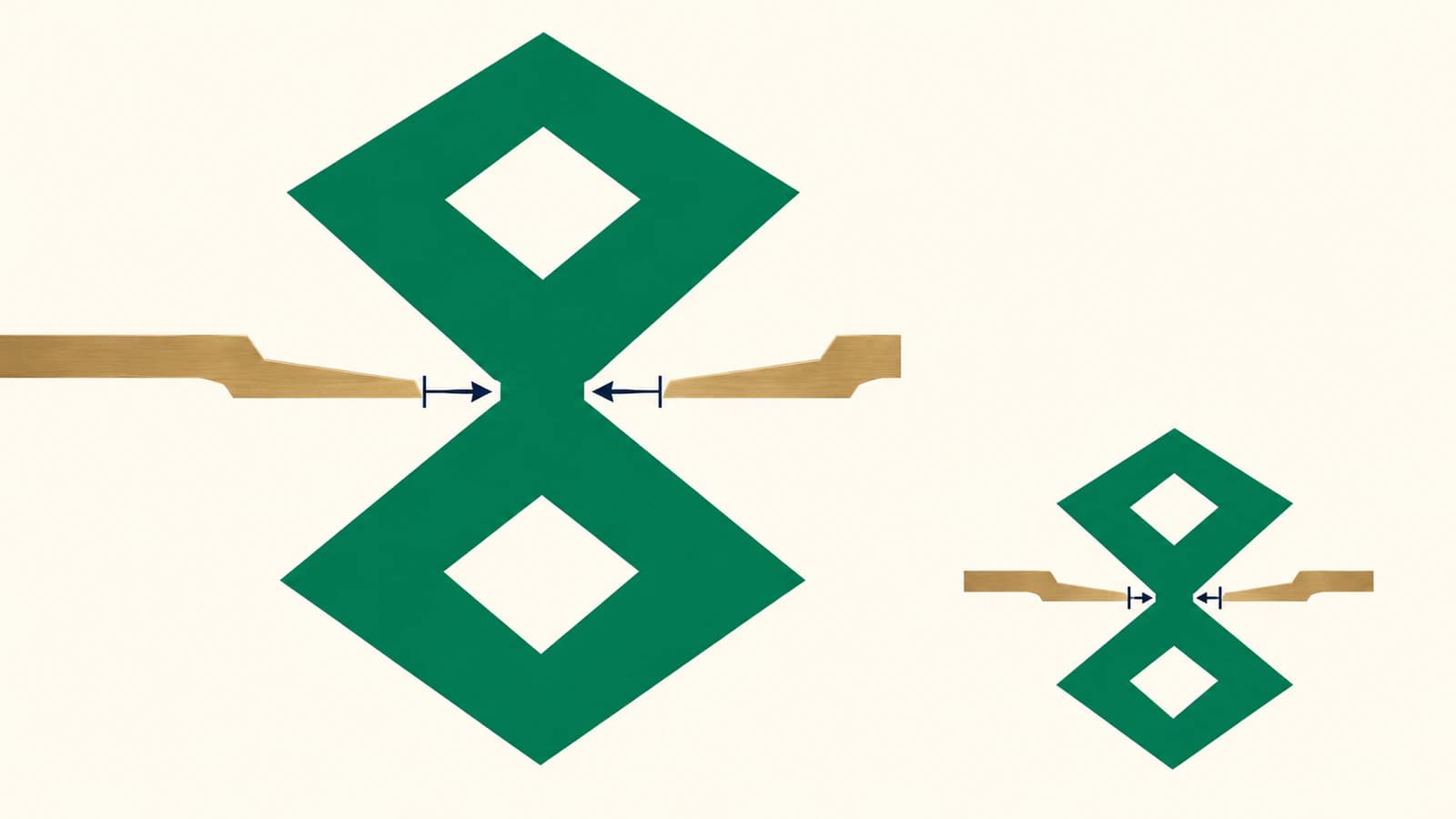
For an irregular contour, measure its narrowest relevant part, rather than its bounding rectangle. A long leaf can have a generous overall width and a very thin connection at its stem. Check that stem where it joins the rest of the mark.
Nozzle diameter, line width, and layer height differ
For filament printing, nozzle diameter is the opening in the nozzle. Extrusion line width describes the planned width of a deposited line. Layer height describes vertical slice thickness. They affect different parts of the geometry.
Prusa's nozzle-profile documentation treats nozzle diameter and extrusion width as separate settings. Changing the nozzle-diameter value alone does not make the slicer generate wider lines. Read the active profile instead of assuming the nozzle marking is the exact deposited width.
For illustration, compare our 40 mm logo's 0.32 mm neck with a hypothetical profile using 0.45 mm lines. That neck is narrower than the specified line width. This flags a detail to inspect in slicing; it is not a claim about what every variable-width slicer will omit or retain. The 0.60 mm slot is a separate negative-space check.
Lowering layer height does not change either dimension in our SVG. Prusa explains that layer height controls vertical resolution, while XY detail needs its own consideration. The same documentation also explains why ideal multi-perimeter wall thickness involves overlap, rather than simply multiplying one line width by a desired line count.
Decide what to change before tracing again
Choose the correction that fits the actual problem:
| What you find | Useful next move |
|---|---|
| Every feature becomes too small together | Increase the overall design size if the object allows it. |
| One ornament is much thinner than the main mark | Make a separate small-size artwork variant and simplify that ornament. |
| A letter counter becomes cramped | Adjust that opening deliberately; compare the letter with the approved design. |
| A detached dot has no support | Decide how it connects to the base in the 3D model. |
| The dimensions are correct but the sliced paths omit details | Review the model and the appropriate printer/profile options. |
Keep the original master. Enlarging every path is a different edit from thickening only a letter stem, and thickening can reduce neighboring gaps. Recheck both solid and empty features after a local edit.
If the SVG does not create selectable faces at all, start with the SVG extrusion diagnosis. That is a profile-validity problem; adding width to an otherwise invalid outline may leave the failure untouched.
Where PerfectVector fits
If your logo exists only as a suitable flat PNG or JPG, PerfectVector can reconstruct candidate SVG contours for a 3D-printing workflow. Compare the traced silhouette with the source, correct small lettering or openings, and measure the result at the intended size before modeling. Vectorization supplies geometry to inspect; it does not certify printable feature dimensions.
If you already have the original vector, use it. If the mark depends on photographic shading or needs a sculpted relief, a flat trace may be the wrong starting point. The image-to-SVG 3D workflow explains that boundary; the Bambu Studio guide covers the separate import and model checks.
Verify the model at its final size
Record the overall size, the smallest solid width, the smallest opening, and the intended print process. After importing and extruding the artwork, confirm that the model kept those dimensions. Then inspect the sliced layers where the smallest details appear.
Look for missing strokes, filled openings, and isolated regions that do not reach the base. If you change the overall scale, revisit the measurements. A representative test using the intended setup is the next evidence for physical detail; a smooth screen preview alone cannot supply it.
FAQ
Is 0.4 mm a universal minimum logo line width? No. A nozzle diameter is only one parameter for filament printing. The actual profile, feature geometry, model orientation, material, and required result matter. Resin printing uses different process guidance.
Will a lower layer height restore a narrow letter stem? It does not widen the stem in the XY plane. Measure that feature at the final size and inspect how the active slicer represents it.
Does a vector logo keep all its details when reduced? Its mathematical contours can remain defined while the physical features become too small for the intended process. SVG scalability and printable detail are separate properties.
Sources
- Formlabs — Design specifications for 3D models, Form 4 generation — Separates feature types and states the printer, resin, and layer conditions behind its recommendations.
- Prusa — Creating profiles for different nozzles — Distinguishes nozzle diameter from extrusion-width settings.
- Prusa — Layers and perimeters — Explains vertical resolution, thin-wall calculations, and perimeter overlap.
Have only a raster logo? Prepare SVG contours for your 3D model, measure the thin connections and openings at the final size, then check those details in the sliced model.
More from the blog

OpenSCAD SVG Import: Build a Measured, Extrudable Shape
Import SVG geometry into OpenSCAD, check holes and dimensions, then extrude a measured shape. Learn why a white center may need repair to become a real hole.

Tinkercad SVG Import: Turn 2D Paths Into 3D Shapes
Prepare an SVG for Tinkercad, set its size, and check filled regions, holes, and height. Fix import errors before treating the extrusion as a printable model.