Can Picsart Vectorize an Image? Quicktools vs API
Yes, Picsart can turn a PNG into SVG. Compare its free Quicktools converter with the enterprise API, then inspect the result for real editable vector paths.
On this page
- Picsart has two different vectorization surfaces
- How to use Picsart Quicktools for one image
- What the Picsart Image Vectorizer API does
- When the API is worth the extra work
- When a focused interactive converter is simpler
- How to inspect the SVG from either route
- Silhouette and corners
- Holes and negative space
- Color regions
- Nodes and fragments
- Embedded raster content
- Output-specific structure
- Which images should you vectorize?
- FAQ
- Sources
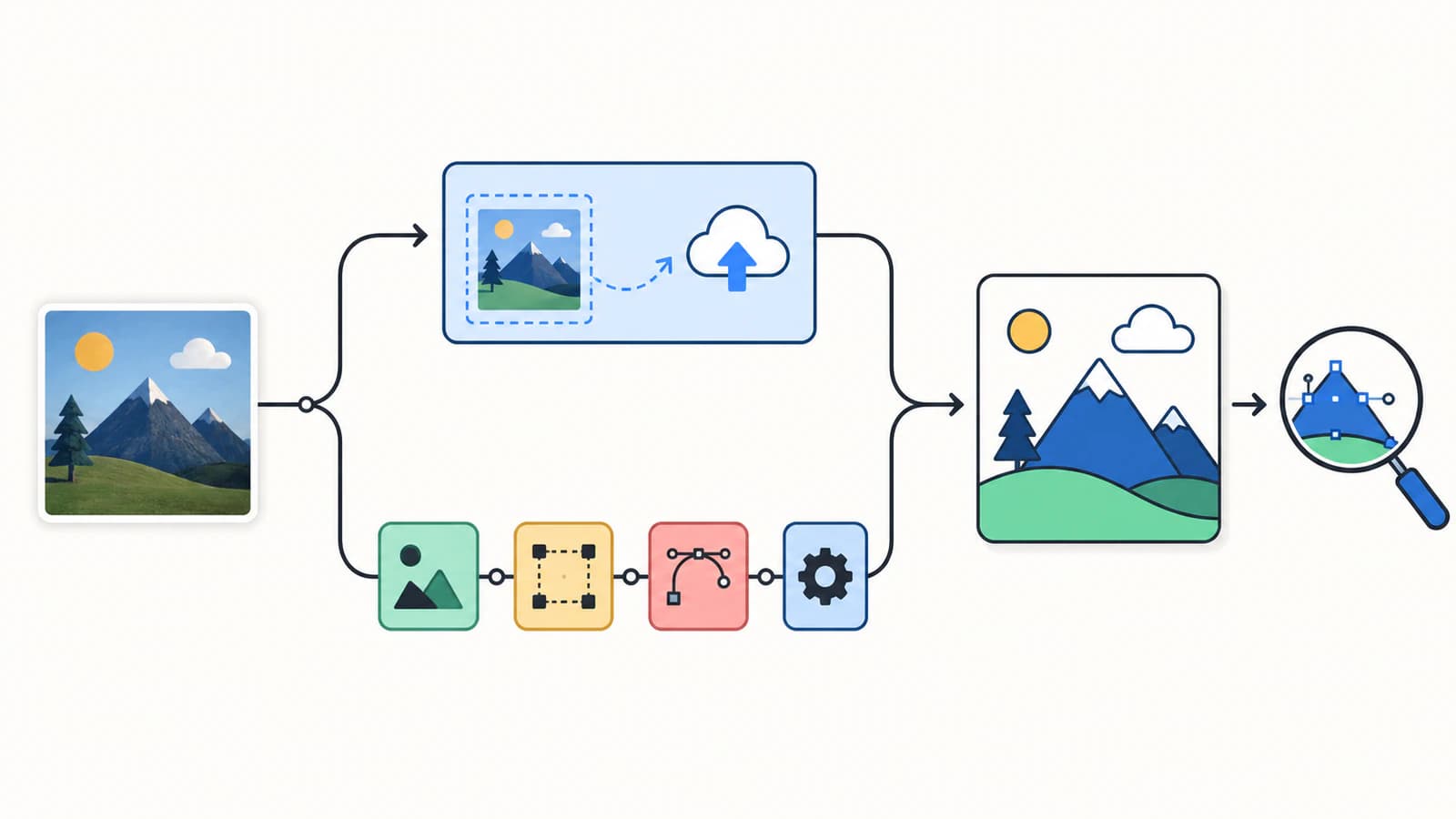
Yes. Picsart currently offers two documented ways to vectorize a raster image: a consumer-facing Quicktools PNG-to-SVG converter and an authenticated Image Vectorizer API for software integrations. Use Quicktools for a one-off file. Consider the API when a product or production system needs repeatable conversion at scale.
Neither route is the same as applying a “vector art” effect in a photo editor. A visual style can imitate flat shapes while the saved result remains pixels. Real vectorization creates geometry that can be inspected as paths, curves, and fills.
Choose the Picsart route by job
- One PNG, no integration: use the Quicktools PNG-to-SVG converter.
- Automated product workflow: evaluate the Picsart Enterprise Image Vectorizer API.
- Editing an SVG you already have: use a vector-capable editor; no raster conversion is needed.
- A photo that should remain photographic: keep a high-resolution raster instead of forcing it into flat paths.
Picsart has two different vectorization surfaces
The names are similar, but the workflows and audiences are not.
| Question | Picsart Quicktools | Picsart Image Vectorizer API |
|---|---|---|
| Who is it for? | Someone converting an individual file in a browser | A developer or business adding conversion to a product |
| Input shown in current documentation | PNG upload | Source file or image URL |
| Output | Downloaded SVG | API response and result workflow |
| Account or key | The page says no registration is required | Uses an API key and Picsart console |
| Setup | Select, convert, download | Authentication, request handling, billing, and operational monitoring |
| Best fit | Occasional manual use | Repeated or embedded automation |
The existence of the API does not mean the ordinary Picsart editor exposes the same control in every app or plan. Start from the documented surface for the job instead of looking for an API feature inside a consumer editing menu.
How to use Picsart Quicktools for one image
Picsart's live PNG-to-SVG Quicktools page documents a three-step flow:
- Drag a PNG into the page or choose it with Select Image.
- Let the tool convert the PNG to SVG automatically.
- Download the SVG.
The page currently describes the tool as free and available without registration. Availability, limits, and terms can change, so check the live page when you build a recurring workflow around it.
Prepare the source before uploading. Crop away unrelated space, remove a background that should not become a rectangle, and use the largest clean version of the artwork you have. A converter traces what is visible. JPEG blocks, shadows, anti-aliased edge colors, and paper texture can all become extra shapes.
After download, open the SVG in a vector editor. Do not stop at the filename. SVG is a container that can include paths, but it can also embed a raster image. Select the artwork, switch to an outline or wireframe view, and confirm that the important regions are editable geometry.
What the Picsart Image Vectorizer API does
The Picsart Enterprise Image Vectorizer page presents conversion as a service that can be added to another platform. Its documentation describes PNG-to-SVG output built from geometric curves and lines.
The current API reference identifies a POST endpoint at https://api.picsart.io/tools/1.0/vectorizer. It accepts a source file or an image URL and uses an X-Picsart-API-Key header. The two image-source parameters are alternatives, not values to send together.
The reference also exposes a downscale_to parameter with a default of 2048. That setting matters: if a small feature must survive, test the effective input dimensions and the generated path, not only the original upload. Do not copy a request example containing credentials into a client-side app or public repository. API keys belong in a protected server environment.
When the API is worth the extra work
An API becomes useful when conversion is a feature in a larger system, not an occasional task. Examples include a print storefront accepting customer logos, a digital-asset pipeline preparing uploaded graphics, or an internal queue that needs consistent requests and status handling.
Plan for more than the success case:
- validate file type and dimensions before sending the request;
- protect the API key on the server;
- handle authentication, payment, rate-limit, validation, overload, and service errors;
- record a privacy-safe job identifier rather than a customer's raw asset URL;
- set timeouts and a retry policy for temporary failures;
- preserve the original input beside the result for review;
- measure output quality on a representative test set.
The API reference lists several possible error responses. A production integration should decide which failures can be retried and which need a clear user correction. Do not silently turn a failed vectorization into a raster download with an .svg extension.
When a focused interactive converter is simpler
If your whole job is “upload this image, inspect the trace, and download an SVG,” an API can be unnecessary infrastructure. A focused browser converter keeps the work visible and manual.
PerfectVector fits that narrower path when you want to convert an image to vector paths, preview the reconstruction, inspect color regions, and download the result for another editor. It is not a replacement for Picsart's developer API when you need to embed conversion in your own product. It is an interactive workflow for a person evaluating one source at a time.
Use the same image to compare tools. Keep the dimensions and intended use fixed, then judge the geometry rather than the brand name or the smoothness of a filled preview.
How to inspect the SVG from either route
Open the result at the final delivery size and work through these checks:
Silhouette and corners
The outer contour should follow the source without false dents, clipped edges, or rounded corners that were meant to be sharp. Look at high zoom, then return to normal size.
Holes and negative space
Check letter counters, icon cutouts, and intentional gaps. A closed hole can change a logo even when the thumbnail looks close.
Color regions
A flat four-color source should not become dozens of nearly identical edge colors. Select and count the main objects. Merge or remove only regions you have verified against the source.
Nodes and fragments
Too many nodes can make editing awkward, but the smallest count is not automatically best. Preserve meaningful corners and curves. Delete dust-sized shapes and background fragments before simplifying the main paths.
Embedded raster content
An SVG that contains only an <image> element has not provided editable traced geometry. The pixelated-SVG diagnosis shows how to distinguish embedded pixels from paths.
Output-specific structure
Printing, web icons, animation, and cutting need different structures. A cutter may need closed contours and a deliberate outline. An animator may prefer separately named shapes. A logo handoff may need a small palette and outlined approved type.
Which images should you vectorize?
Automatic raster-to-vector conversion is strongest on flat art with clear boundaries:
- logos with a small number of colors;
- icons and badges;
- ink drawings and coloring-page line art;
- simple stickers and clip art;
- high-contrast scans with little texture.
Photographs, watercolor, soft gradients, hair, smoke, and heavily textured paintings are different. A vectorizer must approximate continuous tone with regions, so files can become large and the image can lose the quality that matters. Keep those images raster or simplify them deliberately before conversion.
If text must remain exact, locate the original font or redraw approved letterforms. An automatic trace sees text as shapes; it does not recover the font, kerning, or semantic text object.
FAQ
Can Picsart vectorize a PNG for free? Picsart's current Quicktools PNG-to-SVG page says the browser tool is free and does not require registration. Upload limits, availability, and terms can change, so check the live page before depending on it for repeated work.
Is the Picsart Image Vectorizer in the normal photo editor? The documented Image Vectorizer API is an enterprise developer product accessed through an API key and Picsart console. Quicktools is the documented consumer browser route. Do not assume that either appears as the same control in every Picsart app or plan.
Does converting PNG to SVG guarantee editable paths? No. Inspect the downloaded file in a vector editor. SVG can contain vector paths, embedded raster images, or both. Check object selection, outline view, node structure, and zoom behavior.
What is the difference between a vector effect and vectorization? A vector-style effect changes how an image looks and may still save pixels. Vectorization reconstructs visible regions as geometry such as paths, curves, and fills. The output structure, not the flat-art appearance, decides which one you have.
Should I use Picsart Quicktools, its API, or another vectorizer? Use Quicktools for a quick one-off PNG, evaluate the API for an authenticated automated workflow, and compare a focused converter when you want interactive preview and path inspection. Test the same source and keep the result that best preserves the intended geometry.
Sources
- Picsart Quicktools — Convert PNG to SVG — Current consumer upload, automatic-conversion, download, and registration claims.
- Picsart Enterprise — Image Vectorizer — First-party description of the API product and its raster-to-vector use cases.
- Picsart Enterprise API Documentation — Image Vectorizer — Current endpoint, authentication, source parameters, downscaling control, and error surface.
- W3C — Embedded Content in SVG — Specification support for raster image content inside an SVG container.
For a visible one-file workflow, convert the source with PerfectVector, inspect the paths and color regions, and keep the result only if it preserves the artwork better than the other SVG candidate you tested.
More from the blog

Can Kittl Vectorize an Image? Compare Its Two Tools
Kittl can vectorize an uploaded image and generate new vector art from a prompt. Learn which tool to use, the workflow, and how to inspect the SVG.

Adobe Capture Vectorize Image: Make an Editable Shape
Use Adobe Capture to vectorize an image on your phone, refine the captured shape, save it to a Creative Cloud Library, and inspect the editable result.